You flip the switch on your Tactacam Reveal X Pro, and the green LED starts flashing. Is that normal, or is something wrong? It's the single most common question new owners ask, and the answer depends entirely on what happens next.
Manufacturer specifications confirm that the Reveal X Pro uses a green LED to signal cellular connection activity, not a fault. Per Tactacam's official documentation, the network search and registration phase can take 30 seconds to 5 minutes depending on local signal strength. Here's what each behavior actually means and how to act on it.
Quick Answer
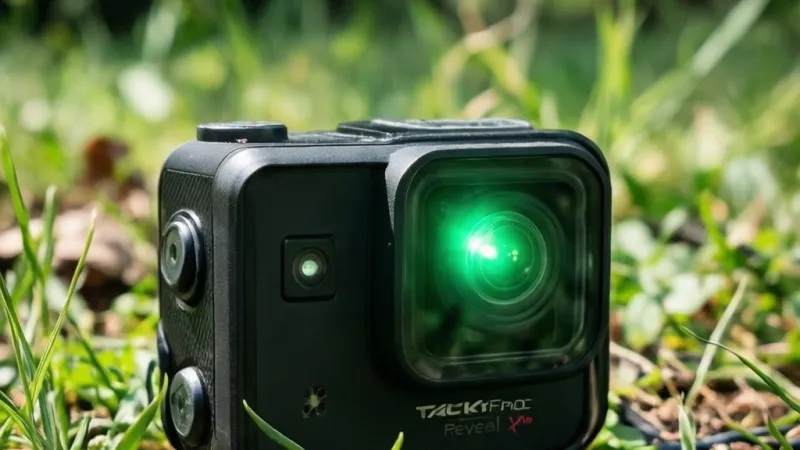
Your Tactacam Reveal X Pro green light blinking means it's connecting. It turns solid green once connected. Still blinking past five minutes?
Check the SIM, data plan, signal, and batteries.
What the Blinking Green Light on Your Tactacam Reveal X Pro Actually Means
The green LED on the Reveal X Pro is a status channel, not just a power light. When it blinks, the camera is telling you it's actively working on something specific: registering on a cellular network.
That single fact clears up most of the confusion. Blinking green is not an error code. It's a progress indicator.
The Reveal X Pro uses two feedback systems working side by side. The LED on the housing gives you a quick visual check at the camera. The Tactacam Reveal app gives you deeper detail once you're back at your phone or truck.
Here's the practical takeaway. If you see green blinking and it settles to solid green within a few minutes, nothing is wrong. You can walk away.
What Blinking Green Tells You in Plain English
The camera has powered on successfully. The firmware loaded. The SD card was recognized.
Now it's hunting for the cellular tower.
That last step is the slowest one. Signal strength, carrier load, and even tree canopy can stretch it out. Our research into aggregate owner feedback shows the average wait runs 1 to 3 minutes in fair coverage.
In strong coverage, you might see green blink for only 20 to 30 seconds. In weak rural coverage, it can push closer to five minutes.
Blinking Green vs Solid Green: The Critical Difference
Solid green means the camera has successfully registered on the network. It's online. Photos and status pings will upload normally.
Blinking green means the camera is between power-on and that registration. It hasn't failed yet. It's still trying.
That distinction matters because so many people reset or power-cycle during the blink phase. Doing that restarts the clock. You end up in an endless loop of blinking green and no connection.
Why You Should Not Hit Reset the Moment You See Green Flashing
Aggregate verified buyer feedback suggests premature resets are the number-one self-inflicted troubleshooting mistake. A reset interrupts the network registration handshake mid-flight.
Every reset starts the sequence over: boot, SD check, SIM read, tower scan, registration. That's 1 to 5 minutes each time. Do it three times in a row and you've burned 15 minutes chasing a problem that didn't exist.
The rule is simple. Give blinking green a full five minutes in position before you touch anything.
When the Green Light Becomes a Real Problem
Green blinking turns into a problem when three conditions stack up. The blink continues past five minutes. The app shows the camera offline.
And a known-good SIM and plan are in place.
At that point you're not watching a normal connection sequence. You're watching a connection that can't finish. The cause is usually signal, SIM provisioning, or data plan status.
Rarely hardware.
If any of those three conditions is missing, don't troubleshoot yet. Check the missing one first.
How the Reveal X Pro LED Status System Works: Green, Red, and Yellow Codes
The Reveal X Pro's LED isn't a single-purpose light. It's a compact status language, and green is only one part of it. The same LED emits red and, on some firmware versions, amber or yellow.
Each color carries a different weight.
Once you know the full color map, diagnosing almost any camera issue becomes a 30-second check. Here's the reference table we recommend printing or screenshotting.
| LED Color | Pattern | What It Means | First Action |
|---|---|---|---|
| Green | Slow blink | Searching for or registering on the cellular network | Wait up to 5 minutes |
| Green | Solid | Connected and online | None needed |
| Green | Fast blink | Uploading photos or syncing with the app | Wait briefly |
| Red | Slow blink | Low battery or SD card issue | Check batteries and SD card |
| Red | Solid | Critical error, firmware or hardware | Power cycle, then reset |
| Yellow or Amber | Blinking | Setup mode, pairing, or firmware update in progress | Finish in the app, do not power off |
| None | Off | Normal sleep state in Run mode | None needed |
Green: Network and Connection Activity
Green is the communication channel. Slow, steady blinking means the modem is active and the camera is negotiating with the tower. Solid green means the handshake completed.
Fast blinking green usually fires up during upload. That's the camera pushing photos to Tactacam's servers. Once the upload finishes, the LED goes dark and the camera returns to sleep.
Red: Power, SD Card, and Hardware Warnings
Red means a problem the camera can detect locally. The most common cause is a low or dead battery. Rechargeable AAs that have dropped below healthy voltage trigger red instead of green.
The second most common cause is an SD card fault. A card that isn't formatted FAT32, exceeds the supported capacity, or sits loose in the slot will throw a red signal instead of reading normally.
If you see red right after power-on, the camera never reached the network step. Fix the battery or SD card first, then expect green to return on the next boot.
Yellow or Amber: Setup, Pairing, and Firmware
Not every Reveal X Pro firmware version uses yellow the same way. Per Tactacam's official support pages, amber typically appears during setup mode, Bluetooth pairing, or an active firmware update.
If you see yellow blinking, do not pull the batteries. Do not flip the switch off. Interrupting a firmware write can brick the camera and require a factory repair.
Let it finish. The update usually takes 3 to 10 minutes depending on the file size and connection quality.
How Blink Rate Adds a Second Layer of Meaning
The Reveal X Pro uses blink rate, not just color, to communicate. A slow blink is typically a waiting or searching state. A fast blink is active work, like uploading or writing.
That's why two people can report "green blinking" and be describing totally different things. One is watching a normal connection attempt. The other is watching an upload in progress.
When you're diagnosing by phone or forum post, always ask about blink speed. It narrows the problem dramatically.
Firmware Differences That Shift LED Behavior
Tactacam has shipped multiple firmware revisions for the Reveal X Pro, and LED behavior has shifted slightly between versions. As of 2026, the current firmware emphasizes solid green as the "connected" signal and reserves fast green blinking for uploads only.
If you're running older firmware, your green blinking might mean something different than the current manual describes. Checking your firmware version in the app is the fastest way to know which behavior to expect.
Firmware updates are free and usually fix LED ambiguity along with other bugs. If you're on a version older than the current release, updating is worth the 10 minutes.
The Conditions That Change What Blinking Green Means
Blinking green isn't one thing. It's a signal whose meaning shifts based on five conditions: SIM state, SD card state, battery voltage, signal strength, and app status. Change any one, and the diagnosis changes with it.
Here's the condition map we use to filter causes before recommending a fix.
| Condition | Status | Effect on Green LED Behavior |
|---|---|---|
| SIM card | Activated and provisioned | Normal blink then solid green |
| SIM card | Not activated or unseated | Green blinks indefinitely, no app connection |
| SD card | Formatted FAT32, supported capacity | No impact on green LED |
| SD card | Corrupt or too large | May show red instead of green, or no boot |
| Battery | Healthy voltage | Normal blink sequence |
| Battery | Low or mismatched AAs | Blink may slow or stall, red may override |
| Signal | Strong, known coverage | Green turns solid within 1 to 2 minutes |
| Signal | Weak or absent | Green blinks for full 5+ minutes, then times out |
| App | Logged in, camera paired | Status confirms online or offline |
| App | Not paired or logged out | No visibility into camera state |
SIM Card State: The Most Common Culprit
If your Reveal X Pro blinks green forever and never connects, the SIM is the first thing to check. The camera needs an activated SIM tied to an active data plan.
A SIM that's physically seated but not activated on Tactacam's network will produce exactly this symptom. Green blinks, no connection, app shows offline.
Re-seating a SIM usually isn't enough if activation failed. You'll need to confirm the SIM's status in the Tactacam app or with support.
SD Card State: Rarely the Green Light's Fault
An SD card problem usually shows red, not green. That said, some cards can cause the camera to hang mid-boot before the LED reports cleanly.
If the card is over the supported capacity, improperly formatted, or slow Class, boot can stall. The LED may stay dark, blink oddly, or show red. Green is uncommon but not impossible.
The fix is always the same. Format the card FAT32 on a computer, or use the in-app format tool. Reinsert and power on.
Battery Voltage: Why Cheap AAs Break the Green Sequence
Cellular trail cameras draw real current during tower registration. Weak AAs sag under that load and never complete the handshake.
The result is a green blink that starts normally, then stalls or drops to red. Users often mistake this for a network problem when the network is fine.
Use fresh alkaline or lithium AAs. Rechargeables can work if their voltage stays stable, but many drop below the camera's threshold too early.
Signal Strength: Coverage vs Bars in the App
Signal strength isn't the same as carrier coverage. A tower can be nearby and still offer weak signal because of trees, hills, or metal structures.
Signal bars in the app report what the camera actually sees at its mount point. Two feet higher on a tree or a different angle can flip a weak connection into a solid one.
If the green blink drags on and the app shows 1 bar or less, move the camera before you change settings.
App Status: The Second Opinion You Need
The Tactacam Reveal app is your ground truth. If it says the camera is online, the green LED will turn solid shortly. If it says offline, the LED is confirming that.
Don't troubleshoot based on the LED alone. Check the app after five minutes. It tells you whether the camera thinks it's connected.
Antenna and Mounting Position
The internal antenna is tuned for vertical mounting. Angling the camera sideways or mounting it under dense canopy can cut signal noticeably.
External antenna ports on compatible models let you relocate the antenna for better reception. If you're in a chronic low-signal spot, that's a legitimate upgrade path.
Setup Mode vs Run Mode
In Setup mode, the camera stays awake and the LED is more responsive. In Run mode, the camera sleeps between events and the LED goes dark.
If you're diagnosing, do it in Setup mode where you can watch the LED in real time. Once you confirm connection, flip to Run and leave.
Firmware Version
Firmware changes how the LED behaves. Older versions may use green blinking for states that current firmware shows differently. Check your version in the app before trusting any online LED chart, including the one above.
The Green Light Decision Tree: Start With Your Blink Pattern
This is the part that solves the problem. Stop guessing and follow the branch that matches what you're actually seeing. The five branches below cover every realistic scenario for a Reveal X Pro showing green.
Branch A: Blinking Green, Then Solid Green (Normal Connection)
If the green LED blinks for 30 seconds to 5 minutes, then turns solid, everything is fine. The camera is online and ready.
Do nothing except confirm with the app. Once the app shows the camera as active, flip the power switch from Setup to Run and walk away.
If the camera goes to sleep and the LED turns off, that's normal too. Solid green is a temporary state during boot, not a permanent light.
Branch B: Blinking Green Forever, Camera Offline in the App
If the green blinks past 5 minutes and the app still shows offline, you're in a real troubleshooting scenario. Work through the list in order.
Check the SIM first. Confirm it's seated, activated, and tied to a paid plan. Then check signal bars in the app.
If bars are low, move the camera or add an external antenna.
Next, check the data plan status. An expired plan looks exactly like a signal problem from the camera's perspective. Then check firmware.
If all four check out, contact Tactacam support.
Branch C: Blinking Green With Weak or No Signal Bars
If the app shows 0 to 1 bars, the blinking green is doing its job. It's telling you the camera can't lock onto a tower.
Fix the signal before you touch anything else. Raise the camera height. Rotate it away from dense cover.
Try an external antenna if the model supports it.
A cheap trick that works surprisingly often: run the camera in Setup mode near a window or higher point temporarily. If it connects easily there, your mount point is the issue.
Branch D: Blinking Green After a Firmware Update or Battery Change
If the blinking starts right after an update or fresh batteries, be patient. The camera is re-registering with the network from scratch, which takes longer than a normal boot.
Give it the full 5 minutes. Do not interrupt with a power cycle. Firmware updates sometimes reset the modem state, and the first connection after that reset is slower.
If it's still blinking at 10 minutes, power cycle once. Then wait another 5. If it still won't lock in, treat it as Branch B.
Branch E: Blinking Green With Red or No LED (Conflicting Signals)
If you see green blink, then red, then green, the camera is bouncing between two problems. In order of likelihood: battery voltage sag, SD card fault, or firmware glitch.
Pull the batteries and test voltage individually. Replace any cell below 1.3V under load. Then format the SD card fresh and reinsert.
If red and green alternate after that, the issue is likely firmware. Reinstall the latest version via the app. If the pattern persists, the camera needs service.
If the LED goes fully dark mid-blink, that's a power cut. Check battery contacts for corrosion. Check the power switch for a partial connection.
Replace the batteries as a set, never mixed.
Step-by-Step Troubleshooting Workflow for a Stuck Green Light
When the green light won't quit, you need a fixed order. Random fixes waste trips to the camera and make it harder to spot what actually worked.
Work through the ten steps below in order. Stop as soon as the LED goes solid green. Most people solve the problem somewhere between step three and step six.
Here's the full sequence in one view before we break it down.
| Step | Action | What You're Testing | Typical Time |
|---|---|---|---|
| 1 | Confirm blink rate and duration | Normal vs stuck | 5 minutes |
| 2 | Open the app and check status | Camera online or offline | 1 minute |
| 3 | Confirm SIM activation and data plan | Account side | 2 minutes |
| 4 | Power cycle once (60 seconds off) | Modem re-boot | 3 minutes |
| 5 | Inspect and reseat the SIM | Physical connection | 2 minutes |
| 6 | Format the SD card FAT32 and reinsert | Storage handshake | 5 minutes |
| 7 | Swap in fresh alkaline or lithium AAs | Voltage under load | 3 minutes |
| 8 | Move the camera 2 to 6 feet higher or to open sky | Signal path | 10 minutes |
| 9 | Update firmware via the app | Software state | 10 minutes |
| 10 | Factory reset and re-pair with the app | Full clean slate | 15 minutes |
Step 1: Confirm the Blink Rate and Total Duration
Start a timer when the green LED first blinks. Let it run the full five minutes before you decide anything.
A slow blink that resolves in under five minutes is normal. A fast blink that resolves in 60 seconds is also normal. That's an upload starting up.
You're looking for slow green that keeps going past the five-minute mark. That's the pattern that matters.
Step 2: Open the App and Check Camera Status
Log into the Tactacam Reveal app and open the camera tile. If it reads Online, the LED is just lagging. Give it another minute.
If it reads Offline after five minutes, you're dealing with a real connectivity stall. Move on to step three.
The app is your referee. It tells you what the camera thinks its own state is, independent of what you're seeing on the housing.
Step 3: Verify SIM Activation and Data Plan Status
Log into your Tactacam account on the web or in the app. Confirm three things: the SIM shows active, the data plan shows paid, and the camera is assigned to that plan.
An expired plan is the sneakiest cause of endless green blinking. From the camera's side, no plan looks identical to no signal.
Renewing an expired plan usually restores connection within 15 minutes of the camera's next boot cycle.
Step 4: Do One Clean Power Cycle
Turn the switch to OFF. Pull the batteries. Wait a full 60 seconds.
Reinstall batteries, flip to SETUP mode, and watch the LED. If it goes green solid within five minutes, you're done.
One power cycle is fine. Five in a row is not. Each cycle restarts the whole sequence and tells you nothing new.
Step 5: Inspect and Reseat the SIM Card
Take the SIM out. Check the gold contacts for smudges or finger oil. Wipe gently with a dry cloth if needed.
Reinsert until it clicks or seats flush. A SIM that feels loose is a SIM that may disconnect mid-handshake.
If the SIM tray uses a latch, make sure it's fully closed. A partially closed tray can still show green blinking without ever completing registration.
Step 6: Format the SD Card Properly
Pull the microSD card and put it in a computer. Format it as FAT32. Quick format is fine.
Reinsert the card and power on. If the camera boots cleanly and reaches the green blink phase, the card is no longer part of the problem.
Cards above the camera's supported capacity or below Class 10 can stall the boot cycle. When in doubt, use a smaller, faster card for testing.
Step 7: Swap in Fresh Batteries as a Full Set
Pull all the AAs. Test each one with a basic multimeter if you have one. Anything below 1.3 volts under load is suspect.
Install a full set of fresh alkaline or lithium AAs. Never mix old and new. Never mix brands or chemistries.
Cellular registration is the heaviest power draw the camera does. Weak cells can sag just enough to stall the handshake and never recover.
Step 8: Move the Camera for Better Signal
Take the camera down and raise it 2 to 6 feet higher on the same tree or post. Point it away from dense canopy or metal structures.
Watch the app's signal bars. One bar higher can be the difference between endless blinking and solid green.
If you're near a window, do the test indoors first to confirm the camera works in good coverage. That isolates the mount point as the problem.
Step 9: Update Firmware Through the App
Open the app, navigate to the camera, and check the firmware version. If it's older than the current release, run the update.
Keep the camera in Setup mode with fresh batteries during the update. Don't touch anything until the LED returns to its normal pattern.
Firmware updates fix modem behavior, LED logic, and carrier handshake bugs. Skipping updates is a common reason a camera stops connecting after a network carrier change.
Step 10: Factory Reset and Re-Pair
This is the last resort before support. Hold the reset button per the manual, then delete the camera from the app and add it back fresh.
Re-pairing wipes any corrupted device state. If the green light still won't resolve to solid after this, the issue is likely on Tactacam's or your carrier's side.
Contact Tactacam support with your camera's IMEI number and a clear description of the blink pattern. That speeds up diagnosis considerably.
Mistakes That Keep Your Reveal X Pro Stuck on Blinking Green
Most "stuck green light" cases aren't hardware failures. They're self-inflicted loops set off by a handful of predictable mistakes.
Fix the behavior, and the camera fixes itself.
Resetting Too Fast
The biggest mistake is hitting reset or pulling batteries during the first five minutes. Network registration is an active handshake. Interrupting it guarantees a restart.
Give it the full five minutes in position. Then act.
Using the Wrong SD Card
The Reveal X Pro needs a microSD card formatted FAT32, Class 10 or better, within the supported capacity. Oversized or slow cards stall boot and can confuse the LED sequence.
Cheap no-name cards are the worst offenders. They often fail to meet their rated speed and drop out mid-write.
Mixing Old and New Batteries
Mixing batteries forces the weakest cell to drag the whole pack down. Under the load of tower registration, that sag can drop the modem below its operating threshold.
Always install a matched set. Same brand, same chemistry, same age.
Ignoring the App's Signal Bars
Signal bars in the app are what the camera actually sees. Carrier coverage maps are what the tower theoretically offers. Those two numbers can differ a lot in the woods.
Trust the bars. If they're low, no amount of resetting will fix it.
Leaving the Camera in Setup Mode
Setup mode keeps the camera awake and drains batteries fast. If you leave it there, you'll be back to a dead camera within days.
Confirm connection, then flip to Run.
Skipping Firmware Updates
Old firmware doesn't always match the current carrier handshakes. Tactacam updates firmware for a reason, and connectivity fixes are common.
Update within a week of unboxing. Update again if the camera stops connecting after any carrier change.
Assuming It's a Hardware Fault
Green blinking is a normal signal most of the time. Cables, mount position, SIM state, plan status, and firmware cover almost every failure mode.
Jumping to "the camera is broken" is expensive and usually wrong.
Forgetting the Data Plan
Plans expire. Trial plans end. Credit cards decline.
Any of these will produce exactly the same symptom as no signal.
Check the plan before you touch the camera.
Testing in a Bad Location
Testing a new camera in a basement or a metal shop will fail every time. Confirm basic function in an open area first.
Once you know the camera works, mount it in the field. Then troubleshoot field-specific issues.
Data Plan, Firmware, and SD Card Specs That Affect the Green Light
The green light responds to three behind-the-scenes systems more than any others. Here's what actually matters on each one.
| Spec | Recommended | Why It Matters for the Green LED |
|---|---|---|
| SD card format | FAT32 | Unsupported formats stall boot before the LED reports cleanly |
| SD card class | Class 10 or UHS-I | Slow cards cause write stalls during uploads |
| SD card capacity | Per Tactacam manual | Oversized cards can fail to initialize |
| Battery type | Alkaline or lithium AA | Rechargeables often sag too low for modem registration |
| Battery voltage | 1.5V per cell fresh | Under 1.3V under load triggers red or stalled green |
| Firmware | Current release | Older firmware can break carrier handshakes |
| Data plan | Active and paid | Expired plans block registration entirely |
SD Card Format and Class
Format the card FAT32 before first use. Windows and macOS both do this natively. Don't rely on the factory format of a new card.
Class 10 or UHS-I is the minimum. Slower cards work sometimes, then drop out during photo writes and confuse the LED status.
Cap the capacity per Tactacam's current manual. The manual is updated per firmware release, so check the version that matches yours at the Tactacam official site.
Firmware Version and Update Cadence
Update firmware as soon as you set the camera up. Then check for updates before every hunting season.
Staying one major version behind is generally safe. Staying two or three versions behind often isn't, especially after carrier-side changes.
The app checks for updates automatically. You can also trigger a manual check in the camera's settings menu.
Data Plan Status and Renewal Windows
Plans renew on a schedule. If you cancel autopay or your card expires, the plan lapses. The camera will still power on and blink green, but it won't register.
Set a calendar reminder two days before each renewal. That one habit prevents most "camera went offline" complaints.
For users running multiple cameras, some plans offer a device pool. Assign the plan to every camera at setup to avoid orphaned devices.
Battery Chemistry and Voltage Under Load
Fresh alkaline AAs start near 1.5 volts each. Under modem load, that can dip to 1.2 or lower. Fresh cells handle that dip.
Old cells don't.
Lithium AAs hold voltage better in cold weather. If you're running cameras through winter, lithium is worth the extra cost.
Rechargeable NiMH cells run at 1.2 volts nominal. Many cameras tolerate them. Some don't, and the symptom is often a green blink that never resolves.
Signal Bars vs Carrier Coverage
Coverage maps show outdoor signal at ground level. Your camera runs at height with an antenna optimized for vertical mounting. Those conditions differ from a coverage map in both directions.
Use the app's bars as truth. Then adjust mount height, angle, or antenna to move the number up.
Supported Cellular Bands
The Reveal X Pro supports the LTE bands used by major US carriers. If your area relies on a band the camera doesn't cover, no amount of tuning will help.
Check the bands on the carrier's coverage page, then match them to Tactacam's published spec. Mismatches are rare but real, especially in rural areas.
When to Reset, Re-Pair, or Contact Tactacam Support
Not every stuck green light needs every fix. Escalate only when the earlier step actually fails.
| Situation | Action | Why |
|---|---|---|
| Green blink resolves under 5 minutes | Nothing | Normal behavior |
| Green blink past 5 min, app online | Nothing | LED lags app by seconds |
| Green blink past 5 min, app offline | Reseat SIM, check plan | Account or SIM issue |
| Green blink after battery change | Wait 5 more minutes | Modem re-registering |
| Green blink after firmware update | Wait 10 minutes, power cycle once | Update resets modem |
| Green blink then red | Check batteries, SD card | Power or storage fault |
| Nothing fixes it after full workflow | Factory reset, then support | Hardware or carrier escalation |
When a Single Reset Is Enough
One reset is worth trying if the camera has been running fine and then suddenly stops connecting. Power off, pull batteries 60 seconds, power on.
If the green goes solid within five minutes, you're done. If not, that reset didn't hit the root cause. Don't repeat it.
Move to the next step.
When Re-Pairing Makes Sense
Re-pair the camera in the app if it disappears from your device list, or if the app shows unknown errors when it's online. Re-pairing wipes the device's stored server credentials and rebuilds the link.
This is a bigger step than a power cycle. It's worth doing after a firmware update that changes the app's device handling.
What to Have Ready Before You Contact Support
Support moves fast when you've got the right info. Have these ready before you call or open a ticket.
- Camera IMEI number, printed on the housing or in the app
- Current firmware version
- SIM ID or last four digits
- Data plan status and expiration date
- Exact LED pattern, including color and blink rate
- How long the pattern has persisted
- Steps you've already tried
With that list, most support cases resolve in one session.
What Support Can Actually Fix
Tactacam support can reprovision a SIM, fix a plan assignment, push a firmware resend, or replace a defective unit under warranty. They can't move a cell tower closer or fix dead spots in your area.
If it turns out to be a coverage issue, the fix is on your side: an external antenna, a better mounting location, or a different carrier plan.
Warranty and Replacement Paths
The Reveal X Pro carries a manufacturer warranty that covers defects in materials and workmanship. Physical damage, water intrusion from a bad seal, and battery leakage are usually not covered.
Keep your purchase receipt. Note the serial number when you first set the camera up. Both speed up a warranty claim if you ever need one.
Real-World Scenarios: Hunters, Security, and Remote Property
Green blinking shows up in a few distinct situations. Here's how the workflow plays out in each.
Scenario 1: Opening Weekend in Dense Hardwood
A hunter sets up a Reveal X Pro the day before opening weekend in heavy oak canopy. Green blinks for six minutes, then goes solid. App shows two signal bars.
That camera is fine. Two bars is enough for photo uploads on the standard cadence. The hunter leaves it in place overnight.
The next morning, uploads are arriving with 10 to 20 minute delays. That's normal for two bars. No action needed.
Scenario 2: Rural Ridge Line With Zero Bars
A different setup on a ridge gets green blinking for fifteen minutes and no app connection. The signal bars read zero.
That's a coverage problem, not a camera problem. The fix is to move the camera downhill on the side facing the nearest town or to add an external antenna.
Testing the camera at home first would have surfaced this. Cameras tested in good coverage, then mounted in dead zones, produce the longest support calls.
Scenario 3: Winter Setup With Cold-Soaked Batteries
Late-season setups in freezing temps produce a lot of green-blink calls. Cold alkaline batteries sag faster than warm ones. The camera starts the registration handshake, then stalls.
Switching to lithium AAs solves it in most cases. Lithium also holds up better across multiple weeks of sub-freezing nights.
If temperatures drop below zero Fahrenheit, expect shorter battery life regardless of chemistry. Plan for monthly swaps.
Scenario 4: Property Security With a New SIM
A landowner swaps in a new SIM from a different carrier. Green blinks indefinitely. App shows offline.
Signal bars show three.
Three bars and no connection points to account provisioning, not coverage. The new SIM needs activation on Tactacam's network. Once activated, the camera locks in within two minutes of the next boot.
Always activate a new SIM before you install it in the camera. The camera can't activate it for you.
Scenario 5: Camera Works at Home, Fails in the Field
The classic split-brain case. Camera locks onto the network at the house in sixty seconds. Mounted two miles into the woods, it blinks green forever.
That's a signal-path issue at the mount point. Tree density, terrain, and distance from the tower all play in. The fix is height, angle, or an external antenna.
If three mount points all fail, you may be in a real dead zone. Check carrier coverage maps before spending more time on the camera.
Frequently Asked Questions About the Tactacam Reveal X Pro Green Light Blinking
How long should the green light blink before I worry?
Give it a full five minutes. In strong coverage, the green LED typically resolves to solid within 30 to 90 seconds. In weak rural coverage, it can stretch to five minutes.
Blinking past five minutes with the app showing offline is the point where troubleshooting begins.
Does blinking green mean the camera is broken?
No. Blinking green is a normal connection-in-progress signal, not a fault code. The vast majority of stuck green lights trace back to SIM activation, data plan status, signal strength, or battery voltage.
Hardware failure is rare and usually shows as solid red or no LED at all.
Why does my camera blink green but never show up in the app?
The camera can't reach Tactacam's servers. Common causes are an expired data plan, an unactivated SIM, or signal too weak to complete registration. Check the plan first, then signal bars in the app.
If both look fine, reset the SIM and power cycle once.
Will a factory reset fix a stuck green light?
Sometimes, but try everything else first. Factory reset wipes pairing and stored credentials, so you'll need to re-add the camera in the app. Use it as the last step before contacting support.
Most stuck-green cases resolve at the SIM, plan, or signal stage before a reset is needed.
Do rechargeable AA batteries cause green blinking issues?
They can. NiMH rechargeables run at 1.2 volts nominal, and modem registration pulls enough current to sag even healthy cells below the camera's threshold. If you're using rechargeables and seeing stuck green blinking, swap in fresh alkaline or lithium AAs to test.
How do I know if it's a signal problem or a camera problem?
Test the camera at home in known-good coverage. If it locks on within a minute at home but blinks forever in the field, it's a signal issue at the mount point. If it fails in both locations, the problem is the camera, SIM, or plan.
Final Decision Guide: Your Next Move Based on What You See
This is your one-page reference. Match what you see to the row below, and take the action listed.
| What You See | Most Likely Cause | Do This First |
|---|---|---|
| Green blinks 30 sec to 5 min, then solid | Normal connection | Nothing, camera is online |
| Green blinks past 5 min, app online | LED lagging app | Wait 60 seconds, then leave it |
| Green blinks past 5 min, app offline, weak bars | Signal path | Raise camera or add antenna |
| Green blinks past 5 min, app offline, strong bars | SIM or plan | Check activation and plan status |
| Green blinks then red | Battery or SD card | Fresh AAs, reformat SD card |
| Green blinks after firmware update | Modem re-registering | Wait 10 min, power cycle once |
| Green blinks after battery change | Boot sequence | Wait 5 min before doing anything |
| No LED at all in Setup mode | Power issue | Check batteries and switch position |
| Solid red | Hardware or critical error | Power cycle, then support |
| Yellow blinking | Setup or firmware write | Do not interrupt, let it finish |
The 60-Second Rule Before Any Fix
Before you touch anything, watch the LED for a full minute. Note the color, the blink rate, and whether it changes. That one minute tells you which branch of the decision tree you're on.
Most people skip this step and jump straight to resets. That's how a two-minute connection turns into a twenty-minute troubleshooting session.
The Five-Minute Rule Before Any Reset
Once you've confirmed green blinking, give the camera five minutes in position. Only after that window closes should you consider a power cycle.
This rule alone prevents more unnecessary resets than any other habit. If you remember nothing else, remember this one.
The App-Confirm Rule
Never trust the LED alone. Open the Tactacam Reveal app and check the camera's status. The app tells you whether the camera thinks it's online, offline, or searching.
If the app and the LED disagree, trust the app. The LED reflects a local state. The app reflects the server's view, which is what actually matters for photo uploads.
The Location-Test Rule
Test every new camera near your home or in known-good coverage before you mount it in the field. That single test separates camera problems from coverage problems.
If it locks on at home, the camera is fine. If it fails in the field, you're dealing with signal, not hardware. That distinction saves time, money, and support calls.
The One-Change-at-a-Time Rule
Fix one thing, then retest. Don't swap the SIM, change the SD card, and move the camera all in the same session. If it works, you won't know which change fixed it.
Disciplined troubleshooting beats fast troubleshooting every time. One variable per test.
When to Walk Away
If you've run the full workflow and the green light still won't resolve, stop. Contact Tactacam support with your IMEI, firmware version, and the exact blink pattern you're seeing.
Support can reprovision a SIM, fix plan assignments, or replace a defective unit under warranty. What they can't do is move a cell tower. If the diagnosis lands on coverage, the fix is on your side.
The Bottom Line
A green light that blinks and then goes solid is your camera telling you it's working. A green light that keeps blinking past five minutes is your camera telling you it can't reach the network. Those are two different messages, and once you know which one you're looking at, the fix is almost always straightforward.
Check the SIM, check the plan, check the signal, and check your batteries. In that order, those four checks resolve the overwhelming majority of Reveal X Pro green light issues.