A Verizon router blinking red is a common sight after a storm, a power cut, or a billing hiccup. The light says the router lost its connection to Verizon's network. It doesn't say why.
That's the part you have to work out, and it's usually simpler than it looks.
Verizon ships at least seven router models across Fios, 5G Home, and LTE Home service, and each one uses its own light codes. The G3100 uses a front light ring, while the CR1000A Internet Gateway uses a small status LED. Per Verizon's published documentation, red almost always means no WAN connection, not dead hardware.
Here's how to work out which situation you're actually in.
Quick Answer
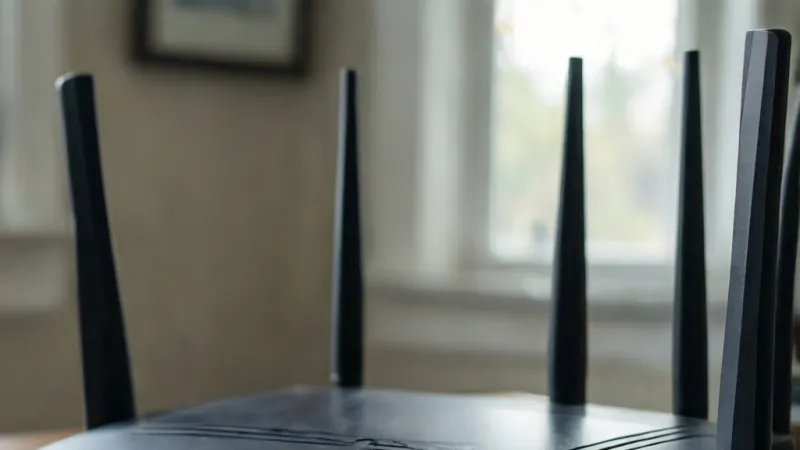
A Verizon router blinking red means no internet from Verizon. Your Wi-Fi is probably fine. The router lost its WAN connection.
Check the ONT lights first. Then check the My Verizon app for outages. Reboot the router last.
What a Blinking Red Light on Your Verizon Router Actually Means
Red means one thing at the core: the router cannot reach Verizon's network. That's it. It doesn't mean the router is broken, and it doesn't mean your Wi-Fi is down.
Your devices may still see the network name and even connect to it.
The router has two jobs. It talks to Verizon over the WAN, which stands for wide area network. It also talks to your laptop, phone, and TV over your home network.
When the WAN side fails, the router flags it with a red light while the local side keeps running.
That's why your phone can show full Wi-Fi bars and still load nothing. The signal is there. The pipe behind it isn't.
Solid Red vs Blinking Red: The Difference Matters
A solid red light usually means the router tried to connect and gave up. It's sitting in a failed state, waiting for you to fix something upstream.
A blinking red light usually means the router is still trying, or it's stuck in a boot or update cycle. Some models blink red during firmware recovery. Others blink when they detect a cable but can't authenticate with Verizon's network.
The exact meaning changes by model. Verizon does not publish a universal blink-count chart, so counting blinks and matching them to a manual is the only reliable method. Treat anyone who claims "three blinks always means X" with suspicion.
Why the Router Is Usually Not the Problem
In our review of Verizon support threads and community reports, the router itself is the culprit in a minority of cases. The usual suspects sit outside the plastic box.
- A coax or Ethernet WAN cable worked loose
- The ONT lost its fiber signal
- A Verizon outage hit your area
- Your account is on a billing hold
- A power event scrambled the router's boot state
Notice the pattern. Four of those five have nothing to do with the router hardware. Replacing it would waste a week and fix nothing.
What Red Means on Other Verizon Equipment
Red doesn't mean the same thing on every Verizon device. This trips people up constantly, because the ONT and the router both sit in the same closet.
| Device | Red light meaning | What to check |
|---|---|---|
| Verizon router (Fios) | No WAN connection | Cables, ONT, account status |
| Verizon 5G Home router | No 5G signal at address | Placement, signal strength, account |
| Verizon LTE Home router | No LTE signal | Placement, SIM card, account |
| ONT (FAIL or LOS light) | Fiber signal lost | Fiber cable, Verizon line status |
| Power adapter LED | Faulty adapter | Outlet, adapter, replacement |
The ONT row is the big one. A red FAIL or LOS light on the Optical Network Terminal means the fiber line itself is dark. No amount of router rebooting will touch that.
For context on how Verizon's equipment is certified and tested for home use, the FCC publishes equipment authorization records for every consumer router sold in the US, including Verizon's gateways.
First Move: Identify Your Router Model and Read the Exact Light Pattern
Before you touch a single cable, find out what you're actually looking at. Model determines everything. The G1100, G3100, CR1000A, CR1000B, ASK-NCQ1338, and LVSKIHP all handle red lights differently.
How to Find Your Verizon Router Model Number
Look on the bottom or back of the router. There's a label with the model number, serial number, and MAC address. On the G3100 and CR1000A, that label is usually on the underside.
If the router is wall-mounted or hard to reach, open the My Verizon app. Your equipment list shows the exact model Verizon has on file for your account. That's often faster than crawling behind the TV stand.
Write the model number down. You'll need it for the rest of this process.
Where the Status Light Lives on Each Model
The light's location tells you which system it's reporting on. That sounds obvious, but people mix up the router light and the ONT light all the time.
| Model | Light location | Notes |
|---|---|---|
| G1100 (Fios Quantum Gateway) | Front panel LEDs | Separate power, internet, Wi-Fi lights |
| G3100 (Fios Home Router) | Front vertical light ring | Single ring, color changes by state |
| CR1000A / CR1000B (Internet Gateway) | Front status LED | Compact indicator, Wi-Fi 6E hardware |
| ASK-NCQ1338 (5G Home Router) | Front curved light strip | Color reflects 5G signal state |
| LVSKIHP (LTE Home Router) | Front indicator panel | Tied to LTE signal, not fiber |
| ONT | Inside the box, behind a door | FAIL and LOS lights are the key ones |
If the light you're staring at sits on a box with a fiber cable going into it, that's the ONT. Different problem, different fix.
Reading Blink Patterns Without Guessing
Verizon doesn't publish a universal blink decoder, but the general logic holds across models. Here's how to read it.
- Fast blink, red: the router is actively retrying a failed connection
- Slow blink, red: boot or firmware cycle, or a persistent connection fault
- Solid red: connection attempt failed and stopped
- Red then white, repeating: the router is cycling, often after a power event
- Red only during boot, then white: normal startup, no action needed
If the light never leaves red after five full minutes, it's not a boot cycle. Something upstream is blocking the connection.
Give It Five Minutes Before You Do Anything
Boot time matters. Per Verizon's setup documentation, most Fios routers need two to five minutes to fully initialize after power-up. The CR1000A can take a little longer after a firmware update.
During that window, a red or amber light is normal. Watching it and panicking is how people end up factory resetting a perfectly healthy router.
Set a timer. Five minutes. If it's still red after that, move to the next step.
The 60-Second Triage: Router, ONT, or Verizon Outage?
You can narrow this down in under a minute with three checks. Do them in order. Each one eliminates a whole category of causes.
Check One: Is Verizon Having an Outage?
Open the My Verizon app or log into your account. Look for a service status banner. Verizon posts known outages and maintenance windows there.
You can also check your account billing status in the same place. A past-due balance can trigger a service suspension, and a suspended line looks identical to an outage from the router's point of view.
If Verizon confirms an outage, stop here. Nothing you do to the router will help. Wait it out.
Check Two: What Are the ONT Lights Doing?
Go find the ONT. It's usually a gray or black box mounted near where the fiber enters your home, often in a garage, closet, or utility room.
Open the door or panel and look at the lights.
- Power light on, others green: ONT is fine, problem is downstream
- FAIL or LOS light red: fiber signal is gone, this is a Verizon line issue
- No lights at all: ONT has no power, check its outlet and power supply
- Blinking green on DATA: ONT is working, traffic is moving
A red FAIL or LOS light is your answer. The router is fine. Call Verizon about the fiber line.
Check Three: Are the Router Cables Seated?
This is the boring one that fixes a surprising number of cases. Push every cable firmly into its port.
- Coax cable from the wall or ONT to the router's coax port
- Ethernet WAN cable if your setup uses Ethernet instead of coax
- Power adapter barrel connector into the router
- Power adapter into the wall outlet
Unplug each one, look at the connector for bent pins or corrosion, and push it back until it clicks. Loose coax connections are one of the most common causes of a red WAN light on Fios routers.
The 60-Second Decision Table
| What you found | What it means | Next move |
|---|---|---|
| Verizon confirms outage | Network-side problem | Wait, monitor the app |
| ONT shows red FAIL or LOS | Fiber line down | Call Verizon, do not touch the router |
| ONT lights all green | ONT is healthy | Focus on the router |
| Cable was loose | Physical connection fault | Reseat and wait 5 minutes |
| Account suspended | Billing hold | Pay balance or contact billing |
| Everything checks out | Router or config issue | Power cycle, then escalate |
Work down the table until one row matches. That row is your branch.
If Nothing Matches, You're in the Router Branch
Sometimes all three checks come back clean. The ONT is green, the cables are tight, and Verizon shows no outage. That points at the router itself or its configuration.
That's where the model-specific sections below come in. Fios routers and 5G Home routers fail for completely different reasons, so the next two sections split the path.
Fios Routers: Blinking Red on G1100, G3100, CR1000A, and CR1000B
Fios routers connect over fiber through the ONT. That single fact shapes every red light diagnosis. If the fiber path is broken anywhere between Verizon's network and your ONT, the router goes red.
G1100 Fios Quantum Gateway
The G1100 is the oldest router still floating around in Verizon's fleet. It has separate front LEDs for power, internet, and Wi-Fi.
On the G1100, a red internet light means the router has no WAN connection. The Wi-Fi light may stay green the whole time. That's normal and it's why your devices still see the network.
Start with a power cycle. Unplug the router for 30 seconds, plug it back in, and wait five minutes. If the internet light stays red, check the coax connection and the ONT.
The G1100 is end-of-life as of 2026. Verizon has been migrating customers off it for years. If yours keeps dropping, ask about a replacement rather than troubleshooting a ten-year-old unit.
G3100 Fios Home Router
The G3100 uses a single vertical light ring on the front. One light, many meanings. That's why people find it confusing.
- Solid white: everything is working
- Solid red: no WAN connection
- Blinking red: booting, updating firmware, or stuck in a connection retry loop
- Blinking white: startup sequence in progress
- Amber or yellow: degraded connection, often a speed negotiation issue
A G3100 that blinks red right after you plug it in is usually just booting. Give it five minutes. If it's still blinking red after that, the WAN side is the problem.
Factory reset on the G3100 requires holding the reset button for about 15 seconds. Don't do it yet. Reset wipes your Wi-Fi name, password, port forwards, and parental controls.
CR1000A and CR1000B Internet Gateway
The CR1000A and CR1000B are Verizon's Wi-Fi 6E gateways, and they're the current standard for new Fios installs. The B variant is a slightly revised model with the same light logic.
These gateways have a small front status LED rather than a full ring. Red means the same thing it means everywhere else, no WAN connection. But the CR1000 series has one extra wrinkle worth knowing.
The CR1000A supports both coax and Ethernet WAN. If your installer used Ethernet and someone later plugged the coax back in, or vice versa, the gateway can end up hunting for a connection on the wrong interface. Check which port your WAN cable is actually in.
Fios Router Red Light Cheat Sheet
| Model | Red pattern | Most likely cause | First fix |
|---|---|---|---|
| G1100 | Solid red internet LED | No WAN connection | Power cycle, check coax |
| G3100 | Solid red ring | WAN down | Check ONT and coax |
| G3100 | Blinking red ring | Boot, update, or retry loop | Wait 5 minutes, then power cycle |
| CR1000A | Solid or blinking red LED | Wrong WAN port or no signal | Verify coax vs Ethernet, check ONT |
| CR1000B | Same as CR1000A | Same as CR1000A | Same as CR1000A |
What Actually Fixes a Fios Router Red Light
Work through these in order. Stop when the light goes white.
- Confirm the ONT shows green lights, not red
- Check the My Verizon app for outages and billing holds
- Reseat the coax or Ethernet WAN cable at both ends
- Power cycle the router, 30 seconds unplugged, then 5 minutes of waiting
- Power cycle the ONT only if Verizon support tells you to
- Try a different coax outlet if your home has more than one
- Contact Verizon for a line test
Step 5 carries a warning. Power cycling an ONT without Verizon's say-so can interrupt service for other units in a multi-dwelling building. In apartment complexes, one ONT sometimes serves several homes.
When a Fios Router Needs Replacing
Hardware failure is real, just less common than people assume. These signs point at a dying router rather than a network problem.
- The light never turns on at all, even with a known-good adapter
- The router reboots on its own every few hours
- The case is hot to the touch and the vents are clogged with dust
- Wi-Fi drops constantly even when the internet light is white
If you're renting the router from Verizon, a replacement is usually free or a small shipping charge. If you own it, you're buying new hardware.
5G and LTE Home Internet: Blinking Red on ASK-NCQ1338 and LVSKIHP
5G Home and LTE Home work nothing like Fios. There's no fiber, no ONT, and no coax. The router is also the modem, and it pulls its signal from a cell tower.
That changes the diagnosis completely. A red light here usually means one of two things. Either the gateway can't find a usable signal, or your account isn't active.
ASK-NCQ1338 and ASK-NCQ1338FA 5G Home Router
The ASK-NCQ1338 is Verizon's 5G Home gateway, with the FA variant being a later revision. Both use a curved light strip on the front.
- Solid white: connected and working
- Solid red: no 5G signal, or service not provisioned
- Blinking red: searching for signal or running a firmware update
- Blinking white: booting
- Blue or green: connected, sometimes indicating a specific band
Because these gateways depend on a radio signal, placement is everything. A window facing the wrong direction can be the difference between full bars and a permanent red light.
Verizon's own setup guidance for 5G Home emphasizes window placement and line of sight to the nearest tower. If you moved the gateway recently, that's your prime suspect.
LVSKIHP LTE Home Router
The LVSKIHP is the LTE Home Internet gateway, aimed at rural and suburban addresses outside 5G coverage. Its light logic mirrors the 5G model but the signal source is a 4G LTE tower.
LTE Home is far more sensitive to distance from the tower. If you're near the edge of coverage, small changes matter. A tree in leaf, a new metal roof, or a neighbor's new addition can all degrade the signal enough to push the gateway into a red state.
Signal Metrics That Actually Matter
If you want to diagnose a 5G or LTE red light properly, you need numbers. Verizon's gateway admin page shows signal stats, and here's what they mean.
| Metric | Good | Marginal | Bad |
|---|---|---|---|
| RSRP (5G/LTE signal power) | Above -90 dBm | -90 to -105 dBm | Below -105 dBm |
| SINR (signal quality) | Above 13 dB | 5 to 13 dB | Below 5 dB |
| Band | n77, n78, or mid-band LTE | Low-band LTE | No band locked |
RSRP is the raw signal strength your gateway is receiving. SINR is the quality of that signal compared to background noise. You can have strong RSRP and terrible SINR if you're near interference, and that combination produces a red light with no obvious cause.
Fixes for 5G and LTE Red Lights
These gateways respond to different levers than Fios routers. Cable checks won't help. Placement and provisioning will.
- Move the gateway to a window facing the nearest tower
- Elevate it, ideally above furniture height
- Keep it away from metal, mirrors, and thick concrete walls
- Confirm the SIM card is fully seated if your model uses one
- Check the My Verizon app for outages and account status
- Power cycle, 30 seconds unplugged
- Run a speed test from the gateway admin page to confirm signal
- Contact Verizon for a tower or provisioning check
Step 4 matters more than people expect. A SIM that's slightly out of its slot produces exactly the same red light as no signal at all.
The Address Eligibility Trap
One quirk of 5G Home and LTE Home: service is provisioned to a specific address. Move the gateway to a different room and it should still work. Move it to a different building and it won't.
If you've recently moved, or if you're trying to use the gateway somewhere other than the registered service address, the red light is Verizon enforcing the address lock. That's a policy thing, not a hardware fault.
Why 5G Red Lights Come and Go
5G Home uses millimeter wave and mid-band spectrum in some markets, and both are more fragile than fiber. Rain, foliage, and even heavy truck traffic can affect mmWave. If your gateway works in winter and fails in summer, tree canopy is a likely reason.
Mid-band 5G on n77 and n78 is more resilient, but it still depends on tower load. During peak evening hours, a marginal connection can drop below the threshold the gateway needs, and the light goes red until traffic eases.
If that pattern sounds familiar, note the times it happens. Verizon support can use that data to check tower-side conditions at your address.
Step-by-Step: The Power and Cable Checks That Fix Most Red Lights
Physical checks come before software checks, every time. A loose coax connector produces the same red light as a dead ONT. One takes ten seconds to fix.
The other takes a phone call.
Work through this sequence in order. Don't skip ahead because a step looks too simple.
Step 1: Unplug the Router's Power
Pull the barrel connector out of the router, not just the wall plug. Some power adapters have a brick that stays warm even when the outlet is dead. Pulling at the router end confirms the connector itself is seated correctly when you push it back.
Wait a full 30 seconds. That's long enough for the capacitors inside the router to drain and for the boot state to clear.
Step 2: Inspect the Power Adapter
Look at the adapter's LED if it has one. Many Verizon adapters have a small green light that stays on whenever the brick has power.
- Light on, router dead: adapter works, router is the suspect
- Light off, outlet confirmed live: adapter has failed
- No LED on the adapter: you'll need a multimeter or a known-good spare
Voltage matters. The G3100 uses a 12V adapter, and the CR1000A uses a different spec. Using the wrong adapter can damage the router or produce a boot loop that looks like a network fault.
Always match the adapter to the model printed on its label.
Step 3: Check Every Cable, One at a Time
Don't tug on all the cables at once. Do them individually so you know which one was loose.
- Coax cable from the wall or ONT to the router's coax port
- Ethernet WAN cable, if your setup uses Ethernet instead of coax
- Power cable at both ends
- Any Ethernet LAN cable feeding a device you're testing with
Push each connector in until it seats. Coax connectors should thread on finger-tight and then a quarter turn more. A coax that spins freely is not connected.
Step 4: Look for Physical Damage
Bent pins inside an Ethernet jack will kill the WAN link while every other light stays green. Corrosion on a coax center pin does the same thing.
Hold the connector up to a light and look inside. You want a clean center pin on coax and eight straight pins on Ethernet. If something looks crushed or green, swap the cable.
Step 5: Restore Power and Watch the Boot Sequence
Plug the router back in and watch the light from the moment it powers up. This is where you learn the most.
- White blink, then solid white: normal boot, problem was transient
- Red blink, then white: router recovered on its own
- Red from the start and stays red: upstream problem persists
- No light at all: power path issue, adapter or router
Give it five minutes before drawing any conclusion.
Tools and Materials You Might Need
| Item | Why you need it | Typical cost |
|---|---|---|
| Spare Ethernet cable (Cat 5e or Cat 6) | Rules out a bad WAN cable | $5 to $10 |
| Spare coax cable, RG6 | Rules out a bad coax run | $5 to $12 |
| Known-good 12V power adapter | Tests a suspect adapter | $15 to $25 |
| Flashlight or phone light | Inspects connectors | Free |
| My Verizon app | Checks outage and billing status | Free |
You probably won't need most of this list. The spare Ethernet cable is the one worth having on hand, because a bad patch cable is a surprisingly common cause of a red WAN light.
The Order Matters More Than the Steps
Most people start with a factory reset. That's the worst first move. It erases your settings and rarely fixes a physical problem.
Start at the wall and work inward. Outlet, adapter, router power, WAN cable, ONT. If everything checks out physically, you've narrowed the fault to the network side or the router's configuration.
That's when software steps become worth trying.
Power Cycle vs Reboot vs Factory Reset: Which One to Use, and When
These three terms get used interchangeably. They aren't the same thing, and using the wrong one can cost you an hour of reconfiguring Wi-Fi settings.
What a Power Cycle Actually Does
A power cycle means cutting power completely. You unplug the router, wait 30 seconds, and plug it back in. That clears the router's RAM and forces a fresh boot from firmware.
A power cycle keeps every setting. Your Wi-Fi name, password, port forwards, guest network, and device names all survive. It's the safest first software move.
What a Reboot Does Differently
A reboot restarts the router's software without cutting power. You can trigger one from the My Verizon app or the router's admin page.
Reboots are faster and gentler. They also clear less. If the fault lives in a cached state that survives a warm restart, a reboot won't fix it.
A power cycle will.
In practice, use a reboot when the router is reachable and responsive. Use a power cycle when the router is unreachable or the light is red.
What a Factory Reset Wipes
A factory reset returns the router to its out-of-box state. Everything custom goes away.
- Wi-Fi network name and password
- Guest network settings
- Port forwarding and port triggering rules
- Static IP reservations for printers, cameras, and NAS drives
- Parental controls and device schedules
- Custom DNS settings
- Admin password
If you've never changed anything, a reset is low-risk. If you've built a custom home network, it's a rebuild project.
How to Trigger Each One
| Action | How to do it | Time | What it clears |
|---|---|---|---|
| Reboot | My Verizon app or admin page | 2 to 5 min | Software state only |
| Power cycle | Unplug 30 seconds, replug | 5 min | RAM and boot state |
| Factory reset | Hold reset button 10 to 15 sec | 10 to 20 min | Everything |
| 30-30-30 reset | Hold reset 30 sec while powered, 30 sec unplugged, 30 sec powered | 15 to 25 min | Everything, plus NVRAM |
The 30-30-30 method is a legacy router trick. It's overkill for most Verizon gateways and isn't part of Verizon's official instructions. Skip it unless Verizon support specifically tells you to do it.
When Each One Is the Right Call
Use a reboot if the router is up and the light just turned red. It's a five-minute gamble with no downside.
Use a power cycle if the reboot didn't help, or if the router isn't responding at all. This is the standard first fix and it resolves a huge share of transient faults.
Use a factory reset only when Verizon support walks you through it, or when you're selling the router. It's a last resort for a red light, not a first step.
The Reset Button Trap
On many Verizon routers, a short press does nothing. A long press triggers a factory reset. There's often no middle setting.
If you press and hold for more than ten seconds by accident, you've wiped the router. If that happens, you'll need to reconfigure Wi-Fi from scratch using the sticker on the bottom of the unit.
That sticker has the default network name and password. Keep it clean and legible. If it's worn off and you've reset the router, you'll be calling Verizon for help.
One Warning About Resetting Mid-Update
Never power off or reset a router while it's installing firmware. The CR1000A and G3100 both download updates automatically, and the light often blinks during the process.
Interrupting an update can brick the router. If the light is blinking and the router feels warm but otherwise normal, wait it out. Fifteen minutes of patience beats a replacement unit.
Checking the My Verizon App, Your Billing Status, and Local Outages
The router can't tell the difference between a network outage and a billing hold. Both look like "no WAN connection" from its side. The My Verizon app can tell the difference, and that's why it belongs early in the process.
What the App Shows That the Router Can't
The app pulls live data from Verizon's systems, not from your equipment. That includes network status for your specific address, account standing, and any open tickets.
Log in and look for a service status banner. If Verizon has a known issue in your area, it will say so. If your account has a balance problem, it will say that too.
Finding Your Local Outage Status
Verizon posts outages at the account level, not as a general map. That's different from how some other providers handle it.
- Open the app and go to your internet service
- Look for a status or alerts banner
- Check the support section for known issues at your address
- Note the estimated restoration time if one is listed
If the app shows an outage, stop troubleshooting. Nothing on your end will fix a network-side problem. Bookmark the app and check back.
Why a Billing Hold Looks Exactly Like an Outage
When an account is suspended for non-payment, Verizon doesn't cut the Wi-Fi. It cuts the WAN authentication. The router still broadcasts your network name.
Devices still connect.
From your side, the symptoms are identical to an outage. Same red light, same "connected, no internet" message.
The app shows the difference in about ten seconds. Look at your billing section before you spend an hour on cables.
What About Equipment Charges and Returns?
Sometimes a red light shows up right after a billing change. If you returned old equipment and Verizon's system hasn't updated, the account can flag a mismatch.
Check the equipment section of the app. Confirm the router model listed matches what's actually plugged in. If you upgraded from a G1100 to a CR1000A and the app still shows the old model, that's worth a call.
A Quick Comparison of Status Check Methods
| Method | Shows outages | Shows billing | Shows line tests |
|---|---|---|---|
| My Verizon app | Yes | Yes | Limited |
| Verizon website account page | Yes | Yes | Limited |
| Phone support | Yes | Yes | Yes |
| Router admin page | No | No | Signal stats only |
| ONT indicator lights | No | No | Physical layer only |
The router admin page is useful for signal metrics and firmware version. It won't tell you anything about your account or the network beyond your wall.
When the App Shows Nothing Wrong
Sometimes every status check comes back clean. No outage, no billing issue, no open tickets. That's genuinely useful information.
It means the problem is between your ONT and your router, or inside the router itself. That narrows the field considerably and points you toward the ONT checks.
Set Up Alerts Before You Need Them
The app supports service alerts. Turn them on. When an outage hits at 2 a.m., you'll get a notification instead of discovering it by staring at a red light.
It also helps you spot patterns. If your router goes red every Tuesday around 1 a.m., that's likely scheduled maintenance. Knowing that saves a pointless support call.
When the ONT Is the Real Problem, Not the Router
The Optical Network Terminal converts Verizon's fiber signal into something your router can use. It's the box where the fiber actually terminates. If the ONT is unhappy, every router downstream of it will show red, no matter how healthy it is.
Where to Find Your ONT
Look for a box roughly the size of a hardcover book, usually gray or black. It's often mounted on a wall in a garage, closet, basement, or utility room. Some models have a small door or panel that opens to reveal the lights.
A fiber optic cable enters one side of the box. That cable is thin, often yellow or black, and you should never bend it sharply. Fiber is glass, and a kink can break it.
The ONT Lights That Matter
Different ONT models use different labels, but the important ones are consistent.
- PWR or POWER: solid green means the unit has power
- FAIL: red means the fiber signal is lost or too weak
- LOS (Loss of Signal): red or blinking red means no light is arriving from Verizon
- DATA: blinking green means traffic is passing
- BAT: battery backup status on models with a battery
A red FAIL or LOS light is your answer. That's a fiber-side fault. The router isn't broken.
What Causes a Red ONT Light
Fiber faults usually come from outside your home. Common causes include a cut line from construction, a damaged drop cable from a storm, a failed splice in a neighborhood cabinet, or a faulty optical transceiver inside the ONT itself.
Occasionally the cause is inside. A fiber patch cable that got pinched behind furniture or bent around a tight corner can drop the signal below threshold.
Look at the fiber where it enters the ONT. If it's bent sharply or kinked, that's worth mentioning to support. Otherwise, this is a Verizon line issue.
Why You Shouldn't Power Cycle an ONT Casually
In single-family homes, power cycling the ONT is usually harmless. In apartment buildings and multi-dwelling units, one ONT can serve several households.
Cutting power to that unit drops service for everyone on it. Even briefly, that's a bad move. Let Verizon support make the call.
If support asks you to power cycle it, they'll tell you where the power source is. Some ONTs are powered from inside the unit. Others draw power over the coax or Ethernet connection.
ONT vs Router: How to Tell Which Is Failing
| Symptom | ONT fault | Router fault |
|---|---|---|
| Red FAIL or LOS on ONT | Yes | No |
| ONT lights all green, router red | No | Likely |
| Both units completely dark | Possible power issue | Possible power issue |
| Router red after storm | Possible | Possible |
| Neighbors also offline | Likely | No |
| Only your home offline | Possible | Likely |
The neighbor check is underrated. If the people next door are also down, it's a network issue. If you're the only one, the problem is more likely inside your home.
What Verizon Will Do About a Fiber Fault
Once you report a red FAIL or LOS light, Verizon runs a line test from their end. That test tells them whether the signal is reaching your ONT.
If the line is bad, they dispatch a technician. Most fiber repairs happen at the neighborhood terminal or along the drop cable, not inside your home. You may not even need to be there.
If the line tests clean but the ONT still shows red, the ONT itself may have failed. That's a hardware swap, usually at no cost if you're renting the equipment.
The Battery Backup Wrinkle
Some older ONTs have a battery backup unit. When that battery dies, the ONT may still work on AC power but lose its ability to ride through an outage.
A dead battery doesn't usually cause a red light on its own. It does mean your phone service, if it runs over Fios, will drop during a power cut. If you rely on a landline, that's worth replacing.
What Not to Touch
Never disconnect the fiber cable from the ONT. The connector is precision-polished, and the laser behind it is invisible but real.
Dust on the ferrule or a scratched end face can degrade the signal permanently. If the fiber needs to be moved, that's a technician's job.
Also skip the urge to open the ONT housing. There's nothing user-serviceable inside, and poking around can void the warranty on rented equipment.
Decision Guide: Match Your Exact Situation to the Right Fix
This is the section to use when you've read enough and just want the answer for your specific case. Find the row that matches your situation and follow the action.
Start With the Single Most Important Question
Is the ONT showing a red FAIL or LOS light? If yes, stop and call Verizon. Nothing else in this guide applies.
If the ONT is green or has no red indicators, keep reading. Your fault is downstream, which means it's either the router, the cabling, or the account.
The Full Decision Table
| Your situation | Most likely cause | Action |
|---|---|---|
| ONT red FAIL or LOS | Fiber line fault | Call Verizon, request line test |
| ONT dark, no lights | ONT power loss | Check ONT power source, call Verizon |
| Fios router red, ONT green | WAN or config fault | Power cycle, reseat coax or Ethernet |
| 5G Home router red | Weak or lost 5G signal | Move to window, check signal stats |
| LTE Home router red | Weak LTE signal or SIM issue | Reseat SIM, reposition, check coverage |
| App shows outage | Network-side problem | Wait, monitor the app |
| App shows billing hold | Account suspension | Pay balance or contact billing |
| Router red after storm | Cable or line damage | Check cables, then call Verizon |
| Router red after moving | Wrong WAN port or new address | Verify port, confirm service address |
| Router red after firmware update | Update stuck or failed | Wait 15 min, then power cycle |
| Router red, no lights at all | Power adapter or router failure | Test adapter, then request replacement |
| Router red only at certain times | Peak load or intermittent signal | Log times, report pattern to Verizon |
If You're on Fios and the ONT Is Green
Work this branch in order. Most people find their answer in the first three steps.
- Power cycle the router, 30 seconds unplugged
- Reseat the coax or Ethernet WAN cable at both ends
- Confirm the WAN cable is in the correct port for your setup
- Check the My Verizon app for account issues
- Try a different coax outlet if your home has more than one
- Call Verizon and ask for a line test
Step 3 trips people up after a move or a furniture reshuffle. The CR1000A supports both coax and Ethernet WAN, and using the wrong one produces a persistent red light with no other symptoms.
If You're on 5G Home or LTE Home
This branch is about signal, not cables.
- Check the My Verizon app for outages and account status
- Move the gateway to a window facing the nearest tower
- Elevate it and clear metal objects from around it
- Reseat the SIM card if your model uses one
- Check RSRP and SINR on the gateway admin page
- Power cycle, 30 seconds unplugged
- Call Verizon with your signal readings
Step 5 gives you real numbers to hand support. An RSRP below -105 dBm tells them the problem is signal, not hardware.
If the Light Went Red After a Power Outage
Power events are a distinct branch. Surges can scramble a router's boot state or damage the power adapter.
Power cycle the router first. If it comes back white, you're done. If it stays red, check whether the ONT also lost power during the event.
A brownout can leave an ONT in a stuck state.
If the router won't power on at all after a surge, test the adapter with a known-good spare. Adapters die more often than routers in power events. Replacing a $20 adapter beats replacing a $200 gateway.
If the Light Went Red After You Changed Something
New router, new cable, new room, new plan. Recent changes are your prime suspect.
- Moved the router: check cable seating and WAN port
- Changed plans: confirm the router supports the new service type
- Swapped to your own router: confirm it's provisioned with Verizon
- Added a device: rule out IP conflicts by rebooting the router
Using a third-party router on Fios requires either a MoCA adapter or an Ethernet run from the ONT. Skip that step and you'll get a red light on the router every time.
If Everything Checks Out and It's Still Red
At this point, the fault is either intermittent or inside the router. Both point to Verizon.
Before you call, gather three things. Your router model number, your ONT light status, and the exact times the red light appears. Support can act on that information immediately instead of walking you through checks you've already done.
Mistakes That Make a Blinking Red Light Worse
The wrong first move can turn a five-minute fix into a two-day problem. These are the errors we see most often in Verizon support threads and community forums, ranked roughly by how much damage they cause.
Factory Resetting Before Checking Anything Else
This is the number one mistake. A factory reset wipes your entire network configuration, and it fixes a physical cable fault exactly zero percent of the time.
You lose your Wi-Fi name, password, guest network, port forwards, and every custom device name. Then you rebuild all of it while the red light is still blinking because the coax was loose.
Reset is a last resort. Verizon's own support flow puts it near the end, not the beginning.
Power Cycling the ONT Without Permission
In a single-family home, cycling the ONT is usually harmless. In an apartment building or condo, one ONT can serve multiple units.
Kill the power and you drop internet for everyone sharing that terminal. If support didn't ask you to do it, don't.
Ignoring the ONT Entirely
People fixate on the router because it's the device with the blinking light. Meanwhile the ONT sits in a closet showing a red FAIL indicator that explains everything.
Check the ONT before you spend an hour on router diagnostics. It's the upstream device, and upstream problems cascade downstream.
Using the Wrong Power Adapter
Adapters look interchangeable. They aren't. Voltage, polarity, and barrel size all vary between router models.
The wrong adapter can cause a boot loop that mimics a network fault. It can also fry the router outright. Match the adapter to the model number on its label.
Unplugging the Fiber Cable
Never disconnect the fiber from the ONT. The connector end is precision-polished, and a single speck of dust can degrade the signal.
Fiber is glass. Bend it past its minimum radius and it cracks. Both problems require a technician visit, and both are avoidable.
Resetting During a Firmware Update
Firmware updates run automatically, and the light often blinks during the process. Interrupting one can leave the router in an unrecoverable state.
If the light is blinking and the router is warm but otherwise normal, wait. Fifteen minutes of patience beats a replacement unit.
Assuming the Router Is Dead
In our review of user reports, router hardware failure is one of the least common causes of a red light. Cables, ONTs, outages, and billing holds cover most cases.
Jumping to "the router is broken" leads to unnecessary purchases. Test the cheap stuff first.
Overlooking the Account
A billing hold produces identical symptoms to a network outage. The router still broadcasts Wi-Fi. Devices still connect.
Nothing loads.
Thirty seconds in the My Verizon app rules this out. Skip that step and you'll troubleshoot hardware that works fine.
Tugging on Cables While the Router Is Powered
Pulling a coax or Ethernet cable with the router running can arc the connector and damage the port. It also clears any diagnostic state the router was holding.
Power down first. Then reseat. Then power back up and watch the boot sequence.
Common Mistakes at a Glance
| Mistake | Why it's bad | Do this instead |
|---|---|---|
| Factory reset first | Wipes settings, rarely fixes | Power cycle, then check cables |
| Power cycling the ONT | Drops neighbors' service in MDUs | Ask Verizon support first |
| Ignoring the ONT | Misses the real fault | Check ONT lights early |
| Wrong power adapter | Boot loops or hardware damage | Match adapter to model |
| Unplugging fiber | Damages precision connector | Leave fiber alone |
| Resetting mid-update | Can brick the router | Wait 15 minutes |
| Assuming dead router | Wastes money on hardware | Rule out cheap causes first |
| Skipping account check | Misses billing holds | Open the My Verizon app |
| Hot-swapping cables | Damages ports | Power down first |
The One Rule That Prevents Most of These
Change one variable at a time and watch what happens. Power cycle, wait five minutes, observe. Reseat a cable, wait, observe.
That discipline tells you which change fixed the problem, and it stops you from wiping settings you didn't need to touch.
When to Call Verizon, Request a Replacement, or Book a Technician
Most red lights resolve without a phone call. The trick is knowing when you've hit the edge of what self-troubleshooting can fix.
Call Verizon When the ONT Shows Red
A red FAIL or LOS light on the ONT is a fiber-side fault. There's nothing on your end to fix. Call support and ask for a line test.
Support runs the test remotely and can usually tell within minutes whether the signal is reaching your ONT. If it isn't, they dispatch a technician.
Call Verizon When the App Shows a Billing Hold
If the My Verizon app flags an account suspension, the fix is on the billing side. Pay the balance or call billing directly.
No amount of router troubleshooting will restore service on a suspended line. Confirm the account is clear before you touch any hardware.
Request a Replacement When the Hardware Fails
Hardware failure has specific fingerprints. Look for these signs.
- The router never powers on, even with a known-good adapter
- The light stays red after every cable and ONT check passes
- The router reboots on its own repeatedly
- Wi-Fi drops constantly even when the internet light is white
- The case is hot to the touch and vents are clogged
If you rent the router, Verizon typically ships a replacement with minimal or no charge. If you own it, you're buying new hardware.
Book a Technician When the Problem Is Physical
Some faults need hands on-site. A technician visit makes sense when the fiber drop cable is damaged, when the ONT needs replacing, when the coax run inside your walls has failed, or when a line test shows a fault that can't be fixed remotely.
Verizon usually waives the visit fee if the fault is on their side of the demarcation point. If the problem isinside your home wiring, expect a charge.
The Escalation Ladder
Work up this ladder instead of jumping to the top.
- Self-troubleshooting: power cycle, cable checks, ONT inspection
- My Verizon app: outage status, billing status, equipment list
- Chat support: good for account questions and basic resets
- Phone support: needed for line tests and technician dispatch
- Escalation: ask for a supervisor if a technician visit doesn't resolve it
Step 3 works for simple issues. Step 4 is where the real diagnostic tools live.
What to Have Ready Before You Call
Support can move fast if you hand them the right information upfront. Gather these before you dial.
| Item | Where to find it | Why it helps |
|---|---|---|
| Router model number | Label on the router, or My Verizon app | Determines the support path |
| ONT light status | ONT indicator panel | Instantly rules fiber in or out |
| Blink pattern | Watch the router for 60 seconds | Narrows the fault type |
| Red light timing | Note when it starts | Reveals patterns and outages |
| Steps already tried | Your own notes | Skips repeated suggestions |
| Account status | My Verizon app | Rules out billing holds |
The "steps already tried" line is the most valuable. It stops support from walking you through a power cycle you did twenty minutes ago.
When to Ask for Escalation
If a technician visit doesn't fix the problem, ask for a supervisor. Front-line agents have limited tools. Supervisors can authorize a different ONT, a different router model, or a line engineering ticket.
Keep a log of every call, including the date, the agent's name if given, and the ticket number. That record makes escalation far easier.
What Not to Do on a Support Call
Don't accept "let's try a factory reset" as the first suggestion. Push back and ask them to run a line test first.
Don't agree to a paid technician visit until you've confirmed the fault is on your side of the demarcation point. Verizon covers their own plant.
Don't hang up without a ticket number. Without one, your next call starts from zero.
Costs, Warranty, and Equipment Returns: What You'll Actually Pay
Red light fixes range from free to a few hundred dollars. What you pay depends on whether you rent or own the equipment, and where the fault actually lives.
Router Rental vs Ownership
Verizon charges a monthly rental fee for Fios routers. As of 2026, that fee typically runs around $15 to $18 per month depending on the plan and promotions.
If you rent, hardware replacement is Verizon's problem. If you own, it's yours. Over three years, renting costs more than buying, but renting includes free swaps when hardware fails.
What's Covered Under Warranty
Verizon's warranty covers manufacturing defects, not accidental damage. Lightning strikes, power surges, spilled liquids, and cracked cases aren't covered.
If you rent the router, the rental fee includes replacement for defects. If you bought it outright, the standard warranty window is usually 12 months from purchase.
Typical Cost Scenarios
| Situation | Who pays | Typical cost |
|---|---|---|
| Rented router fails | Verizon | $0 plus shipping |
| Owned router fails in warranty | Verizon or manufacturer | $0 plus shipping |
| Owned router fails out of warranty | You | $100 to $300 new |
| ONT fails | Verizon | $0 |
| Fiber drop cable damaged | Verizon | $0 |
| In-home wiring fault | You | $75 to $150 technician fee |
| Wrong power adapter replacement | You | $15 to $25 |
The pattern is simple. Anything on Verizon's side of the network is their cost. Anything inside your walls or attached to your equipment is usually yours.
The Demarcation Point Explained
The demarcation point is where Verizon's responsibility ends and yours begins. On Fios, that's typically the ONT itself or the point where the fiber enters your home.
Everything from the ONT outward toward Verizon's network is their problem. Everything from the ONT inward, including coax runs, Ethernet cabling, and jacks inside your walls, is yours.
Knowing where that line sits saves arguments on the phone. If a technician says the fault is inside your home wiring, that's a legitimate charge.
Returning Equipment After a Swap
If Verizon ships a replacement router, you usually need to return the old one. The window is typically 30 days, and the return label comes in the box.
Miss the window and you'll see an equipment charge on your next bill. That charge can run $100 or more depending on the model.
Keep the tracking number. If the charge shows up anyway, the tracking number is your proof.
What About Third-Party Routers?
Using your own router on Fios is allowed, but it's not plug-and-play. You need either a MoCA adapter for coax WAN or an Ethernet run from the ONT.
Verizon won't troubleshoot a third-party router. If a red light shows up on your own equipment, the support path is the manufacturer, not Verizon.
Hidden Costs to Watch For
- Activation fees when swapping equipment
- Shipping charges on replacements, sometimes waived
- Technician visit fees if the fault is inside your home
- Early termination fees if you cancel mid-contract
- Unreturned equipment charges after a swap
Read the confirmation email after any support call. It lists what's free and what isn't.
When It's Cheaper to Buy Your Own Router
If you've been renting for more than two years and your service is stable, buying your own router often pays for itself. A quality Wi-Fi 6E router runs $150 to $250 and works fine on Fios with the right setup.
That math changes if your hardware fails often. Renting includes free replacements, and that's worth something.
Keeping the Red Light From Coming Back
Prevention is mostly about airflow, stable power, and not moving things that shouldn't be moved. None of it is complicated, and all of it extends the life of your equipment.
Give the Router Room to Breathe
Routers run warm, and heat is the long-term killer. A CR1000A tucked inside a closed media cabinet will run hotter than one sitting on an open shelf.
Leave at least an inch of clearance on all sides. Don't stack anything on top of the router. Keep it away from direct sunlight and heating vents.
Use a Surge Protector or UPS
Power events damage more routers than any other single cause. A basic surge protector handles most spikes. A small UPS goes further by riding through brownouts and short outages.
For Fios phone service, a UPS on the ONT keeps your landline alive during a power cut. That matters if you rely on it for emergencies.
Don't Move the Router Casually
Every time you move the router, you risk loosening a coax connector or bending a fiber patch cable. If the setup works, leave it alone.
If you have to move it, power down first. Then reseat every cable deliberately and check the lights as it boots.
Keep Firmware Updated
Verizon pushes firmware updates automatically, but they don't always install cleanly. Check the version occasionally in the router's admin page or the My Verizon app.
If an update fails repeatedly, that's a support call. Stuck firmware can cause intermittent red lights that come and go for weeks.
Check the ONT Periodically
Once a month, glance at the ONT lights. Green across the board means everything is normal. Any red or amber indicator is worth investigating before it becomes an outage.
This takes ten seconds and catches fiber degradation early, often before it turns into a full signal loss.
Watch for Patterns
If red lights appear at the same time of day or the same day of the week, that's data. Note the pattern and report it.
Repeated red lights during peak evening hours on 5G Home point to tower congestion. Weekly red lights at 2 a.m. suggest scheduled maintenance. Both are useful to support.
The Maintenance Checklist
| Task | Frequency | Time needed |
|---|---|---|
| Check router and ONT lights | Weekly | 10 seconds |
| Dust the router vents | Monthly | 2 minutes |
| Check firmware version | Monthly | 1 minute |
| Review My Verizon app alerts | Monthly | 1 minute |
| Inspect cables for wear | Every 6 months | 5 minutes |
| Test your backup power setup | Every 6 months | 10 minutes |
None of these take long. Together they head off most of the faults that produce a red light in the first place.
When to Consider Upgrading Hardware
If your router is more than five years old, it's near the end of its useful life. The G1100 in particular is end-of-life as of 2026, and Verizon has been migrating customers off it for years.
An upgrade to a CR1000A or CR1000B gets you Wi-Fi 6E, better throughput, and a longer support runway. It also drops your odds of a hardware failure causing another red light.
Frequently Asked Questions
What does it mean when my Verizon router light is blinking red?
It means the router can't reach Verizon's network. Your Wi-Fi is probably still working, but the WAN connection is down. Common causes include a loose coax cable, a red ONT, a service outage, or a billing hold.
Start by checking the ONT and the My Verizon app.
How long should I wait before troubleshooting a blinking red light?
Give it five minutes. Per Verizon's setup documentation, most Fios routers need two to five minutes to fully initialize after power-up, and the CR1000A can take longer after a firmware update. A red light during that window is normal.
If it's still red after five minutes, start troubleshooting.
Will a factory reset fix a blinking red Verizon router?
Usually not. A factory reset wipes your Wi-Fi name, password, port forwards, and parental controls, and it rarely fixes a physical fault. Cable problems, ONT faults, outages, and billing holds all survive a reset.
Power cycle the router and check your cables first.
Why is my Verizon router red but my Wi-Fi still works?
Because the router has two separate jobs. It broadcasts Wi-Fi locally, and it connects to Verizon over the WAN. When the WAN side fails, the router flags it with a red light while the local Wi-Fi keeps running.
Your devices connect but nothing loads because there's no path to the internet.
Can a bad power adapter cause a blinking red light?
Yes. A failing adapter can cause boot loops, random reboots, and red lights that look like network faults. Test with a known-good adapter that matches your router's voltage and barrel size.
Adapters die more often than routers in power events, and a $20 replacement beats a $200 gateway.
Should I power cycle my ONT to fix a red light?
Only if Verizon support tells you to. In single-family homes it's usually harmless. In apartment buildings and multi-dwelling units, one ONT can serve several households, and cutting power drops service for everyone on it.
Let support make that call.