A blinking green light on your Nest Thermostat can be confusing, especially if you're unsure whether it signals a problem or a routine operation. In most cases, this indicator is part of the thermostat's normal behavior—it may be installing a software update, powering up after a restart, or searching for a network connection. However, persistent blinking can point to wiring issues, low battery, or a stalled update.
This guide covers every meaning of the green blink, step‑by‑step troubleshooting you can do yourself, and when to contact support. By the end, you'll know exactly what's happening and how to get your thermostat steady again.
What Does a Blinking Green Light Mean?
The green light on a Nest Thermostat communicates several different states. The key to diagnosis is noticing the pattern —is it a slow pulse, a fast blink, or a solid green? Below are the most common meanings.
| Blink Pattern | Typical Meaning | Recommended Action |
|---|---|---|
| Slow, steady pulse (every few seconds) | Software update in progress | Wait up to 30 minutes. Do not remove the thermostat from its base. |
| Rapid blinking (multiple times per second) | Power‑up or restart | Let the device finish booting. If it lasts >5 minutes, check power. |
| Blink then pause, repeat | Low battery / charging | Replace AAA batteries or check C‑wire power. |
| Intermittent blink during operation | Wi‑Fi connection attempt | Reboot router or re‑enter Wi‑Fi settings. |
Software Update in Progress
The most frequent cause of a blinking green light is a background software update. Nest thermostats automatically download and install firmware updates to improve performance, fix bugs, and add features. During this process (which can last 15–30 minutes), the light blinks green. Interrupting the process by pulling the thermostat off its base or cutting power can corrupt the update, so patience is key.
Power‑Up / Restart Sequence
After a power outage, manual restart, or re‑seating the thermostat on its base, the device runs a self‑check that includes a blinking green light. This usually resolves within a few minutes. If the blinking continues beyond five minutes, the thermostat may not be receiving enough power.
Low Battery or Charging Indicator
Nest Thermostats that rely on AAA batteries (older models) show a blinking green light when the batteries are low or when the internal rechargeable battery is topping up. In newer models that draw power from a C‑wire (common wire), the light may also blink during charging cycles. If the light stays on and the thermostat runs slowly, the battery may be depleted.
Network Connection Attempt
When the thermostat loses its Wi‑Fi connection or is joining a new network, it blinks green while trying to link up. This is normal and usually lasts less than a minute. If it never stops, the network settings may be incorrect.
Understanding Blink Patterns in Different Nest Models
If you own a Nest Thermostat E or the latest 3rd-generation model from 2025–2026, the blink behavior can vary slightly. The Nest Thermostat E uses a simpler LED indicator with only green and amber states, while newer models incorporate a multicolored ring. In practice, the slower, deliberate pulse on modern units signals a background process rather than an error, whereas a rapid, uneven flicker almost always points to a power problem. A common mistake is assuming the light pattern is identical across all generations—if you have an older Nest Learning Thermostat (1st or 2nd gen), the AAA batteries play a larger role, and the green blink may appear more frequently during charging cycles than on newer C‑wire-powered models.
Step‑by‑Step Troubleshooting
1. Wait for the Update to Finish
If you just noticed the green blink and haven't made any changes, give the thermostat up to 30 minutes. Plug the thermostat into its base firmly, ensure the power source is stable, and avoid touching any buttons. Check back after half an hour—most updates complete silently.
2. Check the Power Supply
A weak power supply is the most common hidden cause of persistent blinking. Start with these checks:
Batteries (older models): Pull the thermostat off the base, remove the two AAA alkaline batteries, wait 10 seconds, and reinstall them. Use fresh batteries—don't mix old and new.
C‑wire (common wire): Many Nest installations require a C‑wire to deliver constant 24V power. If your system lacks one, the battery may drain faster, causing the green light to blink frequently. You can verify C‑wire connectivity in the Nest app under Settings > Equipment > Wiring.
Breaker check: Ensure the HVAC system's circuit breaker is on. A tripped breaker or blown fuse cuts power to the thermostat.
If the thermostat still blinks after a battery swap, the issue may be low voltage from the HVAC system. A multimeter reading below 19VAC suggests a wiring or transformer problem.
For systems that cycle power frequently—like heat pumps with auxiliary heat strips—the thermostat may experience brief voltage dips that trigger a green blink. In these cases, checking the power history in the Nest app under Settings > Technical Info > Power can reveal whether voltage drops align with your heating or cooling cycles.
3. Restart the Thermostat
A manual restart clears temporary glitches and forces the device to reinitialize.
- Gently pull the Nest Thermostat straight off its base.
- Remove both AAA batteries (if present).
- Wait 15 seconds, then reinsert the batteries.
- Press the thermostat firmly back onto the base until it clicks.
- Wait for the screen to turn on—the green light may blink during startup.
If the blinking stops after restart, the issue was likely a transient software hang. If it continues, move to the next steps.
4. Verify Your Wi‑Fi and Network
A green blink that never goes away often means the thermostat cannot connect to your home network. Follow this order:
- Check your router: Ensure it's on and broadcasting. Try connecting another device (phone, laptop) to the same network to confirm it works.
- Signal strength: Nest Thermostats need at least two bars of Wi‑Fi. If the thermostat is far from the router, try moving the router closer or adding a mesh extender. You can check signal strength in the Nest app under Settings > Network.
- Reboot the router: Unplug your modem and router for 60 seconds, then plug them back in. Wait two minutes for the network to stabilise, then see if the thermostat reconnects.
If you recently changed your Wi‑Fi password or internet service provider, the Nest will need updated credentials. A green blink that persists after a network change almost always means the thermostat is still trying the old password. This is a common oversight—always double-check that your Wi‑Fi credentials are correctly entered in the Nest app after any network changes. For other blinking-light issues on home network gear, the pattern on an Xfinity router's status light can sometimes be confused with thermostat behavior.
5. Reset Network Settings on the Nest
If the router is fine but the thermostat still blinks, reset the Wi‑Fi settings:
- On the thermostat, go to Settings (gear icon).
- Select Reset → Network.
- Follow the on‑screen prompts to forget the current network.
- Reconnect to your Wi‑Fi by entering the password again.
After a successful connection, the green light should turn solid or disappear entirely.
When the Green Light Won't Stop
Faulty Wiring and Connections
Loose or miswired thermostat wires can cause intermittent power loss, making the green light blink unpredictably. Common culprits include:
- R (power) wire not fully seated.
- C (common) wire disconnected at the HVAC control board.
- Damaged wire insulation causing a short.
A professional HVAC technician can verify wiring continuity with a multimeter. Do not work on live wires —always shut off power at the breaker before inspecting connections.
A practical first-hand observation: many homeowners accidentally push the wire too far into the terminal, bending the copper and breaking contact. When you inspect each wire, gently tug on it—if it slides out easily, the terminal pin isn't gripping properly. Re-strip the wire (removing about 3/8 inch of insulation) and reinsert it until you hear a click. This simple check resolves more persistent green-light issues than any other single fix. If you're comfortable with a multimeter, you can follow the official safety guidelines for low-voltage thermostat wiring from the National Institute of Standards and Technology (NIST) for best practices on measurement and safety.
Firmware Glitches and Factory Reset
Rarely, a firmware update fails or gets stuck. Performing a factory reset can resolve this, but it erases all settings, schedules, and saved energy history.
To factory reset:
- Go to Settings → Reset → Factory Reset.
- Confirm the reset. The thermostat will restart and walk you through initial setup.
- After reconfiguration, check whether the green blink has stopped.
If a factory reset doesn't fix the issue, contact Google Nest Support. They can run diagnostics and offer a replacement if the unit is defective.
Wiring Compatibility Issues with Older HVAC Systems
Some HVAC systems manufactured before 2000 may not provide a dedicated C‑wire terminal, or the existing wiring may use unconventional color codes. If you've checked the Nest app's power report and see a voltage reading below 3.6V for the battery (or "battery voltage" consistently in yellow), your system likely cannot keep the thermostat charged through the R wire alone. In this scenario, a common solution is installing a Nest Power Connector—a small module that wires into your furnace's control board to simulate a C‑wire. This device is officially supported by Google and can eliminate persistent green blinking caused by power starvation. Always confirm compatibility with your specific furnace model before purchasing any additional hardware.
Preventative Maintenance Tips
- Check your battery level monthly in the Nest app. Replace AAA batteries every 6–12 months even if the app shows "OK."
- Keep your thermostat's software up to date by allowing automatic updates overnight. You can also manually check for updates in Settings > Software Update.
- Clean the thermostat's vents (the small slots around the edges) with a dry brush to prevent dust buildup that can affect sensors.
- Test your Wi‑Fi signal annually if you add new appliances or move the router. A weak connection forces the thermostat to repeatedly try to connect, causing extra blinking.
Another simple but often overlooked step: every spring and fall, when you switch between heating and cooling, pull the thermostat off its base for a quick visual inspection. Look for corrosion on the metal contacts, which can develop in humid basements or coastal homes. A light scrub with a dry toothbrush on the base's contact pins can restore reliable power transfer and prevent phantom blinking. For those with a similar blinking issue on other smart-home devices, checking the troubleshooting guide for a Wi‑Fi extender with a flashing green light may offer additional strategies for improving network stability.
When to Call a Professional
If you've exhausted the steps above—checked batteries, verified the C‑wire, rebooted the router, performed a factory reset—and the green light still blinks persistently (more than 60 minutes without change), it's time to bring in an HVAC technician. Signs that warrant professional help include:
- The thermostat screen is blank but the green light blinks.
- You smell burning plastic or hear buzzing from the HVAC unit.
- Multiple thermostats in the same home are behaving erratically, suggesting a transformer or control board issue.
- You're uncomfortable working with low-voltage wiring or accessing your furnace's control board.
A qualified technician can use a multimeter to test voltage at the thermostat and at the HVAC control board, diagnose transformer failures, and safely install a C‑wire or power connector if needed. Many common repair costs, including a service call for wiring inspection, are well under $200 and can prevent more expensive damage to your HVAC system.
Frequently Asked Questions
How long does a Nest software update take? Most updates complete in 15–30 minutes. Larger updates may take up to an hour. Avoid pressing buttons during the process.
Can I use my thermostat while the green light is blinking? Yes, you can still adjust temperature manually, but changes may not be saved until the update finishes. The thermostat remains functional.
Why does my Nest green light blink even after a new battery? The thermostat may be charging its internal battery via the HVAC system, or the C‑wire may be missing. Check the Nest app's power report under Settings > Technical Info.
What if the green light blinks while my heating/cooling is off? That's normal—the thermostat runs updates and maintenance cycles independently of the HVAC system. It should not affect your indoor comfort.
Is a blinking green light always a warning? Not at all. In fact, it's usually just informational. Only worry if the blink persists for more than an hour or is accompanied by a blank screen.
My Nest Thermostat is less than a year old. Could the green blink indicate a defect? Yes, though it's rare. If you've verified power, wiring, and Wi‑Fi and the unit still blinks green for extended periods, contact Google Nest Support for warranty evaluation. Most Nest Thermostats carry a two-year limited warranty from the date of purchase. Keep your receipt handy.
Should I turn off my HVAC system at the breaker during a firmware update? No. The update requires stable power. Cutting power mid-update can corrupt the firmware, leaving the thermostat in an unresponsive state that may require professional reflashing or replacement.
Conclusion
A blinking green light on your Nest Thermostat is rarely a sign of a serious failure. Most of the time it indicates a routine software update, a quick restart, or a harmless network reconnection. By identifying the blink pattern and following the troubleshooting steps above—waiting for updates, checking batteries and wiring, verifying Wi‑Fi, and restarting the device—you can resolve the issue in minutes.
If the problem persists after a factory reset or you suspect faulty hardware, the Google Nest Help Center provides the latest official guidance and live chat support. For other blinking‑light problems around your home, our guides on the Xfi Gateway Blinking Green sequence, Cox Panoramic Wifi Blinking Green indicator, and AT&T Broadband Light Blinking Green light may help you diagnose similar network devices. You can also check the Verizon Fios Router Blinking Blue pattern if you use that equipment. And if a camera is acting up, the Kasa Camera Blinking Red guide covers common causes for that hardware.
Keep your thermostat clean, your Wi‑Fi strong, and your batteries fresh—and that green blink will be nothing more than a brief, harmless message from your smart home hub. Check your Nest app's power report today to spot potential battery issues before they trigger that blinking green light.
 The green blinking light on a Nest thermostat during a routine software update.
 Common visual reference for Nest Thermostat blinking green light issue.
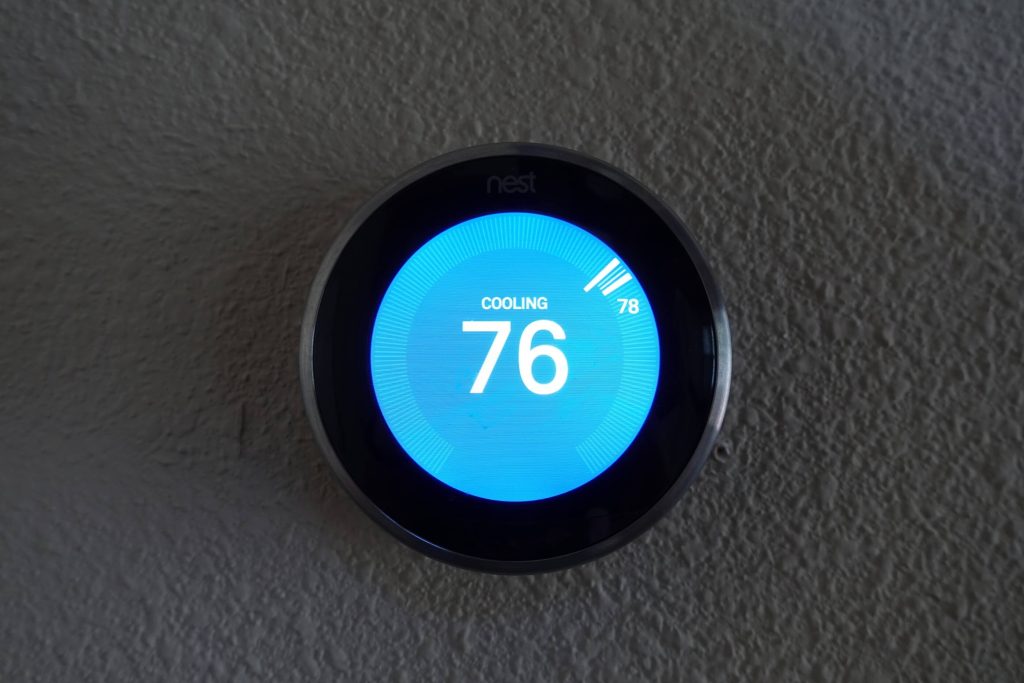 Removing the thermostat from its base to access batteries and wiring for inspection. If you encounter a blinking green light on other devices around your home, our guides for the Daikin mini-split indicator and the Frida humidifier diagnostic light can help you identify similar patterns across different appliances.