The blinking green light on your AT&T broadband indicates that the device is powering up or attempting a broadband connection. It is a normal behavior during a reset or startup process.
If you're experiencing a blinking green light on your AT&T broadband, you may be wondering what it means and how to resolve it. The broadband light serves as an indicator of the device's status and can provide valuable information about your internet connection.
We will discuss the possible reasons behind the blinking green light and provide solutions to fix the issue. Whether you're a tech-savvy individual or a beginner, understanding the meaning of the blinking green light and troubleshooting steps can help you get your internet connection back on track.
1. Understanding The Meaning Of A Blinking Green Broadband Light
The blinking green broadband light on AT&T indicates that the device is powering up or attempting a broadband connection. It could also mean that there is a limited or intermittent connection. If you're experiencing this issue, troubleshoot your internet connection or check for loose or damaged cables.
Explanation Of The Blinking Green Broadband Light On At&t Routers
When it comes to troubleshooting internet connectivity issues, one of the most common indicators users encounter is a blinking green broadband light on their AT&T routers. This seemingly simple light provides valuable information about the status of your broadband connection. Understanding its meaning can help you identify and resolve any poor or intermittent connection problems you may be facing.
How It Indicates A Poor Or Intermittent Connection
The flashing green broadband light on your AT&T router is a clear sign of a poor or intermittent connection. While a steady green light indicates a strong and stable connection, the blinking green light suggests ongoing issues that require attention.
There can be various reasons for this blinking light, including:
Powering up: When you first turn on your router or experience a power outage, the light may blink green as the device powers up and attempts to establish a broadband connection. This is a normal behavior and usually resolves on its own within a few minutes.
Software update: If your router is undergoing a software update, the blinking green light indicates that the update is in progress. It's essential not to unplug the router or remove the battery during this process to avoid any potential issues.
Loose or damaged cable: In some cases, a blinking green light can be caused by a loose or damaged cable. It's recommended to check all cables connected to your router to ensure they are securely plugged in and undamaged.
Connection failure: A weak or no signal can result in a blinking green broadband light. This could be due to issues with your internet service provider, a problem with the physical connection, or signal interference.
It's important to resolve any issues indicated by the blinking green broadband light to ensure a stable and reliable internet connection. Troubleshooting steps may include rebooting your router, checking cables, contacting your ISP, or performing a factory reset.
Remember, if you are experiencing persistent connectivity issues or are unable to resolve the problem yourself, it's always recommended to contact your internet service provider for further assistance.
Status Light State Description
| Light | State | Description |
|---|---|---|
| Power | Solid Green | Power is on. |
| Power | Flashing Red | Power on/self-test in progress. |
| Power | Solid Red | Power on/self-test failed or modem has malfunctioned. |
| Ethernet | Off | No Ethernet connectivity or modem is not recognizing the Ethernet cable. |
2. Possible Causes Of A Blinking Green Broadband Light
When you see the broadband light on your AT&T router blinking green, it is an indication of a poor or intermittent connection. There are a few possible causes for this issue:
1. Powering Up Or Attempting A Broadband Connection
The flashing green light on your AT&T router means that the device is in the process of powering up or attempting to establish a broadband connection. This is a normal behavior during a reset or when the router is trying to establish an initial connection.
In practice, a common mistake is to assume the connection is faulty when the router has simply been unplugged recently. If you have just moved your equipment or experienced a brief power flicker, give the gateway up to five minutes to complete its startup sequence before assuming something is wrong. During this window, the blinking green light is perfectly ordinary and does not require any action.
2. Software Update In Progress
If you notice an amber light instead of green, it means that a software update is in progress. During this time, it is important not to unplug the router or remove the battery, as it may interrupt the update process. Wait for the update to complete before making any changes to the router.
3. Loose Or Damaged Cables
Another possible cause for the blinking green light is a loose or damaged cable. Ensure that all cables connected to your AT&T router are securely attached and not frayed or damaged. A faulty connection can result in a poor or intermittent broadband signal.
Note: A damaged coaxial or DSL cable is a frequent culprit that many users overlook. Even a small kink or pinch can degrade the signal enough to cause persistent blinking. Replacing a suspect cable is often the quickest fix to try when troubleshooting your connection.
By checking these possible causes, you can troubleshoot the blinking green broadband light issue on your AT&T router. Ensure that the router is fully powered up, allow any software updates to complete, and make sure all cables are properly connected and in good condition.
3. Troubleshooting Steps For A Blinking Green Broadband Light
If you're experiencing a blinking green broadband light on your AT&T router, it usually signifies a poor or intermittent connection. To troubleshoot this issue, you can check for a software update, ensure all cables are secure, and reset your Wi-Fi gateway to its original settings if necessary.
3. Troubleshooting Steps for a Blinking Green Broadband Light
Checking the power source and connections
If you encounter a blinking green broadband light on your AT&T router, the first troubleshooting step you should take is to check the power source and connections. Ensure that the router is securely plugged into a power outlet and that the power cable is not damaged. Additionally, check if the Ethernet cable is properly connected to both your modem and the device you are using for internet access. A loose or damaged cable can cause connectivity issues, resulting in the blinking green light.
A useful next step is to inspect the wall jack itself. Dust, corrosion, or loose wall-plate screws can create an intermittent physical connection. Carefully remove the wall plate, check that the internal wiring is snug, and reattach it. If the broadband light continues blinking after you have secured every connection, the problem likely lies beyond your home wiring — in this case, contacting your service provider is the appropriate move.
Resetting the router
If checking the power source and connections did not resolve the issue, the next step is to try resetting the router. This can be done by locating the reset button on your AT&T router and pressing it for a few seconds. Resetting the router will restore it to its default settings and can often resolve connectivity problems. However, it is important to note that resetting the router will erase any personalized settings, so you may need to reconfigure your network after the reset.
There are two different types of reset you can try before a full factory reset. A power-cycle — unplugging the power cord for 30 seconds, then plugging it back in — clears temporary glitches without losing your settings. If the blinking green light persists, try a soft reset by pressing the reset button with a paperclip for only 10 seconds; this reboots the device without wiping your Wi-Fi name and password. Only perform the full factory reset (holding the button for 30+ seconds) if the other methods fail, since that will erase all custom configurations.
Contacting AT&T customer support for assistance
If the blinking green light persists even after performing the previous troubleshooting steps, it is recommended to reach out to AT&T customer support for further assistance. They have trained technicians who can provide advanced troubleshooting guidance specific to your AT&T broadband connection. Contacting customer support ensures that you receive the most accurate and tailored solutions to address the issue effectively.
By following these troubleshooting steps – checking the power source and connections, resetting the router, and contacting AT&T customer support when needed, you can effectively address a blinking green broadband light issue on your AT&T router. These steps are designed to help you restore a stable and reliable internet connection, ensuring uninterrupted browsing and online activities.
3.5 Understanding Other Router Light Patterns
While a blinking green broadband light is common, you may also encounter other status lights on your AT&T gateway. Recognizing these patterns helps you diagnose issues without unnecessary troubleshooting.
Power Light Patterns
The power light behaves differently depending on the router's health. A solid green power light is normal and means the device is receiving electricity and running correctly. A flashing red power light indicates the router is performing a self-test after being powered on. If the power light turns solid red, the self-test has failed — this usually points to a hardware malfunction that will require a replacement unit from your provider.
Ethernet and Service Lights
The Ethernet light on the back of your gateway shows connectivity to wired devices. If this light is off when you have a device plugged in, your router may not be recognizing the cable or the connected device's network port. Try a different Ethernet cable or plug into a different port on the router. If you see the Cox Modem Blinking Green pattern on a secondary device, the same cable-checking and power-cycle steps apply.
For those using other home electronics, similar diagnostic principles apply. For instance, if you encounter a flashing pattern on a smart device like a Blendjet Blinking Red And Purple, checking the power source and connections is always the first recommended step before contacting support.
By following these troubleshooting steps – checking the power source and connections, resetting the router, and contacting AT&T customer support when needed, you can effectively address a blinking green broadband light issue on your AT&T router. These steps are designed to help you restore a stable and reliable internet connection, ensuring uninterrupted browsing and online activities.
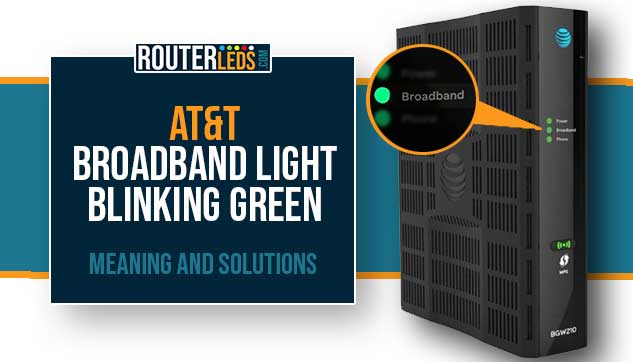 The front panel of an AT&T gateway showing the broadband light indicator during the startup sequence.
Credit: routerleds.com
4. Tips To Maintain A Stable Broadband Connection
Having a stable broadband connection is crucial for uninterrupted internet access. If you find yourself dealing with a blinking green light on your AT&T broadband, it may indicate a poor or intermittent connection. Luckily, there are several tips you can follow to maintain a stable broadband connection.
Ensuring Proper Placement Of The Router
Proper router placement plays a significant role in maintaining a stable broadband connection. Ensure that your router is placed in a centralized location in your home, away from obstructions like walls or furniture that may block the signal. This allows for better coverage throughout your space and minimizes signal interference.
As of 2026, mesh Wi-Fi systems have become more affordable and are a practical upgrade for larger homes. If a single router cannot cover your entire living space without signal drop-offs, consider adding a mesh node to extend coverage consistently.
Securing A Strong Signal By Minimizing Interference
To maintain a stable broadband connection, it's important to minimize signal interference. Here are a few steps you can take:
Keep your router away from other electronic devices that emit signals, such as cordless phones, microwaves, and baby monitors.
Avoid placing your router near metal objects or appliances that may interfere with the signal.
Consider using a Wi-Fi analyzer tool to identify congested Wi-Fi channels and choose a less crowded channel for your router.
An honest trade-off: choosing a less crowded Wi-Fi channel may require you to experiment with a few options before you notice improvement. The 5 GHz band typically offers less interference than the 2.4 GHz band, but it has a shorter range — so find the balance that works for your home's layout.
Keeping The Router Firmware Up To Date
Updating your router firmware is essential for maintaining a stable broadband connection. Outdated firmware can cause performance issues and potentially lead to connectivity problems. To keep your router firmware up to date, follow these steps:
Access your router's admin panel by entering the IP address in your web browser (typically 192.168.1.1 or 192.168.0.1).
Login with your router's username and password.
Navigate to the firmware or software update section.
If an update is available, download it from the manufacturer's website and follow the instructions to install it.
Regularly updating your router firmware ensures that you have the latest security patches, bug fixes, and performance improvements, keeping your broadband connection stable.
For AT&T gateways specifically, firmware updates are often pushed automatically by the provider. However, manually checking once a quarter — especially after noticing any unusual blinking patterns like a Verizon Fios Router Blinking Blue — can help catch pending updates that were not applied during an overnight window.
By following these tips, you can maintain a stable broadband connection and minimize the occurrence of a blinking green light on your AT&T router. Enjoy uninterrupted internet access and a smooth online experience.
When to Consider Professional Signal Testing
If you have tried all the above maintenance tips and you still experience a blinking green broadband light, it may be time to request a professional signal test from AT&T. In some cases, the issue originates outside your home — such as degraded wiring on the utility pole or a damaged drop cable running to your house. A technician can measure the signal strength at the demarcation point using specialized equipment that goes beyond a simple visual check of the blinking light.
Frequently Asked Questions Of Att Broadband Light Blinking Green
Why Is My At&t Internet Blinking Green?
The blinking green light on your AT&T Internet indicates that the gateway is starting up or attempting a connection. It is a normal process, and you don't need to worry.
What Lights Should Be Green On Att Router?
The green lights on an AT&T router indicate different statuses. The broadband light blinking green means the device is starting up or attempting a connection. A solid green power light indicates the router is on. The Ethernet light should be on for connectivity. A flashing red power light means self-test is in progress. A solid red power light means self-test failed or modem malfunctioned.
How Do I Fix My At&t Broadband Connection?
To fix your AT&T broadband connection, try the following troubleshooting steps: 1. Check all cables for any damage or loose connections. 2. Restart your router by unplugging it from the power source, waiting for 30 seconds, and then plugging it back in. 3. Reset your Wi-Fi gateway to its original settings if the issue persists. 4. If none of these steps work, contact AT&T customer support for further assistance. Please note that a flashing green light on your broadband indicates that the device is powering up or attempting a broadband connection.
How Do I Reset My Att Fiber Box?
To reset your ATT fiber box, follow these steps: 1. Locate the reset button on the back of the fiber box. 2. Using a paperclip or similar tool, press and hold the reset button for 10 seconds. 3. Release the button and wait for the fiber box to restart. 4. Once the box has restarted, your settings will be reset to the original defaults. 5. You can now set up your ATT fiber box again. Note: Resetting your fiber box will erase all previous settings and configurations.
Why Is My At&t Broadband Light Blinking Green?
The blinking green light indicates that your device is powering up or attempting a broadband connection.
How long should I wait for a blinking green light to turn solid?
In most cases, a blinking green light during startup should become solid within three to five minutes. If it continues blinking for longer than ten minutes, proceed with the troubleshooting steps in Section 3 — starting with checking cables and performing a power cycle. Persistent blinking beyond this timeframe usually indicates a connection issue rather than routine startup behavior.
Can a power outage cause the broadband light to blink green afterward?
Yes. After a power outage, your AT&T gateway must re-establish its connection to the ISP's network, which triggers the blinking green light as it synchronizes. This is normal and should resolve once the gateway completes its reconnection process. If the light continues blinking after power has been restored for more than ten minutes, you may need to manually perform a power cycle to force the gateway to attempt a fresh connection.
Does a blinking green light always mean there is a problem?
No. A blinking green light is normal during startup, after a reset, or during a brief reconnection phase. It only becomes a problem if it persists for an extended period without establishing a steady connection. The table in Section 1 can help you differentiate between routine behavior and troubleshooting-worthy patterns.
What should I do if my AT&T modem has a blinking green light AND no internet access?
This combination strongly indicates that the gateway is failing to complete the broadband handshake with AT&T's network. Start by checking the coaxial or DSL cable connection to the wall, then verify that your account is active and in good standing. If everything appears connected and the green light still blinks with no internet, contact AT&T support — they can remotely check whether the signal is reaching your modem from their central office.
Is the blinking green light pattern the same for AT&T fiber and DSL services
The blinking green broadband light means the same thing for both fiber and DSL services — the device is attempting to establish a connection. However, the troubleshooting steps may differ slightly. For fiber connections, a dirty or damaged fiber optic cable end at the wall jack is a known cause of intermittent blinking. For DSL, line noise from nearby electrical appliances or old copper wiring is more common. If you are troubleshooting a similar pattern on another provider's equipment, a resource explaining how the Cox Modem Blinking Green pattern is diagnosed may offer useful parallels.
Can a failing power adapter cause the broadband light to blink green?
Yes. A power adapter that is delivering inconsistent voltage can cause the gateway to repeatedly lose power and restart, resulting in a blinking green light. If you notice the gateway's other lights flickering or if the device feels unusually warm near the power port, replace the power adapter with an AT&T-approved unit. Using third-party adapters can introduce further instability.
Does the blinking green light affect internet speed when it finally connects
Not directly. Once the broadband light turns solid and the connection is established, the blinking phase itself does not affect speed. However, if the gateway was blinking green due to an underlying issue — such as a loose cable or signal interference — that same issue may reduce your speed once connected. Always verify your actual speeds using a wired connection test after the light stabilizes.
How often should I power-cycle my AT&T gateway to prevent blinking green light issues
A monthly power cycle is a good maintenance habit to clear temporary network cache and refresh the connection to your ISP. Beyond that, only power-cycle the gateway when you notice problems — doing it too frequently can wear out the internal components prematurely. If you find yourself power-cycling weekly, the issue is likely a persistent signal or hardware problem that needs a permanent fix.
Conclusion
To conclude, if you notice your AT&T broadband light blinking green, it generally means that the gateway is starting up or attempting a connection. This is a normal process and indicates that the device is powering up. However, if you are experiencing a limited or no connection, it could be due to a loose or damaged cable. Make sure to check all your cables and troubleshoot accordingly. By resolving any connectivity issues, you can enjoy a stable and uninterrupted broadband connection.
For official troubleshooting resources, AT&T's support portal provides current guides for your specific gateway model. If you have exhausted the steps in this article without success, use the smart home manager app or call AT&T support — their technicians can run line tests remotely and, if needed, schedule a service visit to resolve the problem at the source.
For additional guidance on diagnosing similar device indicator issues, see our guide dedicated to a Spectrum Router Slow Blinking Blue pattern, which follows a comparable troubleshooting approach. (from: AT&T support — their technicians…)
For additional guidance on diagnosing similar device indicator issues, see our guide dedicated to a Spectrum Router Slow Blinking Blue pattern, which follows a comparable troubleshooting approach.
If you are managing multiple smart home devices, understanding how different indicator lights communicate problems can save you time. For instance, the pattern described for a Pura Diffuser Blinking Red And Green follows a similar logic — two colors alternating often signals a pairing or power issue that resolves with a reset. The same principle applies to your AT&T gateway: when the broadband light blinks green without transitioning to solid, the root cause is almost always one of the three categories covered in this article — startup, update, or connection failure.
Ready to restore your connection right now? Start with the simplest fix: unplug your AT&T gateway, wait 30 seconds, plug it back in, and monitor the broadband light for five minutes to see if it turns solid green. For a more detailed reference on what each indicator on your specific gateway model means, the official AT&T equipment support pages at att.com/support provide model-specific light pattern guides and firmware update histories. Consulting these resources alongside this article gives you the most complete picture of your device's behavior.
If you have followed all the troubleshooting steps in this guide and the blinking green broadband light continues, there is one final option worth trying before a service visit: check whether your gateway's power-saving or eco-mode settings are enabled. Some AT&T gateways include a power-saving feature that can cause the broadband light to blink intermittently during low-usage periods, mimicking a connection problem. Log into your gateway's admin panel and look for any energy-saving options — disabling them may resolve the issue without any hardware changes.