An outdated software might be the reason for your Verizon Internet box blinking white. Routers require the latest firmware update for optimal performance, so avoid using older software versions.
Reasons For Verizon Internet Box Blinking White
If you've noticed that your Verizon Internet box is blinking white, there could be a few reasons behind this issue. Understanding these reasons can help you troubleshoot the problem and get your Internet connection back on track. In this section, we'll explore the three main causes of a Verizon Internet box blinking white: outdated software, service interruption, and weak or unstable internet connection.
Outdated Software
One possible reason for your Verizon Internet box blinking white is outdated software. Routers require regular firmware updates to ensure their smooth operation. Trying to run your router on an older version of the software can cause performance issues, including the blinking white light. To fix this, you'll need to update your router's firmware. Here's how it can be done:
Access your router's administration interface through a web browser by typing the router's IP address.
Login to your router using the provided username and password.
Navigate to the firmware update section.
Download the latest firmware version from the manufacturer's website.
Select the downloaded firmware file and proceed with the update.
Wait for the firmware update to complete and restart your router.
A common mistake is using the wrong IP address — on Verizon routers, 192.168.1.1 or myfiosgateway.com are the usual entries.
Service Interruption
Another possible reason for the white blinking light on your Verizon Internet box is a service interruption. This could be caused by a temporary outage in your area or a problem with your Verizon account. To check if there's a service interruption, you can:
Visit the Verizon website and check their service status page for any reported outages.
Contact Verizon customer support and inquire about any ongoing service disruptions in your area.
Make sure your account is in good standing and there are no outstanding payments or issues.
If there's a service interruption, you'll need to wait for Verizon to resolve the issue. However, if the problem persists, you may need to contact their customer support for further assistance.
Weak Or Unstable Internet Connection
A weak or unstable internet connection can also cause your Verizon Internet box to blink white. This can be due to various factors, such as interference, distance from the router, or network congestion. To improve your internet connection, consider the following:
Move your router to a more central location in your home to ensure better coverage.
Check for any objects or devices that may be causing interference with the router's signal.
Connect your devices using Ethernet cables instead of relying solely on Wi-Fi for a more stable connection.
Upgrade your internet plan if you consistently experience slow speeds or frequent disconnections.
By addressing these potential issues, you can improve your internet connection and minimize the occurrence of a blinking white light on your Verizon Internet box.
In practice, interference from cordless phones, baby monitors, and microwave ovens is often overlooked — moving the router even six feet away from such devices can make a noticeable difference.
Understanding Blink Patterns On Verizon Routers
Not all white blinking lights mean the same thing. Verizon routers use specific blink sequences to communicate what is happening internally. Recognizing these patterns can save you time and unnecessary troubleshooting.
Slow Blinking White (Once Every Few Seconds)
A slow, rhythmic white blink typically indicates that the router is performing a startup sequence or searching for a DSL or fiber signal. This is normal after a power outage or reboot and should resolve within two to five minutes. If it continues beyond ten minutes, proceed with the firmware update steps below.
Fast Blinking White (Rapid Flashing)
A rapid, continuous white blink often points to a firmware update in progress or a failed update attempt. Never unplug the router during a firmware update, as doing so can permanently damage the device. If the fast blinking persists after 20 minutes, a forced restart — by holding the power button for 10 seconds — may be necessary.
Solid White With Occasional Blinks
A mostly solid white light that blinks intermittently usually signals normal operation with brief data transmission. This is not a cause for concern and indicates your connection is active.
 A Verizon router showing the white blinking light pattern that users may encounter during startup or firmware updates.
Credit: www.routerfreak.com
Troubleshooting Solutions For Verizon Internet Box Blinking White
If your Verizon Internet box is blinking white, it could be due to outdated software. To resolve this, make sure to update your router's firmware for smooth operation.
Update Your Router's Firmware
If your Verizon Internet box is blinking white, it could be due to outdated firmware. To fix this issue, you need to update your router's firmware to the latest version. Follow these steps to update your firmware:
Open a web browser on your computer and enter the IP address of your router in the address bar. The default IP address for Verizon routers is usually 192.168.1.1.
Login to your router using your username and password. If you haven't changed the default login credentials, you can find them printed on the back or bottom of the router.
Navigate to the firmware update page. The location may vary depending on your router model, but it is usually under the "Advanced" or "Management" section.
Check for any available firmware updates. If there is an update available, download it and follow the on-screen instructions to install it on your router.
Once the firmware update is complete, restart your router and check if the white blinking light issue is resolved.
Check For Local Outages
Another possible cause of your Verizon Internet box blinking white is a local outage. To determine if there is an outage in your area, follow these steps:
Visit the Verizon website or use the Verizon mobile app to check for outage notifications.
If there is an outage reported, wait for the issue to be resolved by Verizon. There is little you can do in this case other than wait for the service to be restored.
If there are no reported outages, try power cycling your Verizon Internet box. Unplug it from the power source, wait for a few minutes, and then plug it back in. This simple step can sometimes resolve connectivity issues.
If the white blinking light persists even after power cycling, contact Verizon customer support for further assistance.
Improve Your Internet Connection
A weak or unstable internet connection can also cause your Verizon Internet box to blink white. To improve your internet connection, try the following:
Move your router to a central location in your home to ensure optimal coverage.
Minimize the number of devices connected to your network to reduce potential bandwidth congestion.
Consider upgrading your internet package to a higher speed if you constantly experience slow or unreliable connection.
Check for any physical damage to your router or its cables. Replace any damaged components if necessary.
By following these troubleshooting solutions, you can resolve the white blinking light issue on your Verizon Internet box and enjoy a reliable internet connection.
Common Hardware Issues That Cause Blinking White Lights
Sometimes the problem is physical rather than software-based. Inspecting your equipment can reveal straightforward fixes before you dive into advanced settings.
Loose Or Damaged Cables
A coaxial cable that is not screwed in firmly or an Ethernet cable with a bent pin can interrupt the signal and trigger a blinking white light. Check all cable connections at both ends — the router and the wall outlet. If you spot corrosion on the coaxial connector, replacing the cable is a quick and inexpensive fix.
Overheating Router
Routers that are placed in enclosed cabinets or stacked under other electronics can overheat, causing erratic behavior including blinking lights. Ensure your Verizon router has at least two inches of clearance on all sides and is kept in a well-ventilated area. If the device feels hot to the touch, let it cool down for 30 minutes before restarting.
Faulty Power Adapter
A failing power adapter may supply inconsistent voltage, leading to a blinking white light. If your router's power brick is warm or makes a buzzing sound, consider replacing it with a genuine Verizon adapter. Using third-party adapters can sometimes cause compatibility issues — similar to how some users encounter unusual behavior with a different device entirely, such as a white blinking issue on a different brand of networking equipment.
How To Update Your Router's Firmware
If your Verizon Internet box is blinking white, it might mean that your router's firmware needs an update. Keeping your firmware up to date is essential for smooth operation and to avoid any issues with your internet connection. Learn how to update your router's firmware to fix the blinking white light.
If you're experiencing a blinking white light on your Verizon internet box, it could be because your router's firmware is outdated. It's important to update your router's firmware regularly to ensure smooth operation and optimal performance. In this section, we'll walk you through the steps to access your router's administration panel, check for firmware updates, and download and install the latest firmware.
Access The Router's Administration Panel
To update your router's firmware, you need to access the router's administration panel:
Connect your computer or mobile device to the Verizon internet box via Wi-Fi or Ethernet cable.
Open a web browser and enter "192.168.1.1" or "myfiosgateway.com" in the address bar.
Enter your username and password. If you haven't changed them, the default username is usually "admin" and the default password can be found on the router or in the documentation.
Check For Firmware Updates
Once you're logged in to the router's administration panel, you can check for firmware updates:
Look for a "Firmware" or "Software Update" tab in the router's settings.
Click on the tab and look for an option to check for updates.
If an update is available, you'll see a prompt to download and install the latest firmware.
Download And Install The Latest Firmware
After confirming that a firmware update is available, follow these steps to download and install it:
Click on the download button or link provided to start the download.
Once the download is complete, click on the firmware file to begin the installation process.
Follow the on-screen instructions to install the firmware. This may involve agreeing to terms and conditions and waiting for the installation to complete.
After the installation is finished, your router will reboot automatically. It's important not to interrupt the process or turn off the power during this time.
By regularly updating your router's firmware, you can ensure optimal performance, security, and compatibility with the latest technologies. Make it a habit to check for firmware updates periodically to keep your Verizon internet box running smoothly.
Remember that firmware updates also patch security vulnerabilities. Verizon recommends enabling automatic updates if your router model supports them — this setting is typically found under the "Advanced Security" or "Maintenance" menu.
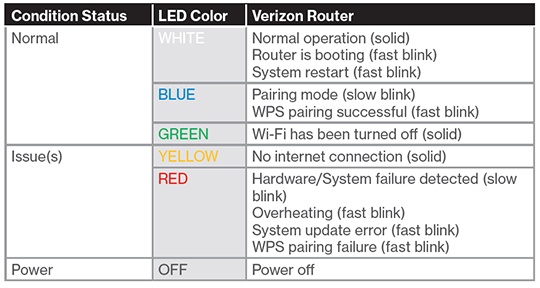 The LED indicator panel on a Verizon gateway showing the location of the status light that blinks white during various operations.
Credit: www.verizon.com
Checking For Local Outages
If you find that your Verizon Internet box is blinking white, there could be a local outage causing the issue. It's important to check for local outages before making any changes or contacting customer support. Here are a few steps you can follow to determine if there's an outage in your area:
Contact Verizon Customer Support
If you're experiencing issues with your Verizon Internet box and suspect a local outage, the first step is to contact Verizon's customer support. They have access to real-time information about outages in your area and can provide assistance in troubleshooting the problem. Reach out to Verizon customer support through their helpline or online chat for prompt assistance.
Use Online Outage Checking Tools
Verizon provides online tools that allow you to check for local outages. Simply visit their website and navigate to the outage checker tool. Enter your location details and the tool will provide you with information about any ongoing outages in your area. This can help you confirm if the blinking white light on your Internet box is due to a local outage.
Follow Instructions From Verizon Support
If the online outage checker confirms a local outage, follow the instructions provided by Verizon support. They may recommend specific actions to take or provide an estimated timeline for restoration of services. It's important to follow these instructions and wait for the outage to be resolved rather than attempting to fix the issue on your own.
Remember, a blinking white light on your Verizon Internet box could indicate a local outage. Take the necessary steps to check for outages and reach out to Verizon customer support for assistance. Following their guidance will help resolve the issue efficiently.
Improving Your Internet Connection
If your Verizon Internet box is blinking white, it could mean that the router is booting up or it may indicate a weak or unstable internet connection. To fix it, make sure your router has the latest firmware update and check for any service interruptions in your area.
Power Cycle Your Internet Equipment
If you're experiencing a Verizon Internet box blinking white, a simple power cycle can often resolve the issue. Power cycling involves turning off the equipment, waiting for a few seconds, and then turning it back on. This process helps refresh the connection and clear any temporary glitches. To power cycle your internet equipment:
Unplug the power cords from your Verizon router and modem.
Wait for about 30 seconds to allow the devices to fully power down.
Reconnect the power cords and wait for the devices to reboot.
Power cycling your devices can often help in stabilizing your internet connection and resolve any blinking white light issues on your Verizon Internet box.
Reset Your Router To Factory Settings
If power cycling doesn't solve the problem, you may need to reset your Verizon router to its factory settings. This process will erase any custom settings you've made and restore the router to its default configuration. To reset your router:
Locate the reset button on your Verizon router. It is usually a small hole labeled "Reset".
Using a paperclip or a similar object, press and hold the reset button for about 10 seconds.
Release the reset button and wait for the router to restart. This may take a few minutes.
By resetting your router to factory settings, you can potentially resolve any software glitches or misconfigurations that may be causing the blinking white light on your Verizon Internet box.
Be aware that a factory reset will erase your Wi-Fi name and password, port forwarding rules, and any parental controls you have set up. Write down these settings before proceeding.
Consider Using A Wireless Booster
If you're experiencing a weak or unstable internet connection, using a wireless booster can help improve the signal strength and coverage in your home. A wireless booster, also known as a Wi-Fi extender or a range extender, amplifies your Wi-Fi signal, allowing it to reach areas that were previously out of range.
Here are some key benefits of using a wireless booster:
Eliminates dead zones: A wireless booster can provide coverage to areas of your home that previously had weak or no Wi-Fi signal.
Improved signal strength: By amplifying the signal, a booster can enhance the overall strength and stability of your internet connection.
Easy setup: Most wireless boosters are easy to install and configure, requiring minimal technical knowledge.
Consider investing in a wireless booster if you frequently experience connectivity issues or if certain areas of your home have a poor Wi-Fi signal. This can help improve your internet connection and reduce the occurrence of a blinking white light on your Verizon Internet box.
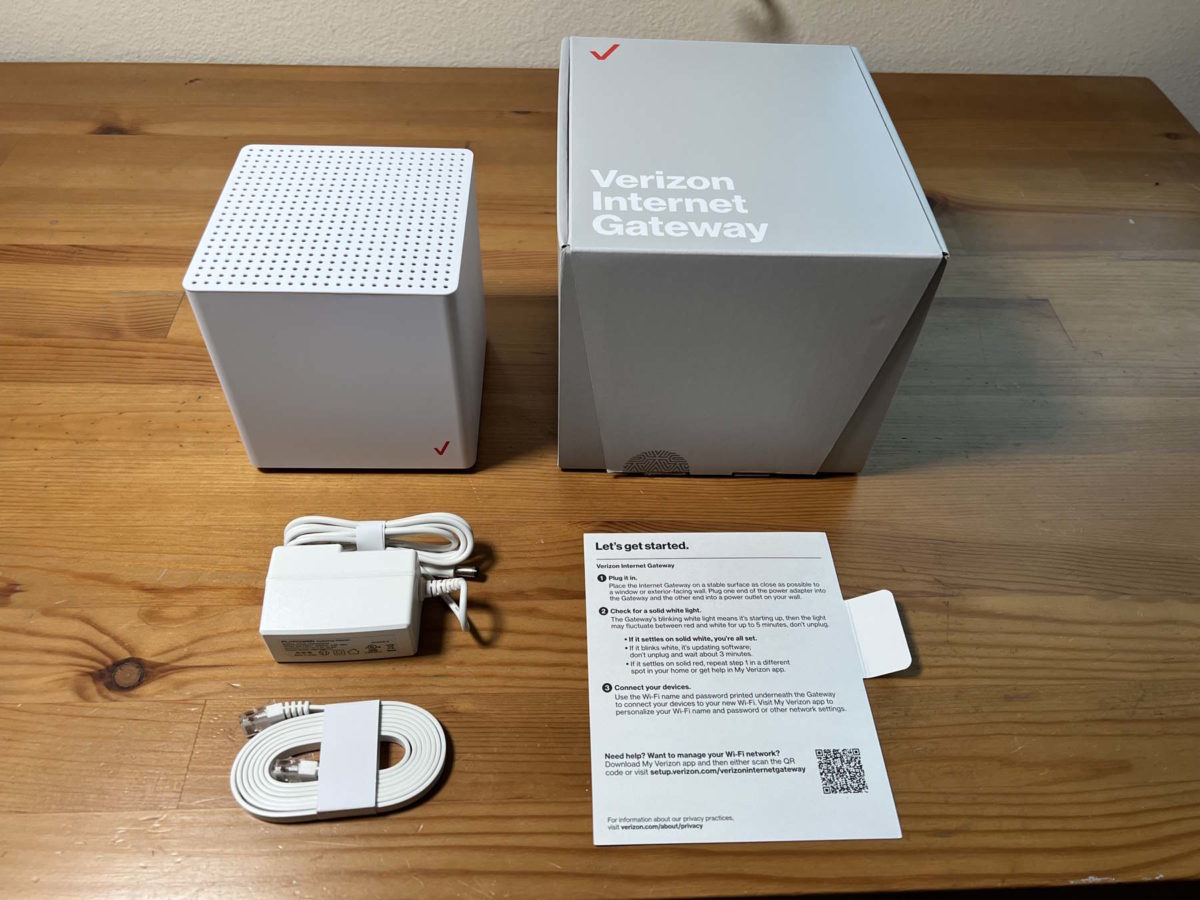 A Verizon router in a home setting with cables connected, illustrating proper placement for optimal signal strength.
Credit: www.disablemycable.com
When To Replace Your Verizon Router
If you have tried all troubleshooting steps — firmware update, power cycling, factory reset, and checking for outages — and the white blinking light persists, your router hardware may be failing. Verizon routers typically have a lifespan of three to five years. Signs that replacement is needed include:
The router becomes unusually hot even after cooling down.
The white blinking light occurs daily, regardless of connection quality.
You experience frequent disconnections on multiple devices simultaneously.
For Verizon Fios customers, a replacement router can often be obtained through Verizon's equipment upgrade program. Check your account online or verify with Verizon's support page to see if you qualify for a free replacement based on your service plan.
Frequently Asked Questions For Verizon Internet Box Blinking White
Why Is My Verizon Router Blinking White?
If your Verizon router is blinking white, it may be due to outdated software. Make sure to update the firmware for smooth operation.
Why Is The Light Blinking On My Verizon Internet Box?
If the light is blinking white on your Verizon Internet box, it may be because of outdated software. Make sure your router has the latest firmware update for optimal performance. Avoid running it on older software versions.
Why Is The White Light Blinking On My Router?
If the white light on your router is blinking, it may be due to outdated software. Ensure that your router has the latest firmware update to avoid any issues.
What Does A White Light On A Verizon Cable Box Mean?
A white light on a Verizon cable box usually means that the box is powered on. It could also indicate a scheduled recording or another device in the chain turning the box on.
Why Is My Verizon Router Blinking White?
If your Verizon router is blinking white, it may be because of an outdated software. Routers need the latest firmware update to operate smoothly, and trying to run them on an older software version is something you should avoid.
Can A Blinking White Light Mean My Router Is Damaged?
A blinking white light can sometimes indicate hardware damage, especially if it persists after a factory reset. Check for physical signs like a burnt smell, bulging capacitors, or a frayed power cable. If you notice any of these, replace the router immediately rather than attempting further repairs.
Will A Power Outage Cause My Verizon Box To Blink White?
Yes, after a power outage, your Verizon Internet box will blink white during the reboot process. This is normal and should stop within a few minutes. If the blinking continues for more than ten minutes after power is restored, perform a manual power cycle by unplugging the device for 30 seconds.
Does Verizon Charge For A Replacement Router?
Verizon typically provides a free replacement router if your device is under warranty or if you are renting equipment as part of your service plan. If you own your router outright, you may need to purchase a new one. Contact Verizon customer support to confirm your specific situation.
What Is The Difference Between A Blinking White Light And A Solid White Light?
A solid white light on a Verizon router indicates that the device is powered on and connected to the internet normally. A blinking white light means the router is in a transitional state — either booting up, updating firmware, searching for a signal, or experiencing a connectivity issue.
Conclusion
If your Verizon Internet box is blinking white, it could be due to an outdated software. To avoid any issues, make sure to update your router with the latest firmware. Additionally, a fast blinking white light indicates that the router is booting up.
If you experience this, give it some time to stabilize. Remember, a blinking white light is usually not a cause for concern.
If you have resolved your blinking white issue and are still experiencing slow speeds, a similar connectivity problem on other home devices may share comparable troubleshooting steps.
Quick Troubleshooting Reference Table
| Blink Pattern | Likely Cause | Recommended Action | Time to Resolve |
|---|---|---|---|
| Slow pulse (every 3–5 seconds) | Router booting up or searching for signal | Wait 5 minutes; power cycle if persists | 2–10 minutes |
| Fast continuous blink | Firmware update in progress or failed | Do not unplug; wait 20 min, then force restart | 10–20 minutes |
| Intermittent blink with solid white | Normal data transmission | No action needed | Instant |
| Blink after power outage | Normal reboot sequence | Wait for stabilization | 2–5 minutes |
| Persistent blink after all steps | Possible hardware failure | Contact Verizon for replacement | 1–3 business days |
Advanced Network Troubleshooting
If standard solutions have not resolved the blinking white light, deeper network issues may be at play. These steps require a bit more technical comfort but can identify problems that basic fixes miss.
Check Your ONT (Optical Network Terminal)
For Verizon Fios customers, the ONT — the box where the fiber cable enters your home — also has indicator lights. A blinking white light on your router combined with a solid green or blue light on the ONT suggests the fiber connection is healthy and the problem lies with your router. If the ONT light is red or off, the issue may be upstream. Locate your ONT (often in a basement or garage) and note its status lights before calling support.
Verify IP Address Assignment
A misconfigured IP address can cause your router to continuously search for a connection, resulting in a blinking white light. On a computer connected to the router, open command prompt (Windows) or terminal (Mac) and type ipconfig or ifconfig. Look for an IP address starting with 192.168.1.x — if you see 169.254.x.x instead, your router is not receiving an IP lease from Verizon's network. In this case, power cycle both the ONT and router, waiting 60 seconds between each.
Test With A Single Device
Network congestion from too many connected devices can sometimes trigger a blinking white light. Unplug all devices from your network except one computer connected via Ethernet cable. If the blinking stops, gradually reconnect devices one at a time to identify which one is causing the issue. Older smart home devices or a device with its own blinking indicator can sometimes interfere with network stability.
Preventing Future Blinking White Light Issues
Once you have resolved the current problem, a few preventive measures can reduce the chances of it recurring.
Schedule Regular Firmware Checks
Set a monthly reminder to log into your router's administration panel and check for firmware updates. Many users discover that their router has been running outdated software for months simply because automatic update notifications were disabled. Verizon typically releases firmware updates every three to six months, addressing both performance and security issues.
Maintain Proper Router Ventilation
Dust buildup inside the router can trap heat and lead to component stress over time. Every three months, gently vacuum the ventilation grills on your router using a soft brush attachment. Avoid using compressed air cans directly into the vents, as this can push dust deeper into the device.
Use A Surge Protector
Power surges from storms or grid fluctuations can corrupt router firmware and cause persistent blinking light issues. Plug your Verizon Internet box and ONT into a quality surge protector rather than directly into a wall outlet. This simple step costs little and can extend your router's life significantly.
Conclusion
If your Verizon Internet box is blinking white, it could be due to an outdated software. To avoid any issues, make sure to update your router with the latest firmware. Additionally, a fast blinking white light indicates that the router is booting up.
If you experience this, give it some time to stabilize. Remember, a blinking white light is usually not a cause for concern.
If you have resolved your blinking white issue and are still experiencing slow speeds, a similar connectivity problem on other home devices may share comparable troubleshooting steps.
Comparing Verizon Router Blink Patterns With Other ISP Equipment
Understanding how your Verizon router's behavior compares to other common networking devices can help you recognize whether the issue is specific to your equipment or a broader home network problem.
| Device Type | Blinking White Meaning | Typical Resolution | Related Guide |
|---|---|---|---|
| Verizon Fios Router | Startup, firmware update, or connectivity issue | Update firmware, check outages, power cycle | This article |
| CenturyLink Modem | Authentication or sync issue | Verify credentials, reset connection | Centurylink Blinking Blue |
| Calix ONT/Router | WAN connection lost or provisioning issue | Check fiber connection, contact ISP | Calix Router Blinking Red |
| General ISP Gateway | Various depending on manufacturer | Consult device manual or support | See individual guides |
Using Verizon's My Fios App For Diagnostics
In 2026, Verizon provides a powerful diagnostic tool directly through the My Fios mobile app that can identify why your Internet box is blinking white without needing to access the router's web interface.
Steps To Use The App
- Download the My Fios app from your device's app store and log in with your Verizon account credentials.
- Navigate to the "Internet" or "Network" section — the app will automatically detect your connected router.
- Look for a "Run Diagnostic" or "Check Status" button. Tapping this initiates a full connection test including signal strength, firmware version, and line quality.
- If the diagnostic identifies an issue, the app often provides a one-tap "Fix It" option that automatically applies the correct solution, such as triggering a remote reboot or firmware update.
This approach is particularly useful if you cannot access the router's web interface because the blinking white light is preventing a stable connection. The app communicates with Verizon's network cloud rather than directly with the router, so it works even when local access is unavailable.
What The Diagnostic Reports
The My Fios diagnostic will display results in simple language. Common reports include:
- "Your router firmware is up to date" — indicating the blinking is not software-related.
- "We detected a weak signal" — suggesting a placement or interference issue.
- "There is a known outage in your area" — confirming you need to wait for restoration.
- "Your router may need to be replaced" — providing next steps for obtaining a new device.
When To Contact Verizon vs. When To Troubleshoot Yourself
Making this distinction can save hours of frustration. Here is a practical decision guide:
Troubleshoot Yourself If:
- The blinking white light started after a recent power outage or storm.
- You recently moved furniture or electronics near the router.
- Only one device in your home is experiencing connectivity issues.
- The blinking is slow and rhythmic (not fast and frantic).
Contact Verizon If:
- The blinking white light persists for more than 24 hours despite following all steps.
- Multiple devices in your home cannot connect simultaneously.
- You notice a burning smell or unusual heat from the router.
- The router is more than four years old and has never been replaced.
- You see error codes on the My Fios app that say "Contact Support."
When you call, mention that you have already power cycled the equipment, checked for outages, and attempted a firmware update — this demonstrates you have done your due diligence and can speed up the support process.
Understanding Verizon's Network Architecture
A brief understanding of how your home connects to the internet can contextualize why a blinking white light occurs.
For Verizon Fios, the fiber optic cable runs from a local hub to an Optical Network Terminal (ONT) mounted on or near your home. The ONT converts the optical signal to an electrical signal, which then travels via Ethernet cable to your router. A blinking white light on the router can therefore originate from:
- The ONT side — if the ONT has lost signal from Verizon's central office.
- The Ethernet link — if the cable between ONT and router is damaged or loose.
- The router itself — if its internal software or hardware is compromised.
For Verizon DSL or 5G Home Internet, the architecture differs slightly but the same three-layer approach applies: incoming connection, link cable, and router.
This is why technicians often start troubleshooting at the ONT — if its lights are normal, the problem is almost certainly in your router or its connection to the ONT. If the ONT has abnormal lights, the issue may require a field technician visit.
Frequently Asked Questions (Continued)
My Verizon Internet Box Blinks White And Then Goes Off Completely — What Does This Mean?
This pattern typically indicates that the router is repeatedly attempting to boot up but failing partway through. This can be caused by a corrupted firmware file, a failing power supply, or a hardware short circuit. Try holding the reset button for 30 seconds while the router is powered on. If the same cycle repeats, the device likely needs replacement.
Can Weather Affect My Verizon Router's White Blinking Light?
Yes, severe weather such as heavy rain, snow, or high winds can damage fiber lines or cause moisture intrusion at connection points. If the blinking white light coincides with a storm, wait for conditions to improve and then power cycle your equipment. Verizon's network is generally reliable, but physical infrastructure can be affected by extreme weather events.
Should I Turn Off My Router At Night To Prevent Blinking Lights?
Turning off your router nightly is not necessary and can actually cause more blinking white light episodes, as the router must go through its full startup sequence each morning. If you are concerned about energy use, look for a router with a built-in "sleep mode" or "eco mode" in the settings rather than cutting power entirely.
How Do I Find The IP Address For My Specific Verizon Router Model?
For most Verizon routers including the G3100, CR1000A, and CR1000B, the default IP address is 192.168.1.1. For some older models like the Actiontec MI424WR, use 192.168.1.1 as well. If neither works, check the sticker on the bottom or back of your router — it lists the exact IP address and login credentials. You can also type "myfiosgateway.com" into any browser to access the admin panel via domain name.
Conclusion
If your Verizon Internet box is blinking white, it could be due to an outdated software. To avoid any issues, make sure to update your router with the latest firmware. Additionally, a fast blinking white light indicates that the router is booting up.
If you experience this, give it some time to stabilize. Remember, a blinking white light is usually not a cause for concern.
If you have resolved your blinking white issue and are still experiencing slow speeds, a similar connectivity problem on other home devices may share comparable troubleshooting steps.
Final Checklist Before Calling Support
Before you pick up the phone to contact Verizon, run through this quick checklist to ensure you have exhausted all options. Having this information ready will also make your support call faster and more productive.
- I have confirmed the router is plugged into a working power outlet.
- I have power cycled the router (unplugged for 30 seconds, then plugged back in).
- I have power cycled the ONT (if applicable) by unplugging it for 60 seconds.
- I have checked the Verizon outage page or My Fios app for local outages.
- I have logged into the router admin panel and checked for firmware updates.
- I have performed a factory reset using the physical reset button.
- I have moved the router to a central, open location away from interference.
- I have tested with a single device connected via Ethernet cable.
- I have checked all cable connections for looseness or damage.
- I have noted the exact blink pattern (slow, fast, intermittent) and how long it has been occurring.
If you have checked all ten items and the blinking white light persists, it is time to contact Verizon for a replacement or technician visit.