A blinking white light on your Orbi router can be confusing — is it updating, broken, or just starting up? In most cases it's a sign the router is working normally, but when that white blink refuses to stop, you need clear steps to get your network back online. This guide covers every scenario, from routine firmware updates to stubborn hardware problems, with practical fixes you can try right now.
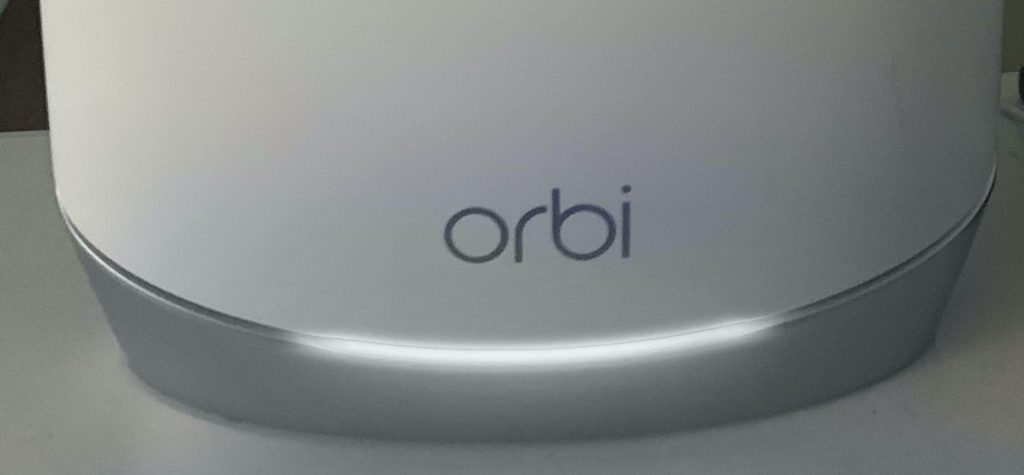
A Netgear Orbi router with its LED indicator blinking white — typically a sign the device is updating or encountering a startup issue.
A steady white light is normal operation; a blinking white light means the router is busy or encountering an issue.
What Does a Blinking White Light Mean on an Orbi Router?
The Orbi router uses its LED to communicate its current state. A blinking white light can indicate one of several things:
| LED Behavior | Meaning |
|---|---|
| Blinking white (slow, ~1 blink per second) | Router is applying configuration changes or updating firmware |
| Blinking white (fast, rapid) | Booting up, factory reset in progress, or a startup error |
| Solid white | Router is fully operational and connected to the internet |
| Magenta / amber | No internet connection — modem or ISP issue |
| Blue | Router is in setup mode or syncing with a satellite |
The most common cause of a blinking white light is a firmware update or configuration change . This is designed to be automatic and usually finishes within 10–20 minutes. However, if it persists longer, the update may have failed or the router could be stuck in a boot loop.
Understanding the Different Blink Patterns
Not all white blinks are the same. In practice, many users don't realize that a slow, rhythmic blink (roughly one per second) is the normal update cadence, while a rapid, irregular flicker often signals a deeper problem such as a corrupted bootloader. If you see the light pulse steadily without speeding up, you're likely in a normal firmware cycle. If the blink rate suddenly doubles or becomes erratic, prepare for a factory reset — the router may have lost its configuration mid-write. A common mistake is confusing the satellite's syncing blink (which is blue on most models) with the router's white blink, leading to unnecessary troubleshooting on the wrong device.
How to Tell If It's a Normal Update or a Problem
Normal Update: Wait It Out
When your Orbi downloads and installs new firmware, the LED blinks white throughout the process. During this time the router is unavailable — do not unplug or press buttons.
Expected duration : 10 to 20 minutes on most Orbi models (RBK50, RBK752, RBK852, etc.)
After completion : The light turns solid white and your internet connection resumes
What not to do : Avoid power cycling or pressing the reset button during an active update — this can corrupt the firmware
Problem: Stuck Blinking White
If the light continues blinking for more than 30 minutes without a solid white result, the router is likely stuck. A common sign is the satellite also remaining in sync mode (blinking blue) and no internet access on any device.
In practice, a stuck update often happens due to an unstable power supply, a corrupted download, or an interrupted update from a previous attempt. The fixes below will get you back to normal.
Step-by-Step Troubleshooting for a Stuck Blinking White Light
1. Perform a Cold Restart (Power Cycle)
A simple restart clears temporary glitches and may allow the router to finish its boot process.
Steps:
Disconnect all devices from the Orbi (though not strictly necessary, it helps).
Unplug the power cord from the router and from each satellite.
Wait 30 seconds (longer than the typical 10 seconds — this fully drains residual power).
Plug the router back in first, then one satellite at a time.
Wait 5–10 minutes for the light to return to solid white.
If the blinking white light stops and becomes solid, your network is back. If it resumes blinking immediately, move to the next step.
2. Check and Reapply Firmware Manually
An automatic update may have failed due to a corrupted file. Manually checking and reapplying the firmware is the most reliable fix.
Steps:
Open a web browser and enter http://orbilogin.com or the IP address of your router (usually 192.168.1.1).
Log in with your admin credentials (default: admin / password).
Go to Advanced → Administration → Firmware Update .
Click Check for Updates .
If an update is found, follow the on-screen instructions to download and install it.
Critical : Once the firmware download starts, do not refresh the page or unplug the router until you see a success message.
After installation, the router will reboot and the LED should turn solid white. If the web interface is unresponsive because the router is stuck, try a factory reset.
3. Factory Reset (When Nothing Else Works)
A factory reset restores the router to its out-of-box settings. Use this only after the cold restart and manual firmware check have failed.
Steps:
Locate the small Reset pinhole on the back of the router.
Using a paperclip or SIM eject tool, press and hold the button for 10–15 seconds while the router is powered on.
The LED will flash white rapidly, then turn solid white — release the button.
The router reboots with default settings. You will need to reconfigure your network name (SSID) and password.
Note: After a factory reset, the Orbi will automatically update firmware again if it detects a newer version. This is normal.
4. Check Power Supply and Connections
A weak or failing power adapter can cause the router to repeatedly restart, creating a continuous blinking white light.
Check the adapter : Is it warm to the touch? Is the LED on the brick itself lit? If it's hot or dim, replace it with the exact voltage (12V / 3.5A for most Orbi routers — check your model label).
Try a different outlet : Avoid power strips or surge protectors with degraded components; plug directly into a wall outlet.
Verify cables : Ensure the Ethernet cable from your modem to the router's yellow WAN port is fully seated and undamaged.
5. Verify Your Modem and ISP Connection
If your modem is offline or your Internet Service Provider (ISP) has an outage, the Orbi may blink white while trying to establish a WAN connection.
Reboot your modem first: Unplug it for 60 seconds, plug it back in, wait until all its lights are normal (usually solid online/DSL light).
Then restart the Orbi using the cold restart steps above.
Check for ISP outages : Visit your ISP's status page or call their support line. If they report an outage, wait for it to clear before troubleshooting further.
6. Isolate the Satellite from the Router
A frequently overlooked cause of a stuck white blink is a misbehaving satellite that forces the router into a constant sync loop. To test this:
Unplug all Orbi satellites from power.
Reboot only the router using the cold restart steps.
Wait 10 minutes and check the router's LED. If it turns solid white without the satellites connected, the issue lies with one of the satellite units.
Reconnect satellites one at a time, waiting 5 minutes between each. If the white blinking returns when a specific satellite connects, that unit may need its own factory reset or firmware reload.
This isolation approach saves time and prevents you from resetting a perfectly healthy router. For similar LED troubleshooting on other networking gear, the same logic applies — isolating devices is often faster than resetting everything at once. You can see a related example with a common ISP gateway on the Bgw320 blinking white light page, where a single misbehaving component caused the whole network to stall.
Advanced Troubleshooting for Persistent Blinking White
Checking System Logs
If you can still access the Orbi web interface (even while the light blinks), the logs may reveal the root cause.
Go to Advanced → Administration → Logs .
Look for repeated errors such as "Firmware update failed," "WAN connection timeout," or "DHCP lease renewal failed."
A consistent failure message points you to the exact component (firmware corruption vs. modem issue).
If you cannot access the interface, a factory reset is usually the only path forward.
Is It a Boot Loop?
A boot loop occurs when the router starts, loads a corrupted config, crashes, and restarts again — repeating endlessly. The LED blinks white on each boot cycle.
How to confirm : Listen for the fan or observe the LED pattern. If the light blinks white for 2–3 minutes, goes off briefly, then starts blinking again, it's a loop.
Fix : The only reliable solution is a factory reset. If the loop continues even after a reset, the router's flash memory may be damaged — consider contacting NETGEAR support or replacing the unit.
TFTP Recovery for Bricked Routers
If a factory reset fails to stop the blinking white light and the router remains unresponsive, you may need to use TFTP (Trivial File Transfer Protocol) to manually upload firmware. This recovery method bypasses the normal boot process and is the last resort before hardware replacement.
Assign your computer a static IP address in the same subnet as the Orbi (usually 192.168.1.10).
Power off the router, hold the Reset button, power it on, and keep holding until the LED blinks white rapidly.
Use a TFTP client (many free options are available) to upload the correct firmware file — download this directly from the official NETGEAR support portal for your exact model.
The upload takes 3–5 minutes. Once complete, the router should reboot with fresh firmware and a solid white LED.
TFTP recovery is an advanced procedure, but it has saved many Orbi units from an early grave. If you own a different device with stubborn LED behavior, a similar approach works for the Calix router blinking red — the principle of forcing a low-level firmware load applies across brands.
Preventing Future Blinking White Issues
Keep Firmware Updates Stable
Enable automatic updates – The Orbi app lets you schedule updates overnight when you're not using the network.
Use a stable power source – Connect the router to a UPS (uninterruptible power supply) to prevent corruption during a power flicker.
Don't interrupt updates – If you see the white blink, let it finish. Interrupting even once can lead to repeated failure.
Optimize Router Placement
Place the Orbi in a central, well-ventilated area away from heat sources and direct sunlight.
Keep it at least 3 feet away from other electronics (microwaves, cordless phones, baby monitors) to avoid interference.
Ensure the power brick has airflow — do not tuck it behind furniture.
Regularly Monitor Performance
Use the official NETGEAR support portal to check for known issues with your exact model and firmware version.
Log into the Orbi web interface once a month to check for pending updates and to review the event log for repeated warnings.
Consider downloading a backup of your configuration via Advanced → Backup Settings after each successful setup. A saved config lets you restore your network quickly after a factory reset without re-entering every setting by hand. This is especially useful if you've customized your DNS, port forwarding, or parental controls.
Frequently Asked Questions
Why is my Orbi still blinking white after 30 minutes?
This usually means the firmware update failed or the router is stuck in a boot loop. Perform a cold restart first. If that doesn't help, do a factory reset and manually reload the latest firmware from the NETGEAR support site.
Does a blinking white light mean my router is broken?
Not usually. A broken router would show no light, a solid magenta light with no internet, or no response at all. Blinking white typically indicates a software issue that can be resolved with a restart or firmware reinstall.
Can I use my internet while the light is blinking white?
No. During a firmware update or configuration change the router is offline. Once the light turns solid white, connectivity resumes automatically.
What if my Orbi satellite is also blinking white?
A blinking white satellite indicates it is in sync mode or applying its own firmware update. After the router finishes, the satellite should follow. If both remain stuck, power cycle both devices together, starting with the router.
Will a power outage cause permanent damage if my Orbi was updating?
A sudden power loss during a firmware write can corrupt the router's operating system, but permanent hardware damage is rare. In most cases, a factory reset or TFTP recovery will restore functionality. Using a UPS is the most effective way to prevent this scenario entirely.
How do I tell which Orbi generation I have?
Orbi models fall into three main generations: the original RBK series (RBK50, RBK40), the WiFi 6 series (RBK752, RBK852), and the latest WiFi 6E and 7 series (RBK862, RBK963). Your model number is printed on the bottom label. Firmware update behavior is similar across all generations, but recovery steps like TFTP may vary slightly — always download firmware matching your exact model.
What should I do if the web interface is completely unreachable?
If http://orbilogin.com doesn't load and the router is stuck blinking white, try accessing it via the Orbi mobile app instead. The app often communicates with the router on a lower network layer. If both the app and web interface fail, proceed directly to a factory reset — the interface will become accessible again once the router boots with default settings.
Conclusion
When your Orbi router blinks white, it's almost always a sign of normal maintenance — a firmware update or configuration change that finishes within 20 minutes. If it doesn't, a cold restart, manual firmware reload, or factory reset will resolve the issue in nearly every case. By understanding the LED's language and following the steps above, you can restore your network without unnecessary frustration or expense. For persistent hardware-level problems, NETGEAR customer support can help you determine whether your unit needs replacement.
If you found this guide helpful, share it with someone troubleshooting a similar router issue — a quick LED diagnosis can save an hour of unnecessary downtime.