Bose headphones blinking red and white are usually sending one of three messages: battery trouble, a temperature cutoff, or a stalled firmware update. It's a status code, not a death sentence. The tricky part is that the same pattern shows up on earbuds, charging cases, and over-ear models for completely different reasons.
Manufacturer specs put the operating range at 32°F to 113°F (0°C to 45°C) and the charging range at 41°F to 104°F (5°C to 40°C). Step outside those numbers and the hardware refuses to charge. That refusal often shows up as the exact red-and-white blink you're staring at right now.
Quick Answer
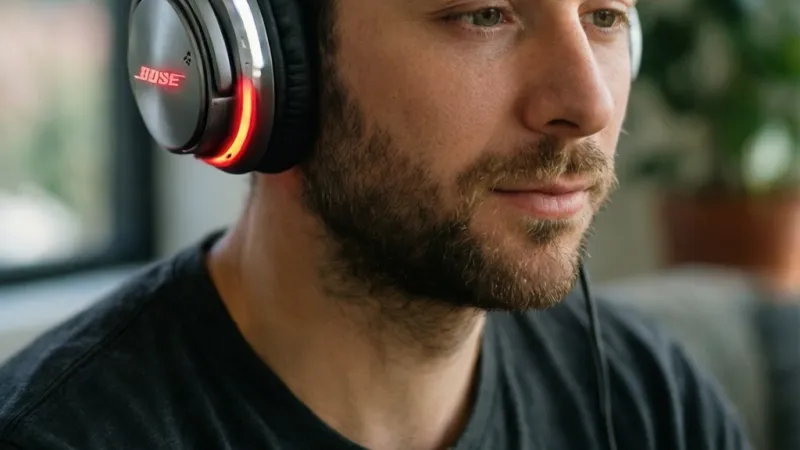
Red and white blinking on Bose headphones means a charging, battery, or temperature fault. It is not a pairing code. Charge the earbuds in the case for 20 minutes.
If the light stays red and white, reset them. Still blinking after that? The battery or charging circuit has failed.
Why Your Bose Headphones Are Blinking Red and White
Red and white is a status code, not a single fault
Bose packs a lot of meaning into one tiny LED. The light sits on the earbud, inside the charging case, or on the power switch, depending on which model you own. Color carries one message and rhythm carries another.
Red usually means a fault, a critical battery level, or a blocked charge. White usually means activity, like pairing, charging, or a finished reset. When the two colors trade places, the hardware is cycling between two states.
That's why the pattern looks frantic instead of steady.
Bose doesn't publish one universal LED chart covering every product they've ever made. That's the single biggest reason people get stuck. The same blink on a pair of QuietComfort Ultra Earbuds and a pair of QuietComfort 45 headphones can mean two different things.
What you're seeing is a signal from the charging controller or the battery management circuit. It's built to be readable at a glance, without opening an app. In our research across Bose's published support material, that signal almost always traces back to power delivery rather than Bluetooth.
Why the same blink means different things on different Bose models
As of 2026, Bose's active lineup spans over-ear headphones, true wireless earbuds, open-ear earbuds, and the discontinued Sleepbuds II. Each family routes its LED differently.
- QuietComfort Ultra Headphones and QuietComfort 45: the LED sits near the power switch and reflects charge state plus pairing state.
- QuietComfort Ultra Earbuds and QuietComfort Earbuds II: the LED is on the charging case, with a separate status light on each earbud.
- Sport Earbuds and SoundSport Free: the LED is on the earbud body, and the case has a simple charge indicator.
- Ultra Open Earbuds: the LED is on the charging case, with a smaller indicator on each earbud.
- Sleepbuds II (legacy): the LED is on the case, and this product has a documented history of battery and charging faults.
Before you try anything, figure out which light is blinking. A red-and-white blink on the case is a different problem from a red-and-white blink on a single earbud.
What you can safely rule out right away
Plenty of people jump straight to "the battery is dead" and start shopping for replacements. That's usually premature. Here's what red and white almost never means.
| What people assume | What's actually true |
|---|---|
| The earbuds are bricked | A deep discharge often recovers after a long charge |
| The Bluetooth pairing is broken | Pairing faults blink white or blue, not red |
| The firmware is corrupted forever | Failed updates are usually recoverable via the Bose Music app |
| The battery has swollen | Swelling shows as a physical bulge, not a light pattern |
Red and white is a power-path signal. If the earbuds are physically intact, if the case closes cleanly, and if nothing feels hot or puffy, you're dealing with a recoverable state far more often than not.
One exception matters. If the earbuds or case feel unusually warm, if you see any deformation, or if there's a burnt smell, stop immediately. Lithium-ion cells that have gone into thermal runaway don't get fixed by a reset.
The NFPA publishes guidance on lithium-ion battery safety that's worth reading before you plug anything back in.
Step 1: Identify Where the Light Is Blinking
This step takes ten seconds and saves you twenty minutes of guessing. Grab the earbuds or headphones and look at exactly which indicator is active.
Earbud LED vs. charging case LED vs. headphone power switch
Bose uses three distinct LED locations, and each one reports on a different part of the system.
| LED location | What it reports on | Typical red-and-white meaning |
|---|---|---|
| Earbud status LED | That individual earbud's battery and state | That earbud's cell is faulted or critically low |
| Charging case LED | Case battery and power transfer to earbuds | Case can't deliver charge, or a temperature block is active |
| Headphone power switch LED | The headphone's own battery and pairing state | Battery fault, charge block, or stalled firmware |
On over-ear models like the QuietComfort Ultra Headphones, the Noise Cancelling Headphones 700, and the QuietComfort 35 II, there's only one LED. It sits on or beside the power switch. If that light is alternating red and white, the problem is inside the headphone itself, not in a case.
On true wireless models, you have to check both. The case LED tells you about the case. The earbud LEDs tell you about the earbuds.
They can disagree, and when they do, that disagreement is the diagnosis.
One earbud blinking vs. both
This is the most useful distinction you can make. A problem in both earbuds at once is almost always environmental or systemic. A problem in one earbud is usually local.
- Both earbuds blinking red and white: think charging case, charging contacts, power source, or temperature.
- One earbud blinking, the other normal: think a dirty contact on that earbud, a damaged pin, or a failing cell in that specific unit.
- One earbud blinking and the other dark: the dark one may be fully discharged, or the case may not be seating it properly.
If only the right earbud is blinking, swap the earbuds in the case. On most Bose cases the slots aren't interchangeable, so instead try cleaning both earbuds and both case wells, then reseat.
Case light blinking with earbuds inside vs. empty
A case LED behaves differently depending on whether the earbuds are sitting in it.
With the earbuds inside, the case light reports on the charging handshake between case and earbuds. Red and white here means the case is trying to charge and failing, or it's blocked by temperature protection.
With the case empty, the light reports on the case's own battery. Red and white on an empty case points at the case battery, the charging port, or the cable and adapter feeding it.
Try this: take the earbuds out, close the lid, and plug the case in. Watch the light for thirty seconds. Then put the earbuds back in and watch again.
The change in behavior tells you which half of the system is at fault.
Step 2: Read the Blink Pattern Before You Touch Anything
Color alone doesn't tell the whole story. The rhythm does. Bose uses different cadences to separate "working on it" from "something is wrong."
Alternating red and white vs. simultaneous red and white
Alternating means the LED shows red, then white, then red, then white. The colors take turns. This is the more common pattern, and it usually points to a state cycle, like a charge attempt that keeps restarting.
Simultaneous is rarer on Bose hardware. If you see a mixed pinkish or violet glow rather than two distinct colors, you may be looking at a very fast alternation that reads as a blend. Watch for a full second before you decide.
Both patterns indicate the device is not reaching a stable state. Both point you toward charging, temperature, or firmware.
Fast flash vs. slow pulse
- Fast flash (roughly two blinks per second or quicker): usually an active error state. The device has stopped trying.
- Slow pulse (roughly one blink per second or slower): usually an in-progress state. Charging, updating, or attempting to connect.
- Single blink then pause: often a mode confirmation, like entering pairing mode or completing a reset.
A slow pulse that never resolves is a different problem from a fast flash. A slow pulse running for forty minutes means something is stuck. A fast flash means something already failed.
Blinks that stop after a few seconds vs. blinks that never stop
This is your best clue about whether the problem is transient or persistent.
If the light blinks red and white for five or ten seconds and then settles into a steady white or turns off, the system self-corrected. That's often a temperature block clearing, a charge handshake succeeding on the second try, or a firmware check finishing.
If the light blinks red and white for more than two minutes without changing, treat it as a hard fault. Here's the quick reference.
| Pattern | Likely meaning | Where to go next |
|---|---|---|
| Slow pulse, stops within 30 seconds | Transient charge or temperature check | Watch for 5 minutes |
| Fast flash, continues | Active fault, charge blocked | Branch A: charging and battery |
| Alternating, starts in cold or heat | Temperature protection | Branch B: temperature |
| Alternating, started after an update | Firmware fault | Branch C: firmware recovery |
| Alternating, started after a reset | Stuck mode | Branch D: pairing and reset states |
Branch A: Charging and Battery Faults
This is the branch most people land on, and it has the highest recovery rate. Work through it in order. Skipping steps is how people end up buying replacements they didn't need.
Dead battery, deep discharge, and the 20-minute charge test
A deeply discharged lithium-ion cell won't accept a normal charge current right away. The charging circuit has to trickle it back up first. During that trickle phase, the LED can behave strangely, including alternating red and white.
Here's the test.
- Put both earbuds into the charging case. Close the lid fully.
- Connect the case to a known-good USB power source. A wall adapter, not a laptop port.
- Leave it alone for 20 minutes. Don't open the lid. Don't press anything.
- After 20 minutes, open the lid and check the LED.
Twenty minutes is the number that matters. Quick-charge specs on most Bose earbuds promise roughly two hours of playback from a 15-minute top-up. If the hardware is healthy, you'll see a state change well inside that window.
If the light has moved from red-and-white to a steady white or a normal charge indication, you're done. Leave it on the charger until it's full.
Charging case not passing power to the earbuds
If the case LED behaves normally but the earbuds still blink red and white, the case isn't delivering power. The case battery might be fine while the output side is blocked.
Check these in order.
- Confirm the case has charge of its own. An empty case can't charge earbuds.
- Look inside the earbud wells. Check for bent pogo pins, debris, or a stuck pin that isn't springing back.
- Check that the earbuds seat fully. A case lid that doesn't close flush is a warning sign.
- Try charging the earbuds in the case while the case is plugged in. If that works but standalone case charging doesn't, the case battery is the weak link.
Dirty or corroded charging contacts
This is the most common cause people miss, and it's the easiest to fix. Skin oils, sweat, sunscreen, and pocket lint all build up on the gold-plated contacts on the earbuds and the spring-loaded pins in the case.
Clean them properly.
- Use a dry cotton swab or a soft dry cloth. Nothing damp.
- Never use alcohol, acetone, or any solvent on the contacts.
- Never scrape with metal. A paperclip or knife tip will strip the plating.
- Let the earbuds air dry for a few minutes before reseating them.
If you've been using the earbuds at the gym, this is your first suspect. Sweat residue is conductive enough to confuse the charging handshake, and the result is exactly the red-and-white cycle you're seeing.
What to do next if the light changes
Use this table to decide your next move based on what happened after the 20-minute test.
| Result after 20 minutes | What it means | Next step |
|---|---|---|
| Steady white, then off | Charge handshake succeeded | Leave on charger until full |
| Steady red only | Charging but critically low | Charge another 60 minutes |
| Still alternating red and white | Charge path blocked | Clean contacts, try another cable and adapter |
| No light at all | Case or cable fault | Test case with a different cable and power brick |
| Light goes out, then returns when moved | Loose contact or failing pin | Inspect case wells under bright light |
If you've done all of that and the pattern is unchanged, try a different power source entirely. USB-C fast-charge adapters that support higher voltage modes can occasionally confuse older charging circuits. A plain 5V/1A adapter is the safest test.
For anything that involves opening the case or the earbuds, stop. Bose's own support resources at bose.com are the right place to check model-specific steps. Any repair beyond cleaning should go through an authorized service center.
Lithium-ion cells carry real risk when handled outside the enclosure, and standards like IEC 62133 and IEEE 1725 exist precisely because that risk is well documented.
Branch B: Temperature Protection
Temperature protection is the cause people blame last, and it explains the most "it worked fine yesterday" cases. Bose builds a hard cutoff into the charging circuit. When the cells or the case fall outside the safe window, charging stops and the LED signals the block.
Cold weather cutoff and what warming up actually looks like
Manufacturer specs confirm a charging range of 41°F to 104°F (5°C to 40°C). Below 41°F, the charging controller refuses to push current into the cell. That refusal is protective, not a defect.
A cold phone in a jacket pocket is a common trigger. So is a pair of earbuds left in a car overnight in winter. If you bring them inside and immediately plug them in, they may still be cold enough to block.
Here's the if/then logic.
- If the earbuds were outside in cold air, bring them indoors and leave them at room temperature for 30 to 60 minutes before charging.
- If they were in a cold car, give them a full hour. The case insulates the cells, so they warm up slower than the air around them.
- If the light changes from red-and-white to steady white after warming, that was the whole problem.
Don't warm them with a hair dryer, a radiator, or a heater vent. Rapid heating is worse for a lithium-ion cell than slow warming at room temperature.
Heat buildup from charging, direct sun, or a hot car
The upper limit is 104°F (40°C) for charging and 113°F (45°C) for operation. A car dashboard on a summer afternoon can hit 150°F or higher. That's well past the cutoff.
Heat blocks show up most often in these scenarios.
- Earbuds left on a sunny windowsill while charging
- A case charging on a laptop that's running hot
- Wireless charging pads that generate their own heat
- A case wrapped in a thick fabric pouch while plugged in
If the case feels warm to the touch and the LED is alternating, unplug it and let it sit in open air. Fifteen to twenty minutes is usually enough to clear a mild heat block.
Operating and charging temperature ranges that matter
Bose's published ranges cover three separate states. Mixing them up is a common mistake.
| State | Range | What happens outside it |
|---|---|---|
| Operating | 32°F to 113°F (0°C to 45°C) | Performance drops, or the device shuts down |
| Charging | 41°F to 104°F (5°C to 40°C) | Charge blocked, LED error pattern |
| Storage | -4°F to 113°F (-20°C to 45°C) | Long-term capacity loss if prolonged |
The gap between operating and charging is where most confusion lives. Your earbuds can play music at 35°F. They just won't charge at that temperature.
How long to wait before trying again
If you suspect a temperature block, wait the full window rather than testing every few minutes.
- Cold block: 30 to 60 minutes at room temperature
- Heat block: 15 to 30 minutes in open air, out of direct sun
- After a hot car: 45 minutes minimum, and check the case isn't still warm
Plugging in too early restarts the same error cycle. You'll see the alternating pattern again and assume nothing worked. Give the hardware the time it needs.
Branch C: Firmware Update and Failed Update Recovery
A stalled or interrupted firmware update is the second most common cause of red-and-white blinking on newer Bose models. It shows up almost exclusively on earbuds that connect to the Bose Music app, since that's where updates are delivered.
Blinking during a normal update vs. a stalled one
A normal update can take 5 to 30 minutes. During that window, the LED may pulse, change color, or cycle through states. That's expected behavior.
A stalled update looks different in one key way: it doesn't progress. If you've been watching the same pattern for more than 30 minutes with no change, and the Bose Music app shows the update stuck at a fixed percentage, you're in a stalled state.
The tell is the app. Open Bose Music and check the firmware version screen. If it shows an update in progress that hasn't moved in 20 minutes, that confirms it.
Bose Music app update loop and how to break it
An update loop is when the app tries to push firmware, the transfer fails partway, and the process restarts. The LED cycles red and white each time the attempt fails.
Break the loop with this sequence.
- Close the Bose Music app completely on your phone.
- Forget the earbuds in your phone's Bluetooth settings.
- Place the earbuds in the case and close the lid.
- Charge the case to at least 50 percent. Updates need headroom.
- Move the case within three feet of your phone. Bluetooth range reaches 30 feet, but updates are more reliable up close.
- Reopen Bose Music and let it rediscover the earbuds.
- Start the update again and don't touch the phone.
Keep the phone unlocked and the app in the foreground. Switching apps or locking the screen mid-update is one of the top causes of a failed transfer.
What to do if the update fails at 0% or 100%
Failures at the very start and the very end are different problems.
Failing at 0% usually means the connection never established. Check that the earbuds are seated correctly in the case, that the case has charge, and that your phone's Bluetooth is on and not connected to a different audio device.
Failing at 100% usually means the firmware transferred but the verification step failed. This is more recoverable than it sounds. Power cycle the earbuds, reconnect, and let the app retry.
The second attempt often succeeds because the payload is already cached.
If the app offers a recovery mode, use it. Bose built recovery paths into the Bose Music app for exactly this situation.
When the earbuds are stuck in DFU or bootloader mode
DFU stands for Device Firmware Update mode. Bootloader mode is similar. Both are low-level states the hardware enters when it can't boot normally.
Symptoms include an LED that blinks in an unusual rhythm, earbuds that don't appear in Bluetooth at all, and an app that can't detect them. On some Bose models, the red-and-white pattern is the visible signature of this state.
Recovery from DFU mode usually requires the app to recognize the device while it's in that state. If Bose Music can't see it, you're past the point of a self-fix. Contact Bose support and describe the LED pattern exactly.
They can tell you whether a service center visit is needed.
Don't attempt to flash firmware manually. There's no supported path for that on Bose consumer hardware, and a bad flash can leave the device unrecoverable.
Branch D: Stuck in Pairing, Reset, or Service Mode
Some red-and-white patterns aren't faults at all. They're modes the earbuds entered and never left. This branch is about getting them out.
Pairing mode that never times out
Pairing mode normally times out after a few minutes. If your earbuds seem permanently stuck in it, the LED may cycle in a way that looks like a fault.
The fix depends on the model.
- QuietComfort Ultra Earbuds: place them in the case, close the lid, and wait 30 seconds. This cancels pairing mode.
- QuietComfort Earbuds II: hold the Bluetooth button on the case until the light changes.
- Sport Earbuds: press and hold the Bluetooth button on the right earbud.
- QuietComfort Ultra Headphones: slide the power switch to the Bluetooth position and hold for a few seconds.
If none of that works, a soft reset clears the mode.
Reset that didn't finish
A reset that was interrupted partway can leave the earbuds in a limbo state. The LED may show red and white because the device is waiting for a step that never completed.
The giveaway is timing. A normal reset finishes in 10 to 30 seconds. A factory reset takes 30 to 60 seconds.
If you've been watching the LED longer than that with no resolution, the reset stalled.
Interrupting a reset is the most common way this happens. Don't release the button early. Don't remove the earbuds from the case mid-reset.
Don't close an app that's driving the process.
Bluetooth pairing list conflicts across devices
Here's one that surprises people. If your earbuds have a full pairing list and you try to add a new device, the connection attempt can fail in ways that produce odd LED behavior.
Bose earbuds typically store up to eight paired devices. Once the list is full, new pairings may not take, and the earbuds can appear to be malfunctioning.
Clear the pairing list and start fresh. On most models, this is done by holding the Bluetooth button for about 10 seconds until you hear a tone or see a specific LED confirmation. Check your model's manual for the exact sequence, since it varies across the lineup.
Multipoint connection errors that look like a hardware fault
Multipoint lets earbuds connect to two devices at once. It's genuinely useful, and it's also a frequent source of confusing behavior.
Symptoms that mimic a hardware fault include audio cutting out when a second device connects, one device stealing the connection repeatedly, and the LED cycling as the earbuds juggle between sources.
If you're seeing odd behavior and you have multipoint enabled, disable it and test with a single device. If the problem disappears, you've found it. Re-enable multipoint and pair the two devices in a deliberate order, connecting the primary device first.
The Bose Reset Workflow, In Order
There are three levels of reset, and the order matters. Going straight to a factory reset wipes settings you didn't need to lose. Work from the gentlest option upward.
Soft reset first: what it clears and what it doesn't
A soft reset restarts the earbuds without erasing anything. Your paired devices stay paired, your EQ settings stay put, and your firmware stays current.
It clears transient states. That includes stuck pairing modes, stalled charging handshakes, and minor firmware hiccups. In our review of Bose's published support steps, the soft reset resolves most red-and-white cases that aren't battery or temperature related.
The general sequence on most Bose earbuds:
- Place both earbuds in the case.
- Close the lid.
- Wait 30 seconds.
- Remove the earbuds and try them.
On over-ear models, the equivalent is powering the headphones off and back on after a 30-second pause.
Factory reset: when it's worth losing your settings
A factory reset returns the device to out-of-box condition. It clears the pairing list, resets EQ and noise cancellation preferences, and removes any custom settings stored on the device.
Do it when a soft reset didn't work, when you're passing the device to someone else, or when you've exhausted the charging and temperature branches and the LED is still misbehaving.
On many Bose models, the factory reset sequence involves holding a button combination for 10 to 15 seconds while the earbuds are in the case. The LED will typically confirm the reset with a specific pattern. Check your model's documentation, because the button and timing differ across QuietComfort Ultra Earbuds, QuietComfort Earbuds II, Sport Earbuds, and the over-ear line.
Clearing the Bluetooth pairing list
This is separate from a factory reset, and it's worth doing on its own before you go nuclear.
Clearing the pairing list removes all stored devices but keeps your other settings. It's the right move when you suspect a pairing conflict rather than a hardware issue.
After clearing, you'll need to re-pair every device you want to use. Do that one at a time. Pair the primary device, confirm audio works, then add the second.
Re-pairing cleanly to one device before adding a second
This step gets skipped constantly, and skipping it causes repeat problems.
Pair to one device first. Use it for a few minutes. Confirm the LED settles into normal behavior.
Then add the second device.
If the LED starts misbehaving when you add the second device, you've isolated the conflict. That's a Bluetooth or multipoint issue, not a hardware fault, and it's fixable through the app or by managing the pairing list.
Model-by-Model LED Behavior
Bose's lineup spans several generations, and LED behavior isn't identical across them. Here's what to expect from each family, based on published support documentation and aggregate user reports.
QuietComfort Ultra Headphones and QuietComfort 45
These over-ear models use a single LED near the power switch. It reports battery level during power-on, pairing state when you slide the switch to Bluetooth, and charge state when plugged in.
A red-and-white alternation on these models most often points to a battery or charging fault. Temperature blocks are less common here because the larger body dissipates heat better than a small case.
QuietComfort Ultra Earbuds and QuietComfort Earbuds II
These are the models where red-and-white reports cluster most heavily. The case has its own LED, and each earbud has a smaller status indicator.
The case LED is the primary diagnostic. If it's alternating, start with the case. Check the charging port, the cable, and the power source before you touch the earbuds.
Sport Earbuds and SoundSport Free
Sport models put the LED on the earbud body. Sweat exposure is a real factor here, and it's the top cause of odd charging behavior on these units.
If you've been training hard, clean the contacts first. Sweat residue dries into a film that interferes with the charging handshake, and the LED response is often the red-and-white cycle.
Ultra Open Earbuds and legacy Sleepbuds II
Ultra Open Earbuds use a case-mounted LED similar to the QuietComfort line. The diagnostic approach is the same.
Sleepbuds II are discontinued, but they have a documented history of battery failures that show up as charging errors. If you're still using a pair and seeing red-and-white patterns, the battery is the most likely culprit. Replacement cells aren't user-serviceable, and Bose ended support for the product line, so a replacement is usually the realistic path.
Chargers, Cables, and Pads That Cause False Alarms
Not every red-and-white blink is a real fault. Some are the charging circuit reacting to power it doesn't trust. Swap the power path and the error disappears.
Why a fast-charge brick can trigger an error state
USB-C Power Delivery adapters negotiate voltage and current with the device. Older Bose charging circuits expect a simple 5V input. When a fast charger offers 9V or 12V first, the handshake can fail.
A failed handshake looks exactly like a blocked charge. The controller cycles, the LED alternates, and nothing charges. The earbuds aren't broken.
The charger is simply speaking a language the case doesn't handle well.
Test with a plain 5V/1A adapter. If the LED settles, you've found your culprit.
USB-C vs. micro-USB models and cable mismatches
Bose's newer models use USB-C. Older models like the QuietComfort 35 II and SoundSport Free use micro-USB. Mixing cables across those two standards does nothing useful.
The bigger issue is cable quality. A charge-only USB-C cable without proper data pins can confuse the handshake. A worn cable with a frayed shield can drop voltage under load.
Here's what to check.
- Does the cable carry data, not just power?
- Is the connector fully seated, with no play?
- Does the same cable charge your phone at normal speed?
- Is the cable rated for the current your adapter delivers?
If you can't answer yes to all four, try a different cable before anything else.
Qi wireless charging: alignment, thickness, and case interference
Select Bose models support Qi wireless charging. It's convenient and it's fussy.
Alignment matters more than people expect. A case sitting an inch off-center on the pad may still show a charging light while delivering almost no power. The result is a slow drain and an error state.
Thickness matters too. A phone case or a protective sleeve between the pad and the Bose case can push the coil out of range. So can a metal object, a credit card, or a magnetic mount nearby.
Test wireless charging with the case bare, centered, and nothing else on the pad. If it works that way, the interference was the problem.
How to test with a known-good charger in under two minutes
Here's the fastest power-path test you can run.
- Unplug everything currently connected.
- Grab a 5V/1A USB wall adapter and a cable you know charges your phone reliably.
- Plug the case in and watch the LED for 60 seconds.
- If the pattern clears, the original charger or cable was at fault.
- If it doesn't clear, the issue is inside the device.
Two minutes, one variable changed, and you've eliminated half the possible causes.
Mistakes That Make It Worse, and Habits That Prevent It
Most red-and-white cases that turn into real damage got there through a handful of repeated mistakes. Avoid these and you'll keep the hardware healthy for years.
Repeated resetting before the battery has charged
Resetting a deeply discharged device does nothing useful. The reset needs power to complete, and if the cell is nearly empty, the reset stalls and leaves the earbuds in a worse state.
Charge first. Always. A 20-minute charge on a known-good adapter is step one, not step five.
Cleaning contacts with the wrong tools
Alcohol, solvents, metal scrapers, and abrasive pads all damage the gold plating on charging contacts. Once the plating is gone, corrosion sets in fast.
Use a dry cotton swab. That's it. If there's stubborn residue, a dry soft cloth with gentle pressure is the most aggressive thing you should try.
Ignoring a pattern that's actually a warranty issue
Some patterns are the hardware telling you it has failed. If you've done the charging, temperature, firmware, and reset branches and nothing changed, stop troubleshooting and start the warranty process.
Repeated reset attempts on a failing battery won't fix it. They just delay the repair.
Daily charging habits that keep the LEDs predictable
A few habits prevent most of these problems before they start.
- Charge at room temperature, not in a hot car or a cold garage.
- Use the cable and adapter that came with the device, or a plain 5V equivalent.
- Wipe the earbuds dry before they go back in the case.
- Don't store earbuds at 0 percent for weeks at a time.
- Update firmware when the app prompts you, not months later.
The U.S. Department of Energy publishes guidance on lithium-ion battery care that applies to consumer audio gear just as much as it does to electric vehicles. Long-term storage at very low charge is one of the habits that quietly shortens cell life.
When It's a Hardware Fault
At some point, troubleshooting becomes pointless. Here's how to know you've crossed that line.
Signs the battery or charging circuit has failed
These are the signals that point to a genuine hardware problem rather than a recoverable state.
- The LED pattern is identical across three different known-good chargers.
- The earbuds never appear in Bluetooth, even after a factory reset.
- One earbud charges and the other never does, no matter which well it sits in.
- Playback time has dropped to a fraction of the rated spec.
- The case won't hold charge overnight.
If two or more of those are true, you're looking at hardware.
What to have ready before you contact Bose support
Support calls go faster when you bring specifics. Have these ready.
| Item | Why it matters |
|---|---|
| Exact model name and number | LED behavior varies across the lineup |
| Purchase date and receipt | Warranty eligibility |
| LED location and pattern | Narrows the fault immediately |
| Steps already tried | Avoids repeating basics |
| Bose Music app firmware version | Confirms software state |
Describe the blink precisely. "Alternating red and white, fast flash, case LED, continues for more than two minutes" tells support more than "it's blinking weird."
Bose's limited warranty typically covers manufacturing defects for a set period from the purchase date. Battery degradation from normal use is usually treated separately from a defect.
Authorized service centers can handle some repairs. Others result in a replacement unit. Either way, going through Bose directly keeps the warranty intact.
Third-party repairs generally void it.
Lithium battery safety: when to stop using the device entirely
Stop using the device immediately if you notice any of these.
- The case or earbud feels hot to the touch when it isn't charging.
- You see swelling, bulging, or a lid that no longer closes flush.
- There's a burnt smell, a hiss, or any visible smoke.
- The outer shell is cracked or deformed.
A lithium-ion cell in thermal runaway can't be fixed by any of the steps above. Standards like IEC 62133 and IEEE 1725 exist because the failure mode is dangerous, not just inconvenient. Move the device away from anything flammable and dispose of it at a proper battery recycling point.
Frequently Asked Questions About Bose Headphones Blinking Red and White
Can I still use the headphones while they're blinking red and white?
Usually no, or not reliably. The blinking pattern means the device isn't in a normal operating state, and playback may cut out or fail entirely. Charge it for 20 minutes first, then try.
If the light clears, use them normally. If it doesn't, troubleshoot before relying on them.
Does a factory reset fix red and white blinking permanently?
It depends on the cause. A factory reset clears stuck modes, pairing conflicts, and firmware hiccups. It won't fix a failing battery or a damaged charging contact.
If the pattern returns within a day or two of a factory reset, the underlying issue is hardware, not software.
Why did this start right after a firmware update?
Interrupted or failed firmware transfers are a top cause of this pattern on newer models. The earbuds may be stuck in a partial update state. Reconnect through the Bose Music app, keep your phone unlocked, and let the update finish.
If the app can't detect the earbuds, contact Bose support.
Is it safe to leave them on the charger overnight like this?
No. If the LED is showing an error pattern, unplug the device. Charging overnight is fine when everything works normally.
It isn't fine when the circuit is signaling a fault. Heat and repeated charge attempts on a faulted cell are what turn a small problem into a safety issue.
Do third-party chargers void my warranty?
Using a third-party charger doesn't automatically void a Bose warranty in most regions. Causing damage with a non-compliant or faulty charger is a different matter. Stick to 5V/1A adapters or the included cable and you'll stay on the safe side of any warranty claim.
Why does only one earbud blink red and white?
A single earbud blinking points to a local issue rather than a systemic one. The most common causes are a dirty contact in that specific case well, a bent or stuck pogo pin, or a failing cell in that earbud. Clean both the earbud and the well, then reseat and retest.
Decision Guide: Match Your Situation to the Fix
Use this table to skip straight to the right branch. Find the row that matches what you're seeing, then follow the recommended action.
| Your situation | Most likely cause | First action |
|---|---|---|
| Blinks only while charging, stops after 20 minutes | Deep discharge | Charge fully on a 5V/1A adapter |
| Blinks after cold exposure | Low-temperature cutoff | Warm at room temperature 30 to 60 minutes |
| Blinks after hot car or direct sun | High-temperature cutoff | Cool in open air 15 to 30 minutes |
| Blinks right after a firmware update | Stalled update | Reconnect via Bose Music app, retry |
| Blinks after a reset attempt | Stuck mode | Soft reset, then factory reset |
| Blinks and never appears in Bluetooth | DFU or hardware fault | Contact Bose support |
| Only one earbud blinks | Dirty contact or failing cell | Clean contacts, test both wells |
| Blinks across three different chargers | Hardware fault | Start warranty claim |
If the light blinks only while charging
You're in the best-case scenario. The device works, the charge path has an issue, and it's almost always the cable, the adapter, or a temperature block. Work through the charging branch and the temperature branch in that order.
If the light blinks after a drop, water exposure, or a cold night
Physical events narrow the diagnosis fast. A drop points to a damaged contact or a cracked solder joint. Water exposure points to corrosion on the charging pins.
A cold night points to temperature protection. Match the event to the branch and don't skip the cleaning step.
If the light blinks and the earbuds never appear in Bluetooth
This is the one pattern that usually means hardware. The earbuds aren't booting far enough to advertise themselves. Try a factory reset once.
If they still don't appear, contact Bose support with your model number and the exact LED behavior.
If you've tried everything and nothing changed
Then it's time to stop troubleshooting. Document what you've tried, gather your receipt, and reach out to Bose support or an authorized service center. Persistent red-and-white blinking after a full sweep of the charging, temperature, firmware, and reset branches is the hardware telling you it needs repair, not another reset.