A Verizon router blinking light is rarely a disaster. Most of the time, that flashing LED is just the router telling you it's booting, updating firmware, or waiting for a device to pair. The trick is reading the color and the blink pattern, because those two details separate a harmless status update from a genuine connection failure.
In our research across Verizon's official router documentation, the boot sequence alone runs 2 to 5 minutes on most models, and a firmware update can take 10 to 20 minutes. That's a long time to stare at a blinking light and wonder. Here's how to tell which blinking state you're actually looking at, and what to do about each one.
Quick Answer
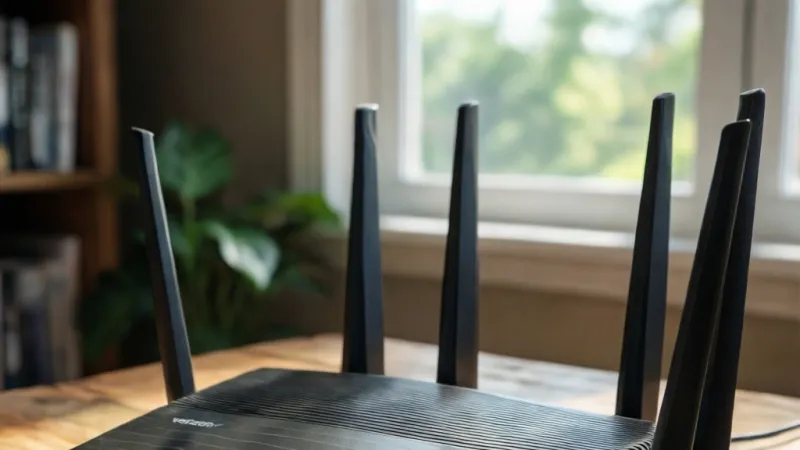
Verizon router blinking means the router is working through a state change. A white blink usually means booting or updating. A slow green or blue blink often means WPS pairing.
Red or amber means no internet or no signal. Wait five minutes before resetting anything.
Why Your Verizon Router Light Is Blinking (And Why the Color Changes Everything)
That little LED on the front of your router isn't decoration. It's a status output, and Verizon designed it to compress a lot of information into a single light. Color tells you which subsystem is talking.
Blink pattern tells you whether that subsystem is mid-transition or stuck.
Here's the mental model that makes all of this click. A solid light means steady state. A blinking light means something is in progress.
If the progress finishes, the light goes solid or off. If it never finishes, you have a problem worth troubleshooting.
The quick answer most people need
Most blinking is temporary. If your Verizon router light has been blinking for under five minutes, leave it alone. Power cycling during a firmware write or an activation handshake is the single fastest way to turn a five-minute wait into a service call.
The exceptions are red and amber. Those colors almost always mean the router can't reach the internet or can't hold a stable signal. Those are the two states where you should start checking cables and the outage map rather than waiting it out.
When blinking is normal and when it isn't
Use this as your first filter before you touch a single cable.
Blinking is normal when:
- You just plugged the router in or restored power after an outage
- You just ran a self-install and the router is activating
- You pressed the WPS button to pair a device or extender
- A firmware update is downloading or installing
- The router is passing active Wi-Fi traffic (some models flicker during heavy use)
Blinking is a problem when:
- A red or amber light blinks for more than two minutes
- A white light still blinks after 20 minutes
- The pattern changes rapidly and never settles
- You've lost internet and the light has been cycling for an hour
- The light blinks but no devices can see your Wi-Fi network at all
Here's a quick reference for the states you'll see most often. Exact mappings vary by model and firmware version, so treat this as a guide, not gospel.
| Light and pattern | Typical meaning | Normal or problem |
|---|---|---|
| White, slow blink | Booting, activating, or updating firmware | Normal for 2 to 20 min |
| White, solid | Connected and working | Normal |
| Green, slow blink | WPS pairing window is open | Normal for about 2 min |
| Blue, blinking | Wi-Fi activity or WPS handshake | Usually normal |
| Red, blinking | No internet, failed activation, or ONT fault | Problem |
| Amber or orange, blinking | Weak 5G or LTE signal, degraded link | Investigate |
| Off | No power or power adapter fault | Problem |
If your light matches one of the "normal" rows and you still have internet, close this tab and go do something else. The router is handling it.
Step 1: Identify Your Verizon Router Model and Service Type
This is the step almost everyone skips, and it's the reason so much online advice about Verizon router lights is useless. Verizon ships at least three completely different product families under the same brand, and their LED behavior does not match.
You need two pieces of information before you diagnose anything. The router model number, and which Verizon internet service you're on. Fios runs over fiber and coax or Ethernet. 5G Home runs over a cellular signal.
LTE Home runs over a different cellular band. Each one uses its LEDs differently.
Fios vs 5G Home vs LTE Home: different lights, different rules
Fios (fiber to the home). Your router connects to an Optical Network Terminal, usually called an ONT. The ONT is a separate box, often mounted in a garage, closet, or outside wall. When a Fios router light blinks red, the ONT is the first thing a technician checks.
The router itself is often fine.
5G Home Internet. Your router is also your modem. There's no ONT and no coax requirement. It picks up a 5G signal from a nearby cell site.
The most important light on these units is the signal strength indicator, which behaves more like a phone's bars than a traditional router LED.
LTE Home Internet. Similar to 5G Home, but on LTE bands. Speeds are lower, typically 25 to 50 Mbps in our review of Verizon's published ranges. Signal lights here are even more sensitive to placement, trees, and building materials.
A key point: If you're on Fios and your router is blinking red, a 5G Home troubleshooting guide will lead you nowhere. Match the guide to your service type first.
Where to find your model number (CR1000A, CR1000B, G3100, G1100, ASK-NCQ1338, WNC-CR200A)
You've got three easy places to look.
- The sticker on the router. Flip it over or check the back panel. You'll see the model number, serial number, and MAC address printed together.
- The My Verizon app. Sign in, open your internet service, and tap your equipment. The model shows right there.
- The router's admin page. Type 192.168.1.1 into a browser on a connected device. Log in and check the device info section.
Once you have the number, here's how the major models map to service type.
| Model | Service type | Wi-Fi generation | Notes |
|---|---|---|---|
| CR1000A | Fios | Wi-Fi 6E | Current flagship Fios router |
| CR1000B | Fios | Wi-Fi 7 | Newer Fios units |
| G3100 | Fios | Wi-Fi 6 | Widely deployed, single front LED |
| G1100 | Fios | Wi-Fi 5 | Legacy, still in service in many homes |
| ASK-NCQ1338 / NCQ1338FA | 5G Home | Wi-Fi 6 | Signal bars on the front |
| WNC-CR200A | 5G Home / LTE Home | Wi-Fi 6 | Compact design, placement-sensitive |
Every one of these has a published user manual on Verizon's support site at verizon.com/support. If your light behavior doesn't match anything in this article, the manual for your exact model is the tiebreaker. Verizon also files equipment authorization records with the FCC, which confirms which models are officially certified for sale in the US.
Verizon Router Light Colors and Blink Patterns: The Full Decoder
Two variables matter here. Color and cadence. Once you can name both, you can usually name the problem in under a minute.
Solid vs slow blink vs fast blink vs pulsing
These four patterns mean genuinely different things, and mixing them up sends people down the wrong path.
- Solid. The router reached a stable state and is holding it. Solid white or solid blue on most Verizon models means everything is fine.
- Slow blink. Roughly one flash per second or slower. This is a transition. Booting, activating, waiting for a pairing window to close.
- Fast blink. Two or more flashes per second. This usually signals an error loop or a failed handshake. The router is retrying something and not succeeding.
- Pulsing or breathing. A smooth fade in and out rather than a hard on-off. On newer Verizon models this often indicates a firmware update in progress. Do not unplug.
If you can't tell the difference between slow and fast, grab your phone and record a ten-second video. Play it back at half speed. Sounds silly, but it works, and it gives you something concrete to describe to support.
What white, green, blue, red, amber, and orange actually mean
| Color | Primary meaning | What it usually indicates |
|---|---|---|
| White | Power and system state | Booting, updating, or fully operational |
| Green | WPS and Ethernet link | Pairing window open, or active wired connection |
| Blue | Wi-Fi and WPS activity | Normal on many models, wireless traffic or pairing |
| Red | Error state | No internet, failed activation, ONT or WAN fault |
| Amber / orange | Degraded state | Weak cellular signal, slow link, thermal warning |
| Off | No power | Unplugged, dead outlet, or failed power adapter |
One warning that saves people real money. Don't assume a color means the same thing across models. On some Verizon routers, blue is the healthy state.
On others, blue is a pairing indicator. Same brand, different firmware, different language.
The safest move is to open your model's manual side by side with the router while you watch the light. It takes two minutes and eliminates guesswork.
Blinking White Light: Boot Sequence, Activation, and Firmware
A blinking white light is the most common state people panic about, and it's also the most likely to be completely normal. White is Verizon's general-purpose "system" color. It covers three distinct phases.
Phase 1: Boot. When you plug in the router, it runs a power-on self-test, loads firmware, and initializes its radios. Expect 2 to 5 minutes. The light will blink, pause, blink again, and eventually go solid.
Phase 2: Activation. On a fresh self-install, the router has to talk to Verizon's network, authenticate, and pull your account profile. This adds another 5 to 10 minutes on top of the boot time. You'll usually see the light blinking steadily through this whole window.
Phase 3: Firmware update. If Verizon pushed an update to your router, the light may pulse or blink for 10 to 20 minutes. This is the phase where unplugging causes the most damage. An interrupted firmware write can leave the router in a state where it won't boot at all, which means a replacement.
How long a white blink should last before you worry
Set a timer. Twenty minutes is the outer limit for a white blink that's still doing useful work.
- Under 5 minutes: Leave it alone. This is boot or activation.
- 5 to 20 minutes: Still likely normal, especially on a first-time setup or right after a firmware push.
- Over 20 minutes with no change: Now you can act. Try a power cycle by unplugging the router for a full 60 seconds, then plugging it back in.
- Over 45 minutes after a power cycle: Stop troubleshooting and contact Verizon. Something upstream is wrong.
One thing worth checking while you wait. Open the My Verizon app and see whether it shows your internet as active or pending. If the app says pending, the router is doing exactly what it should.
If the app says active and the light is still blinking white, you've got a genuine fault.
Blinking Red or Amber: Real Connection Problems
This is where the decision tree actually branches. Red and amber are the two colors that mean something is broken or degraded. The good news is that the fix is usually one of four things, and you can check all four in about ten minutes.
No internet, no signal, or provisioning failure
A blinking red light on a Verizon router generally points to one of these causes.
- A Verizon outage in your area. This is the most common cause and the easiest to rule out. Check the Verizon outage map before anything else.
- An ONT problem (Fios only). If your ONT has no power or its own status light is red or off, the router can't do anything. That's a Verizon-side repair.
- A loose or damaged coax or Ethernet cable. The cable between the ONT and the router carries your whole connection. A bad crimp or a loose connector will cause a red blink every time.
- Failed provisioning. Your account isn't properly attached to the router. This happens after moves, equipment swaps, and plan changes. It requires a call to Verizon.
- Suspended service. If a bill went unpaid, the router will blink red even though the hardware is fine.
Work them in that order. Outage first, then ONT, then cables, then account status. Nine times out of ten you'll find the answer in the first two.
5G and LTE signal strength lights explained
If you're on 5G Home or LTE Home, red and amber mean something different. There's no ONT and no coax. Your connection is a radio signal, and the light is telling you about signal quality.
Most Verizon 5G Home routers show signal strength as a set of bars, similar to a phone. Here's how to read them.
| Bars shown | Signal quality | What to expect |
|---|---|---|
| 4 to 5 bars | Strong | Full advertised speeds, stable connection |
| 3 bars | Good | Normal speeds, occasional dips |
| 2 bars | Weak | Reduced speeds, possible dropouts |
| 1 bar or amber blink | Very weak | Unstable, frequent disconnects |
If you're seeing one or two bars, the fix is usually physical placement, not a reset. Move the router to a window facing the nearest cell site. Get it off the floor.
Keep it away from metal shelving, thick concrete walls, and large appliances. Even a two-foot shift can add a bar.
A blinking amber light on these units often means the router found a signal but can't hold it. That's a placement problem or a congestion problem, and both are worth a call to Verizon if repositioning doesn't help within a day.
One last note on safety before you start pulling cables. Unplug the router's power adapter before you disconnect or reconnect any coax or Ethernet cable. The low-voltage signals involved won't hurt you, but a hot-swap can damage the port.
And never open the router housing or the ONT. Fiber optic cable carries invisible infrared light that can damage your eyes, and both devices are Verizon property.
Blinking Green or Blue: WPS, Pairing, and Wi-Fi States
Green and blue are the friendliest colors on a Verizon router. In almost every case, they mean the router is doing something useful with a wireless device, not that anything has gone wrong.
Green usually ties to a wired or pairing event. Blue usually ties to Wi-Fi radio activity or an active WPS handshake. The exact mapping shifts between the G3100, the CR1000A, and the 5G Home units, so check your model's manual if you want the precise definition.
Here's the practical version. If the light is green or blue and blinking steadily, and your internet works, ignore it. If the light is green or blue and blinking fast, or the pattern loops for more than a few minutes, something is stuck.
What each color means on Fios routers vs 5G Home routers
On Fios routers (G1100, G3100, CR1000A, CR1000B):
- A green blink often signals an active Ethernet link or a WPS pairing window
- A blue blink usually indicates Wi-Fi traffic or a completed WPS handshake
- A blue pulse during heavy downloads is normal and means data is moving
On 5G Home routers (ASK-NCQ1338, WNC-CR200A):
- Blue blinking typically means the router is searching for or locking onto a 5G signal
- Green blinking often means a device successfully joined the network
- Fast blue blinking during setup is normal for the first few minutes
If you're on Fios and see green blinking on a router that's been running for months, that's the unusual case. It usually means something triggered WPS, or a device is repeatedly trying to pair. Press the WPS button once to cancel the pairing window, or wait two minutes for it to time out on its own.
When a green or blue blink actually matters
- Blinking for more than 5 minutes without stopping: A pairing window is stuck open or a device is in a retry loop
- Blinking while your internet is down: The Wi-Fi radios may be fine but the WAN side is not. Check the internet LED separately
- Blinking during a firmware update: Leave it. Green and blue can appear during update phases on some models
- Blinking after you pressed WPS by accident: Just wait. The window closes in about two minutes
If you've got a blue light that won't stop blinking and your devices can't connect, try this sequence. Unplug the router for 60 seconds. Plug it back in.
Wait for the boot to finish. If the blue blink returns without any device activity, note the pattern and contact Verizon support. That combination sometimes points to a radio fault.
The 5-Minute Power Cycle (And When It Won't Help)
A power cycle is the most effective single fix for a stuck Verizon router. It's also the most overused. People power cycle a router during a firmware write, and they turn a 15-minute update into a dead unit.
So let's do this properly.
The full sequence takes about five minutes of your time and up to five more for the router to settle. Follow the order exactly.
- Confirm it's safe to power cycle. If the light is pulsing smoothly, that's likely a firmware update. Wait it out. If the light is blinking white, green, or blue with no update history, you're clear to proceed.
- Unplug the router's power adapter from the wall. Not the router end, the wall end. This fully discharges the unit.
- If you're on Fios, also unplug the ONT's power. Wait 10 seconds, then plug the ONT back in first.
- Wait a full 60 seconds. Not 10. Not 20. Sixty. This lets the capacitors drain and clears the RAM cache.
- Plug the router's power back in. Watch the light. It should run through its boot sequence and settle solid within 5 minutes.
- Wait 3 to 5 minutes after the light goes solid before testing speeds. The router is still finishing its internal setup during that window.
The correct order: router, then ONT
On a Fios setup, order matters more than people realize. The ONT is the device that converts fiber to a signal your router can use. If you power cycle the router while the ONT is still negotiating, the router can come up before the ONT is ready and get stuck.
The correct order is ONT first, then router. Give the ONT 60 to 90 seconds to stabilize before you plug the router back in. You'll see a cleaner boot and fewer false red lights.
For 5G Home and LTE Home units, there's no ONT. You just unplug the router, wait 60 seconds, and plug it back in. Same timing rules apply.
Why unplugging for 60 seconds matters
The 60-second wait isn't superstition. It's the time needed for the power supply capacitors to fully drain. A short unplug leaves residual charge in the circuit, and the router can restart with stale state in memory.
Aggregate user reports in Verizon's community forums back this up. The people who report "I unplugged it and it didn't help" almost always unplugged for 5 or 10 seconds. The ones who wait a full minute get a clean reboot the vast majority of the time.
When a power cycle won't help
A power cycle fixes software state. It won't fix hardware or account problems. Skip straight past it if any of these apply.
- Your ONT has no power or a red status light. That's a Verizon-side repair
- You're in a confirmed outage. No amount of rebooting brings back a downed network
- Your account is suspended. Check the My Verizon app for billing status
- Your coax or Ethernet cable is visibly damaged. Replace the cable, don't reboot
- You've already power cycled twice with no change. A third attempt rarely helps
- The router is more than 6 or 7 years old. Age-related failures in the power adapter and radios are common past that point
Check the ONT, Coax, and Ethernet Before You Blame the Router
On Fios, the router is only one link in the chain. The chain is fiber to the ONT, ONT to the router over coax or Ethernet, and router to your devices. If any link breaks, the router light blinks red or amber, and people replace the wrong piece of hardware.
Check the chain from the outside in. Start with the ONT, work toward the router.
Reading ONT status lights
The ONT has its own set of LEDs, usually on the side or bottom of the box. They tell you whether Verizon's signal is even reaching your home.
| ONT light | What it means | What to do |
|---|---|---|
| Power light off | ONT has no power | Check the outlet and the ONT's power adapter |
| Power light on, no other lights | ONT is powered but not communicating | Call Verizon, this is a network-side fault |
| PON or Fiber light solid green | Fiber signal is good | ONT is fine, look at the router side |
| PON or Fiber light off or red | Fiber signal lost | Call Verizon, this is a line or network issue |
| Data or MoCA light blinking | Traffic is passing to the router | Normal |
| Battery light blinking | Backup battery is dying or missing | Replace the battery if your setup has one |
If the ONT's fiber light is off or red, stop. Nothing you do to the router will help. That's a Verizon line issue and requires a technician.
Loose coax, bent fiber, and the wrong WAN port
Once the ONT checks out, look at the cable run between the ONT and the router.
- Coax connections. Hand-tighten the coax connector. Then give it a quarter turn with a wrench. Loose coax is one of the most common causes of intermittent red lights on Fios routers
- Ethernet connections. Look for a bent or missing plastic tab on the RJ45 connector. A connector that clicks weakly can drop the link under vibration
- Fiber cable. Never bend fiber optic cable tighter than a radius of about 1.5 inches. Sharp bends break the internal glass and kill the signal. Fiber damage requires a Verizon repair
- WAN vs LAN port. On routers with multiple Ethernet ports, the WAN port is the one that connects to the ONT. Plugging the ONT cable into a LAN port is a classic self-install mistake. The router will blink red forever because it never sees the internet
- Damaged power adapter. A frayed or kinked power adapter causes intermittent reboots that look like a network problem. If the adapter is warm to the touch or the cable jacket is split, replace it
If/then: how to decide what to fix
- If the ONT has no power or a red fiber light → call Verizon. Don't touch the router
- If the ONT is fine and the router's internet light is red → check the coax or Ethernet cable first
- If the cable is fine and the router still blinks red → check the outage map and your account status
- If the outage map is clear and your account is active → contact support. Provisioning may have failed
- If you're on 5G or LTE Home and the signal bars are low → move the router before you call anyone
Blinking WPS Light: Pairing an Extender or Device the Right Way
WPS stands for Wi-Fi Protected Setup. It's a shortcut that lets you add a device to your network without typing a password. Press the button on the router, press the button on the device or extender, and they pair.
When the WPS light blinks, the router has opened a pairing window. That window stays open for about two minutes. If nothing pairs in that time, the light stops and the window closes.
If you're seeing a blinking WPS light with no device trying to connect, you either pressed the button by accident or a device is stuck in a pairing retry loop.
WPS vs manual Wi-Fi setup
Both work. They just suit different situations.
| Method | Best for | Watch out for |
|---|---|---|
| WPS button | Network extenders, printers, smart TVs, devices without a keyboard | Timeout after about 2 minutes, security concerns on older standards |
| Manual password entry | Phones, laptops, tablets, anything with a screen and keyboard | Slower, but more reliable for devices that already have a screen |
| My Verizon app | Managing all connected devices in one place | Requires a signed-in Verizon account |
WPS is fastest for devices that don't have a screen. That's what it was designed for. For anything with a keyboard, typing the password is usually quicker than walking to the router and back.
One security note worth knowing. WPS using the older PIN method has a known weakness where an attacker can brute-force the PIN. The push-button method is safer.
If your router lets you disable WPS entirely in the admin panel, and you're not actively pairing anything, turning it off is a reasonable hardening step.
Why WPS times out and keeps blinking
Four things cause a WPS light to blink past its normal window.
- The pairing device is too far away. WPS works best within about 30 feet and one wall. Walk closer to the router and try again
- The device doesn't support the router's WPS version. Older printers and smart home gear sometimes only speak WPS 1.0, while newer routers default to WPS 2.0
- You're pairing an extender that's already paired. Many Verizon Fios Network Extenders need a factory reset before they'll pair to a new router
- The router is in the middle of a firmware update. WPS is disabled during updates. Wait for the update to finish
If you've tried three times and the WPS light keeps blinking without pairing, stop pressing the button. Switch to manual setup. Open the device's network settings, pick your Wi-Fi name, and enter the password.
It takes longer but it works every time.
For Verizon's Fios Network Extender specifically, the recommended pairing path is through the My Verizon app rather than the WPS button. The app walks you through the process and confirms the extender's connection status in real time.
Self-Install and Activation: Blinking That's Actually Normal
A brand-new Verizon router blinks more than an old one. That's not a fault. During the first activation, the router is doing several jobs at once: connecting to the network, authenticating with your account, downloading your profile, and pulling down any firmware updates that shipped after the box left the warehouse.
All that activity shows up as blinking lights. People see it, assume something's broken, and start resetting a router that was 90 seconds away from finishing.
What the My Verizon app and Support Assistant show you
Your fastest reality check during a self-install is the My Verizon app. It shows a live status for your service, and it will tell you whether activation is pending or complete.
- Pending or activating: The router is doing its job. Leave it alone
- Active: Activation is done. If the light is still blinking, you've got a real issue
- Action required: The app will usually tell you what to fix, like a cable check or a signal test
- Error code shown: Screenshot it. That code is what support needs to help you fast
The Verizon Support Assistant, available through the app or the support site, runs automated tests on your line. It can confirm whether the network sees your router and whether your ONT is passing signal. Running it takes about three minutes and often saves a phone call.
How long activation should take
Verizon's published self-install guidance gives a rough window, and in our review of that material, the numbers line up with what customers report.
| Stage | Typical duration |
|---|---|
| Router boot after power-on | 2 to 5 minutes |
| Network handshake and authentication | 3 to 8 minutes |
| Firmware update (if one is pending) | 10 to 20 minutes |
| Account profile sync | 2 to 5 minutes |
| Full activation, start to finish | 15 to 30 minutes typical |
That's a real 15 to 30 minutes of blinking, and it's all normal. If you're 10 minutes in and getting impatient, that's the moment to walk away and come back, not the moment to unplug.
Red flags during a self-install
Not every blink during setup is fine. Call Verizon if you see any of these.
- A red blink that lasts more than 2 minutes after the boot sequence completes
- No change in the light for 45 minutes on a fresh install
- The My Verizon app shows an error instead of pending or active
- The ONT has no power or a red fiber light on a new Fios install
- You've power cycled twice and the router still won't finish activation
One more thing to check before you call. Confirm the router's serial number in the My Verizon app matches the sticker on the physical unit. In our research, mismatched serials are a surprisingly common cause of failed activation, especially when people buy a used Verizon router secondhand.
Verizon's network only activates equipment that's registered to your account, so a router that belonged to someone else won't provision until support transfers it.
Once activation finishes and the light goes solid, run a speed test from a wired device first, then from Wi-Fi. That gives you a baseline to compare against if the light ever starts blinking again down the road.
Reset vs Factory Reset: Which One Fixes a Stuck Blinking Light
A power cycle reboots the router. A reset wipes part of its settings. A factory reset wipes everything.
Picking the wrong one wastes time, and in the worst case, it kills your Wi-Fi name, password, and every custom setting you've built up.
Soft reset, pinhole reset, and the 15-minute rule
There are three levels of "reset" on a Verizon router. Know which one you're doing before you press anything.
Level 1: Power cycle. Unplug, wait 60 seconds, plug back in. Nothing is erased. This is your first move for any stuck light.
Level 2: Soft reset (pinhole press, short). Some Verizon routers have a recessed reset button. A quick press, usually under 5 seconds, triggers a soft reboot or clears the current session. Settings usually survive.
Verizon documentation sometimes calls this a "warm reset."
Level 3: Factory reset (pinhole press, long). Hold the reset button for 10 to 15 seconds until the light changes or the router reboots. This erases your Wi-Fi name, password, port forwarding rules, DHCP reservations, and anything else you customized. The router returns to the state it left the factory in.
The 15-minute rule is this. After a factory reset, give the router a full 15 minutes to boot, re-provision with Verizon's network, and settle. People who judge success at the 5-minute mark usually assume the reset failed.
It hasn't. It's still working.
What you lose with a factory reset
Before you press that button, know exactly what goes away.
- Your custom Wi-Fi network name (SSID)
- Your Wi-Fi password
- Any guest network settings
- Port forwarding and static IP assignments
- Parental controls and device blocks
- Connected device list and nicknames
- MAC address filtering rules
- Any extender pairing you've set up
If you're on a rented Verizon router and you factory reset it, the network name and password usually revert to the default printed on the router's sticker. You'll need to reconnect every device in the house. On a Fios setup, your Fios TV boxes and any Verizon extenders will also need to be reconnected.
If/then: which reset to use
- If the light has been stuck for under 20 minutes → power cycle. Don't reset yet
- If a power cycle didn't fix it and the router is still reachable on Wi-Fi → soft reset
- If you can't reach the router's admin page at all → factory reset is reasonable
- If you changed your Wi-Fi password and forgot it → factory reset restores the default
- If you're handing the router back to Verizon → factory reset to wipe your data
- If you've never customized the router → factory reset costs you almost nothing
One warning. A factory reset does not fix a hardware fault, a bad power adapter, a damaged coax run, or an outage. If the light was blinking red before the reset, it'll be blinking red after.
Save yourself the 15 minutes and diagnose the cause first.
Firmware Updates and Blinking Patterns That Won't Stop
Firmware is the software that runs inside the router. Verizon pushes updates to fix bugs, patch security holes, and add features. The router installs them automatically, usually overnight or during low-use windows.
During a firmware update, the LED does things you won't see at any other time. It might pulse slowly, blink in a two-tone pattern, or cycle colors. All of that is expected.
Normal update window vs a router that's genuinely stuck
Most Verizon router firmware updates finish in 10 to 20 minutes. The G3100 and CR1000A both sit in that range based on Verizon's published guidance and aggregate user reports. Larger updates on Wi-Fi 6E and Wi-Fi 7 hardware can push toward 25 minutes.
Here's how to tell the difference between "working" and "stuck."
| Signal | Normal update | Stuck or failed |
|---|---|---|
| Duration | 10 to 20 minutes | 45+ minutes with no change |
| Light pattern | Pulsing or slow blink | Fast blink loop, or frozen |
| Wi-Fi availability | Drops during install, returns after | Never returns |
| My Verizon app | Shows update in progress | Shows an error or no status |
| Wired connection | Usually drops briefly | Stays down |
If you're inside the 10 to 20 minute window, walk away. Unplugging during a firmware write can brick the router. A bricked router means a replacement, and on a rented Verizon unit, that means a support call and a wait for shipping.
What to do if the update never finishes
If the light has been doing the same thing for over 45 minutes, the update likely stalled. Here's the safe recovery path.
- Wait another 15 minutes. Some updates take longer than Verizon's published window, especially on older hardware
- Check the My Verizon app. If it shows your internet as active, the update probably finished and the light is just settling
- Unplug the router for 60 seconds. This is the last safe move. Plug it back in and watch the boot sequence
- If the light returns to the same stuck pattern → factory reset
- If the factory reset doesn't fix it → contact Verizon for a replacement
One thing not to do. Don't try to install a firmware update manually from the admin panel unless Verizon's support team tells you to. The router pulls signed firmware from Verizon's servers automatically.
Sideloading an unsigned or mismatched file can permanently break the device.
Why firmware updates sometimes break Wi-Fi temporarily
During the install phase, the router restarts its Wi-Fi radios. That means every device on your network drops. Phones, laptops, smart TVs, thermostats, and cameras all lose their connection at once.
Most reconnect automatically when the radios come back. A few stubborn devices don't. If your smart TV or thermostat stays offline after a firmware update, forget the network on that device and rejoin.
That fixes it in almost every case.
Common Mistakes That Keep the Light Blinking
Most "my light won't stop blinking" calls to Verizon support trace back to one of a handful of preventable mistakes. None of them are complicated. They're just easy to make when you're frustrated and staring at a flashing LED.
Resetting too early, wrong port, ignoring an outage
Resetting too early. This is the biggest one. People see a blinking light, assume it's broken, and start pressing buttons. On a fresh install or right after an outage, the router may need 15 to 30 minutes to finish.
Every reset restarts that clock.
Using the wrong port. On routers with multiple Ethernet ports, only one is the WAN port. That's the one that connects to the ONT or your internet source. Plugging into a LAN port gives you a router that blinks forever because it never sees an internet signal.
Check the label on the back. It usually says WAN or Internet.
Ignoring an outage. Verizon's network goes down sometimes. Storms, construction, and equipment failures all cause local outages. The outage map in the My Verizon app shows them in real time.
Checking that first saves a lot of pointless troubleshooting.
Power cycling during a firmware update. Covered already, but worth repeating. If the light is pulsing smoothly, don't touch the power.
Confusing the router LED with the ONT LED. On Fios, there are two boxes and two sets of lights. The ONT lights matter as much as the router lights. If the ONT is dark or showing red, the router can't do anything.
Assuming all Verizon routers use the same LED codes. They don't. A G1100 and a CR1000A speak different light languages. Always check the manual for your exact model.
Damaged power adapters and overheating
Two hardware issues cause blinking that no amount of resetting will fix.
Power adapter failure. The adapter is the small brick between the wall outlet and the router. Over years of use, the cable jacket can fray near the connector, or the internal transformer can degrade. The symptom is intermittent reboots, which look exactly like a software problem.
If the adapter feels unusually hot, or the cable is kinked or split, replace it. Use a Verizon-specified adapter. Generic adapters with the wrong voltage can damage the router.
Overheating. Routers need airflow. Stacking one on top of a cable box, stuffing it into a closed cabinet, or sitting it on a carpet blocks the vents. A hot router throttles its radios and sometimes reboots on its own.
The fix is simple. Move it to an open, ventilated spot away from other heat sources.
Where not to put your router:
- Inside a metal cabinet or media console with a closed door
- On top of or directly under another electronic device that runs warm
- In direct sunlight through a window
- On a carpet or soft surface that blocks the bottom vents
- Next to a microwave, baby monitor, or cordless phone base
If you touch the router's case and it's uncomfortably warm, that's a warning. Give it more space. Most Verizon routers run warm to the touch normally, but hot enough to pull your hand back is not normal.
When to Call Verizon (And What to Tell Them)
At some point, the right move is to stop troubleshooting and call. The trick is knowing when, and going into the call with the details that get you a fast answer instead of a script.
Outage map checks before you dial
Check the Verizon outage map first. It's in the My Verizon app and on the Verizon support site. If your area is showing an outage, you're done.
Nothing on your end will fix it, and Verizon already knows.
If the map is clear, do these three checks before you dial.
- Confirm your account is in good standing in the My Verizon app
- Confirm the router's serial number matches what's registered on your account
- Run the Support Assistant diagnostic, and screenshot the result
That's five minutes of work. It saves 20 minutes on hold.
The LED details support actually needs
Support reps can't see your router. They rely on what you tell them. Give them the specifics and skip the vague descriptions.
Tell them:
- Your exact router model (CR1000A, G3100, ASK-NCQ1338, and so on)
- The light's color (white, green, blue, red, amber, orange)
- The blink pattern (slow, fast, pulsing, solid, off)
- How long it's been in that state
- What you've already tried (power cycle, factory reset, cable check)
- Whether the ONT lights are normal (Fios only)
- What the My Verizon app shows for your service status
- Any error codes from the Support Assistant
"I have a G3100 and the front LED has been blinking red fast for 30 minutes. The ONT shows solid green on power and fiber. I've power cycled twice with a full 60-second wait.
The app shows no outage in my area." That message gets you straight to a real answer.
Compare that to "my internet is broken." You'll get the same script anyone else gets.
Truck roll timing, fees, and warranty replacement
If Verizon decides a technician needs to visit, here's what to expect.
| Situation | Typical handling |
|---|---|
| Confirmed network or ONT fault | Verizon covers the visit, no charge |
| Router hardware failure under warranty | Free replacement, may ship instead of a visit |
| Router damage from customer misuse | Charge may apply |
| Missed appointment | Reschedule fee may apply |
| Fios install or activation issue | Usually no charge |
| Third-party router issue | Verizon may charge a diagnostic fee |
Verizon's standard equipment warranty covers their routers while you're an active customer. If the router is genuinely dead, they'll replace it, usually by shipping a new unit rather than sending a tech. Renters and owners are treated the same on this point.
Keep the old router until the new one arrives. Verizon usually wants it back, and there's a fee if you don't return it within the window they specify. Box it up with the power adapter and any cables they sent.
For customers on 5G Home or LTE Home, a technician visit is less common. Those setups don't rely on a wired line to your home, so most issues are resolved by moving the router or replacing the unit by mail.
Frequently Asked Questions
Why is my Verizon router blinking white?
A blinking white light usually means the router is booting, activating, or installing a firmware update. That's normal for the first 2 to 20 minutes after a restart or self-install. If it's still blinking white after 20 minutes, try a 60-second power cycle.
If it's still blinking after 45 minutes, contact Verizon.
What does a blinking red light on my Verizon router mean?
A blinking red light almost always means the router has no internet connection. Check the Verizon outage map first, then inspect the ONT and the coax or Ethernet cable between the ONT and the router. If those are fine, the issue may be account-related or a provisioning failure that requires a support call.
How long should I wait before resetting a blinking Verizon router?
Wait at least 20 minutes before resetting anything. Boot sequences take 2 to 5 minutes, activation adds another 5 to 10, and firmware updates can run 10 to 20 minutes. Resetting during any of those windows can interrupt the process and make things worse.
Only reset if the light hasn't changed after 20 to 30 minutes.
Does a blinking light always mean something is wrong?
No. Blinking is normal during boot, activation, firmware updates, and WPS pairing. Green and blue blinks often just mean a device is connecting or Wi-Fi traffic is passing.
The colors to watch are red and amber, which point to real connection or signal problems.
Can a blinking light mean my router is broken?
It can, but it's usually the last explanation, not the first. Most blinking lights trace back to software states, cable issues, outages, or account problems. If a factory reset, a cable check, and an outage check all come back clean and the light still blinks red or amber, then a hardware fault is likely.
That's when Verizon replaces the router.
Why does my Verizon router light keep blinking after a factory reset?
A factory reset triggers a full boot and re-provisioning cycle, so the light can blink for 15 to 25 minutes afterward. Give it a full 15 minutes before judging. If it's still blinking after 45 minutes, stop resetting and call Verizon.
A router that isn't registered to your account is a common cause, especially with secondhand units.