If your Xbox controller won't stop blinking, the light is doing its job. It's telling you the controller can't hold a connection. That blink isn't random.
It's the controller searching for something that isn't answering.
Microsoft's support documentation treats the Xbox button light as a connection indicator, not a battery gauge. First-party Xbox Wireless Controllers, including model 1708 and model 1914, use that single LED to show three main states: solid, slow flash, and rapid flash. Read the pattern right and most fixes take under five minutes.
Here's how to decode it, then what to actually do.
Xbox Controller Wont Stop Blinking
Quick Answer
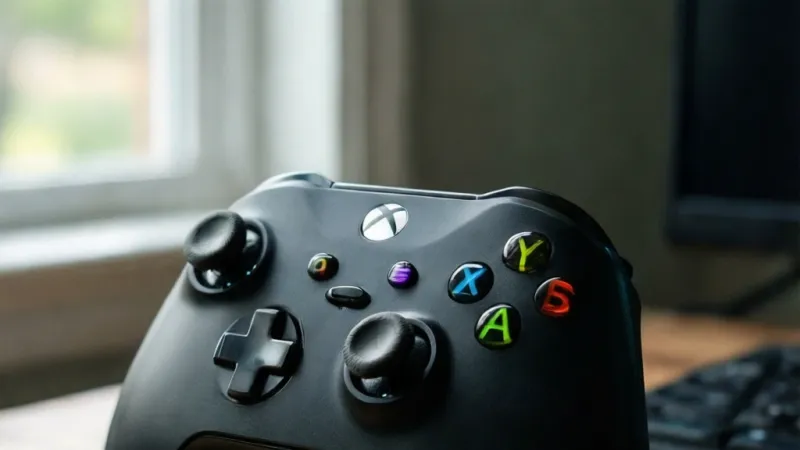
If your Xbox controller won't stop blinking, it means the controller isn't connected. Slow blinking means it's searching for a device it already knows. Fast blinking means it's in pairing mode and waiting.
A charge-only USB cable won't fix this. Re-pair the controller, or swap the batteries.
Xbox Button Blink Patterns at a Glance
| Blink pattern | What it means | First fix to try |
|---|---|---|
| Slow flash, about once per second | Controller is on but not connected | Sync it to the console or re-pair on PC |
| Rapid flash, two to three per second | Controller is in pairing mode | Complete pairing inside the 20-second window |
| Solid white light | Connected and ready | Nothing, unless inputs drop mid-game |
| Quick flash, then off | Failed connection or dead battery | Fresh AA batteries or a charged pack |
| Blinks only when plugged in | Charge-only cable, or a pack that won't hold | Swap to a data-capable USB-C cable |
A pattern that matches none of these usually points to a hardware fault, not a pairing problem. Those cases get their own branch later.
Why Your Xbox Controller Won't Stop Blinking
The Xbox button light is a status indicator, not a warning light. Microsoft built it to show connection state. When the controller is paired and awake, the light stays solid.
When it isn't, the light blinks.
That's the whole system. Everything else is about figuring out why the connection isn't happening.
The Light Is a Status Message, Not a Fault Code
A fault code tells you what broke. A status message tells you what the controller is doing right now. The Xbox button light falls into the second category.
So when it blinks, the controller is saying it's on but not talking to anything. It doesn't know why. It just keeps broadcasting, waiting for a handshake that never completes.
That's why resetting the controller alone rarely fixes it. The problem is usually on the other end, or in the link between them.
Blinking vs Solid vs No Light: What Each State Means
Three states, three meanings. Here's the short version.
- Solid light: The controller is paired and connected. Inputs are being received.
- Slow blink: The controller is powered on but hasn't found a paired device. It's searching.
- Rapid blink: The controller is in pairing mode. It's broadcasting, waiting for a device to answer.
- No light at all: The controller is off, or the batteries are completely dead.
- Blink, then off: The controller tried to connect, failed, and shut itself down to save power.
If you're seeing a slow blink and you've never paired this controller to the device in front of you, that's your answer. It's searching for something it remembers, not something new.
Which Controller Models This Applies To
Most of what you'll read here applies to every modern Xbox controller. The specifics shift a little by model.
- Xbox Series X|S controller (model 1914): USB-C, Bluetooth, white Xbox button light, up to 40 hours on AA batteries per Microsoft's specs.
- Xbox One S and later controllers (model 1708): Micro-USB, Bluetooth, white Xbox button light.
- Xbox Elite Wireless Controller Series 2 (model 1797): USB-C, Bluetooth, white light, plus a separate profile LED near the profile button.
- Xbox Adaptive Controller (model 1836): Different form factor, same pairing logic.
- Xbox 360 Wireless Controller: Uses a ring of four green quadrants, not a single button light. Blinking quadrants mean it's searching, or the battery is running low.
The 360 controller is the odd one out. Its ring of light also shows player number. So a "blinking" 360 controller is often just rotating through quadrants while it looks for a receiver.
One more thing worth knowing. The Xbox button light doesn't indicate charge level on first-party controllers. Microsoft shows battery status on screen, in the guide overlay.
If you're waiting for the light to change color while charging, you'll be waiting forever.
How Xbox Controller Pairing, Charging, and Firmware Lights Work
Blinking problems almost always trace back to one of three systems: the wireless protocol, the power source, or the firmware. Get a picture of how each one works and the troubleshooting gets much faster.
Xbox Wireless vs Bluetooth vs USB-C Wired
Xbox controllers speak three different languages depending on how they're connected. That matters because each one fails differently.
| Connection type | Where it works | Typical range | What blinking means here |
|---|---|---|---|
| Xbox Wireless | Xbox consoles, PC with Xbox Wireless Adapter | About 20 feet (6 meters) | Searching or pairing |
| Bluetooth | Windows, Android, iOS | Up to about 33 feet (10 meters) in open air | Searching or pairing |
| USB-C or micro-USB wired | Anywhere with a data-capable cable | Cable length | Cable has no data lines, or the port is damaged |
Xbox Wireless is Microsoft's own 2.4 GHz protocol. It's lower latency than Bluetooth and supports up to eight controllers per console. Bluetooth is more universal but drops more often in busy wireless environments.
Per the Bluetooth SIG, Bluetooth operates in the same 2.4 GHz band as Wi-Fi and many wireless peripherals. That shared band is why a controller can blink endlessly in a room full of routers, USB 3.0 drives, and cordless phones.
The Sync Button and the 20-Second Pairing Window
The sync button is the small circular button on the top edge of the controller, next to the USB port. On the console, it sits near the front USB port on Series X, on the front-left of the One S and One X, and on the left side of the original Xbox One.
Press and hold the controller's sync button and the Xbox button starts flashing rapidly. Microsoft's Xbox Support documentation notes that the controller stays discoverable for a short window, usually around 20 seconds, before it gives up and shuts off.
Miss that window and the controller drops back into a slow blink, then goes dark. That's the "blinking then dead" pattern a lot of people run into.
Why the Controller Keeps Searching After a Failed Handshake
A pairing handshake is a short back-and-forth. The controller broadcasts. The console or PC answers.
They exchange keys. The light goes solid.
If any step fails, the controller goes back to searching. Common reasons the handshake fails:
- The console isn't actually in sync mode when you press the controller's sync button
- The controller is still paired to a different device that's powered on nearby
- The Bluetooth adapter on your PC has a stale entry for the controller
- The 2.4 GHz channel is crowded and packets are getting dropped
- The controller's wireless board has partial damage from a drop or liquid
That last one is the one people miss. A controller with a damaged antenna can still power on, still blink, and still fail every pairing attempt. It looks like a software problem.
It isn't.
Where Firmware Fits In
Controller firmware controls how the wireless chip behaves. Outdated firmware can cause pairing loops that no amount of re-syncing will fix.
You update firmware through the Xbox Accessories app, available on Xbox consoles and on Windows. Plug the controller in with a data-capable USB cable, open the app, select the controller, and choose Update now. The process takes two to five minutes.
Failed firmware flashes are rarer than they used to be, but they still happen. If a controller starts blinking immediately after an update, the flash may not have completed. Re-run it.
A console-side fix also helps here. Clearing the alternate MAC address resets the console's network stack, which includes the wireless radio that talks to controllers. You'll find it under Settings, then General, then Network settings, then Advanced settings.
The Decision Tree: 5 Conditions That Decide Your Fix
There are five questions that narrow this down fast. Answer them in order and you'll land on the right branch without guessing.
1. Which Platform Are You Connecting To?
The fix changes based on the device.
- Xbox console: Use the sync button on both ends. Check that the console isn't at its eight-controller limit.
- Windows PC with Xbox Wireless Adapter: Use the adapter's pairing button, not Windows Bluetooth settings. The adapter bypasses Bluetooth entirely.
- Windows PC over Bluetooth: Remove the controller from Windows Bluetooth settings first, then re-add it.
- Android or iOS: Pair through the phone's Bluetooth menu. Expect a slower reconnect than on console.
- Xbox Cloud Gaming: Pair to the phone or PC first, then launch the game.
If you're not sure which connection method your controller is using, the platform tells you. Consoles use Xbox Wireless. Phones and most PCs use Bluetooth.
The Xbox Wireless Adapter uses Xbox Wireless.
2. What's the Blink Speed and Color?
Speed is the biggest clue you have.
- Slow blink: Not connected. Go to Branch 1.
- Rapid blink: In pairing mode. Finish pairing within 20 seconds.
- Blinking only when plugged in: Power or cable issue. Go to Branch 3.
- Blinking after a system or firmware update: Go to Branch 4.
Color matters less on modern controllers. Xbox One and Series X|S controllers use a white LED. Xbox 360 controllers use green quadrants.
An orange or red quadrant on a 360 usually points to a low or failing battery.
3. Is It Plugged In, on AA Batteries, or on a Rechargeable Pack?
Power source changes the diagnosis.
- AA batteries: Swap in a fresh pair. Don't mix old and new cells.
- Xbox Rechargeable Battery Pack: Charge it fully with a data-capable cable, then test.
- Play & Charge Kit: The cable must carry data, not just power. Plenty of USB cables don't.
- Plugged in but still blinking: The controller isn't getting enough voltage to stay connected, or the cable is charge-only.
A controller with a failing battery pack often powers on, blinks, and dies within seconds. That pattern looks like a pairing problem but isn't.
4. Did This Start After an Update, a Drop, or a Battery Swap?
Timing narrows the cause fast.
- After a console update: Clear the alternate MAC address on the Xbox. It resets the wireless stack and often restores controller sync.
- After a controller firmware update: Re-run the update through the Xbox Accessories app.
- After a drop or spill: Suspect the wireless board or the sync button. Go to Branch 6.
- After a battery swap: Check polarity and clean the battery contacts with a dry cloth.
5. Has It Ever Connected Successfully to This Device?
This is the single most useful question.
- Yes, it worked before: The pairing record is probably stale. Clear it and re-pair.
- No, never: You may be using the wrong connection method, or the controller is faulty.
- It works on another device: The controller is fine. The problem is on the console or PC side.
- It fails on every device: The controller itself is the problem.
Test on a second device whenever you can. A phone with Bluetooth is enough. It takes two minutes and saves an hour of guessing.
Branch 1: Slow Blink Means Your Controller Is Stuck in Pairing Mode
Slow blink is the most common pattern people describe. The controller is on, the light pulses about once per second, and nothing happens. Here's what to do.
Confirm the Console Is Actually in Sync Mode
This trips up more people than anything else. The console has to be listening before the controller starts broadcasting.
On Xbox Series X|S, press the sync button on the front of the console. It's the small button next to the USB port, and it starts pulsing when the console is ready.
On Xbox One, the sync button is on the left side of the console. Same idea. Press it, then press and hold the controller's sync button.
Timing matters. Start the console first, then the controller. If you do it backwards, the controller's 20-second window can expire before the console even starts listening.
Clear the Pairing List and Start Fresh
A stale pairing record can block a new connection. Clearing it forces both sides to start over.
On Xbox:
- Press the Xbox button and go to Profile & system.
- Open Settings, then Devices & connections.
- Select Accessories.
- Find the blinking controller, select it, and choose Forget device.
- Power cycle the console. Hold the power button for 10 seconds, unplug for 30 seconds, plug back in.
- Re-pair using the sync buttons.
On Windows:
- Open Settings, then Bluetooth & devices.
- Find the Xbox controller in the list.
- Select it and choose Remove device.
- Put the controller in pairing mode by holding the sync button.
- Choose Add device, then Bluetooth, then select the controller.
On Android or iOS, the process is similar. Forget the device in Bluetooth settings, then re-pair.
What to Do When the Sync Button Feels Stuck or Mushy
A sync button that doesn't click is a hardware problem. It happens after drops, spills, or just years of use.
Try this test. Press the sync button and watch the Xbox button. If the light doesn't change speed, the button isn't registering.
That's your answer.
Sometimes a stuck button can be freed with isopropyl alcohol on a cotton swab, applied carefully around the button edge. Let it dry completely before powering on. If the button still doesn't respond, the controller needs service or replacement.
A sync button that registers but doesn't hold pairing mode points somewhere else. Check the battery voltage and the console's sync button next.
If None of That Works
You've cleared the pairing record, re-synced, and confirmed the sync button works. The controller still blinks. Now the odds shift toward hardware or interference.
Try these in order:
- Move within three feet of the console or PC and try again
- Unplug USB 3.0 drives and any 2.4 GHz wireless dongles nearby
- Test the controller on a phone over Bluetooth
- Try a different data-capable USB cable
- Try a different battery pack or a fresh set of AAs
If it fails on every device, with every cable, and with fresh power, the controller's wireless board is the likely culprit. That's a repair-or-replace decision, and it's covered near the end of this guide.
Branch 2: Fast Blink Means It's Trying to Connect and Failing
Fast blink is different from slow blink. The controller is in pairing mode and broadcasting hard. Two or three flashes per second, over and over.
It's waiting for a device to answer.
If nothing answers inside the window, the controller shuts off. That's the blink-then-dead pattern. Here's how to break the loop.
Power Cycle the Console the Right Way
A soft restart doesn't reset the wireless radio. You need a full power cycle.
- Hold the Xbox button on the console for 10 seconds until it shuts down completely.
- Unplug the power cable from the back of the console.
- Wait 30 seconds. Not 10. Thirty.
- Plug it back in and power on.
- Wait for the dashboard to load fully before pairing.
That 30-second wait drains residual power from the capacitors. It forces the wireless board to reinitialize from scratch. Skipping it usually means the same problem comes back.
If you're on a PC, restart the machine. Don't just sleep it. A full reboot clears the Bluetooth stack.
Move Closer and Remove 2.4 GHz Interference
Bluetooth and Xbox Wireless both live in the 2.4 GHz band. So does Wi-Fi. So do USB 3.0 drives, microwaves, and baby monitors.
Per Bluetooth SIG documentation, the 2.4 GHz band is shared and unlicensed. Devices fight for airtime. A crowded room can drop a pairing handshake every single time.
Try this if/then test:
- If the controller blinks endlessly near your router: Move three feet away from it and retry.
- If it connects fine across the room but fails up close: You have an interference problem, not a range problem.
- If it works with the USB 3.0 drive unplugged: That drive's shielding is the culprit. Move it to a different port or a different shelf.
- If it works with Wi-Fi on 5 GHz: Switch your router to 5 GHz for everything nearby. 2.4 GHz is the crowded lane.
Distance matters too. Xbox Wireless is rated around 20 feet (6 meters) by Microsoft. Bluetooth is rated up to about 33 feet in open air, but real-world range drops fast through walls.
Disconnect Extra Controllers and Stale Devices
Xbox consoles support up to eight connected controllers. If you're at the limit, a ninth won't pair. It'll just blink.
Turn off any controller you're not using. Hold the Xbox button for 6 seconds to power it down. Then try pairing again.
On PC, the problem is usually the opposite. Windows keeps a stale Bluetooth entry for a controller that isn't even on. That ghost entry blocks a fresh pairing.
Remove it. Open Settings, Bluetooth & devices, find the Xbox controller, and select Remove device. Do this even if Windows says the controller is "not connected."
Test on a Second Device to Isolate the Fault
This is the fastest diagnostic step you can take. Grab a phone with Bluetooth and pair the controller to it.
- If it pairs to your phone: The controller is fine. The problem is on the console or PC.
- If it fails on your phone too: The controller is the problem.
- If it pairs but drops after 30 seconds: Suspect the battery or the wireless board.
Two minutes of testing saves an hour of guessing. Do this before you try anything more involved.
What Fast Blink Usually Means in Plain Terms
Fast blink is almost always a timing or environment problem. The controller is doing its job. The device it's trying to reach isn't answering in time.
Fix the environment, fix the timing, and the fast blink stops. If it doesn't, move on to Branch 3 and check the power source.
Branch 3: Blinking While Plugged In Means Charging and Battery Problems
A controller that only blinks when a cable is attached has a power problem. The cable might be wrong. The battery might be dead.
Or the controller might not be getting enough voltage to hold a wireless connection.
AA Batteries vs Rechargeable Pack vs Play & Charge Kit
These three power setups fail in different ways. Knowing which one you have changes the fix.
| Power source | Typical life | Common failure mode | Fix |
|---|---|---|---|
| 2x AA alkaline | Up to 40 hours (model 1914) | Mixed old and new cells | Replace both at once |
| Xbox Rechargeable Battery Pack | 30 to 40 hours per charge | Cell degrades after 2 to 3 years | Replace the pack |
| Play & Charge Kit | Charges while playing | Charge-only cable, or a swollen cell | Swap the cable, then the pack |
| 2x AA rechargeable (NiMH) | 15 to 25 hours | Lower voltage, drops connection early | Use 1.5V cells or switch to alkaline |
Alkaline AA cells sit at 1.5V each. Most NiMH rechargeables sit at 1.2V. That difference matters.
A controller running on 1.2V cells can power on, blink, and drop the wireless link because it doesn't have enough voltage to hold it.
Don't mix old and new batteries. Don't mix brands. Don't mix alkaline with rechargeable.
The controller reads the weakest cell and behaves accordingly.
Charge-Only USB Cables That Look Fine but Carry No Data
This is the most common hidden cause of blinking-while-plugged-in. Plenty of USB cables carry power but no data. They were made for charging phones, not syncing devices.
A charge-only cable will light up the controller. The Xbox button will blink. But the console or PC will never see the controller as connected.
It looks like a pairing problem. It isn't.
Test your cable. Plug the controller into a PC with it. If Windows doesn't detect a new device, the cable is charge-only.
Look for cables marked "USB 2.0 data" or "USB 3.0 data." The cable that came in the box with an Xbox controller is a data cable. The one you grabbed off the kitchen counter probably isn't.
Faulty Battery Packs and How to Spot One
A failing rechargeable pack causes some of the strangest blinking behavior. The controller powers on, blinks, and dies within seconds. Or it charges all night and lasts 20 minutes.
Signs a pack is dying:
- It gets noticeably warm during charging
- The plastic casing looks swollen or warped
- It holds less charge than it did a month ago
- The controller drops connection when you tilt it
- It only works when the cable is plugged in
Swollen battery packs are a safety issue. Stop using them immediately. Recycle them at a proper facility.
Don't puncture, bend, or throw them in the bin.
Charging While Playing: What's Normal, What Isn't
Charging while playing is fine with a Play & Charge Kit and a data cable. The controller stays connected and tops up as you go. That's the intended use.
What's not normal:
- The controller disconnects every time the cable jiggles
- The Xbox button blinks faster when you plug in
- The controller gets hot to the touch
- The light never goes solid even after an hour of charging
A jiggly cable usually means a worn USB-C port. The port is soldered to the board and takes all the wear from cable pulls. After a few hundred insertions, the contacts loosen.
Try a different cable first. If a known-good cable also feels loose, the port needs repair.
If the Blink Stops When You Unplug
That's a clear sign the controller can't hold a wireless connection on its own power. The cable is masking a battery problem, not fixing a pairing problem.
Replace the battery pack. If it's AA batteries, use fresh alkalines. If the blinking continues with fresh power, jump to Branch 6 and check for hardware damage.
Branch 4: Blinking After a Firmware or Console Update
A controller that starts blinking right after a system update or a firmware flash has a software problem. The hardware is fine. Something in the update didn't finish, or the pairing record got corrupted in the process.
Updating the Controller with the Xbox Accessories App
The Xbox Accessories app is where controller firmware lives. It's available on Xbox consoles and on Windows through the Microsoft Store.
Steps:
- Connect the controller to the console or PC with a data-capable USB cable. Wireless updates aren't supported.
- Open the Xbox Accessories app.
- Select the connected controller.
- If an update is available, the app will show an Update now button.
- Leave the controller plugged in. Don't touch it. Don't let the console sleep.
- The update takes two to five minutes. The controller will disconnect and reconnect during the process.
- When the app says the update is complete, unplug and test.
If the app can't detect the controller at all, the cable is probably charge-only. Swap it for a known data cable and try again.
Clearing the Alternate MAC Address on Xbox
This one fixes a surprising number of post-update pairing failures. The alternate MAC address is a network identifier the console uses for its wireless stack. Clearing it forces the console to rebuild that stack from scratch.
Steps:
- Press the Xbox button to open the guide.
- Go to Profile & system, then Settings.
- Select General, then Network settings.
- Choose Advanced settings.
- Select Alternate MAC address.
- Choose Clear.
- The console will restart automatically.
After the restart, re-pair your controller using the sync buttons. This is a safe operation. It doesn't affect your account, saves, or downloads.
When a Failed Firmware Flash Needs Service
Most firmware hiccups are recoverable. A few aren't.
Signs the flash went wrong at a hardware level:
- The controller won't turn on at all after an update
- The Xbox Accessories app won't detect it, even wired
- It shows up as an unknown device on Windows
- The light blinks in an irregular pattern, not the normal slow or fast flash
If you've tried the Accessories app twice and a wired connection still fails, the controller's firmware chip may be locked. Microsoft's warranty covers failed firmware flashes on in-warranty controllers. Register the controller on your Microsoft account and check the warranty status before doing anything else.
Rolling Back Isn't an Option
There's no official way to roll back controller firmware. Microsoft doesn't publish older firmware versions. If a bad update is the problem, the fix is to re-run the same update, not to go backward.
That's why the update step matters. Run it once, cleanly, on a wired connection. Don't interrupt it.
Don't unplug the controller mid-flash. The two minutes of patience saves a lot of grief.
Branch 5: Blinking on PC, Bluetooth, and the Xbox Wireless Adapter
PC users hit a different set of problems. Windows Bluetooth is less forgiving than the console's Xbox Wireless stack. Drivers, stale entries, and app conflicts all cause blinking that never happens on an Xbox.
Windows Bluetooth Settings: Remove, Then Re-Add
Windows caches Bluetooth devices aggressively. A stale entry blocks a fresh pairing and causes endless blinking.
Do this:
- Open Settings, then Bluetooth & devices.
- Find the Xbox Wireless Controller in the list.
- Select it and choose Remove device.
- Turn the controller off completely. Hold the Xbox button for 6 seconds.
- Put the controller in pairing mode. Hold the sync button until the light flashes fast.
- In Windows, click Add device, then Bluetooth.
- Select Xbox Wireless Controller from the list.
If the controller doesn't appear after 20 seconds, Windows' Bluetooth stack is stuck. Open Device Manager, find your Bluetooth adapter, right-click, and choose Disable device. Wait 10 seconds, then Enable device.
Try pairing again.
Xbox Wireless Adapter vs Generic Bluetooth Dongle
The Xbox Wireless Adapter for Windows uses Microsoft's own 2.4 GHz protocol. It's not Bluetooth. It pairs differently, performs better, and supports up to eight controllers.
A generic Bluetooth dongle uses standard Bluetooth. It works, but with more latency and more dropouts in crowded environments.
| Feature | Xbox Wireless Adapter | Generic Bluetooth dongle |
|---|---|---|
| Protocol | Xbox Wireless (2.4 GHz) | Bluetooth 4.0 or 5.0 |
| Max controllers | 8 | 1 |
| Latency | Lower | Higher, varies |
| Setup | Press adapter button, press controller sync | Windows Bluetooth menu |
| Best for | Competitive play, multi-controller setups | Casual single-controller use |
If you have the adapter, use its pairing button. Don't pair through Windows Bluetooth settings. The adapter bypasses Bluetooth entirely, and pairing through the wrong path causes endless blinking.
Steam Input Conflicts and Driver Cleanup
Steam Input can grab a controller before Windows does. That creates a tug-of-war. The controller blinks because two systems are fighting over it.
Fix it:
- Open Steam.
- Go to Settings, then Controller.
- Turn off "Enable Steam Input for Xbox controllers" if you don't need remapping.
- Restart Steam.
- Test the controller in a non-Steam game first.
If you've installed third-party controller software in the past (DS4Windows, reWASD, x360ce), check whether any of it is still running in the background. Old drivers can conflict with the official Xbox driver and cause connection loops.
Android, iOS, and Cloud Gaming Quirks
Phones are more forgiving, but they have their own rules.
- Android: Pair through Settings, Connected devices, Pair new device. Hold the controller's sync button. It usually pairs in under 10 seconds.
- iOS and iPadOS: Pair through Settings, Bluetooth. iOS supports Xbox One S and Series X|S controllers. Older Xbox One controllers without Bluetooth won't work at all.
- Xbox Cloud Gaming: Pair to the phone or PC first, then launch the browser or app. Pairing mid-session usually fails.
On phones, the blinking usually means the controller is paired to something else nearby. A console in the next room that's still powered on can grab the controller first. Turn the console off completely, not just to standby.
Branch 6: Sync Button, Wireless Board, and Liquid Damage
When every software fix has failed, the problem is physical. This branch covers the hardware failures that cause persistent blinking. It also covers how to tell the difference between a cheap fix and a lost cause.
Sync Button Not Registering
Test it directly. Press the sync button and watch the Xbox button. If the light doesn't change speed, the button isn't working.
The sync button is a small tactile switch on the top edge of the controller. It sits on a daughterboard and takes a beating over time. Dust, sweat, and skin oils get inside the switch and gum up the contacts.
Try isopropyl alcohol on a cotton swab. Dab it around the button edge. Press the button 20 to 30 times to work the alcohol in.
Let it dry fully, at least an hour, before powering on.
If the button still doesn't register, the switch itself has failed. It's a cheap part, but replacing it requires soldering. That's a repair-shop job for most people.
Antenna and Wireless Board Failure Signs
A damaged wireless board produces a very specific pattern. The controller powers on fine. It pairs sometimes.
It drops out randomly. It blinks endlessly in between.
Signs the wireless board is failing:
- It pairs within inches of the console but not from across the room
- It pairs, works for a few minutes, then drops
- It pairs on one device but never on another
- It blinks slowly even after a confirmed successful pairing
A drop from waist height is enough to crack the antenna trace on the board. The controller looks fine. The case isn't even scratched.
But the wireless performance degrades.
There's no DIY fix for this. The board has to be replaced, and that's a repair-shop repair.
Drop Damage, Sticky Buttons, and Liquid Exposure
Physical damage shows up in other ways too.
- Sticky face buttons: Sugary drinks or sticky fingers. Clean with isopropyl alcohol.
- Drifting analog sticks: Worn potentiometers or debris in the stick module. Usually needs replacement.
- Rattling sound when shaken: A loose screw or a broken internal clip. Open it only if it's out of warranty.
- Sticky bumpers or triggers: Broken plastic hinge inside. Common after drops.
- Corrosion around the battery contacts: Liquid exposure. Clean with a dry cloth and a soft brush.
Liquid damage is the worst case. Even if the controller powers on after a spill, corrosion keeps eating the board for weeks. It fails later, often without warning.
How to Tell Fixable From Replace It
Use this decision guide.
- Sync button doesn't click, everything else works: Repair shop, cheap fix.
- Controller pairs but drops within minutes: Wireless board. Repair or replace.
- Controller won't turn on with fresh batteries: Board-level fault. Replace.
- Corrosion visible on the battery contacts: Clean first. If it comes back, replace.
- Controller still under warranty: Contact Xbox Support before opening it. Opening voids the warranty.
- Controller is over four years old and out of warranty: A new first-party controller is usually cheaper than a repair.
On a base Xbox Wireless Controller, a wireless board repair often costs close to the price of a new controller. On an Elite Series 2, it's usually worth it. That's the decision point.
Step-by-Step Re-Pairing and Reset Walkthrough
Everything up to this point has been diagnosis. Now it's execution. These are the exact steps for each platform, plus the model-specific reset options that actually exist.
Work through the platform that matches your setup. Don't mix methods. Pairing an Xbox Wireless controller through Windows Bluetooth when you own the adapter creates the exact tug-of-war problem covered in Branch 5.
Re-Sync to an Xbox Console
This is the fastest path and the one that works most often.
- Turn on the console and let the dashboard fully load.
- Press the sync button on the console. On Series X, it's the small button next to the front USB port. On Series S, it's next to the power button. On Xbox One, it's on the left side.
- The console's Xbox button starts pulsing. That means it's listening.
- Press and hold the sync button on top of the controller.
- The controller's Xbox button starts flashing fast. Release the sync button.
- Wait. Pairing takes 5 to 15 seconds.
- The light goes solid. You're connected.
If the controller blinks fast but the console doesn't answer within 20 seconds, the console wasn't listening. Restart the process. Console first, controller second.
One thing worth knowing: you can't pair a controller while the console is asleep or in instant-on standby. It has to be fully awake. If you're not sure, press the Xbox button on the console itself, not on the controller.
Re-Pair to a Windows PC over Bluetooth
Windows is fussier than the console. Do these steps in order.
- Turn the controller off completely. Hold the Xbox button for 6 seconds.
- Open Settings, then Bluetooth & devices.
- If an "Xbox Wireless Controller" entry exists, remove it first. Click it, then choose Remove device.
- Click Add device, then Bluetooth.
- Now put the controller in pairing mode. Press and hold the sync button until the light flashes fast.
- The controller appears in the Windows list as "Xbox Wireless Controller."
- Click it. Wait 5 to 10 seconds.
- The light goes solid.
Windows 11 and Windows 10 handle this the same way. If the controller never appears in the list, your Bluetooth adapter is the problem. Update its driver through Device Manager, or try a USB Bluetooth dongle.
On a laptop, the built-in Bluetooth chip is often weaker than a dedicated dongle. If you're pairing from across the room, move within three feet of the machine for the first connection.
Pair to Android or iOS
Mobile pairing is the simplest of the three, but each OS has quirks.
On Android:
- Open Settings, then Connected devices, then Pair new device.
- Hold the controller's sync button until the light flashes fast.
- Tap "Xbox Wireless Controller" when it appears.
- Confirm the pairing prompt.
On iOS or iPadOS:
- Open Settings, then Bluetooth.
- Hold the controller's sync button.
- Tap "Xbox Wireless Controller" in the Other Devices list.
iOS only supports Xbox One S controllers and newer. If you have an original Xbox One controller without Bluetooth, it won't pair to an iPhone at all. That's a hardware limit, not a fixable problem.
On both platforms, the controller can only be paired to one device at a time. If it's still paired to your console, turn the console fully off before pairing to the phone. Otherwise the console grabs the controller first.
Connect Wired via a Data-Capable USB-C Cable
Wired mode bypasses the wireless system entirely. It's the best diagnostic tool you have.
- Grab a cable you know carries data. The one that came with the controller is a safe bet.
- Plug the USB-C end into the controller. Plug the other end into the console or PC.
- The controller powers on and the Xbox button goes solid within a few seconds.
- If Windows is your platform, it should install the Xbox driver automatically.
If the light goes solid wired but blinks wireless, the controller is fine. The problem is in the wireless path: the antenna, the pairing record, or interference.
If the light still blinks wired, the cable is charge-only, or the USB-C port is damaged. Try another cable before assuming the port is the issue.
Reset Options by Model
There's no universal factory reset button on Xbox controllers. What people call a "reset" is usually one of these three things.
| Model | Reset method | What it actually does |
|---|---|---|
| Xbox One controller (1708) | Remove batteries, hold Xbox button 10 seconds | Drains residual power, clears temporary pairing state |
| Xbox Series X | S controller (1914) | Remove batteries, hold Xbox button 10 seconds |
| Elite Series 2 (1797) | Hold profile button 3 seconds to switch profiles | Switches profile, does not reset pairing |
| Xbox Adaptive Controller (1836) | Remove power, hold Xbox button 10 seconds | Clears temporary state |
| Xbox 360 controller | Remove battery pack, hold Xbox button 5 seconds | Clears temporary state |
The battery-pull plus button-hold method works because the controller's wireless chip keeps a small charge after the batteries come out. Holding the Xbox button drains that charge. The chip boots clean next time.
This isn't a true factory reset. It doesn't erase your button remaps or profiles. But it clears the pairing state, which is what most people actually need.
For button remaps, use the Xbox Accessories app. There's a "Restore to default" option for each profile. That's separate from pairing and won't fix a blinking light.
Mistakes That Keep Your Controller Blinking
Most persistent blinking problems come down to one of five mistakes. Avoid these and you'll fix the issue faster.
Holding the Sync Button Too Long or Too Short
Timing is everything. The sync button needs a firm press and hold, roughly 2 to 3 seconds, until the light changes speed.
Release too early and the controller never enters pairing mode. It just stays in its slow blink. Hold too long and you might trigger a power-off instead.
Watch the light. The moment it starts flashing fast, release the button. That's the signal the controller is broadcasting.
Using a Charge-Only Cable and Calling It Wired Mode
This is the single most common mistake in user reports. A charge-only cable powers the controller but carries no data. The light blinks.
Nothing else happens.
The controller looks broken. It isn't. The cable is wrong.
How to test: plug the cable into a PC. If Windows doesn't detect a new device, the cable is charge-only. Swap it.
Cables that came in a controller box are data cables. Cables that came in a phone box usually aren't. Gas-station cables almost never are.
Skipping the Firmware Update Because It Worked Before
Firmware matters more than people think. Microsoft ships controller firmware updates that fix pairing bugs, improve latency, and patch wireless dropouts.
A controller that worked fine on old firmware can start blinking after a console update. The console changed. The controller didn't.
Run the update through the Xbox Accessories app. It takes two to five minutes. Do it wired, not wireless.
Pairing to the Wrong Device That's Still in Range
A controller paired to a console in the next room will try to reconnect to that console first. It blinks while it searches.
If you're trying to pair to a PC or phone, turn the console fully off. Not standby. Off.
Hold the power button for 10 seconds.
Same goes in reverse. A phone in your pocket with Bluetooth on can grab the controller before the console does. Turn Bluetooth off on any nearby device you're not using.
Opening the Controller and Voiding the Warranty Too Early
Opening an Xbox controller voids the limited warranty. It also risks damaging the ribbon cables and clips inside if you don't know what you're doing.
Check your warranty status before you reach for a screwdriver. Register the controller on your Microsoft account and look up the serial number. If it's in warranty, contact Xbox Support first.
Out of warranty? Then opening it is fair game. Just work on a clean surface, use the right screwdriver, and take photos as you go.
Repair, Replace, or Go Wired: Cost, Warranty, and When to Stop
At some point, troubleshooting costs more than replacing. Here's how to know when you've crossed that line.
What Microsoft's Limited Warranty Actually Covers
Microsoft's limited warranty on Xbox accessories typically runs 90 days from the date of purchase in the US. UK and EU buyers get stronger statutory protections, often up to two years under consumer law.
What's covered:
- Manufacturing defects
- Failed firmware flashes on in-warranty controllers
- Dead-on-arrival units
- Wireless board failures with no physical damage
What's not covered:
- Liquid damage
- Drop damage
- Wear and tear on analog sticks
- Damage from opening the controller
- Controllers bought secondhand without proof of purchase
If you're in warranty, contact Xbox Support before doing anything else. They'll walk you through a replacement or repair. The process usually takes 7 to 14 days.
Typical Repair vs Replacement Cost Ranges
Here's the honest math. Numbers are US dollars and reflect typical market rates as of 2026.
| Item | Typical cost | Notes |
|---|---|---|
| New Xbox Wireless Controller | $60 to $70 | Model 1914, first-party |
| Xbox Elite Series 2 | $150 to $180 | Premium, repairable |
| Xbox Wireless Adapter for Windows | $25 | Adds Xbox Wireless to PC |
| Play & Charge Kit | $25 | Battery pack plus cable |
| Third-party replacement battery pack | $12 to $20 | Quality varies widely |
| Repair shop: sync button | $25 to $40 | Simple switch replacement |
| Repair shop: wireless board | $40 to $70 | Board-level repair |
| Repair shop: USB-C port | $50 to $80 | Port replacement, board-mounted |
A wireless board repair on a base controller costs nearly as much as a new controller. On an Elite Series 2, it's clearly worth it. That's the decision point.
When Wired Play Is the Smart Long-Term Answer
If your controller still works wired, you can keep using it indefinitely. A data-capable USB-C cable gives you lower latency than wireless anyway.
Wired play is best for:
- Competitive gaming where input latency matters
- Long sessions where you don't want to think about battery
- Desktops where you're already sitting at the machine
- Controllers with failing wireless boards
The tradeoff is obvious. You're tethered. If you play on a couch six feet from the TV, wired mode gets annoying fast.
For PC players who mostly sit at a desk, wired is genuinely the better option. Many competitive players run wired by choice.
Third-Party Controller Alternatives Worth Considering
If you're replacing a controller, first-party isn't the only path. Third-party Xbox-licensed controllers run $25 to $50 and cover most use cases.
What you give up: build quality, rumble fidelity, and sometimes firmware support. What you gain: lower cost and, in some cases, extra features like back buttons or adjustable triggers.
For casual play, a licensed third-party controller is a reasonable choice. For competitive play or long-term use, stick with first-party. The difference in stick durability shows up within a year.
Third-party controllers that aren't officially licensed are a gamble. Some work fine. Many have pairing quirks that look exactly like the blinking problem you're trying to fix.
Final Decision Guide: Your Next Move in 30 Seconds
No more diagnosis. Find your pattern below and do the one thing that matches.
If It's Slow Blinking
The controller is searching for a device it remembers. Press the console's sync button, then hold the controller's sync button until the light flashes fast. If it still won't connect, clear the pairing record on both ends and start fresh.
If It's Fast Blinking
The controller is in pairing mode and waiting. Finish the pairing within 20 seconds. Move within three feet of the console or PC.
Turn off any nearby Bluetooth device that might be grabbing the controller first.
If It Blinks Only When Plugged In
Your cable is charge-only, or your battery pack has failed. Swap to a data-capable USB cable first. If the blinking continues with a known-good cable, replace the battery pack or use fresh AA batteries.
If It Blinks on Every Device You Try
The controller itself is the problem. This points to the wireless board or the sync button. If it's in warranty, contact Xbox Support.
If it's out of warranty and it's a base controller, replacing it is usually cheaper than repairing it.
When to Stop Troubleshooting and Contact Xbox Support
Stop after you've tried all three of these without success:
- Re-pairing on a different device
- A confirmed data-capable USB cable in wired mode
- Fresh batteries or a known-good rechargeable pack
If those three don't fix it, the fault is hardware-level. Xbox Support can confirm warranty status and arrange a repair or replacement. For in-warranty controllers, this is free.
For out-of-warranty base controllers, a new one is the practical answer.
Frequently Asked Questions
Why does my controller blink and then turn off?
The controller tried to connect, failed, and shut itself down to save power. This usually means the device it's trying to reach isn't listening. Make sure the console is fully awake, or the PC is in pairing mode, before you press the controller's sync button.
Why does it blink even with fresh batteries?
Fresh batteries don't fix pairing problems. The controller is blinking because it isn't connected, not because it's low on power. Check whether the controller is stuck in pairing mode, or whether the console has lost its pairing record.
Can a blinking controller still be charging?
Yes. A controller can charge while blinking. Charging status shows on screen, not on the Xbox button light.
If the light never goes solid after an hour of charging, the cable is likely charge-only, or the battery pack has failed.
Does blinking mean the controller is broken?
No. Most blinking controllers are perfectly healthy. The light is a status message, not a fault code.
Broken controllers usually fail to power on at all, or they blink in irregular patterns that don't match slow or fast flash.
Will a factory reset fix a blinking controller?
There's no true factory reset on Xbox controllers. What people call a reset is a battery pull plus a 10-second Xbox button hold. That clears the temporary pairing state.
It fixes some cases but not all. Re-pairing is usually the more effective step.
Can I use a blinking controller on PC?
Yes, if the blinking is a pairing issue and not a hardware fault. Remove the controller from Windows Bluetooth settings, then re-add it. If you have the Xbox Wireless Adapter, pair through the adapter instead of Bluetooth.
That sidesteps most PC-specific problems.