If you're asking why do my PS4 controllers keep blinking, the answer is usually hiding in the light bar. That thin strip above the touchpad is the controller's only real way of talking to you. A fast white flash almost always means it's hunting for a console to pair with.
A slow orange pulse means it's plugged in and charging.
The DualShock 4 talks to your console over Bluetooth 2.1 + EDR, and that handshake only completes when both sides agree on the pairing. Sony's published specs list a 1000 mAh internal battery and roughly 8 hours of play per charge. So a red flash is a completely different problem from a white one.
Here's how to read each pattern, in order.
Quick Answer
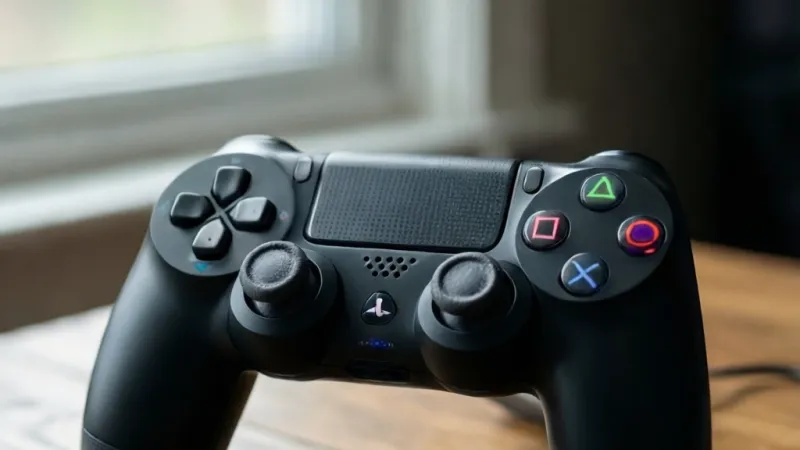
Your PS4 controller blinks because it isn't fully connected or charged. A fast white flash means pairing mode. A pulsing orange light means charging.
A quick red flash means low battery. A charge-only micro-USB cable is the most common culprit.
Why Your PS4 Controller Keeps Blinking: It's All in the Light Bar
The DualShock 4 has no screen. Every message it sends comes through the light bar, the rumble motors, and the tiny speaker. That glowing strip above the touchpad is a full RGB LED, so it can produce nearly any color on demand.
When the controller is properly connected, that light goes solid and stays that way. When something is mid-transition, it blinks. A blinking light is almost never random.
It's the controller telling you it's stuck in a state.
Three states cause nearly every blinking complaint:
- Connection state. The controller is trying to pair, or it lost its link to the console.
- Power state. The controller is charging, or it's running out of battery.
- Fault state. The battery is failing, the port is damaged, or the firmware has glitched.
Everything below branches from those three.
The light bar isn't only a status light
Games can control the light bar too. Some titles flash it red when your character takes damage. Others pulse it during cutscenes.
Rockstar's open-world games use it to mimic police lights.
So if your controller blinks only during one specific game and works fine everywhere else, that's the game talking. Test it on the PS4 dashboard first. If it sits solid there, you don't have a problem.
Why the blink matters more than the color
Color alone can mislead you. A solid green bar isn't an error. It means the controller is signed in as Player 3.
A solid pink bar means Player 4.
The blink rate is the real signal. Fast, repeated flashing points to a connection or pairing issue. A slow, gentle pulse points to charging.
A brief double-flash points to battery level.
The two DualShock 4 models behave differently
This trips up a lot of people, and it's worth knowing before you troubleshoot anything else.
| Model | Release | Wired data over USB | Light bar on touchpad |
|---|---|---|---|
| CUH-ZCT1 | 2013 | No | No |
| CUH-ZCT2 | 2016 | Yes | Yes |
The original CUH-ZCT1 only charges over USB. It still needs Bluetooth to actually connect. The later CUH-ZCT2 added a light bar strip on the touchpad and true USB data communication.
So if you own an early controller, plugging in a cable will never sync it. It just feeds power. That single fact explains a huge share of "my controller blinks and won't connect" reports.
You can tell the two apart by looking at the touchpad. A thin glowing strip along the top edge means you have the newer model. Nothing there means you have the original.
If/then logic for your first diagnosis
If the bar is solid and the game responds, nothing is broken. Stop here.
If the bar blinks fast and nothing responds, you have a pairing or sync problem.
If the bar pulses orange while plugged in, you have a charging situation.
If the bar flashes red once or twice and then dies, you have a battery situation.
If the bar blinks in an irregular pattern that matches no rule above, you likely have a hardware fault or a firmware glitch.
As of 2026, the DualShock 4 is a legacy accessory, but Sony's official PlayStation support documentation still covers pairing and reset procedures for it. Replacement batteries and cables remain widely available, so a repair is usually cheaper than a replacement.
Decode the Blink: What Blue, White, Orange, and Red Actually Mean
Here's the full pattern chart. Match what you see on your own controller, then jump to the matching section.
| Light bar pattern | What it means | First thing to try |
|---|---|---|
| Solid blue | Connected as Player 1 | Nothing, it's working |
| Solid red, green, or pink | Connected as Player 2, 3, or 4 | Nothing, it's working |
| Rapid white or pale blue flash | Searching for a console to pair with | Re-pair over USB |
| Slow orange pulse | Charging | Let it finish |
| Orange pulse that never stops | Not accepting a charge | Swap the cable and port |
| Brief red double-flash | Low battery, around 10 to 15 percent | Plug it in |
| Quick flash then dead | Battery won't hold a charge | Test with a known-good cable |
| No light at all | No power, dead battery, or dead controller | Charge for 30 minutes first |
| Erratic, uneven blinking | Firmware glitch or hardware fault | Reset, then test elsewhere |
What solid blue means
Solid blue is the healthy state. It means the console has assigned the controller to Player 1. On a four-player setup, the console hands out blue, red, green, and pink in that order.
If you see solid blue but the buttons don't respond, the controller is connected to something. It just might not be the thing you think. Check whether it's linked to a PC, a phone, or a second console in the house.
What a rapid white flash means
This is the classic pairing blink. The controller is awake and broadcasting, but no console has answered. It'll keep flashing until it either connects or the battery dies.
On a PS4, the fix is almost always a wired re-pair. On a PC or Android device, it's a Bluetooth menu pairing. The two procedures are different, and mixing them up wastes a lot of time.
What an orange pulse means
Orange means power is flowing in. The bar pulses gently while the battery fills and turns off when the charge completes. There's no "fully charged" color.
Off is the finished signal.
A charge from empty takes roughly 2 hours on a standard 5V supply. If your bar has been pulsing for 6 hours and the controller still dies in 20 minutes, the battery is the problem, not the charger.
What a red flash means
A short red double-flash is a low battery warning. It usually fires somewhere around the 10 to 15 percent mark, and you'll often see an on-screen notification at the same time.
A red bar that stays lit for long stretches is different. That's usually a game using the light bar for atmosphere, not a fault.
What a dead light bar means
No light is the hardest one to read, because it could be three things. Either the battery is completely flat, the cable isn't delivering power, or the controller itself has failed.
Charge it for a full 30 minutes before you judge anything. Some deeply drained lithium-ion cells need a while before they'll wake up enough to show any indicator at all.
Third-party controllers don't follow these rules
If you're using a non-Sony controller, throw this chart out. Third-party pads use their own firmware and their own blink codes. Some blink to show charging.
Some blink to show a low battery. Some blink for no reason anyone has documented.
Check the manufacturer's own manual for that specific pad. Generic PS4 troubleshooting advice often doesn't apply.
Quick Checks Before You Reset or Re-Pair Your DualShock 4
Reset and re-pair are the two fixes everyone jumps to. They're also the two fixes that take the longest and clear the most settings. Run these cheap checks first and you'll solve most blinking problems in under five minutes.
Gather these tools first
You probably already own most of this. The list is short on purpose.
| Tool or material | Why you need it |
|---|---|
| Micro-USB data cable | Wired pairing and charging tests |
| A second micro-USB cable | Rules out a bad cable |
| Paperclip or SIM tool | Presses the recessed reset button |
| A second DualShock 4 | Tells you if the fault is the console |
| Isopropyl alcohol and a cotton swab | Cleans corrosion from the charging port |
| Compressed air | Blows lint out of the port and the reset hole |
That's it. No software, no special equipment, no trip to a repair shop yet.
Check one: is the cable actually a data cable?
This is the single biggest cause of blinking controllers that won't sync, and it's the one people skip.
Many micro-USB cables sold for charging are power-only. They carry 5 volts but no data lines. The controller charges fine, so everything looks normal, but the wired handshake can never happen.
The bar keeps blinking.
Grab a cable you know has transferred files before. A phone sync cable works perfectly. If the blinking stops with that cable, you've found your answer.
Check two: is the USB port on the PS4 delivering data?
The PS4 has two USB ports on the front on most models, plus one on the back on the Pro. Try a different one. Ports collect dust, and front ports get more physical wear.
Look inside the port with a light. Bent pins and packed lint are common. A quick blast of compressed air fixes most of it.
USB 3.0 ports and 2.4 GHz wireless devices can also interfere with each other. Intel documented this in a published white paper on USB 3.0 radio frequency interference. If your console sits right next to a router or a USB 3.0 hard drive, move things apart and retest.
Check three: is the battery actually flat?
Plug the controller in and leave it for 30 minutes. Don't touch it, don't press buttons, don't try to pair it. Just let it sit.
If the orange pulse starts, the battery is charging and the cable is fine. If nothing happens at all after 30 minutes, you've narrowed it to the cable, the port, or the battery.
Check four: is another device holding the pairing?
A DualShock 4 remembers the last device it paired with. If you connected it to a laptop last week, it may keep reaching for that laptop instead of your PS4.
Turn off Bluetooth on nearby PCs, phones, and tablets. Then try the controller again. This costs nothing and solves the problem more often than people expect.
Check five: do other controllers work on the same console?
This is the test that splits the problem in half. Grab a second controller and connect it.
If the second controller connects instantly, the fault is with your first controller. If the second one also blinks and fails, the fault is with the console or its Bluetooth settings.
Check six: does your controller work on another device?
Take the blinking controller to a PC or an Android phone. Hold the PS button and the Share button together until the light bar starts flashing, then pair it through the Bluetooth menu.
If it pairs and works there, the controller is healthy and your PS4 is the problem. If it blinks forever on every device, the controller itself is failing.
Six checks, maybe ten minutes. You'll know exactly where the fault lives before you reset a single thing.
Rapid White Blink: How to Re-Pair Your Controller via USB
A fast white flash means your controller is broadcasting and nobody's answering. The fix on a PS4 is a wired re-pair, and it takes about 30 seconds when it works.
The official pairing steps
Follow these in order. Don't skip ahead.
- Turn the PS4 fully on. Not rest mode, not standby. Fully on.
- Plug the controller into the console with a micro-USB data cable.
- Press the PS button once. Just once.
- Watch the light bar. It should settle into a solid player color within a few seconds.
- Unplug the cable. The controller should stay connected wirelessly.
If the bar goes solid and stays solid, you're done. If it starts flashing again the moment you unplug, keep reading.
The mistake almost everyone makes
Holding the PS button and the Share button together does not pair a controller to a PS4. That combination puts the DualShock 4 into Bluetooth discovery mode for PCs, phones, and tablets.
On a PS4, the pairing happens over the USB cable. Sony's own support pages describe the wired method, and it's the only method that works reliably. If you've been mashing PS and Share at your console, that's why nothing changed.
When the wired re-pair doesn't take
Work through these in order. Each one takes a minute or less.
Reset the controller. Flip it over and find the small recessed hole near the L2 trigger, marked RESET. With the console off, press it with a paperclip and hold for about 5 seconds. Then reconnect over USB and press the PS button.
Clear the old pairing. Go to Settings, then Devices, then Bluetooth Devices. Find the DualShock 4 in the list and delete it. Now re-pair over USB.
This wipes a corrupted entry that can block a fresh handshake.
Restart the console properly. Don't just tap the power button. Hold it until you hear a second beep, or use the Restart option in the power menu. A full restart clears the Bluetooth stack.
Try Safe Mode. Hold the PS4 power button for about 7 seconds until you hear two beeps. Safe Mode loads with minimal drivers. If the controller pairs there but not in normal mode, you're dealing with a software conflict rather than hardware.
Rebuild the database. Inside Safe Mode, choose Rebuild Database. It takes a few minutes and doesn't delete your games or saves. It rebuilds the system's file index and clears out a surprising number of odd glitches.
If you own the original CUH-ZCT1
Remember that the 2013 model has no USB data path. It charges over the cable and communicates only over Bluetooth.
That means the wired re-pair trick won't work on it. Your options are the pinhole reset plus a console restart, or pairing it through the Bluetooth Devices menu. If those fail, test it on a PC to confirm the Bluetooth radio still works.
What to do if it still blinks
If the controller blinks white after a reset, a Bluetooth list clear, a console restart, and a Safe Mode boot, you've ruled out the software side.
At that point you're looking at a hardware fault. The most common ones are a cracked solder joint on the micro-USB port, a failed Bluetooth chip on the controller board, or a battery that can't supply enough current for the radio to transmit. The next section covers the charging side of that.
Orange Pulse: Why Your Controller Won't Charge and How to Fix It
An orange pulse is good news in small doses. It means power is going in and the battery is filling. When that pulse never stops, you've got a charging problem.
Normal charging behavior
| Situation | What you'll see |
|---|---|
| Charging from empty | Slow orange pulse for about 2 hours |
| Charge complete | Light bar turns off |
| Charging in rest mode | Orange pulse, then off when finished |
| Charging from a weak port | Very slow pulse, sometimes no pulse at all |
| Dead cell, first 30 minutes | Often no light at all |
Why your console won't charge it in rest mode
By default, the PS4 stops supplying power to its USB ports after a set time in rest mode. If you've set that to Off, your controller will never charge while the console sleeps.
Head to Settings, then Power Save Settings, then Set Functions Available in Rest Mode. Make sure Supply Power to USB Ports is set to 3 Hours or Always. That single setting fixes a lot of overnight charging complaints.
Why a wall charger sometimes fails
Wall chargers work, but not all of them. The DualShock 4 pulls more current than an old 500 mA charger can comfortably supply.
A standard USB 2.0 port caps at 500 mA. USB 3.0 raises that to 900 mA. A modern 1A or 2A phone charger handles the controller easily.
An older charger from a decade-old phone often can't. The controller may pulse weakly or refuse to charge at all. If you're charging from a laptop USB port, expect the same problem.
The cable question, again
We keep coming back to cables because they cause so many of these problems. The USB Implementers Forum sets the standards that define which wires a cable must contain, and plenty of cheap micro-USB cables simply omit the data pair to cut costs.
For charging alone, that's fine. The controller will still fill up. But if you're trying to charge and pair at the same time, a power-only cable will leave you staring at a blinking light forever.
When the port is the problem
The micro-USB port on a DualShock 4 is the most fragile part of the whole controller. It's small, it's soldered to a thin board, and it takes a beating every time you plug in.
Signs the port is failing:
- The controller only charges if you hold the cable at a certain angle.
- The cable feels loose and wiggles.
- You see green or white corrosion inside the port.
- The orange pulse flickers on and off while the cable is still.
For light corrosion, unplug everything and gently clean the contacts with a cotton swab dipped in isopropyl alcohol. Let it dry completely before reconnecting. For a loose or cracked port, you're looking at a soldering repair or a replacement controller.
When the battery is the problem
A DualShock 4 battery is a 1000 mAh lithium-ion cell rated at 3.65 volts. Lithium-ion cells degrade over time, and a controller from 2014 has almost certainly lost a large chunk of its original capacity.
Symptoms of a dying battery:
- It charges to full and dies within 30 minutes.
- The orange pulse stops after a few minutes, every time.
- The controller blinks and shuts off the moment you unplug the cable.
- The battery area feels warm or the back shell bulges slightly.
That last one matters. A swollen lithium-ion cell is a genuine safety concern. Stop using it, don't puncture it, and dispose of it at a proper battery recycling point.
Never leave a swollen cell charging unattended.
Replacing the battery yourself
Replacement cells are inexpensive and the swap takes about 15 minutes. You'll need a small Phillips screwdriver and a plastic pry tool.
The steps are straightforward. Remove the four screws on the back, gently separate the shell halves, unclip the battery connector, lift the old cell out, drop the new one in, and reconnect. Take photos as you go so you know where everything belongs.
Two warnings before you start. Opening the controller voids any remaining warranty. And if the old cell is swollen, don't pry at it with anything metal.
Work slowly and wear eye protection.
When to stop troubleshooting and replace
If you've replaced the battery, tried three cables, tried both USB ports, and the orange pulse still won't hold, the charging circuit on the controller board is likely dead.
At that point, a replacement is the practical call. A repair shop will charge close to the price of a new pad for board-level work, and genuine DualShock 4 units are still easy to find as of 2026.
Red Flash: Low Battery, Bad Cable, or Dead Battery?
A red flash is the controller telling you the battery is nearly empty. It usually fires somewhere between 10 and 15 percent remaining, and it's typically paired with an on-screen notification. Plug it in and the flash should stop.
Not every red light is a warning, though. Several games drive the light bar directly for atmosphere. If you see red only during a specific title, that's the game, not your hardware.
Telling a warning flash from a game effect
The pattern is the giveaway. A battery warning is a short double-flash, then it stops. It repeats occasionally, not constantly.
A game-driven red bar tends to stay lit, pulse with the action, or follow an in-game event. Back out to the PS4 dashboard and watch. If the light goes solid blue there, your battery is fine.
The battery is a consumable, not a permanent part
Inside every DualShock 4 sits a 1000 mAh lithium-ion cell rated at 3.65 volts. Lithium-ion chemistry degrades with every charge cycle. The widely accepted industry figure is that these cells retain roughly 80 percent of their original capacity after 300 to 500 full cycles.
Do the math on a controller you've owned since 2015. If you charged it every other day, you've run well over a thousand cycles. It's not failing, it's just worn out.
How to measure your battery honestly
You can test degradation without any tools. Here's the procedure.
- Charge the controller until the orange pulse stops.
- Unplug it and note the time.
- Play a game with the light bar active and rumble on.
- Note the time when the red flash appears.
A healthy DualShock 4 runs about 8 hours under normal load. Anything under 3 hours points to a degraded cell. Under 90 minutes means the cell is essentially done.
Run the test twice on separate days. One bad result can be a fluke. Two means it's real.
Red flash then instant death
This pattern is different and worth naming. The controller flashes red, you unplug it, and it dies within seconds.
That's not just low capacity. That's a cell that can't supply the current the Bluetooth radio and rumble motors demand. The voltage sags under load and the controller browns out.
No amount of charging fixes this. The cell has to go.
Red flash that never becomes orange
If you plug in a red-flashing controller and the orange pulse never starts, you've got a charging chain problem, not a battery problem. Work back through the cable, then the port, then the charger.
The short version is that a power-only micro-USB cable or a 500 mA charger can leave a deeply discharged cell stuck.
When the red light is a real safety issue
A swollen lithium-ion cell is dangerous. You'll spot it as a bulge in the controller's back shell, a case that no longer sits flush, or a warm patch after charging.
Stop using it immediately. Don't charge it, don't puncture it, and don't throw it in household trash. Take it to a battery recycling point instead.
The U.S. Environmental Protection Agency publishes guidance on lithium-ion battery disposal through its recycling resources.
Red flash decision guide
| What you see | Likely cause | Next step |
|---|---|---|
| Red double-flash, then normal play after charging | Normal low battery | Nothing to fix |
| Red flash during one game only | Game-controlled light bar | Ignore it |
| Red flash, then dies within minutes of unplugging | Degraded or failing cell | Replace the battery |
| Red flash, plug in, no orange pulse | Cable, port, or charger fault | Swap cable, then port |
| Red flash plus a bulging back shell | Swollen cell, safety risk | Stop using, recycle properly |
Solid Blue But Not Working: The Wired vs Wireless Confusion
A solid blue light bar means the PS4 has assigned your controller to Player 1. That part is working. So if the buttons do nothing, the problem isn't the pairing.
It's what the pairing is attached to.
The most common answer is that the controller is connected to a different device. Bluetooth doesn't care about walls. A laptop in the next room with Bluetooth enabled can grab your controller the moment it wakes up.
Check what it's actually connected to
Turn off Bluetooth on every nearby PC, tablet, and phone. Then press a button on the controller and watch the screen. If input suddenly appears, you've found the thief.
A second console in the house can do the same thing. If you own a PS4 and a PS4 Pro in different rooms, the controller may prefer whichever one it paired with most recently.
The player assignment problem
The PS4 supports up to four controllers, and each gets a fixed color. Blue is Player 1, red is Player 2, green is Player 3, pink is Player 4.
Here's the trap. If your controller is signed in as Player 3, pressing buttons may do nothing because Player 3 isn't the active user. Hold the PS button, go to the power menu, and check which user is selected.
You can also force a reassignment. Hold the PS button for about 10 seconds until the light bar turns off, then press it again to sign in fresh.
Wired vs wireless is not the same on both models
This distinction matters more than most guides admit.
| Feature | CUH-ZCT1 (2013) | CUH-ZCT2 (2016) |
|---|---|---|
| Charges over USB | Yes | Yes |
| Sends input over USB | No | Yes |
| Connects over Bluetooth | Yes | Yes |
| Touchpad light strip | No | Yes |
If you own the original model, plugging in a cable gives you power and nothing else. Input still travels over Bluetooth. So a "solid blue but unresponsive" controller on a CUH-ZCT1 might actually have a failing Bluetooth radio.
The newer CUH-ZCT2 can genuinely run wired, which is useful for diagnosing. If it works perfectly over USB and fails over Bluetooth, the radio is the problem.
Interference is a real cause, not a myth
Bluetooth operates in the 2.4 GHz band. So does Wi-Fi, most wireless keyboards, baby monitors, and microwave ovens. Crowded spectrum means dropped packets, and dropped packets look like unresponsive buttons.
Move the console away from your router. Get USB 3.0 hard drives off the shelf next to it. USB 3.0 ports are known to emit broadband noise in the 2.4 GHz range.
Bluetooth range is roughly 10 meters in open air. Through two walls, expect far less. If your controller works at 3 feet and dies at 15, that's normal physics, not a fault.
If/then logic for a solid blue, unresponsive controller
If other devices have Bluetooth on, turn them off and retest.
If the controller is assigned to a different user, reassign it.
If you own a CUH-ZCT1, test it on a PC to check the Bluetooth radio.
If you own a CUH-ZCT2, test it wired to isolate Bluetooth from everything else.
If it fails both wired and wireless, the controller is faulty.
No Light or Erratic Blinking: Reset, Safe Mode, and Hardware Faults
No light at all is the most ambiguous symptom, because it could be three completely different things. Either the battery is flat, the cable isn't delivering power, or the controller has failed outright.
Charge it for a full 30 minutes before you judge anything. Deeply discharged lithium-ion cells sometimes need time before they'll show any indicator.
Most people press the reset button with the console on and the controller powered up. That's the wrong way.
Do it like this:
- Turn the PS4 fully off.
- Unplug the controller from any cable.
- Find the small recessed hole on the back, near the L2 trigger, marked RESET.
- Insert a paperclip and press firmly for about 5 seconds.
- Reconnect over USB and press the PS button once.
The reset clears the controller's stored pairing data. It doesn't wipe anything on your console.
Safe Mode is your best diagnostic tool
Safe Mode loads the PS4 with minimal drivers. That makes it perfect for separating software faults from hardware faults.
Hold the power button for about 7 seconds until you hear two beeps. Connect the controller over USB and press the PS button. If it pairs in Safe Mode but fails in normal mode, you have a software conflict, not a dead controller.
Inside Safe Mode you get several useful options:
- Restart PS4. A clean reboot that clears the Bluetooth stack.
- Update System Software. Reinstalls or updates the firmware.
- Rebuild Database. Rebuilds the file index. Keeps your games and saves.
- Initialize PS4. Wipes everything. Use only as a last resort.
Start with Restart. Then try Rebuild Database. Skip Initialize unless nothing else works.
Erratic blinking that follows no pattern
An irregular blink that doesn't match any known code usually means one of three things. A firmware glitch, a failing voltage regulator, or a controller board fault.
Try a firmware path first. Update the PS4 system software to the latest version. Then reset the controller and re-pair.
If the blinking stays erratic through a Safe Mode boot with a fresh pairing, you're looking at hardware.
The voltage regulator is the usual culprit. It sits between the battery and the radio, and when it fails, the controller gets inconsistent power. That produces exactly the kind of random blinking people describe as "possessed."
The paperclip test for a dead controller
If the controller shows no light after 30 minutes of charging, try this.
Plug it into a known-good wall charger with a known-good data cable. Leave it for an hour. Then unplug and press the PS button while watching the light bar closely.
A brief flicker means the battery is holding something and the board is alive. Complete darkness after an hour of charging points to a dead cell or a dead board.
When to stop and accept it's dead
You've reset it, re-paired it, charged it for an hour, booted Safe Mode, and rebuilt the database. If it still shows nothing, the controller has failed.
The realistic failure points are the battery, the micro-USB port, and the main board. Battery and port are both repairable. Board failures usually aren't worth the labor.
Cable and Port Problems: The Hidden Cause Behind Most Blinking Issues
If we had to pick one cause for the majority of blinking controller complaints, it would be the cable. Not the controller, not the console. The cable.
Micro-USB cables are cheap to make, and manufacturers cut corners. Many omit the data wires entirely. The cable charges fine, so nothing looks wrong, but the handshake never completes.
How to tell a data cable from a charge-only cable
| Test | Data cable | Charge-only cable |
|---|---|---|
| Transfers files to a PC | Yes | No |
| Charges the controller | Yes | Yes |
| Completes wired pairing | Yes | No |
| Typical cost | Higher | Very low |
| Visual difference | None | None |
There's no reliable way to tell by looking. The only sure test is to plug it into a computer and see whether a device shows up.
Keep one cable you've confirmed works as a data cable. Label it. Use it for every pairing attempt from now on.
Micro-USB is a fragile connector by design
The micro-USB specification rates the connector for around 10,000 insertion cycles. That sounds like a lot until you do the math on a controller charged daily for eight years.
Add in the angle people plug at, the sideways pressure from a cable hanging off a lap, and the fact that the port is soldered to a thin circuit board. It's a weak point.
Signs your micro-USB port is failing
Watch for these:
- The controller only charges at a specific cable angle.
- The plug feels loose or wobbly in the socket.
- The orange pulse flickers while the cable is still.
- You see green or white corrosion on the contacts.
- The cable falls out on its own.
Light corrosion cleans up with isopropyl alcohol and a cotton swab. Let it dry completely before reconnecting. A loose or cracked port needs soldering, which most people won't want to attempt.
The PS4's own USB ports matter too
Most PS4 models have two USB ports on the front. The PS4 Pro adds one on the back. The front ports get the most physical wear and the most dust.
Check for packed lint with a torch. A short blast of compressed air clears most of it. Bent pins are harder to fix and usually mean the port is done.
Power output matters as well. A standard USB 2.0 port supplies 5 volts at up to 500 mA, which is enough for a DualShock 4. A USB 3.0 port raises that to 900 mA.
But if you're running through an unpowered USB hub, that hub may be splitting the available current across several devices.
Avoid USB hubs for pairing
Hubs introduce another failure point. Some don't pass data reliably. Some drop the connection mid-handshake.
If you're troubleshooting a blinking controller, plug directly into the console.
Once everything works, you can go back to the hub. Just don't diagnose through one.
Cable and port troubleshooting order
- Try a confirmed data cable.
- Try the second USB port on the console.
- Try the rear port if you have a PS4 Pro.
- Clean both the controller port and the console port.
- Try a different console or a PC.
- If all five fail, the controller port is the problem.
Cross-Testing: Is It the Controller or the PS4?
At some point you need a definitive answer. Is the fault in the controller, or in the console? Cross-testing gives you that answer in about five minutes.
The method is simple. You swap one variable at a time and watch what changes.
The four-test matrix
| Test | What you do | What it proves |
|---|---|---|
| A | Your controller on your PS4 | Baseline, the problem you have |
| B | A different controller on your PS4 | Tests the console's Bluetooth |
| C | Your controller on a PC or phone | Tests the controller's Bluetooth |
| D | Your controller wired to your PS4 | Tests whether the port and board work |
Run all four if you can. Each result eliminates a suspect.
Reading the results
A fails, B works, C works, D works. The controller is fine and the console is fine. Your problem is the stored pairing on the console. Clear the Bluetooth device list and re-pair.
A fails, B works, C fails, D fails. The controller is faulty. The console is healthy. Replace or repair the controller.
A fails, B fails, C works, D works. The console's Bluetooth radio is failing. The controller works elsewhere, so the fault is on the console side.
A fails, B fails, C fails, D fails. Two separate problems, or something environmental. Check for a nearby interference source before you buy anything.
A fails, B works, C works, D fails. Odd but possible. Your controller's Bluetooth works and its USB port doesn't. On a CUH-ZCT1 that's expected.
On a CUH-ZCT2 it means a damaged port.
How to test a controller on a PC
Windows doesn't natively support the DualShock 4 as a gamepad over Bluetooth without help, but it does recognise it as a device.
- Open Bluetooth settings on your PC.
- Hold the PS button and Share button together until the light bar starts flashing rapidly.
- Select Wireless Controller from the list of discoverable devices.
- If it pairs, the controller's Bluetooth radio works.
You can verify input works using a browser-based gamepad tester. That confirms buttons and sticks, not just the connection.
On a Mac, the process is nearly identical through System Settings. On Android, go to Bluetooth settings and pair the same way.
Testing on a second console
If you have access to another PS4, this is the cleanest test of all. Pair your controller there with a USB cable.
If it pairs and plays, your original console is the problem. If it blinks forever, the controller is the problem. No ambiguity.
Testing the console's Bluetooth without a second controller
You can still narrow things down. Boot into Safe Mode and try to pair there. Safe Mode uses a minimal driver set, so a successful pair in Safe Mode points to a software issue in normal mode.
You can also check whether other Bluetooth devices work with the console. A wireless headset or a Bluetooth keyboard connecting normally tells you the radio itself is alive.
What cross-testing saves you
This is the step that stops you wasting money. Without it, most people replace the controller first. That's a 60 to 70 dollar guess.
With it, you know exactly which component to fix. Sometimes the answer is free. A corrupted pairing entry clears in 30 seconds.
Common Mistakes That Make PS4 Controller Blinking Worse
Most of the damage people do to their controllers happens during troubleshooting. Not during normal use. The fixes themselves cause the harm.
Here are the mistakes we see most often, and what to do instead.
This is the number one mistake. Holding PS and Share together puts the DualShock 4 into Bluetooth discovery mode for PCs, phones, and tablets.
It does not pair with a PS4. Console pairing happens over the USB cable. If you've been doing this at your console, that's why nothing changes.
The reset button clears the controller's stored pairing data. If the console is on and mid-handshake, you can leave things in a worse state than you found them.
Turn the PS4 fully off first. Unplug the controller. Then press reset for about 5 seconds.
Reconnect over USB afterward.
Assuming any micro-USB cable will work
Charge-only cables are everywhere. They look identical to data cables, they charge fine, and they can never complete a wired pairing.
You cannot tell them apart by looking. Test any cable by plugging it into a computer and checking whether a device shows up.
Charging from a weak USB source
A decade-old 500 mA phone charger won't reliably charge a DualShock 4. Neither will an unpowered USB hub splitting current across four devices.
Use a 1A or 2A charger, or plug straight into the console.
Wiggling the cable to force a charge
If the controller only charges at a specific angle, the port is failing. Wiggling it repeatedly makes it worse and can crack the solder joints further.
Clean the port with isopropyl alcohol and a cotton swab. If that doesn't fix it, treat it as a port repair, not a cable problem.
Ignoring a swollen battery
A bulging back shell, a case that won't sit flush, or a warm patch after charging all point to a swollen lithium-ion cell.
This is a genuine safety issue. Stop charging it. Don't puncture it.
Take it to a battery recycling point.
Replacing the controller before cross-testing
Without cross-testing, you're guessing. A controller that fails on your PS4 might work perfectly on a PC, which means the fault is the console.
Run the four-test matrix first. It takes five minutes and can save you a full replacement.
Jumping straight to a factory reset
Initializing the PS4 wipes everything. Games, saves, accounts, settings. It's the nuclear option, and it almost never fixes a blinking controller.
Try Restart, then Rebuild Database in Safe Mode first. Both keep your data.
Leaving Bluetooth on everywhere
A controller remembers its last pairing. If your laptop, tablet, or second console has Bluetooth on, the controller may keep reaching for those instead of your PS4.
Turn Bluetooth off on nearby devices before you troubleshoot. It costs nothing and solves the problem more often than people expect.
When to Replace the Battery, the Controller, or Call Sony
At some point troubleshooting stops being worth the time. Here's how to know when you've crossed that line.
The decision depends on three things. What's actually broken, how much the fix costs, and whether the controller is still under warranty.
Battery replacement: the easy call
Replace the battery if the controller charges and pairs fine but dies quickly. That's a worn cell, and nothing else.
Replacement cells cost very little, and the swap takes about 15 minutes with a small Phillips screwdriver and a plastic pry tool.
Signs you're in this category:
- Charges to full, dies in under 3 hours.
- Red flash appears far sooner than it used to.
- Orange pulse stops early, every time.
- Controller dies the moment you unplug the cable.
If the cell is swollen, replace it now rather than later. Don't keep using it while you decide.
Port repair: worth it if you're handy
Repair the micro-USB port if the controller only charges at a certain angle, or if the plug feels loose.
This is a soldering job. If you have the tools and the experience, a replacement port costs very little. If you don't, a repair shop will charge close to the price of a new pad for board-level work.
For most people, a damaged port on an older controller means replacement.
Controller replacement: when the board is dead
Replace the controller if you've done all of this:
- Tried a confirmed data cable.
- Tried both USB ports on the console.
- Charged for a full hour.
- Reset the controller with the console off.
- Cleared the Bluetooth device list and re-paired.
- Booted Safe Mode and rebuilt the database.
- Cross-tested on a PC or second console.
If it still blinks with no pattern and won't hold a connection, the board has failed. Genuine DualShock 4 units are still easy to find as of 2026, and the CUH-ZCT2 is the model to look for.
Console repair: the rare case
If a second controller also fails on your PS4, but both controllers work fine on a PC, the console's Bluetooth radio is the problem.
That's a hardware repair, and it's not something most people should attempt at home. Contact PlayStation Support for your region.
Warranty: check before you open anything
Opening a controller voids any remaining warranty. So does a visible battery swap. Check your coverage before you reach for a screwdriver.
Sony's standard warranty on accessories varies by region. In the US it's typically 12 months from purchase. In the EU, consumer law gives you a minimum of 2 years against defects.
Keep your receipt. Without proof of purchase, warranty claims get difficult fast.
Cost comparison at a glance
| Option | Typical cost | Best for |
|---|---|---|
| Replacement battery | Low | Controller works, battery is worn |
| Port repair at a shop | Close to a new pad | Only if you can't solder it yourself |
| New DualShock 4 | Moderate | Board failure, or multiple faults |
| Console Bluetooth repair | Varies by region | Console fault confirmed by cross-testing |
When to contact Sony directly
Reach out to PlayStation Support if the console is at fault, if the controller is still under warranty, or if you're seeing a fault that affects multiple controllers at once.
Have your model numbers ready. The controller model is printed on the back, and the console model is on the rear panel. That speeds everything up.
PS4 Controller Blinking FAQs
Why does my PS4 controller keep blinking white?
A rapid white flash means the controller is in pairing mode and can't find a console. The fix on a PS4 is a wired re-pair. Plug it in with a data cable, turn the console fully on, and press the PS button once.
If it still blinks, reset the controller and clear its old entry from the Bluetooth Devices list.
Why does my PS4 controller blink orange and never stop?
An orange pulse that never stops means power is going in but the battery isn't filling. Swap to a different data cable first. Then try a different USB port on the console.
If the pulse still won't finish, the battery has likely degraded, or the charging port on the controller is failing.
What does a red flashing PS4 controller mean?
A short red double-flash is a low battery warning, usually around 10 to 15 percent remaining. Plug it in and the flash stops. If the controller then dies within minutes of unplugging, the cell is worn out and needs replacing.
A red bar that stays lit during gameplay is usually a game effect, not a fault.
How do I reset a PS4 controller?
Turn the console fully off and unplug the controller. Find the small recessed hole on the back, near the L2 trigger, marked RESET. Press it with a paperclip for about 5 seconds.
Then reconnect over USB and press the PS button once. This clears the stored pairing without touching anything on your console.
Why does my controller blink but won't connect to the PS4?
The most common cause is a charge-only micro-USB cable. These carry power but no data, so the wired handshake can never complete. Test your cable by plugging it into a computer and checking whether a device appears.
If it doesn't, that's your problem, and any phone sync cable will fix it.
Can a PS4 controller blink because of a game?
Yes. The light bar is a full RGB LED, and games can drive it directly. Some titles flash it red during combat, pulse it during cutscenes, or mimic emergency lights.
If the controller blinks only during one specific game and sits solid on the dashboard, nothing is broken.
Final Decision Guide: Your Next Step Based on What You See
Find your symptom in the table below. Follow the recommended action. Stop as soon as the blinking resolves.
| What you see | Likely cause | Your next step |
|---|---|---|
| Rapid white flash, never stops | Pairing failure | Wired re-pair with a data cable |
| Rapid white flash after re-pair | Stored pairing corrupted | Reset controller, clear Bluetooth list |
| Solid blue, buttons dead | Connected to another device | Turn off nearby Bluetooth |
| Solid blue, wrong player | User assignment | Reassign through the PS button menu |
| Orange pulse, won't finish | Charging chain fault | Swap cable, then port, then charger |
| Orange pulse stops early | Degraded battery | Replace the cell |
| Brief red double-flash | Low battery | Charge it, nothing to fix |
| Red flash, dies in minutes | Failing cell | Replace the battery |
| No light after 30 minutes charging | Cable, port, or dead board | Test cable and port, then cross-test |
| Erratic blink, no pattern | Firmware or board fault | Safe Mode, Rebuild Database |
| Blinks on PS4, works on PC | Console fault | Contact PlayStation Support |
| Blinks on every device | Controller fault | Replace the controller |
The one-minute version
Grab a data cable. Plug the controller into the console. Turn the PS4 fully on.
Press the PS button once.
That single sequence fixes the majority of blinking controller complaints, because it solves both the pairing problem and the charging problem at the same time.
The five-minute version
If the one-minute version fails, run these in order.
- Swap to a second data cable.
- Try the other USB port.
- Charge for 30 minutes without touching anything.
- Turn off Bluetooth on nearby devices.
- Reset the controller with the console off.
- Clear the old entry from Bluetooth Devices.
- Restart the console properly.
Seven steps, five minutes. You'll have an answer either way.
The fifteen-minute version
Still blinking? Boot into Safe Mode by holding the power button for 7 seconds. Pair the controller over USB there.
Rebuild the Database.
If it pairs in Safe Mode but not in normal mode, you have a software conflict. If it fails in both, you have a hardware fault.
The point where you stop
Once you've cross-tested on a PC or a second console, you have a definitive answer. Either the controller is faulty or the console is faulty. No more guessing.
From there it's a simple cost decision. Battery replacement is cheap. Port repair is worth it only if you can solder.
Board failure means a new controller. Console fault means a call to Sony.
One habit that prevents most of this
Keep one cable you've confirmed works as a data cable. Label it. Use it for every pairing attempt from now on.
That single habit eliminates the most common cause of blinking PS4 controllers. The cable that charges fine and pairs never.
Third-Party PS4 Controllers: Why They Blink Differently and What to Do
Everything above assumes you're using an official Sony DualShock 4. If you're not, the blink codes don't apply.
Third-party PS4 controllers run their own firmware. They use their own LED behavior. Some blink to show charging.
Some blink to show a low battery. Some blink for reasons nobody outside the manufacturer has documented.
How third-party pads differ from the DualShock 4
| Feature | Official DualShock 4 | Third-party PS4 controller |
|---|---|---|
| Light bar behavior | Standardized Sony codes | Manufacturer-specific |
| Wired pairing on PS4 | Yes | Varies by model |
| Reset button | Yes, recessed pinhole | Often missing |
| Safe Mode compatibility | Full | Sometimes limited |
| Firmware updates | Via console | Sometimes none available |
Why third-party controllers blink
Common causes on non-Sony pads include:
- A low battery indicator that uses a different color or rate.
- A connection attempt using a proprietary dongle rather than Bluetooth.
- A firmware state that isn't documented in the manual.
- A cheap internal battery that sags under load.
- A USB receiver that lost its pairing with the controller.
What to do instead of generic troubleshooting
Skip the DualShock 4 advice. It mostly won't apply.
Start with the manufacturer's own manual. Look for the specific blink code your pad uses. If there's no manual, check the manufacturer's website for a PDF.
If the controller came with a USB dongle, re-pair it. Most dongle-based pads have a small pairing button on both the dongle and the controller. Press both to re-establish the link.
If the pad has no reset button, you can't do a hardware reset. You're limited to re-pairing, charging, and firmware updates if any exist.
The compatibility problem with Safe Mode
Safe Mode on the PS4 requires a wired controller with data support. Many third-party pads don't provide that.
If your pad won't work in Safe Mode, borrow an official DualShock 4 for the diagnostic steps. You can always go back to your own pad once the console is healthy.
When a third-party pad is worth keeping
Some third-party controllers offer features the DualShock 4 doesn't. Back buttons, adjustable triggers, swappable sticks. Those are real advantages.
But you trade away standardization. When something goes wrong, you're troubleshooting a single manufacturer's firmware instead of a well-documented Sony product.
If reliability matters more than extra features, an official CUH-ZCT2 is the safer pick. If you want back paddles and don't mind the quirks, a reputable third-party pad is a reasonable choice.
One rule that saves time
Never mix third-party and official controllers in the same diagnostic session. Test one at a time.
If you're troubleshooting a blinking issue and swap between a DualShock 4 and a third-party pad mid-test, you'll get confusing results. The two devices don't share blink codes or pairing behavior.
Stick to one controller, finish the diagnosis, then move to the next.