Your SimpliSafe camera blinking red is one of the most common support questions owners ask. It's also one of the easiest to sort out once you know what the light is saying. That little LED is a status signal, not a random glitch.
Match the pattern to the cause and the fix usually takes minutes.
SimpliSafe cameras use a small set of LED colors and blink rates to report their status. Manufacturer documentation for the SimpliCam, Outdoor Camera, and Video Doorbell shows red usually points to a connection or power problem, while blue covers setup and streaming. Because these cameras ride the crowded 2.4 GHz Wi-Fi band, interference is a frequent culprit as of 2026.
Here's how to read the light and fix it.
Quick Answer
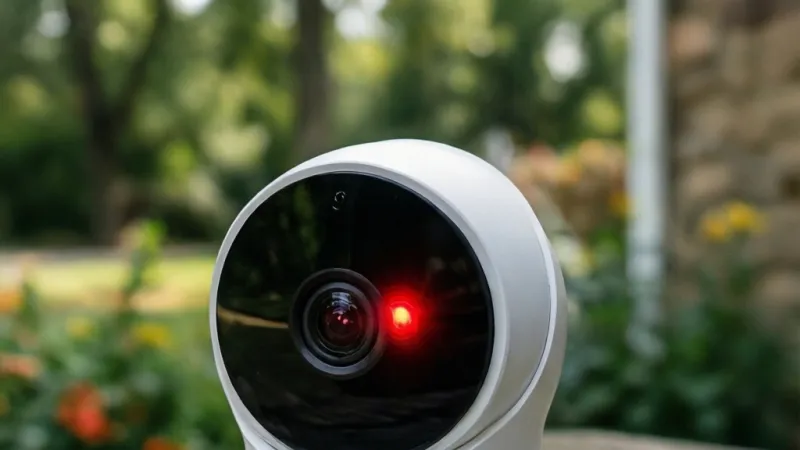
A SimpliSafe camera blinking red usually means one thing. The camera lost its connection. Low battery or a failed setup can also cause it.
Check power and Wi-Fi first. Then reset the camera and re-add it in the app.
That covers the bulk of cases. The rest of this guide walks through each scenario in order, from first-time setup to a camera that's been running fine for years.
SimpliSafe LED Codes Explained: Red, Blue, White, and Green
Every SimpliSafe camera has a small LED that doubles as its only on-device status display. It's your fastest diagnostic tool and it costs nothing to read. The catch is that the same color can mean different things depending on how fast it blinks.
Here's the general map. Exact behavior varies by model and firmware version, so treat this as a starting point rather than gospel.
| LED State | Common Meaning | Check First |
|---|---|---|
| Solid blue | Camera is live, streaming, or recording | Nothing, this is normal |
| Blinking blue | Setup mode, pairing, or connecting | SimpliSafe app and Wi-Fi |
| Slow blinking red | Camera has power but lost its link | Base Station power and distance |
| Fast blinking red | Setup failed or Wi-Fi pairing error | 2.4 GHz network and password |
| Solid red | Camera is on but not reporting to the app | App status and subscription |
| No light at all | No power, dead battery, or closed shutter | Battery, cable, privacy shutter |
Red is the color people worry about most, and for good reason. On most SimpliSafe cameras, red shows up when the device can't reach the Base Station, can't reach Wi-Fi, or is stuck mid-setup. A slow pulse usually means the camera has power but no link.
A rapid blink usually means it's trying to connect and failing.
Blue is almost always good news. Solid blue means the camera is streaming, recording, or otherwise doing its job. A blinking blue light usually means it's in setup mode or waiting for the app to finish pairing.
If you see blue and red together, the camera is likely caught between two states. That points to a network or account issue rather than dead hardware.
White and green show up less often. Green typically signals a successful connection or a completed action. White often relates to motion detection activity or a firmware state, depending on the model.
Neither is cause for alarm on its own.
Why the Same Color Means Different Things
SimpliSafe has shipped several camera generations, and the LED logic isn't identical across all of them. The original SimpliCam behaves slightly differently from the newer Outdoor Camera and the Video Doorbell. Firmware updates can also shift what a specific pattern means.
That's why the model number matters more than the color alone. Before you start troubleshooting, pull up the support page for your exact camera. SimpliSafe publishes per-model LED explanations on its official site, and the manual in the box lists the same information.
What Red Is Not
A red LED is not a recording indicator on SimpliSafe cameras. It's not a sign that someone is watching you, and it's not an alarm trigger. Those fears come up a lot in owner forums, and they're worth putting to rest.
The camera records to the cloud when your plan is active and the privacy shutter is open. The LED reports connection and power state. Those are separate systems.
When a Blinking Red Light Is Actually Normal
Not every red blink is a fault. A few of them are exactly what the camera should be doing. Knowing the difference saves you from "fixing" something that was never broken.
If the camera just powered on, a brief red flash is expected. The camera is booting and hasn't reached the network yet.
If you just swapped the battery, expect a red blink for up to two minutes. The camera is re-establishing its link to the Base Station.
If a firmware update is applying, red is normal. Interrupting it is what causes real damage.
If you're mid-setup, red can appear before blue. The app will tell you which stage you're actually in.
The Normal Red Blink Checklist
- Camera powered on within the last 30 seconds
- Battery just installed or replaced
- Firmware update in progress
- Setup not yet completed in the app
- Base Station also rebooting
If any of those are true, wait. Give it five minutes before you touch anything.
When Red Stops Being Normal
Red stops being normal when it persists. If the light has been red for more than five minutes with no setup or update running, treat it as a fault.
Red is also abnormal if it appears on a camera that was working ten minutes ago. That's a link drop, not a boot sequence.
Check These First: Power, Battery, Wi-Fi, and Base Station Status
Before you reset anything, run through four quick checks. They take about two minutes and they solve the majority of red-light cases. Work in this order, because each step depends on the one before it.
Check 1: Power
If the camera has no power, the LED may flicker red as it browns out. If you're using a wall adapter, make sure it's plugged into a live outlet. Try a different outlet if you're not sure.
For battery-powered models like the Outdoor Camera, confirm the battery is seated correctly. A partially inserted battery can cause intermittent red blinks that look like a connection problem.
Check 2: Battery Level
If the battery is low, the camera may blink red before it shuts down. If you're using a battery-powered model, charge it fully before doing anything else. Charging typically takes six to eight hours.
Cold weather drains these batteries faster. If it's winter and the camera lives outside, a sudden red light is often just a depleted cell.
Check 3: Wi-Fi
If your camera is on the wrong Wi-Fi band, it will never connect. SimpliSafe cameras use the 2.4 GHz band only. They don't support 5 GHz.
This trips up a lot of people after a router upgrade. Many modern routers broadcast both bands under one name, and some cameras get confused. Split the bands in your router settings, then point the camera at the 2.4 GHz network.
Under FCC rules for unlicensed devices, your camera shares that band with every router, microwave, and baby monitor nearby. Crowded airwaves cause real problems in apartments and dense neighborhoods.
Check 4: Base Station
If the Base Station is offline, every camera connected to it will eventually show trouble. Check the Base Station's own status light and confirm it has power and a network connection.
If the Base Station is fine, check the distance between it and the camera. Thick walls, metal siding, and large appliances cut the signal. Moving the Base Station a few feet can fix a stubborn red light.
The Two-Minute Triage Table
| Symptom | Likely Cause | First Move |
|---|---|---|
| Red light, camera brand new | Setup never completed | Re-run setup in the app |
| Red light after working fine | Wi-Fi or Base Station link dropped | Power cycle camera and router |
| Red light, battery model | Low or dead battery | Charge fully, then retest |
| Red light, no other activity | Firmware or account issue | Check app and plan status |
If all four checks come back clean and the light is still red, move on to the setup-versus-post-setup section next. The fix depends entirely on which stage you're in.
Blinking Red During Setup vs. After Setup: Two Very Different Problems
The single most useful question you can ask is this. Did the camera ever work? If it never connected, you're dealing with a setup problem.
If it worked and then went red, you're dealing with a connection or hardware problem.
Those two situations need different fixes. Treating one like the other wastes time and can make things worse.
| Scenario | What Red Usually Means | Best First Move |
|---|---|---|
| First-time setup | Pairing never completed | Re-run setup, confirm 2.4 GHz |
| Worked for months, then red | Lost Wi-Fi or Base Station link | Power cycle camera and router |
| After a battery change | Camera is rebooting or unpaired | Wait two minutes, then re-add |
| After a router change | New network credentials not stored | Reconnect camera to the new SSID |
| After a firmware update | Update failed or is still applying | Wait ten minutes, then power cycle |
| After a power outage | Base Station and camera out of sync | Restart the Base Station first |
If the Camera Never Worked
If the camera has never connected, the problem is almost always the network. The two most common culprits are a 5 GHz-only network and a mistyped password.
Confirm your router broadcasts a 2.4 GHz signal. Then walk through setup again from the start in the SimpliSafe app. Don't skip the step where the app scans for the camera.
If the Camera Used to Work
If the camera worked and then went red, something changed. Think about what happened right before the light appeared. A new router, a moved piece of furniture, a power cut, or a firmware push are the usual suspects.
Start with a simple power cycle. Unplug the camera or pull the battery, wait thirty seconds, then restore power. Many red lights clear on their own after that.
If the Camera Is Under Two Years Old
Newer cameras are more likely to have a firmware or app issue than a hardware fault. Check the app for a pending firmware update and let it finish. Interrupting an update is a reliable way to create a red light.
If the camera is older and has been through several power surges, hardware failure becomes more likely. We'll cover that in the support section later.
SimpliCam (Indoor Camera) Blinking Red: Step-by-Step Fixes
The SimpliCam is the indoor model most owners start with. It's also the one with the most documented LED behavior. Here's the sequence that resolves the vast majority of red-light cases on this model.
Work through these steps in order. Stop as soon as the light returns to solid blue.
- Confirm the camera has power. Check that the USB cable is fully seated at both ends and that the adapter is in a working outlet.
- Open the privacy shutter. A closed shutter can make the camera appear unresponsive even when it's connected.
- Open the SimpliSafe app and check the camera's status. If the app shows the camera as offline, you have confirmation of a connection issue.
- Check the Base Station. Confirm its light is normal and that it's connected to your network.
- Confirm your Wi-Fi is 2.4 GHz. If your router broadcasts both bands under one name, split them in the router settings.
- Power cycle the camera. Unplug it, wait thirty seconds, plug it back in.
- Power cycle the router. Give it two full minutes to come back up before retesting the camera.
- Reset the camera. Hold the reset button until the LED changes, then release.
- Re-add the camera in the app. Treat it like a brand-new device and let the app walk you through pairing.
- Test live view. If you can see the feed, you're done.
What to Do If the Light Comes Back
If the red light returns within a few hours, you likely have a signal strength problem rather than a setup problem. Move the camera closer to the Base Station and see if it stays connected. If it does, you've found your issue.
If it goes red again at the same spot, the camera may be too far from the Base Station or sitting behind too much interference. Mesh Wi-Fi systems help here, but only if the camera can still reach the Base Station directly.
What to Do If Nothing Works
If you've completed all ten steps and the light is still red, the camera may have a hardware fault. That's rare, but it happens. SimpliSafe's warranty covers manufacturing defects, and support can confirm whether your unit qualifies.
Before you call, note your model number, the exact blink pattern, and every step you've already tried. That saves a lot of back-and-forth and gets you to a resolution faster.
SimpliSafe Outdoor Camera Blinking Red: Battery, Charging, and Weather Checks
The Outdoor Camera runs on a rechargeable battery, and that single fact changes how you troubleshoot a red light. Most red lights on this model trace back to power, not Wi-Fi. Here's the order that works best.
Start with the battery. Pull it out and check the contacts for dirt or corrosion. A quick wipe with a dry cloth can restore a poor connection.
Then charge the battery fully. SimpliSafe's own specs put a full charge at roughly six to eight hours. If you're topping up with a fast charger, you may see the light behave oddly until the cell is fully topped off.
Once the battery is back in, watch the LED for the first thirty seconds. A brief red blink is normal during boot. A continuous red blink means the camera still can't reach the Base Station or your Wi-Fi.
Cold Weather and Battery Drain
Cold weather is a real factor here. Lithium-ion cells lose capacity fast below freezing, and SimpliSafe's published operating range for the Outdoor Camera bottoms out around minus 4 degrees Fahrenheit. In practice, aggregate user reports show battery life dropping by half or more during a cold snap.
If your camera goes red every January and works fine by April, that's your answer. Pull the battery, bring it inside, let it warm to room temperature, then charge it. Don't charge a frozen battery.
You'll shorten its lifespan.
Mounting and Signal Strength
Where the camera sits matters as much as how it's powered. Metal siding, brick, and stucco all block wireless signals. So does a metal junction box behind the mount.
If the camera is mounted on the far side of the house from your Base Station, expect trouble. Moving it one wall closer can turn a permanent red light into a permanent blue one.
Water and Weather Sealing
The Outdoor Camera carries an IP65 rating, which means it shrugs off rain and dust but not full submersion. If the USB port cover isn't seated properly, water can get inside and cause erratic LED behavior.
Check the rubber gasket around the charging port after every battery swap. A gasket folded the wrong way is a common cause of intermittent red lights after a storm.
SimpliSafe Doorbell Camera Blinking Red: Wiring, Power, and Wi-Fi Checks
The Video Doorbell is the one SimpliSafe camera that draws power from your home's existing doorbell wiring. That adds a few failure points the other models don't have. If the doorbell is blinking red, here's what to check.
First, confirm the doorbell transformer is delivering enough voltage. SimpliSafe's installation guide specifies a range, and older homes often fall below it. A transformer that worked fine for a mechanical chime may not have enough juice for a smart doorbell.
Second, check the wiring at both ends. Loose screws at the chime or at the doorbell itself are a frequent culprit. Turn off the power at the breaker before you touch anything.
Third, verify the doorbell has a solid Wi-Fi signal. Doorbells sit on the outside of your house, which is exactly where Wi-Fi is weakest. A mesh node near the front door often fixes a red light that nothing else will.
What If the Doorbell Worked Fine for Months?
If the doorbell was fine and then went red, think about recent changes. Did you replace the chime? Did your internet provider swap your router?
Did a storm knock out power?
Any of those can leave the doorbell out of sync with your network or your Base Station. A power cycle at the breaker is usually the fastest fix.
What If It's a Brand-New Install?
New installs go red for three reasons. The transformer is underpowered, the wiring is reversed, or the Wi-Fi password was mistyped during setup. Check those three before you assume the doorbell is faulty.
How to Reset a SimpliSafe Camera Safely (Soft Reset vs. Factory Reset)
There are two kinds of reset, and they do very different things. A soft reset reboots the camera without losing any settings. A factory reset wipes the camera and forces you to set it up again from scratch.
Try the soft reset first. It solves most red-light problems and takes under a minute.
| Reset Type | What It Does | When to Use It |
|---|---|---|
| Soft reset (power cycle) | Reboots the camera, keeps all settings | First step for any red light |
| Reset button press | Clears the current connection, keeps account link | After a Wi-Fi drop |
| Factory reset | Wipes the camera, requires full re-setup | After a move or a new account |
How to Do a Soft Reset
Unplug the camera or pull the battery. Wait a full thirty seconds. Restore power.
That's it. Give the camera two minutes to reconnect. If the light turns blue, you're done.
How to Do a Reset Button Press
Find the reset button. On the SimpliCam, it's on the back near the USB port. On the Outdoor Camera, it's under the battery compartment cover.
On the Video Doorbell, it's on the back plate.
Press and hold the button until the LED changes, then release. The camera will reboot and try to reconnect to its last known network.
How to Do a Factory Reset
Only do this if you're moving the camera to a new home, changing accounts, or handing it off to someone else. Hold the reset button much longer, usually fifteen to twenty seconds, until the LED signals a full wipe.
After a factory reset, the camera has no memory of your Wi-Fi or your Base Station. You'll need to add it back in the app like it's brand new.
When Not to Reset
Don't factory reset a camera that's under warranty and still failing. Support may want diagnostic data that a wipe destroys. Call first if you're within the coverage window.
Reconnecting Your SimpliSafe Camera to Wi-Fi and the Base Station
If a reset doesn't fix the red light, the next step is a clean reconnect. This is where most people get stuck, because the order matters.
Do the Base Station first. Then the camera. Then the app.
Skip a step and you'll be chasing your tail.
- Confirm the Base Station is online. Its LED should show a normal connected state.
- Confirm your router is broadcasting a 2.4 GHz network. If it's not, enable it in your router settings.
- Open the SimpliSafe app and remove the camera from your system. This clears the old pairing data.
- Put the camera into setup mode. The LED should start blinking blue.
- Follow the app's pairing prompts exactly. Don't rush the scan step.
- Enter your Wi-Fi password carefully. Watch for capital letters and symbols.
- Wait for the camera to confirm. A solid blue light means you're connected.
- Test live view in the app. If you can see video, you're done.
Why the 2.4 GHz Band Matters So Much
SimpliSafe cameras don't support 5 GHz Wi-Fi. That's not a bug, it's a design choice. The 2.4 GHz band travels farther and penetrates walls better, which matters for security cameras scattered around a home.
The trade-off is congestion. Everything from garage door openers to baby monitors shares that band. In a dense neighborhood, the airwaves get crowded and connections get flaky.
If you can, set your router to broadcast the 2.4 GHz network under a separate name. That way you can point the camera at it directly and skip any auto-switching confusion.
When Your Router Uses a Single SSID
Many modern routers combine 2.4 GHz and 5 GHz under one network name. The router decides which band each device uses, and sometimes it gets the choice wrong.
If your camera keeps failing to connect, split the bands into two separate SSIDs. This is the single most reliable fix for stubborn SimpliSafe Wi-Fi problems.
When Blinking Red Points to Firmware, App, or Subscription Issues
Not every red light is a hardware or network problem. Sometimes the camera is fine, but something upstream isn't. Here are the three most common non-hardware causes.
Firmware Update Failures
SimpliSafe pushes firmware updates automatically, and they usually go smoothly. When one fails, the camera can get stuck blinking red while it waits for the update to complete.
Don't unplug the camera during an update. Give it ten minutes. If the light is still red after that, power cycle it and check the app for a pending update.
App and Account Issues
If the app shows your camera as offline but the camera's LED is blue, the problem is on the app side. Log out and log back in. If that doesn't work, delete and reinstall the app.
Account-level problems can also cause trouble. If your subscription lapsed, some camera features may stop working even though the hardware is fine. Check your plan status in the app.
Subscription and Storage Limits
SimpliSafe cameras rely on cloud storage for recordings. If your plan is inactive, the camera may still connect but won't record. That can look like a red-light problem when it's really a billing one.
Log into your SimpliSafe account and confirm your plan is active. If you cancelled recently, that's your answer.
When the Camera Is Fine but the Base Station Isn't
One more scenario worth checking. If the Base Station itself has gone offline, every camera tied to it will eventually show trouble. Check the Base Station's LED first.
If it's the problem, no amount of camera troubleshooting will help.
SimpliSafe Camera Blinking Red Across Models and Generations
SimpliSafe has shipped several camera generations, and the LED logic isn't identical across all of them. Knowing your exact model saves a lot of guesswork.
The original SimpliCam and the newer Indoor Camera look similar but behave differently. The Outdoor Camera has its own battery-first logic. The Video Doorbell adds wiring to the mix.
Model-by-Model LED Behavior
| Model | Power Source | Red Usually Means |
|---|---|---|
| SimpliCam (original) | USB adapter | Lost Base Station link |
| Indoor Camera (current) | USB adapter | Wi-Fi or Base Station drop |
| Outdoor Camera | Rechargeable battery | Low battery or lost link |
| Outdoor Camera (wired kit) | AC adapter | Power or network fault |
| Video Doorbell | Doorbell wiring | Transformer, wiring, or Wi-Fi |
Treat this as a general map. Firmware updates can shift behavior slightly.
How to Find Your Model Number
Look on the back of the camera or under the battery cover. The model number is printed on a small label. It usually starts with a letter and a few digits.
You can also find it in the SimpliSafe app under the camera's device settings. That's the version support will ask for.
Why Generations Matter
Older cameras were built around the original Base Station hardware. Newer ones were tuned for mesh-friendly setups and updated firmware. That changes how they handle weak signals.
If your camera is more than four or five years old, expect a few quirks. Firmware support for older models also tapers off over time.
The Wired Outdoor Camera Variant
Some owners run the Outdoor Camera on the wired kit instead of battery. That changes the failure modes. A wired camera that goes red is usually a power or network issue, not a battery one.
If you're on the wired kit and seeing red, check the adapter and the cable first. Then move on to the network checks.
Wi-Fi Interference, Router Settings, and Mesh Networks: Fixing the Root Cause
Most recurring red lights trace back to the network. Fix the network and the camera stops flaking out.
This section is about root causes, not quick fixes. If you've reset the camera three times and it keeps going red, the problem is upstream.
The 2.4 GHz Congestion Problem
The 2.4 GHz band has only three non-overlapping channels: 1, 6, and 11. In a dense neighborhood, every router fights for the same space.
If your router is on auto-channel, it may be sitting on a crowded channel. Log into your router and set it to 1, 6, or 11 manually. Then test the camera.
Router Placement Matters More Than You Think
Wi-Fi signals weaken with distance and obstacles. A router in a basement closet is a bad setup for cameras on the second floor.
Aim for a central, elevated spot. Keep the router away from metal, concrete, and large appliances. Microwaves and cordless phones are common interference sources.
Do Mesh Networks Help?
Yes, usually. Mesh systems put a node closer to the camera, which strengthens the signal. That fixes a lot of intermittent red lights.
But there's a catch. SimpliSafe cameras need to reach the Base Station, not just Wi-Fi. If the Base Station is far away, mesh won't help on that leg.
Place the Base Station centrally too. That's the piece most people forget.
Band Steering and Single SSIDs
Many routers combine 2.4 GHz and 5 GHz under one network name. This is called band steering, and it confuses some cameras.
Split the bands into two SSIDs. Point the camera at the 2.4 GHz one. This is the single most effective router fix for SimpliSafe cameras.
Wi-Fi Extenders: Helpful or Harmful?
Extenders can help, but they also add latency and can create a second network. If the camera connects to the extender and the extender drops, the camera goes red.
If you use an extender, give it the same SSID and password as your main network. Better yet, use a mesh system instead.
Security Settings That Break Cameras
Some router security features cause problems. WPA3-only mode, MAC filtering, and client isolation can all block a SimpliSafe camera.
If you recently tightened your router security and the camera went red, that's your clue. Switch to WPA2 or WPA2/WPA3 mixed mode and disable client isolation for the camera's network.
Router Settings Quick Reference
| Setting | Recommended Value | Why |
|---|---|---|
| Wi-Fi band | 2.4 GHz | SimpliSafe doesn't support 5 GHz |
| Channel | 1, 6, or 11 | Only non-overlapping options |
| Security | WPA2 or WPA2/WPA3 mixed | WPA3-only can block older devices |
| Band steering | Off (split SSIDs) | Prevents wrong-band connections |
| Client isolation | Off | Blocks camera-to-Base Station traffic |
Smart Home Integration and App Conflicts That Cause Red Lights
Smart home systems add convenience, but they also add failure points. If your camera works in the SimpliSafe app but fails elsewhere, the integration is the problem.
Alexa and Google Assistant Conflicts
Alexa and Google Assistant both connect to SimpliSafe cameras. If the voice assistant is having trouble, it doesn't mean the camera is broken.
Test live view directly in the SimpliSafe app first. If it works there, the camera is fine. The issue is in the voice integration.
Re-link the SimpliSafe skill in your voice assistant's settings. That clears stale tokens and fixes most integration issues.
Third-Party Home Hubs
Platforms like Home Assistant and SmartThings can pull SimpliSafe data through integrations. If those integrations break, cameras may appear offline in the hub.
That's a hub problem, not a camera problem. Check the integration's status page before you troubleshoot the hardware.
App Permissions and Notifications
If the SimpliSafe app can't send notifications, you may think the camera is offline when it isn't. Check your phone's notification settings.
On both iOS and Android, battery optimization can silence background apps. Whitelist the SimpliSafe app so it can run in the background.
Multiple Users on One Account
Shared accounts can cause confusion. If someone else in your household changed a setting, the camera might show red for you but blue for them.
Log in with the primary account and check the camera's actual status. Then review recent activity for any changes.
Firmware Conflicts With Older Phones
Older phones running outdated OS versions sometimes can't communicate properly with the SimpliSafe app. If the app itself is crashing or failing to load the camera feed, update your phone's OS.
If the phone is too old for the current app version, that's your bottleneck. Test with a newer device to confirm.
Common Mistakes That Keep the Red Light Blinking
The same handful of mistakes come up over and over in owner forums and support threads. Avoiding them saves hours.
- Skipping the Base Station check. People jump straight to the camera and miss the real problem.
- Using a 5 GHz network. SimpliSafe cameras don't support it.
- Interrupting a firmware update. This is a reliable way to create a permanent red light.
- Assuming hardware failure too early. Most red lights are fixable without a replacement.
- Factory resetting a warranty camera before calling support. You may destroy diagnostic evidence.
- Charging a cold battery. Let it warm up first or you'll shorten its life.
- Ignoring the privacy shutter. A closed shutter can mimic a connection problem.
- Forgetting the doorbell transformer. It's the most overlooked part of a doorbell install.
- Reusing an old Wi-Fi password. If you changed your network, the camera doesn't know.
- Not checking the app. The app often tells you exactly what's wrong before you touch the hardware.
The Mistake That Costs the Most Time
Chasing the wrong layer. If the Base Station is offline, no camera fix will work. If the Wi-Fi is on 5 GHz, no reset will help.
Always confirm the foundation before you start swapping parts.
Decision Tree: From Blinking Red to a Working SimpliSafe Camera
Here's the full decision tree in one place. Work top to bottom and stop when you hit a fix.
Branch 1: Camera Has Never Been Set Up Before
If the camera is brand new and blinking red, the setup never finished. Re-run setup in the app. Confirm your Wi-Fi is 2.4 GHz.
Check that the Base Station is online first.
If setup fails twice in a row, factory reset the camera and try again.
Branch 2: Camera Worked, Then Went Offline
If the camera worked fine and then went red, something changed. Power cycle the camera first. If that doesn't fix it, power cycle the router and the Base Station.
Check for a firmware update in the app. If the camera is still red after all that, reset and re-add it.
Branch 3: Red Blink After a Battery Change or Power Outage
If the camera went red right after a battery change, give it two full minutes to boot. If it's still red, reseat the battery and check the contacts.
If a power outage triggered it, restart the Base Station first. Then power cycle the camera.
Branch 4: Red Blink After a Wi-Fi or Router Change
If you changed your router or Wi-Fi password, the camera has stale credentials. Remove it from the app, then add it back with the new network details.
If your new router broadcasts both bands under one name, split them before you try again.
Branch 5: Red Blink With Solid Blue or No Other Light
If red and blue appear together, the camera is caught between states. That points to an account or app problem, not hardware. Log out of the app and back in.
If there's no other light at all, the camera has no power. Check the battery, the cable, and the outlet before anything else.
Branch 6: Red Blink After a Firmware Update
If the update just started, wait ten minutes. Don't unplug anything. If the light is still red after that, power cycle the camera and check for a pending update in the app.
If the update fails repeatedly, contact support. You may need a replacement.
Real Scenarios: What Owners Actually Report
Aggregate owner reports paint a clearer picture than any single troubleshooting guide. The same handful of situations come up again and again. Here are the ones we see most often, with what actually fixed them.
Scenario 1: The Camera Went Red Two Days After a Router Swap
This is the most common pattern we've seen. A user upgrades to a new router, and the camera works fine for a day or two. Then it goes red.
The fix is almost always the same. Remove the camera from the app. Split your Wi-Fi bands into separate 2.4 GHz and 5 GHz SSIDs.
Add the camera back on the 2.4 GHz network.
Typical time to fix: 15 to 20 minutes.
Scenario 2: The Outdoor Camera Goes Red Every Cold Snap
A user in the upper Midwest reports the same thing every December. The Outdoor Camera works fine all summer, then goes red once temperatures drop below freezing.
This isn't a fault. Lithium-ion batteries lose capacity fast in cold weather. Pull the battery, warm it inside, and charge it fully.
If the pattern repeats yearly, consider keeping a spare battery charged indoors.
Typical time to fix: 8 to 10 hours, mostly charging time.
Scenario 3: The Doorbell Camera Won't Stay Connected
A user installs a Video Doorbell on a brick wall. It connects during setup, then goes red within a few hours. Repeated resets don't help.
The root cause is usually the transformer or the Wi-Fi signal. Brick walls kill 2.4 GHz signals. A mesh node near the front door fixes most of these cases.
Typical time to fix: 1 to 2 hours, including a trip to the hardware store.
Scenario 4: The Camera Worked for Two Years, Then Went Red
Long-term owners sometimes see a sudden red light with no obvious trigger. The camera is the same, the router is the same, nothing changed.
Common causes here include a firmware update that stalled, a Base Station that needs a reboot, or a subscription that lapsed. Check the app first. It usually tells you which one it is.
Typical time to fix: 5 to 15 minutes.
Scenario 5: The Camera Goes Red Only at Night
This one is subtle. A camera works all day, then goes red after dark. The pattern points to a power issue, not a network one.
Indoor cameras on USB adapters can brown out if the adapter is underpowered. Swap in a higher-amperage adapter and test again. Outdoor cameras on battery may simply be hitting their low-power threshold sooner than expected.
Typical time to fix: 20 to 30 minutes.
What These Scenarios Have in Common
Notice the pattern. Almost none of these turned out to be hardware failures. They were network, power, or environment issues.
That's why the earlier sections push you to check power and Wi-Fi first. Hardware failure is real, but it's the least likely explanation.
Power Outages, Storms, and Regional Factors That Trigger Red Lights
Where you live changes how often you'll see a red light. Climate, grid reliability, and local Wi-Fi density all play a role.
If your camera goes red on a schedule that matches the weather, you've probably already found the cause.
Power Outages and Brownouts
When power flickers, the Base Station and cameras reboot at different speeds. That desync causes red lights.
After a full outage, restart the Base Station first. Wait for its LED to settle. Then power cycle each camera one at a time.
If brownouts are common in your area, put the Base Station on a small UPS. That keeps it alive through short drops.
Thunderstorms and Surges
A nearby lightning strike can damage a camera's power adapter even if the camera itself survives. If your camera goes red after a storm and a power cycle doesn't fix it, suspect the adapter.
Swap in a known-good adapter before you assume the camera is dead. This is a cheap test that saves a warranty claim.
High-Density Urban Wi-Fi
In apartment buildings, the 2.4 GHz band is a war zone. Dozens of routers compete for three channels. Cameras in these environments go red far more often.
Set your router to a fixed channel (1, 6, or 11). Scan for the least-crowded one using a free Wi-Fi analyzer app. Then point the camera at that channel.
Rural and Low-Signal Areas
In rural homes, the problem flips. Wi-Fi range becomes the bottleneck. A camera on a detached garage or barn may simply be too far from the router.
Mesh systems and directional antennas help. So does moving the Base Station closer to the problem area.
Regional Battery Performance
Outdoor Camera battery life varies by climate. Manufacturer specs list an operating range down to minus 4 degrees Fahrenheit. In practice, real-world performance drops well before that.
If you live somewhere with real winters, plan on charging the battery more often from November through March. Keep a spare indoors.
Seasonal Wi-Fi Interference
Holiday season brings a surge in 2.4 GHz traffic. Smart lights, wireless speakers, and new gadgets all crowd the band. If your camera goes red every December, this is why.
Maintenance and Long-Term Optimization: Keeping the Red Light From Coming Back
Once you've fixed the red light, a little maintenance keeps it from returning. None of this takes long. It's mostly habit.
Think of it as preventive care for a device you rely on for security. A camera that works today can silently degrade over months.
A Simple Maintenance Schedule
| Task | How Often | Why It Matters |
|---|---|---|
| Check camera status in the app | Monthly | Catches offline cameras early |
| Test live view | Monthly | Confirms the feed still works |
| Inspect cables and ports | Quarterly | Spots corrosion and wear |
| Check battery level | Quarterly | Prevents surprise shutdowns |
| Clean the lens and shutter | Quarterly | Preserves image quality |
| Check for firmware updates | Monthly | Fixes known bugs |
| Test motion alerts | Quarterly | Confirms detection still works |
| Review Wi-Fi channel congestion | Twice a year | Keeps the link stable |
Battery Care for the Outdoor Camera
Charge the battery before it hits zero. Deep discharges shorten lithium-ion lifespan. If you see the low-battery warning, charge it within a few days.
Store spare batteries at room temperature. Extreme heat and cold both degrade them.
Cable and Port Care
Check the USB port on the SimpliCam every few months. Dust and lint build up and cause intermittent connections.
On the Outdoor Camera, inspect the charging port gasket. A folded or cracked gasket lets moisture in.
Firmware Hygiene
Let firmware updates finish. Don't unplug the camera mid-update. If an update fails, power cycle the camera and try again.
If your camera hasn't updated in months, check the app. Sometimes an update stalls and needs a nudge.
Seasonal Prep
Before winter, charge the Outdoor Camera battery fully. Cold weather drains it faster.
Before summer, check for direct sun exposure. Overheating can cause erratic behavior, especially on south-facing walls.
When to Replace Rather Than Repair
If a camera has failed three or four times in a year, replacement may be cheaper than continued troubleshooting. That's especially true once it's out of warranty.
Safety, Privacy, and Legal Rules for SimpliSafe Cameras
Security cameras come with legal and privacy obligations. A blinking red light is a technical problem, but the camera itself raises bigger questions. Here's what to know.
This isn't legal advice. Laws vary by country, state, and even city. Talk to a local attorney if you're unsure.
Audio Recording Laws
Audio recording is the trickiest area. Some US states require all-party consent for recorded conversations. Others require only one party's consent.
If your camera records audio and it captures a conversation, you may be breaking the law in an all-party consent state. Check your state's rules before enabling audio.
In the UK and EU, audio recording falls under data protection law. The UK Information Commissioner's Office publishes guidance on domestic CCTV and audio capture.
Video Recording and Privacy
Point cameras at your own property, not your neighbor's. Even if it's legal, it causes disputes and can violate local ordinances.
Never point a camera into a bathroom, bedroom, or any space where people expect privacy. That's illegal in most jurisdictions, even inside your own home.
GDPR and UK Data Protection
If you're in the UK or EU and your camera captures public space, GDPR may apply. That means you need a lawful basis for processing the footage.
For purely domestic use, there's usually an exemption. For anything else, get advice.
HOA and Rental Restrictions
Homeowners associations often restrict exterior cameras. Check your HOA rules before mounting anything on the outside of your home.
If you rent, your lease may prohibit permanent installations. A battery-powered camera with a removable mount is usually a safer bet.
Doorbell Transformer Safety
If you're installing a Video Doorbell, turn off the breaker before touching the wiring. Doorbell transformers carry line voltage on the primary side.
If you're not comfortable working with wiring, hire an electrician. It's a small job and worth the cost.
Battery Disposal
Lithium-ion batteries shouldn't go in household trash. Take them to a recycling center or a retailer that accepts them.
In the EU and UK, WEEE regulations cover electronic waste. SimpliSafe's support site lists disposal guidance by region.
Privacy Shutter Best Practices
Use the privacy shutter when you're home. It's a physical block, not a software one, so it's the most reliable way to stop recording.
If you have cameras in bedrooms or shared living spaces, the shutter is your friend.
FCC and Regulatory Compliance
SimpliSafe cameras are certified under FCC rules for unlicensed wireless devices in the US. In the UK and EU, they carry CE marking.
Don't modify the camera's antenna or internals. That voids the certification and can create interference.
When to Seek Professional Advice
Get legal advice if your camera captures a neighbor's property, a shared space, or public areas. Get electrical advice if you're installing wired doorbells or running new cable.
A quick consultation is cheaper than a complaint or a fine.
Advanced Diagnostics: Signal Strength, Base Station Logs, and Support Data
If you've done everything and the light is still red, it's time to go deeper. These steps give you hard data to work with.
Check Camera Signal Strength in the App
The SimpliSafe app shows signal strength for each camera. Look for a weak or marginal reading. That tells you whether the problem is range or something else.
If the signal is weak, move the camera or the Base Station. If it's strong but the camera is still red, look elsewhere.
Review Recent Activity Logs
The app logs recent events for each camera. Look for gaps in the timeline. Long gaps usually line up with the red light appearing.
Note the times. If the gaps match a daily pattern, like 6 p.m. when your neighbor's microwave runs, you've found interference.
Test With a Second Camera
If you have another SimpliSafe camera, move it to the same spot. If it also goes red, the problem is environmental. If it stays blue, the first camera has a fault.
This is the fastest way to separate camera problems from location problems.
Gather Data Before Calling Support
Support can move much faster if you hand them clean data. Have these ready:
- Model number and serial number
- Exact LED pattern (color, speed, duration)
- Signal strength reading from the app
- Every step you've already tried
- Times and dates the red light appeared
- Any recent changes to your network or setup
Use the Reset Button Diagnostic
On some models, a short press of the reset button triggers a diagnostic blink pattern. Check your model's manual for the exact sequence.
If the pattern matches a documented error code, you now have a specific answer instead of a general one. That shortens support calls considerably.
When to Stop Diagnosing
At some point, more diagnostics stop helping. If you've tested signal strength, moved the camera, reset it, re-added it, and it's still red, call support.
You've done the work. Let them run their own tests and confirm whether it's a firmware issue or a hardware failure.
Costs, Warranty, and Replacement: What to Budget
Fixing a red light is usually free. But if the camera is genuinely dead, you need to know what replacement looks like. Here's the money side.
Warranty Coverage
SimpliSafe's standard warranty covers manufacturing defects. Length and terms vary by product and region. Check your specific model's warranty card or the SimpliSafe website for current terms.
Warranty claims usually require proof of purchase and a support ticket. Keep your original order confirmation somewhere you can find it.
Replacement Costs
| Camera | Typical Replacement Price (USD) | Notes |
|---|---|---|
| Indoor Camera | $99 to $129 | USB powered |
| Outdoor Camera | $149 to $199 | Battery included |
| Video Doorbell | $169 to $199 | Wiring kit included |
| Outdoor Camera Battery | $29 to $39 | Spare recommended |
Prices shift with sales and bundles. Check the SimpliSafe site for current numbers.
When a Subscription Matters
Your SimpliSafe plan affects what the camera can do. Without an active plan, some features stop working even if the hardware is fine.
If your camera appears offline but the LED is blue, check your plan status. A lapsed subscription can look exactly like a red-light problem.
Repair vs. Replace
Cameras are rarely worth repairing. The parts are small, labor costs more than the device, and there's no consumer repair path.
If a camera is out of warranty and failing, replacement is almost always the better move. Put that money toward a newer model with better Wi-Fi handling.
Insurance and Home Warranty Angles
Some homeowners insurance policies cover electronics damaged by power surges. Check your policy if a storm fried your camera.
Home warranty plans sometimes cover smart home devices. Read the fine print. Most exclude devices installed by the homeowner.
When to Call SimpliSafe Support or Replace the Camera
Most red lights clear with the steps above. Some don't. Here's when to stop troubleshooting and pick up the phone.
Call support if you've completed the full decision tree and the light is still red. Call if the camera is under warranty and behaving oddly. Call if you suspect a hardware fault, like a camera that won't power on at all.
Before you call, have these ready:
- Your camera's model number
- The exact blink pattern you're seeing
- Every step you've already tried
- Your account email and the camera's name in the app
- The approximate purchase date
Support can usually tell within a few minutes whether you need a firmware push, a replacement, or a warranty claim.
What Replacement Looks Like
If the camera is under warranty and support confirms a hardware fault, SimpliSafe typically ships a replacement. You'll send the old unit back using the packaging they provide. The whole process usually takes a week or two.
If the camera is out of warranty, you're looking at buying a new one. That's a good moment to check whether a newer model fits your setup better.
Frequently Asked Questions
What does a blinking red light on a SimpliSafe camera mean?
A blinking red light almost always means the camera has lost its connection. It can't reach the Base Station or your Wi-Fi network. Low battery and failed setup cause it too.
Check power and Wi-Fi first, then reset the camera.
Why is my SimpliSafe camera blinking red after working fine?
Something changed in your setup. The usual suspects are a router replacement, a Wi-Fi password change, a power outage, or a failed firmware update. Power cycle the camera first, then the router.
If that fails, re-add the camera in the app.
How do I reset a SimpliSafe camera with a red light?
Do a soft reset first. Unplug the camera or pull the battery, wait thirty seconds, then restore power. If the light is still red, press the reset button until the LED changes.
Save the factory reset for last, since it wipes your settings.
Why won't my SimpliSafe camera connect to Wi-Fi?
The most common reason is the wrong band. SimpliSafe cameras use 2.4 GHz Wi-Fi only, not 5 GHz. If your router combines both bands under one name, split them into separate networks.
Then point the camera at the 2.4 GHz one.
Does a red light mean my SimpliSafe camera is recording?
No. The LED reports connection and power status, not recording. Recording depends on your subscription plan, the privacy shutter position, and motion detection settings.
A red light means the camera isn't connected, so it isn't recording to the cloud.
How long does it take to fix a SimpliSafe camera blinking red?
Most fixes take under ten minutes. A power cycle is usually enough. If you need to re-add the camera to the app, budget fifteen to twenty minutes.
If the camera needs a warranty replacement, expect one to two weeks for shipping.