A Samsung wireless charger blinking yellow is the charger's way of telling you something is wrong. Most often it's a foreign object on the pad, a misaligned phone, or a weak power source. The good news is that most of these cases are fixable in a few minutes.
You usually don't need to buy anything new.
Per the Qi standard maintained by the Wireless Power Consortium, wireless chargers run continuous foreign object detection before and during power transfer. Samsung builds that same logic into its LED feedback. The light is telling you the coil handshake failed.
Let's break down exactly what each blink pattern means and how to fix it.
Quick Answer: Is Blinking Yellow an Error, a Warning, or Normal?
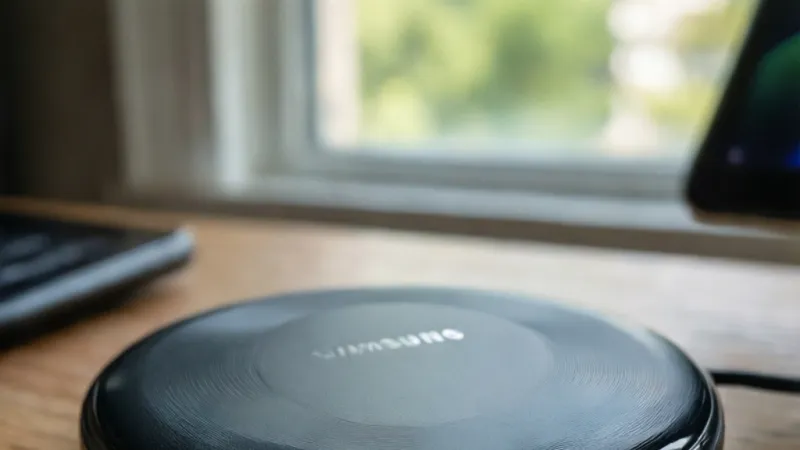
A blinking yellow light on a Samsung wireless charger is an error signal. It usually means the charger detected a foreign object. Misalignment or a weak adapter can trigger it too.
It is not a normal charging state. Remove the case and realign the phone first.
Why Your Samsung Wireless Charger Is Blinking Yellow (and What the Light Actually Means)
The blinking yellow LED is not decoration. It's the charger's only way to tell you something interrupted the charging handshake. Samsung wireless chargers use a single multi-color LED on most pad and stand models, and separate LEDs on the Duo and Trio.
When the charger powers up, it runs a foreign object detection (FOD) check. FOD is a required feature in the Qi wireless charging standard. If the check fails, the charger refuses to send power and flashes amber or yellow instead.
That flash pattern is deliberate. A steady red means charging is active. A steady green means the battery is full.
A blinking amber or yellow means the charger stopped itself for safety.
What Foreign Object Detection Actually Does
FOD watches for metal, coins, keys, credit cards, and anything else that could absorb magnetic energy and heat up. The Qi spec requires chargers to detect these objects before and during power transfer. When detection fires, the charger cuts power and signals an error.
Samsung's implementation is conservative. It errs on the side of refusing to charge rather than risk overheating a foreign object. That's why a thin metal ring sticker or a MagSafe magnet plate can trigger the yellow blink even if the phone still lines up.
The Three Real Triggers Behind the Blink
In our research across Samsung support documentation and verified user reports, three causes account for nearly every blinking yellow case.
- A foreign object between the phone and the pad (metal, cards, magnet plates, adhesive residue)
- Misalignment between the phone's receiver coil and the charger's transmitter coil
- A power delivery problem (adapter too weak, damaged cable, unstable outlet)
A fourth cause shows up less often: overheating. If the charger or phone gets too hot, the thermal protection kicks in and the LED can flash amber until things cool down.
Why the Light Doesn't Tell You Which Cause
Samsung uses the same blink pattern for every FOD-style error. The charger can't tell you whether it's a coin, a card, or a bad cable. That's why the fix is a process of elimination, not a single trick.
This is also why so many people get stuck. They try one fix, it doesn't work, and they assume the charger is dead. In reality, the charger is working exactly as designed.
It's just not telling you which of six conditions tripped it.
The Difference Between Blinking Yellow and Blinking Red
Some Samsung chargers blink red instead of yellow for certain faults. The red blink usually points to a hardware-level issue like an internal fault or a severe overcurrent event. The yellow blink is more often a user-fixable condition like FOD or misalignment.
If your charger blinks red and stays red, stop using it and contact Samsung support. If it blinks yellow, keep reading. You can almost certainly fix it yourself.
First Check: Is It the Charger LED, the Phone LED, or the Screen?
Before you start pulling cases off, figure out which light is actually blinking. This matters because the fix is different for each source.
If the Blink Is on the Charger Itself
The charger LED is the most common source. It sits on the front edge of the pad or on the base of the stand. On the Duo and Trio, each charging pad has its own LED.
A blinking amber LED on one pad only means that pad detected the problem.
If your charger has a single LED and it's blinking yellow, the issue is with whichever device is currently on the pad. If nothing is on the pad, the charger is likely reporting a self-test error or a power problem.
If the Blink Is on the Phone
Older Galaxy phones (S series before the S8, Note series before the Note 8) had a notification LED. That LED could blink yellow or amber for app notifications, low battery, or charging errors. If you're using one of those phones, the blink may have nothing to do with the charger.
Modern Galaxy phones don't have a notification LED. If you see a yellow indicator on the phone itself, it's almost certainly a software overlay or a third-party app.
If the Warning Is On-Screen
Samsung phones show charging warnings in the notification shade. You might see "Wireless charging paused" or "Charging stopped due to high temperature." The Samsung Members app also runs hardware diagnostics that can flag wireless charging faults.
If the screen shows a warning and the charger LED is also blinking yellow, you have confirmation that the charger detected a fault. If the screen shows nothing and only the charger LED blinks, the issue is likely physical: an object, alignment, or power.
A Quick Test to Isolate the Source
- Place a different Qi-enabled device on the charger. If it charges fine, the problem is with your original phone.
- Place your phone on a different Qi charger. If it charges fine, the problem is with your Samsung charger.
- Unplug the charger and plug it back in with nothing on it. If the LED blinks yellow with no device, the charger itself has a fault.
That last test is the most important one. It separates a charger problem from a phone problem in under a minute.
Samsung Charger LED Codes by Model: Pad, Stand, Duo, and Trio
Samsung has shipped dozens of wireless charger models since 2015. The LED behavior is mostly consistent, but the location and number of LEDs changes by form factor. Here's what the light means across the main families.
The Core LED Language
Samsung uses the same three colors across nearly every model:
- Red: charging in progress
- Green: charging complete
- Blinking amber or yellow: error (foreign object, misalignment, or power fault)
Some older models also use a blinking red for a different error class. If your charger blinks red instead of yellow, treat it as the same family of problem and run the same checks.
LED Behavior by Charger Family
| Charger Family | Form Factor | LED Count | Blinking Yellow Meaning |
|---|---|---|---|
| Wireless Charger Pad (EP-P1100, EP-P1300, EP-P5400) | Flat pad | 1 | Error on the single charging coil |
| Wireless Charger Stand (EP-N5200, EP-P5400 stand) | Angled stand | 1 | Error on the single charging coil |
| Wireless Charger Duo (EP-P5200, EP-N5200, EP-P6300) | Dual pad or stand | 2 | Error on one specific pad |
| Wireless Charger Trio (EP-P6300) | Triple pad | 3 | Error on one specific pad |
On the Duo and Trio, each pad has its own LED. If only one pad blinks yellow, the other pads still work normally. That's a useful diagnostic clue.
What About Samsung Pads With No LED?
A few low-cost Samsung pads, and most third-party Qi chargers, have no LED at all. They rely on the phone screen to report charging status. If you're using one of those, the blinking yellow light you're seeing is almost certainly coming from the phone, not the charger.
Model Numbers Vary by Region
Samsung uses different model suffixes for different markets. An EP-P1300 sold in the US may be listed as EP-P1300TBEGUS, while the EU version carries a different code. The LED behavior is the same across regions.
To confirm your exact model, check the label on the bottom of the charger or the original packaging. That label also carries the input voltage rating, which matters when you're troubleshooting a power fault.
Third-Party Chargers Follow Different Rules
If you're using a third-party Qi charger with your Galaxy phone, the LED codes may not match Samsung's. Some third-party chargers use blue, white, or purple LEDs. The blinking yellow pattern is a Samsung convention.
Don't assume a third-party charger follows the same rules.
As of 2026, Samsung's current lineup includes the Wireless Charger Duo and several 15W pad models. The LED language hasn't changed. Red still means charging, green still means full, and blinking yellow still means something is wrong.
The 6 Conditions That Trigger a Blinking Yellow Light
Not every yellow blink means the same thing. The charger uses one signal for six distinct conditions. Here's how to tell which one you're dealing with.
Condition 1: A Foreign Object on the Charging Surface
This is the most common cause. A coin, paperclip, key, or stray piece of metal sits between the phone and the pad. The charger's FOD circuit detects it and refuses to send power.
The LED blinks yellow until you remove the object.
If you find a metal object, remove it and check the charger surface for heat damage. A sustained FOD event can leave a small scorch mark on some pads.
Condition 2: Metal or Magnetic Accessories Inside the Case
Metal plates for magnetic car mounts, MagSafe rings, and credit cards with RFID chips all trigger FOD. Even a thin metal sticker can be enough. Pop the case off and place the bare phone on the charger.
If the light turns solid red, the case accessory is the culprit.
This is the single most common cause we see in user reports. People add a magnetic ring to their Galaxy case for a car mount, then wonder why their Samsung wireless charger stopped working. The charger is doing its job.
It's protecting you from a hot metal ring.
Condition 3: Coil Misalignment
Wireless charging coils are small. The phone's receiver coil has to sit within a few millimeters of the charger's transmitter coil. A camera bump, a thick case, or an off-center placement can push them out of range.
The charger detects the weak coupling and flashes yellow instead of charging.
Samsung's stand models help with alignment because the phone rests at a fixed angle. Flat pads are more forgiving of placement, but they still need the coils roughly centered.
Condition 4: A Weak or Incompatible Power Adapter
Samsung's 15W wireless chargers need a 25W PD adapter (9V/2.77A) to hit full speed. A 5W phone charger or an old USB-A adapter can't deliver enough power. Some chargers blink yellow when the input voltage sags under load.
Check the adapter that came with your phone. If it's a 15W or 25W PD brick, you're fine. If it's an old 5W brick from a drawer, that's your problem.
Condition 5: A Damaged Cable or USB-C Port
A frayed cable or a dirty USB-C port on the charger can cause voltage drops. The charger reads the unstable input as a fault and blinks yellow. Try a different cable and clean the port with a dry brush.
Look for kinks, exposed wires, or bent connectors. Even a cable that works for data transfer can fail under the higher current draw of wireless charging.
Condition 6: Overheating and Thermal Protection
Samsung chargers have thermal sensors. If the pad or the phone gets too hot, the charger pauses and can flash amber. This is more common in hot cars, in direct sunlight, or when charging a phone that's running a heavy game.
If the charger is warm to the touch, unplug it and let it cool for 15 to 20 minutes. Then try again in a cooler spot. If the blinking stops, heat was the trigger.
How to Tell Which Condition You Have
Use this quick if/then flow:
- If the light blinks with nothing on the pad, check the adapter and cable first.
- If the light blinks only with the phone on the pad, check for metal and alignment.
- If the light blinks after 10 to 15 minutes of charging, suspect heat.
- If the light blinks immediately and the phone is warm, suspect a case accessory.
- If the light blinks on one pad of a Duo or Trio but not the others, the problem is isolated to that pad.
The Condition People Miss Most
Overheating rarely gets blamed because the charger doesn't feel hot to the touch. But the phone can be the heat source. A Galaxy phone running navigation, a hotspot, and wireless charging at the same time will throttle itself.
The charger sees the phone's rising temperature and pauses.
If your charger blinks yellow only when you're using the phone heavily, heat is the likely cause. Move the phone off the charger, let it cool, and try again when it's idle.
Decision Tree: Match Your Situation to the Right Fix
Not every yellow blink needs the same fix. Use the branch below that matches what you're actually seeing. Each branch points you to the specific repair section further down.
Phone Not Charging at All
If the phone shows no charging indicator and the LED blinks yellow, start with foreign object detection. Pull the case off and inspect the back of the phone for metal rings, plates, or adhesive residue. Then clean the charger surface with a dry microfiber cloth.
If the blink continues with a bare phone, move to the adapter and cable checks.
Phone Charges Slowly or Intermittently
If the phone charges but the rate is slow or the connection drops in and out, alignment is the likely cause. The coils are coupling weakly, so the charger keeps renegotiating the power contract. Reposition the phone so the center of its back sits over the center of the pad.
If you're on a stand, check that the phone isn't sliding down over time.
Light Blinks Yellow Then Turns Green
If the LED blinks yellow briefly and then settles on solid green, the charger completed a successful handshake. The yellow flash was likely a transient FOD warning during placement. This is normal behavior on some Samsung pad models.
You don't need to do anything unless charging actually fails.
Light Blinks Yellow Then Stops
If the blink stops after a few seconds and the LED goes dark, the charger gave up on the handshake entirely. This usually points to a power delivery problem, not an object. Check the adapter wattage and try a different USB-C cable.
A weak 5W brick is the most common culprit here.
Blinking Yellow on a Duo or Trio
If only one pad blinks yellow on a Wireless Charger Duo or Trio, the fault is isolated to that coil. Test the same phone on the other pads. If it charges fine there, the issue is a physical obstruction or debris on the faulty pad.
If every pad blinks yellow with the same phone, the phone's receiver coil or case is the problem.
Fix #1: Remove the Case, Metal, Cards, and MagSafe Accessories
This is the first thing to try, and it solves the majority of blinking yellow cases. The charger isn't broken. It's refusing to send power because something in the field is absorbing energy.
Why the Case Is the First Suspect
Samsung's FOD circuit scans for conductive material in the charging field. A metal plate, a magnetic ring, or an RFID card all qualify. Even a thin metal sticker behind a plastic case can trigger the error.
Aggregate user reports across Samsung community forums show that case accessories cause more yellow-blink complaints than any other single factor. People add a magnetic ring for a car mount and forget it's there. The charger remembers.
What Counts as a Foreign Object
- Magnetic car mount plates (metal or steel)
- MagSafe rings and magnets
- PopSockets with metal bases
- Credit cards, transit cards, and hotel key cards
- Metal phone grips
- Coins or paperclips stuck to the pad
- Adhesive residue from a removed sticker
How to Test Without the Case
Pop the case off. Place the bare phone on the charger. Watch the LED for 10 seconds.
If the light goes solid red, the case accessory was the trigger. You have two options. Remove the metal element permanently, or switch to a case with no magnetic components.
If the light still blinks yellow with a bare phone, the case isn't the problem. Move to the alignment check.
If the Charger Works With the Case Off
You don't have to give up your case. Look for a case that's under 3 mm thick and free of metal. Many Samsung Galaxy cases are designed for wireless charging compatibility.
Third-party clear cases usually work too, as long as they're plastic or silicone with no metal inserts.
If you need magnetic mounting, consider a case with a built-in magnet ring positioned to sit outside the coil path. Some MagSafe-compatible cases for Galaxy phones route the magnets around the charging coil. Others place them directly over it and cause the exact problem you're trying to fix.
Fix #2: Realign the Phone on the Charging Coil
Alignment is the second most common trigger. It's also the easiest to overlook because a misaligned phone can still show a charging icon for a few seconds before the error fires.
How Wireless Coil Alignment Works
Qi wireless charging relies on inductive coupling between two copper coils. The charger's transmitter coil sits just under the pad surface. The phone's receiver coil sits inside the back panel, usually centered.
For efficient power transfer, the two coils need to overlap. Small offsets are tolerated. Large offsets drop the coupling coefficient and the charger interprets it as a fault.
Per the Wireless Power Consortium's Qi specification, the effective working distance is a few millimeters in most consumer designs. That's why a thick case or a camera bump matters so much.
The Camera Bump Problem
Galaxy phones with large camera arrays have a raised bump on the upper back. When you lay the phone flat on a pad, the bump tilts the phone slightly. The receiver coil ends up a few millimeters off center.
On a pad, this tilt is usually small. On a stand, it can push the coil out of range entirely. If your phone has a thick camera ring or a lens protector, that adds to the offset.
Stand vs Pad: Which Aligns Easier
| Charger Type | Alignment Difficulty | Best For |
|---|---|---|
| Flat pad | Moderate, requires centering by eye | Nightstand charging, multiple devices |
| Angled stand | Easy, phone drops into place | Desk use, face unlock while charging |
| Duo or Trio | Easy per pad, but pads are smaller | Multi-device households |
Stands win on alignment because the phone rests at a fixed angle. Pads are more flexible but demand careful placement.
A Simple Alignment Test
Place the phone on the charger. Note where the center of the phone's back sits. If it's not over the center of the pad, shift it.
A useful trick: flip the phone face down for a moment and look at the coil location. On most Galaxy phones, the receiver coil sits slightly below the center of the back. Aim that spot at the pad's center.
If the light still blinks yellow after realignment, move to the adapter and cable checks.
Fix #3: Check Your Adapter, Cable, and Wall Outlet
Power delivery problems produce the same yellow blink as foreign objects. The charger can't tell the difference. It only knows the input isn't clean enough to charge safely.
The Adapter Wattage You Actually Need
Samsung's 15W wireless chargers need a 25W USB-C PD adapter to hit full speed. The adapter must support 9V output at roughly 2.77A. A standard 5W or 10W brick can't deliver that.
If you're using a random adapter from a drawer, check the label. If it says 5V/2A, that's 10W. It's not enough for fast wireless charging.
Adapter Requirements by Charger Wattage
| Charger Output | Minimum Adapter | Recommended Adapter |
|---|---|---|
| 5W | 5V/2A (10W) | 15W PD |
| 9W | 9V/1.67A (15W) | 25W PD |
| 15W | 9V/2.77A (25W) | 25W PD or higher |
Using a higher-wattage adapter is fine. The charger pulls only what it needs. Using a lower-wattage adapter is not fine.
The voltage sags and the charger flags an error.
Cable Checks That Actually Matter
Not all USB-C cables are equal. A cable rated for data only may not carry enough current. Look for a cable rated for 3A or higher.
Inspect the cable for kinks, exposed wire, or bent connectors. Try a different cable as a quick test. If the blink stops, the old cable was the problem.
Clean the USB-C port on the charger with a dry brush. Lint and dust inside the port can cause intermittent contact.
The Wall Outlet Variable
A worn outlet or a shared power strip can cause voltage drops. Plug the charger directly into a wall outlet. Avoid daisy-chaining through a cheap extension cord.
If you're traveling, check the outlet voltage. Samsung chargers accept 100 to 240V AC through the adapter. A bad travel adapter can still cause problems even if the wall voltage is correct.
Fix #4: Cool It Down: Overheating and Battery Protection
Heat is the quiet cause of many yellow blinks. The charger and phone both have thermal limits. When either crosses the threshold, charging pauses and the LED can flash amber.
How Thermal Throttling Works on Galaxy Phones
Galaxy phones monitor battery temperature continuously. When the cell reaches roughly 40°C, the phone reduces charging current. At higher temperatures, it stops charging altogether.
The charger sees the phone stop drawing power and reads it as a fault. The LED blinks yellow instead of staying red. Nothing is broken.
The system is protecting the battery.
The Samsung Battery Protection Feature
Samsung's Battery Protection setting caps charging at 85% to extend long-term battery life. When the phone hits the cap, charging stops. On some chargers, this can trigger a brief yellow flash before the LED goes green.
Check your settings. Go to Settings, then Battery and device care, then Battery, then More battery settings. Look for Battery Protection.
If it's on, the yellow blink near full charge is normal. It's not an error.
Signs That Heat Is the Trigger
- The blink happens 10 to 20 minutes into charging, not immediately
- The phone feels warm or hot on the back
- The charger pad is warm to the touch
- The blink only happens in a hot car or in direct sunlight
- The blink stops after you let everything cool down
If you tick two or more of those boxes, heat is your issue.
What to Do When Heat Is the Trigger
Unplug the charger and let it cool for 15 to 20 minutes. Move the phone off the pad too. Then try again in a cooler spot.
Avoid charging in direct sunlight. Don't charge on a bed, couch, or pillow where airflow is blocked. If you game while charging, expect thermal pauses.
That's normal.
If the charger is hot even with nothing on it, stop using it. That's a hardware fault and a potential safety issue. Contact Samsung support.
Fix #5: Phone Settings, Software, and Safe Mode Checks
Sometimes the charger isn't the problem at all. The phone's own settings and software can suppress wireless charging in ways that look like a charger fault. This branch of the decision tree catches those cases.
The Wireless Charging Setting
Wireless charging is on by default on Galaxy phones. It can still be toggled off by accident. Go to Settings, then Battery and device care, then Battery, then More battery settings.
Look for Wireless charging.
If the toggle is off, the phone won't accept power from the pad. The charger will send power, get no handshake, and blink yellow. Flip it back on and test again.
Fast Wireless Charging and the Yellow Blink
Fast wireless charging is a separate toggle on most Galaxy models. It sits just below the main wireless charging switch. When it's off, the phone still charges, just slower.
A slower charge shouldn't trigger a yellow blink on its own. But on some older Samsung chargers, the mismatch between fast-charge negotiation and a phone that refuses fast mode can cause a brief error flash. If you're seeing an intermittent blink, toggle fast wireless charging off, then on, and test.
Battery Protection and the 85% Cap
Battery Protection is the setting that caps charging at 85%. It's designed to extend long-term battery health. When the phone hits the cap, charging stops.
On some chargers, the moment of stopping triggers a yellow flash before the LED settles. If your blink happens only when the phone is near full, this is your cause. It's normal behavior, not a fault.
You can confirm it by watching the battery percentage. If the blink fires at 84 or 85 percent, Battery Protection is doing its job.
Software Bugs and Known Issues
Wireless charging bugs do show up after Android and One UI updates. Samsung community threads regularly flag charging issues that appear right after a firmware rollout and get patched in the next release.
Check for updates. Go to Settings, then Software update, then Download and install. Install anything pending and restart the phone.
Then test the charger again.
If the blink started right after an update, that timing is a strong clue. Note the update version and check Samsung's official support pages for known issues.
Safe Mode as a Diagnostic Tool
Safe mode disables all third-party apps. If wireless charging works in safe mode but fails in normal mode, a downloaded app is interfering.
To boot into safe mode, power off the phone. Then hold the power button and press and hold the Power off icon until the Safe mode prompt appears. Tap Safe mode.
Test the charger. If it charges normally, restart in normal mode and uninstall recent apps one by one. Battery managers, cooling apps, and third-party launchers are common culprits.
Samsung Members Diagnostics
The Samsung Members app includes a hardware diagnostic suite. Open the app, tap Support, then Diagnostics, then Wireless charging. Follow the prompts.
The diagnostic runs a controlled test and reports pass or fail. It won't tell you why the charger blinked, but it will tell you whether the phone's receiver coil is healthy. That's a useful data point before you blame the charger.
If the diagnostic fails, the phone's coil or charging circuit may be faulty. Move to the decision guide section below.
Fix #6: Clean the Charger and Phone, Then Test Another Device
Dirt, dust, and residue are quiet killers. They sit between the coils, weaken the coupling, and trigger the same error as a metal object. Cleaning is cheap and often solves the problem in two minutes.
What to Clean and What to Use
Use a dry microfiber cloth for the charger surface. For stubborn residue, dampen the cloth with a small amount of isopropyl alcohol (70 percent or higher). Never spray liquid directly on the charger.
Wipe the charging surface in a circular motion. Pay attention to the center, where the coil sits under the plastic. Any grit or sticky residue there can shift the phone off alignment.
For the phone, wipe the back panel with the same cloth. If you use a case, wipe the inside of the case too. Adhesive residue from old stickers is a common hidden trigger.
Cleaning the USB-C Port
The USB-C port on the charger collects lint and dust. A clogged port causes intermittent contact and voltage drops. The charger reads that as a fault and blinks yellow.
Power off the charger and unplug it. Use a dry, soft-bristled brush or a wooden toothpick to gently clear debris. Never use metal tools.
They can damage the internal pins.
If you see corrosion or a bent pin, stop. That port needs professional repair, or the charger needs replacing.
Test With Another Qi Device
The fastest way to isolate the problem is to swap devices. Place a different Qi-enabled phone, Galaxy Buds case, or Galaxy Watch on the charger. Watch the LED.
If the second device charges normally, the charger is fine. The problem is with your original phone or its case.
If the second device also triggers the yellow blink, the charger is the issue. Move to the decision guide.
Test Your Phone on Another Charger
Now flip the test. Put your phone on a different Qi charger. A friend's charger, an office charger, or a car wireless pad will do.
If your phone charges fine elsewhere, your Samsung charger is faulty. If it fails everywhere, the phone's receiver coil or charging circuit is the problem.
The Swap Test Table
| Test | Result | Likely Cause |
|---|---|---|
| Phone on different charger | Charges fine | Samsung charger fault |
| Phone on different charger | Still blinks or fails | Phone receiver or case issue |
| Different device on your charger | Charges fine | Original phone or case issue |
| Different device on your charger | Also blinks yellow | Samsung charger fault |
Two clean tests tell you which side of the equation is broken. From there, the decision guide gives you the next move.
Final Decision Guide: Repair, Replace, or Contact Samsung Service
You've run the checks. Now you need to decide what to do. Use this guide to pick the right path based on what you found.
If the Charger Is Under Warranty
Samsung wireless chargers typically carry a 1-year limited warranty. If yours is within that window and you've confirmed a hardware fault, contact Samsung Support before you buy a replacement.
Have your proof of purchase ready. The model number is on the bottom of the charger. Samsung will either repair or replace it, depending on the fault and your region.
If the Charger Is Out of Warranty
A failed charger out of warranty usually isn't worth repairing. Wireless chargers are sealed units. Repair costs often exceed the price of a new one.
Replace it. But first, confirm the fault is in the charger, not the phone or the adapter. The swap tests above tell you that.
If the Phone Is the Problem
If your phone fails on every charger, the issue is inside the phone. The receiver coil, the charging IC, or the back panel alignment may be damaged.
A drop, a swollen battery, or a third-party repair with poor reassembly can all break wireless charging. This is a service center job, not a DIY fix.
Book a repair through Samsung Support or visit an authorized service center. If the phone is under warranty and shows no signs of physical damage, the repair is usually covered.
If the Adapter or Cable Is the Problem
This is the cheapest fix. Replace the adapter or cable and retest. Use a Samsung 25W PD adapter for 15W chargers.
Avoid no-name adapters with inflated wattage claims. Verified buyer feedback across major retailers consistently shows that cheap adapters cause more charging faults than they solve.
When to Stop Using the Charger Immediately
Stop using the charger and unplug it if you notice any of these:
- A burning smell
- Visible scorch marks on the pad
- The charger gets hot with nothing on it
- The charger's plastic housing is warped or cracked
- Repeated yellow blinks even after all fixes
Those signs point to an internal fault. Continuing to use the charger risks damage to your phone or a fire hazard. Contact Samsung support.
The Decision Summary
| Situation | Best Action |
|---|---|
| New charger, hardware fault | Warranty claim with Samsung |
| Old charger, confirmed fault | Replace with current Samsung model |
| Phone fails on all chargers | Book a service center repair |
| Bad adapter or cable | Replace with certified 25W PD |
| Burning smell or scorch marks | Stop use, contact Samsung immediately |
Mistakes That Make Blinking Yellow Worse
Most people make one of these mistakes while troubleshooting. Each one either hides the real cause or makes the fault harder to clear.
Leaving the Case On During Testing
You can't diagnose an FOD error with the case still on. Pop it off for every test. If the charger works without the case, you've found your answer in 10 seconds.
Adding a Magnetic Ring to Fix a Different Problem
Magnetic rings solve car mount problems and create wireless charging problems. If you need magnetic mounting, look for a case with magnets routed around the coil. Don't slap a metal plate on the back and expect wireless charging to keep working.
Using a Random USB Adapter
That old 5W brick from a drawer isn't good enough. Samsung 15W chargers need a 25W PD adapter. Using a weaker one produces voltage sags that look like charger faults.
Cleaning With Wet Wipes or Spray
Liquid and electronics don't mix. A damp cloth is fine. A soaked one is not.
Never spray cleaner directly onto the charger or into the USB-C port.
Stacking Devices on the Pad
Placing a phone and an earbuds case on the same pad at once confuses the coil. The charger tries to negotiate with two receivers and fails. One device per pad, always.
Ignoring Heat Because the Charger Feels Cool
The phone can be the heat source. A Galaxy running navigation, hotspot, and wireless charging at once will throttle. The charger blinks yellow because the phone stopped drawing power, not because the charger is hot.
Assuming the Blink Means the Charger Is Dead
It doesn't. The yellow blink means the charger is working and protecting you. Nine times out of ten, the fix is a case removal, a realignment, or a better adapter.
Pressing the Phone Down Hard
Pressing doesn't improve coupling. It can crack the back glass or damage the coil. Place the phone gently and let the magnets or alignment guides do the work.
Using a Charger on a Soft Surface
Charging on a bed, couch, or pillow blocks airflow. The charger and phone both run hotter. Heat triggers thermal pauses and the yellow blink.
Use a hard, flat surface.
Frequently Asked Questions
What does a blinking yellow light on a Samsung wireless charger mean?
It means the charger detected a fault and stopped sending power. The usual causes are a foreign object on the pad, a misaligned phone, a weak adapter, or overheating. It is a safety signal, not a sign the charger is dead.
How do I fix a Samsung wireless charger that keeps blinking yellow?
Remove the phone case and any metal accessories. Realign the phone over the center of the pad. Check that your adapter is at least 25W USB-C PD.
Let everything cool if it feels warm. Then test again with a bare phone.
Why does my Samsung wireless charger blink yellow then green?
The yellow flash is a brief foreign object detection warning during placement. The green means charging completed successfully. If your phone charges normally, this pattern is harmless and needs no fix.
Can a phone case cause the yellow blinking light?
Yes. Metal plates, magnetic rings, MagSafe magnets, and RFID cards inside or behind the case all trigger foreign object detection. Remove the case and test the bare phone.
If the blink stops, the case is the culprit.
Is it safe to keep using a charger that blinks yellow?
It depends on why. If the cause is a case, alignment, or adapter, yes, once you fix it. If the charger blinks yellow with nothing on it, smells like burning, or shows scorch marks, stop using it and contact Samsung support immediately.
Do I need a Samsung adapter for wireless charging to work?
No, but you need a certified USB-C PD adapter rated for at least 25W. Samsung's own adapter is the safest bet. Cheap unbranded adapters frequently cause voltage sags that trigger the yellow blink.