The Linksys RE6300 blinking orange indicates issues with the extender's setup, weak signal, or connectivity problems with the router. This can be resolved by troubleshooting the extender's setup, checking for a weak signal, and ensuring proper connectivity with the router.
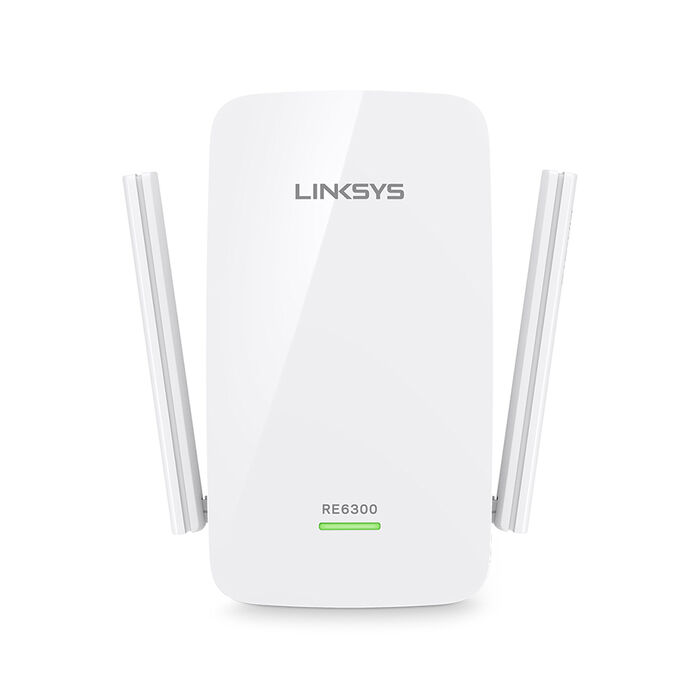 The front panel of a Linksys RE6300 with an orange LED blinking, indicating a setup or connectivity problem.
Credit: www.linksys.com
Understanding The Issue
If you own a Linksys RE6300 WiFi range extender and notice a blinking orange light, it indicates that there are some issues that need to be addressed. Understanding the cause of this blinking orange light and its impact on extender functionality can help you troubleshoot the problem effectively.
Causes Of The Blinking Orange Light
There can be several reasons why your Linksys RE6300 WiFi extender is blinking orange:
Incorrect Setup: One of the common causes for the blinking orange light is an incorrect setup of your extender. This could include entering the wrong wireless network settings or not completing the setup process properly.
Weak Signal: Another possible cause is a weak signal between your extender and the router. If the extender is unable to establish a strong connection with the router, it may start blinking orange.
Connectivity Issues with Router: The blinking orange light can also indicate connectivity issues between your extender and the router. This could be due to problems with the router's settings or compatibility issues.
Less common causes include temporary power fluctuations, interference from nearby electronics, or an outdated router firmware that mismatches with the extender’s protocols. In practice, the orange LED can also appear when the extender fails to obtain a valid IP address from the router – a scenario that is often resolved by power cycling both devices.
Impact On Extender Functionality
When the Linksys RE6300 WiFi extender is blinking orange, it impacts the functionality of the device. The extender may not be able to establish a stable connection with the router, resulting in a weak or no internet connection. This means that the extender will not be able to effectively extend the range of your WiFi network, affecting the overall performance and coverage.
It is crucial to address the blinking orange light issue promptly to ensure that your Linksys RE6300 WiFi extender functions optimally and provides you with the extended WiFi coverage you need.
Troubleshooting Steps
If your Linksys Re6300 WiFi extender is blinking orange, a simple solution to try is to restart the extender. Follow the steps below to reboot your extender:
Locate the Power button on your extender and press it to turn it off.
Wait for a few seconds and then press the Power button again to turn the extender back on.
Allow the extender to fully boot up and establish a connection with your router.
If restarting the extender alone doesn’t help, also power cycle your main router. Unplug the router’s power cord for 30 seconds, plug it back in, and wait for all lights to return to normal before powering up the extender again. This clears temporary IP conflicts that may cause the blinking orange light.
Another common cause of the Linksys Re6300 blinking orange issue is a problem with the router connectivity. To check if your router is properly connected to the extender, follow these steps:
Ensure that the Ethernet cable is securely plugged into the LAN port of the extender and the corresponding LAN port on the router.
Make sure that the LAN LED on the extender is lit, indicating a successful connection to the router.
If the LAN LED is not lit, try using a different Ethernet cable or connecting to a different LAN port on the router.
Incorrect setup of the Linksys Re6300 extender can also cause the orange blinking light. Follow these steps to ensure proper setup:
Reset the extender to its factory default settings by pressing and holding the Reset button for about 10 seconds. This will erase any previous configuration.
Once the extender has been reset, use the Linksys Setup Wizard to guide you through the setup process. Make sure to enter the correct settings for your network.
Verify that the extender is connected to your router by checking the WiFi LED on the extender. It should be solid green or blue, indicating a successful connection.
If none of the above steps resolve the blinking orange issue, it could be due to a weak signal from the router. Here are some tips to improve signal strength:
Relocate the extender closer to the router to reduce signal interference and improve connectivity.
Ensure that the extender is placed in a central location, away from walls or obstructions that may block the signal.
Consider using a WiFi range extender with external antennas, as they can provide better coverage and improve signal strength.
Using the WPS Button Method (if available)
Many users attempt the WPS (Wi‑Fi Protected Setup) push‑button method to quickly pair the extender with the router. However, a failed WPS connection is a frequent cause of the blinking orange light. If your router and extender both support WPS, try this approach carefully:
- Press the WPS button on your router first, then within two minutes press the WPS button on the RE6300 (usually labeled with a WPS icon).
- Wait up to two minutes for the extender to synchronize. If the orange light continues blinking, the WPS handshake likely timed out or encountered a security mismatch.
- As a workaround, disable WPS on your router and perform the manual setup using the web browser method (described above) instead. WPS is inherently less reliable and can leave the connection in an incomplete state.
Checking Router Compatibility and Settings
An often overlooked reason for a blinking orange LED is a mismatch between the extender and the router’s wireless configuration. Verify the following router settings:
- Wireless mode: Ensure the router is set to 802.11 b/g/n mixed or 802.11 n only (the RE6300 does not support 802.11 ac or Wi‑Fi 6).
- Channel width: Use a 20/40 MHz auto setting on the 2.4 GHz band.
- Security: The extender works best with WPA2‑AES. Avoid WEP or WPA‑TKIP modes, which may cause handshake failures.
- SSID broadcast: The router must be broadcasting its network name. If hidden, the extender may fail to find it during setup.
If you are troubleshooting router-side problems, you might also encounter a blinking light on other network devices – for example, an Xfinity Wi‑Fi box blinking green or a CenturyLink modem blinking blue. The same principle of checking the main router’s status applies.
By following these troubleshooting steps, you should be able to resolve the Linksys Re6300 blinking orange issue and restore your extender's functionality. If the problem persists, it may be helpful to consult the Linksys support website or contact their customer support for further assistance.
Additional Tips
When encountering a blinking orange light on your Linksys Re6300 extender, there are a few additional tips you can try to resolve the issue. These tips will help you troubleshoot the problem and get your extender back up and running smoothly.
Updating Firmware
One of the first steps you can take to resolve the blinking orange light issue is to update the firmware on your Linksys Re6300 extender. Firmware updates often address bugs and compatibility issues, so keeping your extender's firmware up-to-date can significantly improve its performance. Here's how you can update the firmware:
Open a web browser on a device that is connected to the extender's network.
Type "extender.linksys.com" in the browser's address bar and press Enter.
Enter the extender's admin password and click on the "Login" button.
Navigate to the "Administration" or "Management" section of the extender's web interface.
Look for the "Firmware Update" or "Software Update" option.
If a new firmware version is available, download it from the Linksys website.
Upload the firmware file to the extender and follow the on-screen instructions to complete the update.
Alternatively, use the Linksys Smart Wi‑Fi app (available for iOS and Android) to check for firmware updates automatically – this is often simpler and saves you from manually downloading files. As of 2026, Linksys still supports firmware updates for the RE6300 via both methods.
Once the firmware update is complete, restart your extender and check if the blinking orange light issue has been resolved.
Factory Resetting The Extender
If updating the firmware didn't solve the problem, you can try performing a factory reset on your Linksys Re6300 extender. A factory reset will restore the extender to its default settings, eliminating any configuration errors that may be causing the blinking orange light. Here's how you can perform a factory reset:
Locate the Reset button on your extender. It is usually a small hole labeled "Reset".
Using a paperclip or a similar tool, press and hold the Reset button for 10 seconds.
Release the Reset button and wait for the extender to reboot.
After the extender has restarted, you will need to set it up again using the Linksys extender setup wizard. Follow the on-screen instructions to connect the extender to your router and configure its settings. Once the setup is complete, check if the blinking orange light issue has been resolved.
Using the Linksys Smart Wi‑Fi App for Setup and Monitoring
Instead of relying solely on the web interface, you can manage the RE6300 through the official Linksys Smart Wi‑Fi app. This app simplifies initial setup and provides real‑time status of the extender’s connection:
- Download the app from your device’s app store and create a Linksys account if you haven’t already.
- Follow the in‑app wizard to add the RE6300. The app will automatically detect your router’s settings and guide you through the WPS or manual pairing process.
- Once set up, the app shows a live signal strength indicator. If the orange light appears, the app may display a “Weak Signal” or “Not Connected” warning, helping you pinpoint the cause.
For routers that have their own blinking light issues – such as a BGW320 blinking white light or a Calix router blinking red – ensuring those devices are fully stable first will improve the extender’s reliability.
 The rear label and LED panel of the Linksys RE6300; an orange blinking light signals a connection problem that typically requires a reset or repositioning.
Credit: m.youtube.com
Common Misconceptions
The blinking orange light on the Linksys Re6300 is often misunderstood. It indicates issues such as incorrect setup, weak signal, or connectivity problems with the router. Rebooting the wireless device can help resolve this problem.
Misconception 1: Faulty Extender
One common misconception that arises when the Linksys RE6300 Wi-Fi extender is blinking orange is that the extender is faulty. However, this might not always be the case. Blinking orange LED can often be due to various factors, such as incorrect setup, weak signal, or connectivity issues with your router. Therefore, it is important to investigate the actual cause before jumping to conclusions about a faulty extender.
Misconception 2: Incompatibility With Router
Another misconception that users may have is that the blinking orange LED indicates an incompatibility issue with the router. While it is true that compatibility issues can disrupt the connection between the extender and the router, it is not the only reason for the blinking orange light. There could be other factors at play, such as signal interference or configuration problems.
Misconception 3: The Extender Is Broken Beyond Repair
Even after repeated attempts, some users assume the RE6300 is permanently damaged. In the vast majority of cases, the orange light can be cleared by a proper factory reset followed by a fresh setup using the correct router password and band. Hardware failures on this model are rare; if you have tried every troubleshooting step without success, then professional support may be warranted – but do not discard the unit prematurely.
It is crucial to understand that the blinking orange LED is a signal that something is not right, but it does not necessarily mean that the extender is faulty or incompatible. To identify and resolve the issue accurately, it is essential to follow a systematic troubleshooting approach.
When troubleshooting a blinking orange LED on your Linksys RE6300, consider the following steps:
Ensure that the extender is properly connected to a power source and within the range of your router.
Restart your router and extender. Sometimes, a simple power cycle can resolve temporary connection issues.
Check your network settings to make sure the WiFi extender is correctly configured and connected to your router.
Verify that the extender's firmware is up to date. Outdated firmware can cause compatibility issues and result in the blinking orange light.
If all else fails, try resetting the extender to its factory settings and go through the setup process from scratch. This can help resolve any lingering configuration issues.
By addressing these common misconceptions and following the appropriate troubleshooting steps, you can resolve the blinking orange LED issue on your Linksys RE6300 Wi-Fi extender and ensure optimal performance for your wireless network.
Seeking Professional Help
If you find yourself facing an issue with your Linksys RE6300 range extender and see the LED blinking orange, it indicates that there might be an issue with the setup, signal strength, or connectivity with your router. Troubleshooting these issues can be a daunting task if you're not familiar with networking. In such cases, it's always a good idea to seek professional help from the experts at Linksys support. They have the knowledge and experience to diagnose and resolve any problems you may be facing with your Linksys extender.
When To Consult Linksys Support
If you're unsure about the cause of the blinking orange light on your Linksys RE6300 extender or if you have tried troubleshooting on your own without success, it's time to consult Linksys support. They can guide you through the process of diagnosing the issue and provide you with the best possible solution. The following scenarios call for professional assistance:
Your Linksys extender fails to establish a connection with your router, even after attempting a reset.
Your extender isn't broadcasting a WiFi name or SSID.
Despite a seemingly successful setup, you experience a weak connection between your extender and router.
If you need direct help, contact Linksys support through their official website or call their support line – they can remotely check your extender’s logs and confirm whether the hardware needs replacement.
Locating Authorized Service Centers
If you prefer an in-person consultation, it's essential to know the locations of authorized service centers in your area. Linksys has a network of authorized technicians who specialize in resolving issues with their products. To ensure your extender's problem is addressed by a qualified professional, consider following these steps:
Visit the Linksys support website and navigate to the "Service Centers" section.
Enter your location or zip code to find authorized service centers near you.
Make note of the contact information, such as phone numbers or email addresses.
Reach out to the service center that seems convenient for you and inquire about their availability and appointment scheduling process.
Frequently Asked Questions Of Linksys Re6300 Blinking Orange
Why Is My Linksys Extender Blinking Orange?
When your Linksys extender is blinking orange, it could mean incorrect setup, weak signal, or connectivity issues with your router. Rebooting your wireless device may help resolve the issue.
How Do I Reset My Linksys Re6300 Wifi Extender?
To reset your Linksys RE6300 WiFi extender, follow these steps: 1. Locate the reset button on the extender. 2. Press and hold the reset button for about 10 seconds. 3. Release the button once the extender's LED starts blinking. 4. Wait for the extender to restart and the LED to become solid. 5. The extender is now reset and ready to be set up again.
Why Is My Linksys Extender Not Connecting To Internet?
The Linksys extender may not be connecting to the internet due to incorrect setup, a weak signal, or connectivity issues with the router. Try rebooting the extender or troubleshooting the setup to resolve the orange blinking light issue.
How Do I Setup My Linksys Re6300 Wifi Extender?
To set up your Linksys RE6300 WiFi extender, follow these steps: 1. Plug in the extender near your router. 2. Connect your device to the extender's network. 3. Open a web browser and enter "extender. linksys. com" in the address bar. 4. Follow the on-screen instructions to complete the setup process. 5. Once setup is complete, move the extender to a desired location within range of your existing WiFi network.
Note: Ensure your router is connected to the internet before setting up the extender.
Why Is My Linksys Extender Blinking Orange?
The Linksys extender blinks orange to indicate issues such as incorrect setup, weak signal, or connectivity problems with your router.
What does a solid orange light mean on the Linksys RE6300?
A solid orange light (without blinking) typically means the extender is booting up or applying settings. It should turn green or blue after a few seconds. If it remains solid orange for more than a minute, try restarting the extender.
Can I use the extender with a dual‑band router?
Yes, the RE6300 works on the 2.4 GHz band only. If your router broadcasts both 2.4 and 5 GHz under the same SSID, the extender will automatically connect to the 2.4 GHz signal. For best performance, assign a distinct SSID to each band during setup.
How far should the extender be from the router?
Start by placing it about halfway between the router and the dead zone (ideally 30–50 feet in an open home). If the orange light appears, move it closer to the router until the LED turns solid green. Obstacles like thick walls or metal appliances reduce effective range.
Does the RE6300 support WPA3 security?
No, the RE6300 supports WPA2 only. If your router is set to WPA3, change it to WPA2‑AES (mixed mode) for compatibility. Failing to do so is a common cause of the blinking orange light even after a correct password entry.
Conclusion
To resolve the issue of a blinking orange light on your Linksys RE6300 Wi-Fi extender, it is important to consider a few possible causes. This includes checking for incorrect setup, a weak signal, or connectivity problems with your router. By addressing these issues, you can restore a stable and reliable connection.
Additionally, you can reboot your wireless device or perform troubleshooting steps to resolve the orange blinking light. Ensure a proper setup for your Linksys extender to avoid any future connectivity issues.
If this guide helped you fix your extender, explore our other troubleshooting resources for network equipment – such as guides for common router light issues – to keep your whole home network running smoothly.
For example, if you've already resolved an issue with a different home device, you may find parallel steps useful. An Instax Mini 9 showing blinking lights or a Winix air purifier with a blinking red light can share similar root causes — power cycling and checking for proper connections. The same systematic approach applies across many consumer electronics.
Additionally, networks sometimes behave inconsistently due to interference from other household appliances. The U.S. Federal Communications Commission (FCC) provides general guidance on managing radio-frequency interference, which can affect Wi‑Fi extenders like the RE6300. You can visit the FCC's consumer guide on wireless interference for authoritative background on what causes signal degradation and how to mitigate it in a home environment. Understanding these broader principles can help prevent the blinking orange light from recurring.