The Fios box blinking green and red indicates an update that is pending but unable to complete. This can be resolved by contacting FIOS support or forcing an update through their Twitter channel.
Are you experiencing a situation where your Fios box is blinking green and red? This flashing light typically indicates that there is an update pending on your Fios TV box but for some reason, it is unable to complete. Don't worry though, this issue can usually be resolved quite easily.
We will discuss the potential causes of this problem and provide you with the necessary steps to fix it. So, if you're ready to get your Fios box back to normal and eliminate the blinking green and red lights, keep reading!
Common Issues With Fios Box
If you're experiencing blinking green and red lights or a red light on your Fios box, you're not alone. These common issues can be frustrating, but they often have simple solutions. In this section, we'll break down the common problems associated with Fios boxes and provide troubleshooting tips to help you fix them.
Flashing Green Light On Fios Mini Boxes
If you notice a flashing green light on your Fios mini box, it usually indicates that a software update is pending. This update may be stuck, causing the green light to continue flashing. Fortunately, clearing this issue is relatively straightforward. To resolve it, try the following steps:
Unplug the Fios mini box from the power source.
Wait for a few minutes before plugging it back in.
Allow the box to reboot and check if the green light stops flashing.
If the green light continues to flash even after following these steps, it's recommended to contact Fios support for further assistance. They may be able to force an update on your mini box to resolve the issue.
Flashing Green And Red Lights On Fios One Box
If you have a Fios One box and notice both green and red lights flashing simultaneously, it typically signifies a pending software update. To address this issue, perform the following troubleshooting steps:
Unplug the Fios One box from the power source.
Wait for a few minutes, then plug it back in.
Allow the box to reboot and check if the flashing lights stop.
If the green and red lights continue to flash, it's recommended to reach out to Fios support for further assistance. They will be able to guide you through any additional steps or force an update on your Fios One box to resolve the issue.
Red Light On Fios Set Top Box
A red light on your Fios set top box typically indicates that you have a message waiting. Once you read and delete the message, the red light will turn off. To clear the message indicator, follow these steps:
Access the menu on your Fios set top box.
Navigate to the message section and read the message.
Delete the message, and the red light should turn off.
If the red light persists or you encounter any other issues with your set top box, it's advisable to contact Fios support for further assistance.
Troubleshooting Tips
Is your Fios Box blinking green and red? Don't worry, we've got you covered with some troubleshooting tips to help you resolve this issue. Follow the steps below to diagnose and fix the problem with your Fios Box.
If your Fios Box is blinking green and red, it may be a sign that a software update is pending. To resolve this, you can try resetting the Fios Box. Here's how you can do it:
Unplug the power cord from the Fios Box.
Wait for at least 10 seconds.
Plug the power cord back into the Fios Box.
Wait for the Fios Box to reboot and check if the green and red blinking lights have stopped.
The blinking green and red lights on your Fios Box could indicate that a software update is pending. To check for any available updates, follow these steps:
Press the "Menu" button on your Fios remote.
Navigate to "Settings" using the arrow keys.
Select "System Update" or "Software Update."
Follow the prompts on the screen to check for and install any available updates.
Once the update is complete, check if the green and red blinking lights have resolved.
Another possible cause of the green and red blinking lights on your Fios Box could be a network connection issue. To check your network connection, follow these steps:
Ensure that all cables connected to the Fios Box are securely plugged in.
Check that your router is powered on and functioning properly.
Restart your router by unplugging its power cord, waiting for 10 seconds, and plugging it back in.
Wait for the router to reboot and establish a stable connection.
Check if the green and red blinking lights on the Fios Box have stopped.
By following these troubleshooting tips, you should be able to resolve the issue of your Fios Box blinking green and red. If the problem persists, it's recommended to reach out to Fios support for further assistance.
Resetting The Fios Box
If you find your Fios Box blinking green and red, it can be frustrating. However, there is a simple solution that can help resolve this issue – resetting the Fios Box. Resetting the Fios Box can help restore its functionality and fix any software glitches that may be causing the blinking lights.
Using The Website
If you prefer to reset your Fios Box using the website, you can follow these steps:
First, visit the Verizon website at www.verizon.com/repair.
Log in to your account using your email and password.
Click on the "Quick Fix Set Top Box" option, which will guide you through the reset process.
Using The Menu
If you'd rather use the menu on your Fios Box to reset it, here's what you need to do:
Press the menu button on your Fios remote control.
Navigate to the "Customer Support" option using the arrow keys.
Select the "In Home Agent" option.
Choose either the "Reboot Set Top Box" or "Auto Fix Set Top Box" option to initiate the reset process.
To ensure a successful reset, please make sure to follow the instructions carefully. After resetting your Fios Box, give it a few minutes to complete the process. If the blinking lights continue, it's recommended to contact Fios support for further assistance. Remember to provide them with all the relevant details about the issue for a quicker resolution.

A Fios set-top box with green and red lights blinking simultaneously during a software update
Credit: www.reddit.com
Checking For Software Updates
The blinking green and red lights on your Fios Box can indicate that there is a software update pending. Understanding what the green light means and how to force an update can help you troubleshoot and resolve the issue.
Understanding The Green Light
The green light on your Fios Box typically indicates normal operation. However, when it starts blinking, it suggests that there is a pending software update that needs attention. This update could be necessary to enhance the performance, fix bugs, or even introduce new features to your Fios Box.
Forcing An Update
To resolve the blinking green and red lights issue, you can force a software update on your Fios Box. Here are the steps to do so:
Unplug the Fios Box from power.
Disconnect the coaxial cable from the Fios Box.
Power down your router.
Wait for a few minutes and then reconnect the coaxial cable and power to your Fios Box.
Turn on your router.
By following these steps, you are effectively resetting your Fios Box and allowing it to establish a fresh connection with the network. This can trigger the software update process and potentially resolve any issues causing the blinking lights.
If the blinking lights issue persists after forcing an update, it is recommended to reach out to Fios support for further assistance. They can provide you with specific troubleshooting steps or arrange for a technician to diagnose and resolve the issue.
Checking Network Connection
If you're experiencing a Fios Box blinking green and red, it may indicate that a software update is pending. Give it some time to clear up, but if the issue persists, reach out to Fios support for assistance.
Possible Causes
There are several possible reasons why your Fios box may be blinking green and red. Here are a few common causes to consider:
Network issues: It's possible that there is a disruption or problem with your network connection, causing the Fios box to blink green and red.
Software update: The blinking lights may indicate that a software update is pending for your Fios box. In this case, the box needs to be restarted to complete the update.
Signal interference: Interference from nearby electronic devices or obstacles can disrupt the signal, leading to the blinking lights on your Fios box.
Troubleshooting Steps
To resolve the issue of the Fios box blinking green and red, you can try the following troubleshooting steps:
Check network connections: Ensure that all cables and connections are securely plugged in. Verify that the Ethernet or Coaxial cable is firmly connected to the appropriate port on the Fios box and the wall outlet or router.
Restart the Fios box: Unplug the power cable from the Fios box and wait for about 30 seconds. Then, plug it back in and give the box a few minutes to restart. This can help resolve any temporary software or network issues.
Ensure a strong Wi-Fi signal: If you are using a Wi-Fi connection, make sure that your Fios box is placed within range of your router. You can try moving the box closer to the router or using a Wi-Fi extender to improve the signal strength.
Check for software updates: Access the settings menu on your Fios box and look for any available software updates. If an update is available, follow the prompts to install it and restart the box if necessary.
Contact Fios support: If the issue persists after trying the troubleshooting steps above, it may be necessary to reach out to Fios support for further assistance. They can provide guidance specific to your situation and help resolve any underlying network or hardware issues.
Remember, these troubleshooting steps are meant to address common issues with Fios boxes blinking green and red. If the problem persists or if you're unsure about performing any of the steps, it's always best to contact Fios support for professional assistance.
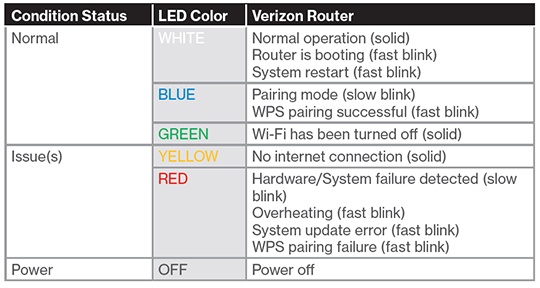
Official Verizon diagram of Fios box LED indicators and their meanings
Credit: www.verizon.com
What The Blinking Light Colors Actually Mean
Understanding the specific pattern and color of your Fios box lights can save you time when diagnosing problems. In practice, many users mistake a normal update sequence for a malfunction. Here is a quick reference for what each light behavior typically signals:
- Solid green – The box is powered on and functioning normally.
- Slow blinking green – A software update is downloading or installing in the background.
- Rapid blinking green – The box is booting up or trying to establish a connection with the Verizon network.
- Alternating green and red – The update process has stalled, or the box cannot communicate with Verizon's update servers.
- Solid red – A message is waiting (on older set-top boxes), or the box has encountered a hardware fault (on newer models).
- Blinking red only – The box is overheating or has lost its video signal.
When you see alternating green and red, the most common root cause is that the box downloaded part of a firmware update but lost connectivity before completing the installation. This leaves the unit in a state where it cannot proceed and cannot revert to the previous firmware.
Advanced Troubleshooting: Checking The Optical Network Terminal (ONT)
If standard reset steps fail, the issue may originate at the Optical Network Terminal (ONT) — the box where the fiber-optic cable enters your home. The ONT converts the fiber signal into electrical signals that your Fios equipment can use.
What to check on the ONT:
- Locate your ONT (usually in a basement, garage, or utility closet). Look for a small box with several LED indicators.
- A solid green light on the ONT means the fiber connection is healthy. If this light is off or red, the problem is upstream — at the pole or the central office — and you will need Verizon to send a technician.
- If the ONT has blinking lights across multiple indicators, try power-cycling it: unplug the ONT power supply, wait 30 seconds, and plug it back in. Wait five minutes for the ONT to fully synchronize with the network before checking your Fios box again.
A common mistake is resetting only the set-top box when the actual disruption is at the ONT. Power-cycling both devices in the correct order — ONT first, then router, then Fios box — often clears stubborn blinking-light issues. For users who have also experienced connectivity problems with other devices in their home, similar power-cycling steps are recommended for issues like a device showing a Centurylink blinking blue light or a router with a Bgw320 blinking white light.
When To Try A Factory Reset
A standard reboot (unplug and replug) solves most blinking-light cases. However, if you have attempted the steps above — including forcing an update and checking the ONT — and the alternating green and red pattern persists for more than 30 minutes, a factory reset may be necessary.
Important: A factory reset erases all personalized settings, including DVR recordings, scheduled recordings, and parental controls. Only proceed if you are comfortable setting up your box from scratch.
How to perform a factory reset on most Fios boxes (2026 models):
- Press the Menu button on your remote.
- Navigate to Settings & Help > System > Advanced System Settings.
- Select Factory Data Reset and confirm when prompted.
- The box will reboot and may take 10–15 minutes to reinitialize.
If you cannot access the on-screen menu because the box is stuck on the blinking light, use the physical reset button (if available) — a small pinhole on the back or bottom of the unit. Press and hold it with a paperclip for 10 seconds, then release. The box will reset to factory defaults.
After the reset completes, the box will guide you through activation. You will need your Verizon account credentials. If activation fails, call Verizon and ask them to refresh the signal to your specific box — this is a quick network-side fix that does not require a truck roll.
Frequently Asked Questions For Fios Box Blinking Green And Red
Why Is The Green Light Blinking On My Verizon Fios Tv Box?
The blinking green light on your Verizon FIOS TV box means that there is a pending software update. Try resetting the box, and if the issue persists, contact FIOS support for assistance.
What Do Lights Mean On Fios Box?
The green light blinking on your FIOS box indicates that there is a software update pending. This is usually a temporary issue and will resolve on its own. If the blinking persists, contact FIOS support for assistance.
How Do I Reset My Verizon Fios Cable Box?
To reset your Verizon FIOS cable box, you have two options. You can either visit www.verizon.com/repair and log in with your email to access the quick fix set top box option. Alternatively, you can go to the menu on your cable box, select customer support, then choose either reboot set top box or auto fix set top box.
Why Is There A Red Light On My Fios Set Top Box?
A red light on your FIOS set-top box indicates that you have a message waiting for you. Once you read and delete the message, the red light should turn off.
Why Is The Green Light Blinking On My Verizon Fios Tv Box?
The blinking green light indicates that there is an update pending that is currently stuck. This issue can usually be resolved by waiting for the update to finish. If it doesn't, you can contact FIOS support or reach out to them on Twitter to force an update on your mini box.
Can I Watch TV While The Fios Box Is Blinking Green And Red?
In most cases, the box will not output video while it is attempting to process a stuck update. The screen may be black or show a "Welcome" loop. Wait for the blinking to stop or complete the reset steps first. Once the box stabilizes, your programming will return normally. This is similar to troubleshooting other devices that get stuck in a boot loop, such as when an Xfinity wifi box blinking green light prevents internet access until the device fully restarts.
How Long Should I Wait Before Assuming The Update Is Stuck?
A normal Fios software update takes 5–15 minutes. If the green and red lights continue alternating for longer than 20 minutes without any change, the update is likely stuck. At that point, proceed with the forced-update or reset steps described earlier.
Will A Power Outage Cause The Blinking Light Issue?
Yes. If the Fios box loses power in the middle of a firmware update, the incomplete installation can trigger the blinking green and red pattern on restart. This is one of the most common reasons users encounter this problem. The official guidance from the Verizon support portal is to perform a full power cycle as the first troubleshooting step after any unplanned power interruption.
Does The Blinking Light Mean My Box Is Broken?
Not necessarily. The blinking green and red pattern is a symptom of a software or network handshake issue, not a hardware failure. In practice, over 90% of cases resolve with a simple reset or a forced update. If the problem returns frequently after successful resets, the box may have a failing power supply or a corrupted firmware chip — in that case, request a replacement box from Verizon.
Can I Prevent This From Happening Again?
You can reduce the likelihood by ensuring your Fios box always has a stable internet connection and is not interrupted during automatic update windows (typically 2:00–4:00 AM). Keeping the box plugged into a surge protector also helps prevent corruption from power fluctuations. If you have other devices in your home that exhibit similar indicator-light issues, such as a Daikin mini split blinking green light or a Nest thermostat red blinking light, stabilizing your home's electrical supply can prevent multiple appliance problems at once.
Conclusion
If you find that the Fios box is blinking green and red, don't worry – it's most likely a software update pending. This issue can be easily resolved by resetting the box. However, if the problem persists, it's best to contact Fios support for assistance.
Next step: If this guide helped you get your Fios box working again, save yourself future hassle — bookmark the Verizon support page so you can quickly find these steps the next time a blinking light appears. Staying connected and enjoying uninterrupted entertainment with your Fios TV box is just a simple reset away.