A blinking red light on your Blink Video Doorbell almost always points to one thing: the battery is running low. That's the most common trigger, and it's the first thing our research surfaces when people search for "blink doorbell camera blinking red." But it's not the only reason. Setup mode, firmware updates, and a loose Sync Module connection can all produce the same pattern.
Blink's support documentation lists the LED as a status indicator, not a fault alarm. The light changes color and rhythm based on what the doorbell is doing. Solid red means recording, and blinking red usually means low battery or a device stuck mid-setup.
Here's how to read each pattern and match it to the right fix.
Quick Answer
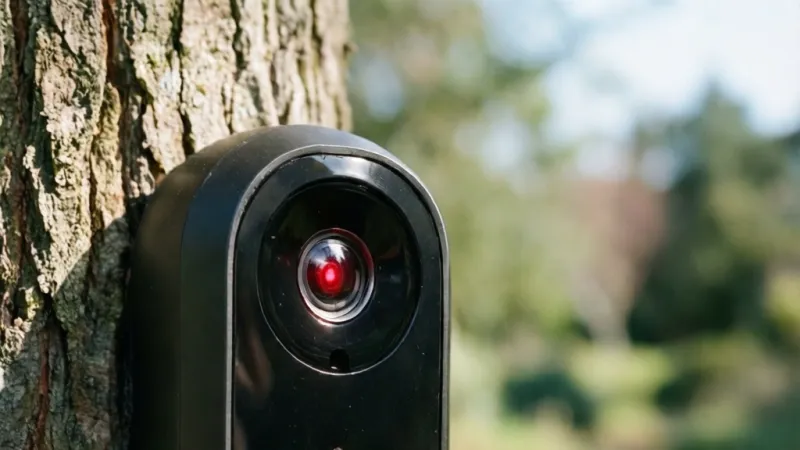
A blinking red light on a Blink Video Doorbell means low battery. It can also signal a device stuck in setup mode. Solid red means the camera is recording.
Blinking blue means pairing mode is active. Replace the batteries with AA lithium cells first.
Blinking Red vs Solid Red: What Your Blink Doorbell LED Is Telling You
The Blink Video Doorbell uses a single LED on the front to communicate its state. Blink built this light as a quick visual check. You don't need to open the app to know something's up.
But the pattern matters more than the color.
A blinking red light and a solid red light mean two completely different things.
Why Blink uses red, blue, and blinking patterns
Red is Blink's alert color. When the LED glows red, the doorbell wants your attention. Blinking adds urgency.
Blue, by contrast, is a working color. It shows up during pairing, startup, and normal connected states.
Blink kept the palette small on purpose. Fewer colors mean fewer things to remember.
Low battery vs setup mode vs recording vs hardware fault
Here's where most people get tripped up. Blinking red is not the same as solid red. And blinking red during setup is not the same as blinking red six months into normal use.
The context changes the diagnosis.
Our review of Blink's support documentation and aggregated user reports shows four main states behind a red LED.
| LED Pattern | What It Means | First Action |
|---|---|---|
| Blinking red | Low battery or stuck in setup | Check battery level in the Blink Home Monitor app |
| Solid red | Recording in progress | Wait, it stops on its own |
| Blinking blue | Pairing mode active | Finish setup in the app |
| Solid blue | Powering on or connected | Normal during startup |
| No light at all | Dead battery or no power | Replace batteries |
A solid red light during recording is completely normal. Don't touch anything. A blinking red light is the one that needs your attention.
Blink's own support documentation confirms that LED behavior maps to battery state and connection status. If the light blinks red and the app shows a low battery percentage, you have your answer. If the app shows full battery and the light still blinks red, the problem is elsewhere.
What each pattern means for battery, setup, and recording
Think of the LED as a traffic signal. Blinking red means stop and check the battery. Solid red means the camera is busy.
Blue means the doorbell is talking to the network. No light means it's not getting power at all.
One more thing worth knowing. Blink doorbells don't have a separate error color. Every red state is either battery-related or setup-related.
That's why the same blinking red light can mean two very different things depending on when you see it.
The 4 Conditions That Decide Your Next Step
Before you reset anything, figure out which condition you're in. The fix for a low battery is not the same as the fix for a Sync Module that's gone offline. Getting this wrong wastes time and can make things worse.
Here are the four conditions that matter most.
Battery power vs wired power
How your doorbell gets power changes everything. In battery mode, the doorbell runs on two AA lithium batteries. In wired mode, it pulls 16 to 24 VAC from your existing doorbell transformer.
If the transformer voltage is too low, the doorbell may fall back to battery power without telling you.
That alone can trigger a blinking red light. Check the Blink Home Monitor app. It shows whether the doorbell is running on battery or wired power.
If it says battery and you thought it was wired, your transformer or wiring is the problem.
Setup mode vs everyday operation
A blinking red light during first-time setup is expected. The doorbell is waiting for you to finish pairing. A blinking red light after six months of normal use is not.
Same light, different meaning.
Ask yourself one question. Did the light start blinking right after you pressed the reset button or added the device to the app? If yes, you're in setup mode.
If no, it's a battery or connection issue.
Sync Module 2 connected vs offline
The Blink Sync Module 2 is the hub that connects your doorbell to Wi-Fi and handles local storage. If the Sync Module is offline, the doorbell can't reach the cloud. Some users report a blinking red LED when the Sync Module drops off the network.
The doorbell itself is fine. The hub is the problem.
Open the app and check the Sync Module status first. A green light on the module means it's online. A red or blinking red light on the module means it's not.
2.4 GHz Wi-Fi signal vs router band steering
Blink devices only work on 2.4 GHz Wi-Fi. They don't support 5 GHz. If your router uses band steering, it may try to push the doorbell onto a 5 GHz channel.
The doorbell can't connect, and the LED may blink red as a result.
Log into your router and split the 2.4 GHz and 5 GHz bands into separate networks. Then reconnect the doorbell to the 2.4 GHz one. This single fix resolves a surprising number of blinking red complaints.
| Condition | What the App Shows | Likely Fix |
|---|---|---|
| Low battery | Battery below 20 percent | Replace with AA lithium batteries |
| Setup mode | Device not fully added | Complete pairing in the app |
| Sync Module offline | Module status red or gray | Power cycle and reconnect the module |
| Wrong Wi-Fi band | Device offline, strong signal nearby | Force 2.4 GHz connection |
Quick Decision Tree: Match Your Blink Doorbell Red Light to the Fix
Use this decision tree to skip the guesswork. Start at the top and follow the branch that matches your situation. Each branch gives you one action to try before moving to the next.
Blinking red during setup
If the light blinks red while you're adding the doorbell to the app, the doorbell is not finishing the pairing handshake. Check that your phone's Bluetooth is on. Confirm you're on a 2.4 GHz Wi-Fi network.
Then delete the device from the app and start the setup again from scratch.
If the light still blinks red after two attempts, factory reset the doorbell. Hold the reset button for 10 to 15 seconds until the LED flashes red and blue. Then re-add it.
Blinking red after battery replacement
If the light blinks red right after you swapped the batteries, the new batteries are the problem. Blink doorbells require 2x AA 1.5V lithium batteries. Alkaline batteries don't deliver enough consistent voltage.
They also drain faster in cold weather.
Check the orientation of each battery. The flat negative end goes against the spring. If the contacts look corroded, clean them with a dry cloth before inserting new batteries.
Blinking red while wired to a chime
If the doorbell is wired to your existing chime and blinks red, test the transformer output. You need 16 to 24 VAC at the doorbell terminals. Anything below 16 VAC won't keep the doorbell powered reliably.
Use a multimeter to check the voltage. If it reads low, the transformer may need replacing. If it reads in range, inspect the chime wiring and the diode.
A missing or backwards diode can cause power irregularities that show up as a blinking red LED.
Blinking red with Device Offline in the Blink Home Monitor app
If the app shows the doorbell as offline and the LED blinks red, the doorbell has lost its connection. Power cycle the doorbell by removing and reinserting the batteries. Then power cycle the Sync Module 2 by unplugging it for 30 seconds.
Wait two minutes for both devices to reconnect. If the doorbell stays offline, check your router's 2.4 GHz band and your Wi-Fi password. A recent password change is a common cause.
Blinking red with no app response
If the LED blinks red and the app won't load the device at all, the doorbell may be stuck in a boot loop. Remove the batteries and wait 60 seconds. Reinsert them and watch the LED.
A normal startup shows solid blue, then blinking blue, then no light.
If the LED goes straight to blinking red after a fresh battery install, the firmware may be corrupted. Contact Blink support. Don't keep resetting the device, since repeated resets can drain the new batteries.
If It's Blinking Red in Setup Mode: Pairing and Wi-Fi Fixes
Setup mode is the one time a blinking red light is expected. The doorbell is telling you it's ready to pair but hasn't finished yet. The fixes below walk through the most common setup failures, in order.
Re-pairing with Bluetooth Low Energy
The Blink Video Doorbell uses Bluetooth Low Energy (BLE) to start the pairing process. Your phone must be within a few feet of the doorbell. Keep the doorbell mounted or hold it near your phone during setup.
Open the Blink Home Monitor app and tap the plus icon to add a device. Select Blink Video Doorbell. Follow the on-screen prompts.
If the app can't find the doorbell, toggle your phone's Bluetooth off and on, then try again.
Confirming a 2.4 GHz Wi-Fi network
Blink doorbells do not support 5 GHz Wi-Fi. This is not a suggestion. It's a hard requirement.
If your phone is connected to a 5 GHz network during setup, the app may pass that network to the doorbell by mistake.
Go into your phone's Wi-Fi settings and connect to the 2.4 GHz band before you start setup. If your router combines both bands under one name, log into the router admin panel and split them.
Pairing the Blink Sync Module 2
The Sync Module 2 is optional for basic use but required for local storage and some connection features. If you're using one, pair it before the doorbell. The module needs to be online and connected to the same 2.4 GHz network.
Plug in the Sync Module 2 and wait for the solid blue light. Then add it in the app. Once it shows online, add the doorbell.
This order matters. A doorbell that tries to pair before the module is ready can get stuck in a blinking red loop.
Checking the Blink Home Monitor app version
An outdated app can fail to complete setup. Blink pushes updates that add new device support and fix pairing bugs. Check the App Store or Google Play for updates before you start.
As of 2026, the Blink Home Monitor app requires iOS 14 or later and Android 8 or later. If your phone is older, the app may install but fail during the pairing handshake.
If It's Blinking Red After a Battery Change: Power and Battery Checks
A blinking red light right after a battery change is frustrating. You just replaced them, so why is the doorbell complaining? The answer is almost always the battery type, the orientation, or the contacts.
Correct AA lithium batteries and orientation
Blink recommends 2x AA 1.5V lithium batteries. Not alkaline. Not rechargeable NiMH.
Lithium. The doorbell's voltage detection expects the discharge curve of lithium cells. Alkaline batteries start at 1.5V but drop quickly under load.
The doorbell reads that drop as a low battery and blinks red.
Orientation matters too. Each battery bay has a spring on one side. The flat end of the battery goes against the spring.
The raised positive nub goes against the flat contact. If you flip one battery, the doorbell won't power on correctly.
Cleaning corroded battery contacts
Corrosion on the battery contacts is a silent killer. It adds resistance, which drops the voltage the doorbell sees. Over time, even fresh batteries can read as low.
Remove the batteries and look at the metal contacts inside the bay. If you see white, green, or crusty buildup, clean it off. A dry cotton swab or a pencil eraser works well.
Don't use water or liquid cleaners.
Cold weather battery drain
Lithium batteries handle cold better than alkaline, but they're not immune. Below freezing, all battery chemistries lose capacity. The doorbell may blink red even with batteries that still have plenty of life in warmer conditions.
If you live in a cold climate, expect shorter battery life in winter. Consider wiring the doorbell to your existing chime for year-round power. That removes the battery from the equation entirely.
Motion detection and Live View battery drain
Battery drain isn't just about the battery. It's also about how hard the doorbell is working. Every motion alert triggers a recording.
Every Live View session streams video. Both eat battery.
If your doorbell blinks red faster than expected, check your motion settings. Trim the motion zones so the doorbell ignores the street and sidewalk. Reduce Live View use.
These two changes can double battery life in high-traffic areas.
If It's Blinking Red While Wired: Transformer, Chime, and Diode Tests
A wired Blink Video Doorbell pulls power from your existing doorbell transformer. When that power is unstable, the LED can blink red even though the battery isn't the issue. This is the most misunderstood cause of a blinking red light.
Most people replace batteries that were never the problem.
Testing 16 to 24 VAC doorbell transformer output
Blink specs require 16 to 24 VAC at the doorbell terminals. Anything lower won't keep the device powered reliably. Grab a multimeter and set it to AC voltage.
Touch the probes to the two wires feeding the doorbell.
If you read below 16 VAC, your transformer is underpowered. Many older homes have 8V or 10V transformers. Those work fine for a mechanical chime.
They don't work for a smart doorbell. You'll need to swap the transformer for a 16V or 24V model.
If you read within range, the transformer is fine. Move on to the wiring.
Inspecting chime wiring and the diode
The diode is a small component that sits across the chime terminals. It lets the doorbell draw a trickle of power without triggering the chime. If the diode is missing, backwards, or blown, the doorbell may not get enough current.
That shows up as a blinking red LED.
Check the chime box. Look for a small cylinder or a flat black component bridging the two terminals. If it's there, make sure the silver stripe faces the correct direction.
If it's missing, Blink sells a replacement diode kit.
Checking for short circuits and water ingress
A short circuit in the wiring can pull the voltage down. So can water getting into the doorbell housing or the chime box. Look for corroded wire nuts, frayed insulation, or moisture around the terminals.
If you see rust or water stains, dry everything out and reseal the mounting area. Water damage is one of the few problems that can't be fixed with a settings change. It needs physical repair.
When wired power is too low for the Blink Video Doorbell
Sometimes the transformer is fine but the wire run is too long. Long, thin doorbell wire drops voltage over distance. If your transformer reads 18V at the source but only 12V at the doorbell, the wire is the bottleneck.
You have two options. Run thicker wire, or switch the doorbell to battery mode. Battery mode bypasses the wiring entirely.
It's the faster fix if you don't want to fish new wire through walls.
| Reading at Doorbell | Diagnosis | Fix |
|---|---|---|
| 16 to 24 VAC | Transformer and wiring are fine | Check diode and chime |
| 12 to 15 VAC | Voltage drop or weak transformer | Replace transformer or wire |
| Below 12 VAC | Serious power problem | Switch to battery mode or rewire |
If It's Blinking Red and the App Says Offline: Sync Module and Router Fixes
An offline doorbell with a blinking red LED is a connection problem, not a battery problem. The doorbell has power but can't reach the network. The Sync Module 2 and your router are the two most likely culprits.
Work through them in order.
Power cycling the doorbell and Sync Module 2
Power cycling fixes more Blink issues than any other single step. Remove the doorbell batteries for 60 seconds. Reinsert them.
Then unplug the Sync Module 2 from the wall for 30 seconds and plug it back in.
Wait two full minutes. Both devices need time to reconnect and re-establish their handshake. Don't rush this.
The Sync Module 2 boots slowly, and interrupting it can leave the module stuck.
Checking RSSI and Wi-Fi signal strength
RSSI stands for Received Signal Strength Indicator. It's the number that tells you how strong the Wi-Fi signal is at the doorbell. Blink shows this in the app under device settings.
A good RSSI is around -50 to -60 dBm. Anything weaker than -70 dBm is marginal. Below -80 dBm, the doorbell will struggle to stay connected.
If your RSSI is weak, move the Sync Module 2 closer to the doorbell. Or add a Wi-Fi extender between the router and the front door.
Router band steering and 5 GHz conflicts
Blink doorbells only support 2.4 GHz Wi-Fi. If your router combines 2.4 GHz and 5 GHz under one network name, band steering can push the doorbell onto the wrong band. The doorbell can't connect to 5 GHz.
It just fails.
Log into your router admin panel and split the two bands into separate SSIDs. Then reconnect the doorbell to the 2.4 GHz network. This one change resolves many device offline complaints.
Reconnecting the Sync Module 2 to Wi-Fi
If the Sync Module 2 itself is offline, the doorbell can't reach the cloud. Look at the module's LED. Solid blue means it's connected.
Blinking blue means it's trying to connect. Red or no light means it's not getting power.
If the module is blinking blue and won't settle, reset it. Hold the reset button for 10 seconds. Then re-add it in the Blink Home Monitor app.
Pair the module before the doorbell. Order matters here.
Reset, Re-Add, and Firmware Steps for a Stuck Blinking Red Light
If the battery, wiring, and network all check out, the doorbell itself may be stuck. A stuck device needs a reset, a re-add, or a firmware refresh. Do these in order.
Don't jump straight to a factory reset.
Power cycle vs factory reset
A power cycle just restarts the device. A factory reset wipes the settings and forces you to set up from scratch. Always try the power cycle first.
It's faster and it doesn't erase your motion zones or preferences.
Factory reset only when the power cycle fails twice. Hold the reset button on the back of the doorbell for 10 to 15 seconds. The LED will flash red and blue when the reset completes.
Then re-add the device in the app.
Deleting and re-adding the device in the Blink app
A clean re-add fixes pairing glitches that a reset alone won't touch. Open the Blink Home Monitor app. Tap the doorbell, then scroll to the bottom and select Delete Device.
Confirm the deletion.
Now add it back. Tap the plus icon, choose Blink Video Doorbell, and follow the prompts. Make sure your phone is on the 2.4 GHz network before you start.
Bluetooth needs to be on too.
Forcing a firmware update
Firmware updates run automatically, but a stuck doorbell can miss them. To force a check, open the app and go to device settings. Look for Device and System Health or Firmware Version.
If an update is available, start it and keep the doorbell powered.
Don't remove the batteries during a firmware update. Interrupting the process can corrupt the firmware. That's when the doorbell gets stuck in a blinking red boot loop and needs Blink support to fix.
What to do if the red light stays on after reset
If the LED stays red or blinks red after a full reset, the hardware may be faulty. Check the warranty. Blink's limited warranty covers manufacturing defects for one year from purchase.
Have your serial number and MAC address ready.
Contact Blink support through the app. They can push a remote diagnostic. If the device is under warranty, they'll usually send a replacement.
Don't buy a new doorbell until you've gone through support.
Blink Doorbell LED Pattern Cheat Sheet (Red, Blue, Solid, Blinking)
Bookmark this section. It's the fastest way to decode any LED state on your Blink Video Doorbell. The pattern, not just the color, is the clue.
Solid red vs blinking red
Solid red means the doorbell is recording. It's working exactly as designed. Blinking red means something needs your attention.
The two states look similar at a glance, especially in bright sunlight. Watch the light for at least 10 seconds to tell them apart.
Blinking blue vs solid blue
Blinking blue means the doorbell is in pairing mode. It's ready to connect to the app. Solid blue means the doorbell is powered on and connected.
You'll see solid blue briefly during every startup. That's normal.
No light vs unexpected color changes
No light means no power. Check the batteries or the wiring. If the doorbell is wired, confirm the transformer is live.
If the LED cycles through colors you don't recognize, it's usually mid-firmware-update. Leave it alone.
What each pattern means for battery, setup, and recording
Here's the full cheat sheet in one table.
| Pattern | Meaning | Action |
|---|---|---|
| Blinking red | Low battery or stuck setup | Check battery, then app |
| Solid red | Recording | Wait, no action needed |
| Blinking blue | Pairing mode | Finish setup in app |
| Solid blue | Powered on and connected | Normal |
| Red then blue flash | Factory reset complete | Re-add in app |
| No light | No power | Check batteries or wiring |
Common Mistakes That Keep the Red Light Blinking
Most blinking red problems get worse because of what people do next. These five mistakes account for a large share of repeat issues. Avoid them and you'll fix the doorbell faster.
Using alkaline batteries instead of lithium
Blink doorbells need 2x AA 1.5V lithium batteries. Alkaline cells start strong but drop voltage fast under load. The doorbell reads the voltage sag as a low battery and blinks red.
Always use lithium. The brand matters less than the chemistry.
Ignoring the difference between blinking red and solid red
A solid red light during recording is not a problem. If you reset the doorbell every time you see red, you'll wear out the batteries and possibly corrupt the firmware. Watch the pattern for 10 seconds before you act.
Resetting before checking battery and Wi-Fi
A factory reset erases your settings. It doesn't fix a weak battery or a 5 GHz Wi-Fi conflict. Check the battery percentage and RSSI in the app first.
Only reset if those are fine and the LED still blinks red.
Assuming the doorbell is broken when the Sync Module is offline
The Sync Module 2 is the middleman between the doorbell and your network. If the module is offline, the doorbell can't connect. That looks like a doorbell fault, but it isn't.
Check the module's LED before you blame the doorbell.
Missing a required Blink Subscription Plan or local storage setup
Blink doorbells need somewhere to store clips. Without a Blink Subscription Plan, you need a Sync Module 2 and a USB drive for local storage. If neither is set up, some app functions fail.
That can look like a device fault when it's really a storage gap.
When to Stop DIY Troubleshooting and Contact Blink Support
Most blinking red lights get fixed with a battery swap or a Wi-Fi tweak. But some don't. At a certain point, more troubleshooting just drains time and batteries.
Here's how to know when to hand it off.
Signs of a hardware fault
A hardware fault shows up as a red light that won't clear, no matter what you do. You've replaced the batteries with fresh lithium cells. You've confirmed 2.4 GHz Wi-Fi.
The Sync Module 2 is online. And the LED still blinks red.
Other signs include a doorbell that won't power on at all, a burnt smell near the housing, or visible water damage inside the battery bay. Any of these points to a physical failure. Stop resetting the device and contact support.
Warranty and replacement eligibility
Blink's limited warranty covers manufacturing defects for one year from the original purchase date. It doesn't cover water damage, drops, or damage from an incorrect transformer. Keep your order confirmation handy before you call.
If the doorbell is under warranty and the fault is a defect, Blink usually ships a replacement. If it's out of warranty, they may still offer a discount on a new unit. Ask about it.
What to have ready: serial number, MAC address, LED pattern
Support will ask for three things. Get them ready before you reach out. The serial number is on the back of the doorbell and in the app under device settings.
The MAC address is also in the app.
The LED pattern is the third piece. Tell them exactly what you see: blinking red, solid red, or a red and blue flash. The pattern narrows the diagnosis fast and saves you a callback.
Blink support vs a licensed electrician for wiring issues
Blink support handles software, firmware, and device faults. They don't troubleshoot your home's wiring. If your transformer reads below 16 VAC, or the chime wiring looks damaged, that's electrician territory.
A licensed electrician can test the transformer, replace it, and verify the chime circuit. Don't guess at 120V mains wiring. The doorbell circuit is low voltage, but the transformer connects to line voltage.
That's the dangerous part.
Safety and Legal Notes for Wired Doorbell and Battery Work
A Blink Video Doorbell is low voltage at the doorbell itself. But the transformer that feeds it connects to your home's mains power. That's where the real risk lives.
Follow these rules and you'll stay safe.
Turning off power at the breaker before wiring
Always kill power at the breaker before you touch the transformer or chime wiring. Don't trust the light switch. Doorbell circuits are often on a shared lighting circuit.
Flip the breaker, then test with a non-contact voltage tester.
If you're not sure which breaker controls the doorbell, turn off the main. It's a five-second inconvenience. An electrical shock is a much bigger problem.
Low-voltage transformer safety and UL certification
Your doorbell transformer steps 120V AC down to 16 to 24 VAC. That's the range Blink requires. Look for a UL-listed transformer when you replace one.
UL certification means the unit passed standardized safety testing.
Underwriters Laboratories publishes its standards at UL.org. A transformer without a UL mark may work, but it hasn't been independently verified for safety. Don't gamble on cheap hardware near your home's wiring.
Lithium battery disposal and shipping rules
Lithium AA batteries can't go in your regular trash in most places. They can short, heat up, and start fires in garbage trucks. Take them to a battery recycling drop-off.
Most hardware stores and municipal recycling centers accept them.
Shipping lithium batteries has its own rules too. The EPA sets federal guidelines for battery disposal at epa.gov. Never ship loose lithium batteries through standard mail without proper terminal protection.
Tape the ends if you're storing spares.
| Battery Type | Trash Safe? | Disposal Method |
|---|---|---|
| AA lithium | No | Battery recycling center |
| AA alkaline | Sometimes, check local rules | Curbside or recycling center |
| Rechargeable NiMH | No | Battery recycling center |
Privacy laws for video and two-way audio recording
Your Blink doorbell records video and audio. That triggers privacy rules in many places. In the US, two-party consent states require you to notify people before recording audio.
California, Illinois, and Washington are common examples.
In the EU and UK, GDPR applies. You may need a visible notice if your camera captures public space. Check your local rules before you point the camera at a sidewalk or a neighbor's property.
Fines for non-compliance can be steep.
FCC and Wi-Fi compliance basics
Blink devices are certified under FCC Part 15 for wireless operation. That means they're legal to use in the US without a license. Don't modify the antenna or the radio hardware.
Doing so voids the certification and can interfere with other devices.
Wi-Fi operates on shared spectrum. If your neighborhood is crowded with networks, use the 2.4 GHz band wisely. The FCC maintains its equipment authorization database at fcc.gov if you want to verify a device's certification.
Long-Term Fixes: Battery Life, Wi-Fi Signal, and Motion Settings
Once the blinking red light is gone, keep it gone. These long-term tweaks reduce how often the problem comes back. They also stretch battery life and improve video quality.
Extending battery life with motion zones and privacy zones
Every motion alert wakes the doorbell and starts a recording. Every recording eats battery. Trim your motion zones so the doorbell only watches the areas that matter.
Ignore the street, the sidewalk, and moving tree branches.
Privacy zones block out areas you never want recorded. They also reduce false triggers. Trimming motion zones is the single easiest battery win.
It costs nothing and takes two minutes in the app.
Improving 2.4 GHz Wi-Fi coverage
Blink doorbells need a solid 2.4 GHz signal at the front door. That's often the farthest point from your router. Brick walls, metal doors, and foil-backed insulation all weaken the signal.
Move the Sync Module 2 as close to the doorbell as you can while keeping it indoors. If the signal is still weak, add a 2.4 GHz Wi-Fi extender between the router and the front door. Check the RSSI in the app after each change.
Using local storage via Sync Module 2 vs cloud storage
Blink gives you two ways to store clips. Cloud storage comes with a Blink Subscription Plan. Local storage uses a USB drive plugged into the Sync Module 2.
Each has trade-offs.
| Storage Type | Cost | Best For | Limitations |
|---|---|---|---|
| Cloud (Blink Subscription Plan) | Monthly fee | Remote access, backup, no hardware | Ongoing cost, needs internet |
| Local (Sync Module 2 + USB) | One-time hardware cost | No monthly fee, privacy-focused | USB drive max 256 GB, no off-site backup |
Local storage is best if you don't want a recurring bill and you're comfortable managing a USB drive. Cloud is best if you want clips backed up off-site and accessible from anywhere.
Keeping firmware and the Blink app updated
Blink pushes firmware updates to fix bugs and improve battery efficiency. A doorbell running old firmware may drain faster or drop connections. Keep the app updated too.
Updates add new features and patch pairing issues.
Turn on automatic app updates on your phone. For firmware, open the app periodically and check the device health screen. Don't pull the batteries during an update.
Seasonal maintenance for cold and hot climates
Cold weather shrinks battery capacity. In freezing temperatures, expect shorter battery life even with lithium cells. Consider wiring the doorbell for winter if you live in a cold climate.
Hot weather has its own risks. Blink rates the doorbell for operation up to 113°F (45°C). Direct afternoon sun can push the housing hotter than ambient air.
Mount the doorbell in shade if you can. Check the battery contacts for corrosion each season.
FAQs About Blink Doorbell Camera Blinking Red
Does blinking red always mean low battery?
No. Blinking red usually means low battery, but it can also mean the doorbell is stuck in setup mode. If the light blinks red right after you've added the device or pressed reset, it's a setup issue.
Check the app to confirm.
Can I fix blinking red without the Blink app?
Partially. You can replace the batteries with fresh AA lithium cells and power cycle the doorbell without the app. But you can't check battery percentage, RSSI, or firmware version.
The app gives you the full picture.
Why does my Blink doorbell blink red after a factory reset?
A blinking red light after a factory reset means the doorbell is waiting to be re-added. It's in setup mode. Open the Blink Home Monitor app, tap the plus icon, and pair the doorbell again.
The light should stop blinking once pairing completes.
Is blinking red normal during a firmware update?
No. Firmware updates usually show a solid blue or a slow blinking blue light. Blinking red during an update is not expected.
If it happens, leave the doorbell powered and wait 10 minutes. If the light doesn't change, contact Blink support.
Will a Blink Subscription Plan stop the red light?
No. A Blink Subscription Plan only affects clip storage and features. It has no effect on the LED.
If your doorbell blinks red, the cause is battery, setup, or connection related. The subscription won't change that.
How long should I wait after replacing batteries?
Wait about 60 seconds after inserting fresh batteries. The doorbell needs to boot and check the battery voltage. If the light is still blinking red after a full minute, the batteries may be the wrong type or installed backwards.
Final Decision Guide: What to Do Based on Your Exact Situation
Use this final guide as a quick reference. Find the situation that matches yours and follow the action. Each entry assumes you've already ruled out the simpler causes covered earlier.
Blinking red in setup mode: re-pair and check 2.4 GHz Wi-Fi
Re-pair the doorbell in the Blink Home Monitor app. Make sure your phone is on a 2.4 GHz network before you start. If pairing fails twice, factory reset and try again.
Blinking red after battery change: replace with lithium AAs and clean contacts
Swap in fresh 2x AA 1.5V lithium batteries. Check the orientation of each cell. Clean any corrosion off the contacts with a dry cotton swab.
Wait 60 seconds before judging the result.
Blinking red while wired: test transformer, chime wiring, and diode
Test the transformer output with a multimeter. You need 16 to 24 VAC at the doorbell. Inspect the chime wiring and the diode.
If voltage is low, replace the transformer or switch to battery mode.
Blinking red with offline status: reset Sync Module 2 and router
Power cycle the Sync Module 2 by unplugging it for 30 seconds. Reboot your router. Check the RSSI in the app.
If the signal is weak, move the module closer or add an extender.
Blinking red after reset: re-add device or contact Blink support
Re-add the doorbell in the app. If it still blinks red, the firmware may be corrupted. Contact Blink support with your serial number, MAC address, and LED pattern ready.
Blinking red with no other symptoms: monitor, update firmware, and check RSSI
If everything else checks out, update the firmware and check the RSSI. Watch the doorbell for 24 hours. If the light keeps blinking red without a clear cause, it's time to call support.