Your Toniebox is sitting there with a green light that won't stop blinking, and the kids are getting impatient. A tonie box blinking green usually means one of four things. It's charging, hunting for WiFi, waiting to be set up in the app, or finishing a firmware update.
The light is a status signal, not a fault code.
Here's a spec that matters. The original Toniebox connects on 2.4 GHz WiFi only, and its battery takes roughly 3 hours to charge and delivers up to 7 hours of playback. Those two numbers explain a huge share of stuck green lights.
Let's start with what each pattern actually means.
Quick Answer
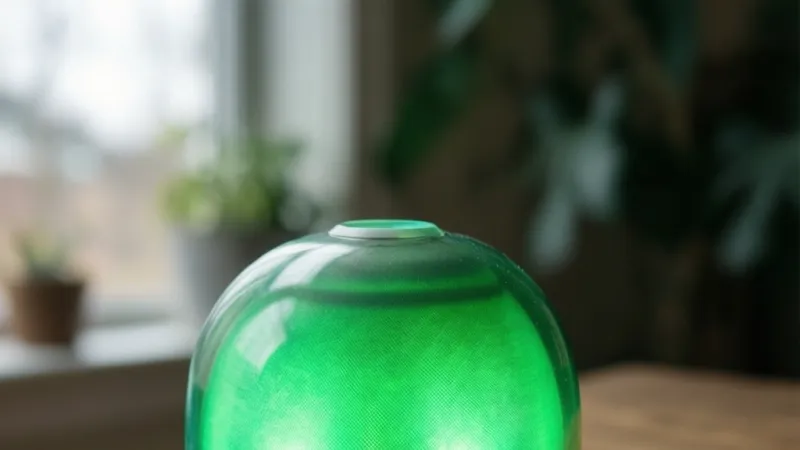
A tonie box blinking green signals a status, not a fault. Slow blinking green usually means charging or a WiFi connection. Fast blinking green points to setup mode or a firmware update.
Check the charger first, then your 2.4 GHz WiFi. If both check out, reset the box.
What a Blinking Green Light on a Toniebox Actually Means
The Toniebox has a single LED, and it does all the talking. Every color and blink pattern maps to a specific state. Green is the friendly one.
It means the box is powered, awake, and working on something.
Tonies documentation and aggregate owner reports describe the same handful of green states over and over. The table below covers the ones you'll actually run into.
| LED State | What It Usually Means | What To Do |
|---|---|---|
| Solid green | Connected, idle, ready to play | Nothing, it's fine |
| Slow blinking green | Charging, or connecting to WiFi | Give it 2 to 3 minutes |
| Fast blinking green | Setup mode, pairing, or firmware update | Open the Toniebox app |
| Green with a blue flash | Bluetooth pairing in progress | Finish pairing in the app |
| Green then solid red | Connection failed or battery low | Charge fully, then retry WiFi |
A quick caveat before you act on any of this. LED behavior has shifted a little between the original Toniebox and the Toniebox 2. Always match the guide to the model you actually own.
Why Green Is Never the Panic Color
Red and orange carry the "something is broken" job. Green means the box is alive and working through a task. So you're troubleshooting a handshake problem, not a dead circuit board.
That's genuinely good news. It narrows your options from a dozen down to about four.
Why It Blinks Instead of Staying Solid
A blinking green light means the box is waiting on something outside itself. Most often that's a WiFi handshake with Toniecloud, the cloud service that holds your audio library.
The original Toniebox connects on 2.4 GHz WiFi only. That one spec causes more stuck green lights than anything else on this list. If your router broadcasts a 5 GHz network under the same name, the box can keep retrying forever and never land.
The Toniecloud Factor
Sometimes the box is fine and the service isn't. A Toniecloud outage will leave a perfectly healthy Toniebox blinking green while it retries.
If you've changed nothing at home and the light started blinking out of nowhere, check the Toniecloud status page before you touch any settings. As of 2026, outages are rare but they do happen.
You can confirm current LED behavior and model differences on the official Tonies website. Match the guide to your exact model before you reset anything.
The 30-Second Check: Charging, Battery, WiFi, or Setup Mode?
Before you dig into the full decision tree, run this fast triage. It takes about 30 seconds and it eliminates most wrong turns.
Answer these four questions in order:
- Is the Toniebox sitting on the charging station right now, or plugged into USB-C?
- How long has the green light been blinking? Under 3 minutes, or longer?
- Did you just reset the box, update the firmware, or set it up for the first time?
- Is your home WiFi running a 2.4 GHz network that the box can actually see?
Your answers point straight to a section below.
| Your Situation | Most Likely Cause | Jump To |
|---|---|---|
| On the charger, blinking under 3 min | Normal charging cycle | Charging station section |
| Off the charger, blinking green | Low battery or WiFi retry | Off-charger section |
| Just set it up or reset it | Setup mode waiting for the app | Setup section |
| Nothing changed, light started on its own | WiFi drop or cloud outage | Reset section |
| Green mixed with red or blue | Battery fault or pairing mode | Mixed-color section |
The Three-Minute Rule
Give any blinking green light three full minutes before you intervene. Charging cycles, WiFi handshakes, and firmware downloads all take time. Pulling the box off the charger mid-task just restarts the clock.
If the light is still blinking green after three minutes and the box isn't charging, move on to the decision tree.
One Thing to Check Before Anything Else
Look at the charging contacts on the bottom of the box. A thin film of dust, lint, or dried juice is enough to break the connection. Wipe them with a dry, soft cloth and set the box back down.
That single step fixes a surprising number of blinking green complaints.
Decision Tree: Match Your Blinking Green Pattern to the Right Fix
Find the situation that matches yours and follow that branch. Don't jump ahead to the reset until you've cleared the earlier steps.
Blinking Green While on the Charging Station
If the box is on the charger and blinking green, it's almost certainly charging normally. Leave it alone.
The original Toniebox takes about 3 hours to reach full charge. A blinking green light during that window is expected behavior, not a fault.
If it's still blinking green after 4 or 5 hours, then something's off. Work through these in order:
- Lift the box off the station and set it back down. You should feel it settle onto the contacts.
- Check that the charging station is plugged into a working wall outlet.
- Inspect the contacts on both the box and the station for dirt or corrosion.
- Swap the charging cable for a known-good one if you have a spare.
- Try a different wall outlet, ideally one that isn't on a switched circuit.
If none of that changes the light, the battery or the charging board is the likely culprit. That's a support ticket, not a DIY repair.
Blinking Green Off the Charger
If the box is off the charger and blinking green, you're looking at one of two things. Either the battery is nearly flat, or the box is stuck retrying a WiFi connection.
Here's the quick way to tell them apart. Put the box on the charger for 20 minutes, then take it off and press an ear. If it powers up and plays, it was the battery.
If it powers up but still blinks green, it's the WiFi. Head to the network checks below.
A flat battery on a Toniebox shows itself in odd ways. Some owners report a blinking green light rather than the red low-battery indicator, especially when the charge drops fast.
Blinking Green During First-Time Setup
If you just unboxed the Toniebox or set it up on a new network, blinking green is exactly what you want. The box is in setup mode and waiting for the app to finish the handshake.
Work through this sequence:
- Make sure your phone is connected to your 2.4 GHz WiFi network, not the 5 GHz one.
- Open the Toniebox app and start the setup flow.
- Keep the phone within a few feet of the box while it pairs.
- Enter your WiFi password carefully. One wrong character and the box loops.
- Wait. Setup can take a couple of minutes on a slow connection.
A network name with special characters or spaces can trip up the box. If setup keeps failing, temporarily rename your 2.4 GHz network to something simple, all letters and numbers.
Blinking Green After a Reset or Firmware Update
A reset wipes the box's saved WiFi credentials. So a blinking green light right after a reset is normal. It's asking you to reconnect.
The fix is simple. Open the Toniebox app, add the box as if it were new, and re-enter your WiFi details.
Firmware updates are a different story. During an update, the box may blink green for several minutes while it downloads and installs. Do not unplug it, do not reset it, and do not take it off the charger.
Cutting power mid-update is the one way to turn a blinking green light into a real problem. If the update stalls past 15 minutes, leave the box on the charger and check the Toniecloud status page.
Blinking Green With Another Color (Red, Blue, White, Orange)
Mixed colors tell a more specific story. Here's how to read each combination:
- Green with red: the connection failed, or the battery is critically low. Charge it fully first, then retry the WiFi setup.
- Green with blue: the box is in Bluetooth pairing mode. Open the app and complete the pairing.
- Green with white or yellow: firmware update or app pairing in progress. Hands off.
- Green with orange or amber: charging in progress on some model variants. Normal.
If you see red on its own with no green at all, that's a genuine error state. Charge the box for a full 3 hours and try again before assuming hardware failure.
How to Reset a Toniebox When the Green Light Won't Stop
A reset clears the box's temporary state and its saved network details. It's the right move once you've ruled out charging and WiFi issues.
There are two levels. Know which one you're doing before you start.
| Reset Type | What It Clears | When To Use It |
|---|---|---|
| Soft restart | Temporary state only, keeps WiFi | Light stuck, box unresponsive |
| Factory reset | Everything, including WiFi credentials | Persistent faults, changing networks |
Soft Restart Steps
Press and hold both ears at the same time for about 5 seconds. Release when the light changes.
The box reboots and keeps your saved WiFi network. If the blinking green light was a temporary glitch, this clears it and you're done in under a minute.
Factory Reset Steps
Press and hold both ears for a longer count, closer to 10 seconds, until the box signals a full reset. Tonies documentation describes the exact timing for each model, so check your model's page before you hold.
After a factory reset, the box forgets your WiFi entirely. You'll need to run the full setup flow in the app again, including re-entering your network password.
Don't factory reset as a first move. It costs you a full setup and it rarely fixes a problem that a soft restart wouldn't.
What to Do If the Reset Doesn't Take
If holding the ears does nothing, the ears themselves might be the issue. A stuck or unresponsive ear button will block the reset entirely.
Try pressing each ear individually to test volume. If one doesn't respond, you've found your problem. That's a hardware issue for Tonies support, not something to fix at home.
Charging Station and USB-C Checks for a Blinking Green Toniebox
Charging problems masquerade as all sorts of LED behavior. The original Toniebox uses a charging station with magnetic contacts. The Toniebox 2 moved to USB-C.
Both systems fail in predictable ways.
Charging Station Checks (Original Toniebox)
- Wipe the four metal contacts on the bottom of the box with a dry cloth.
- Wipe the matching pins on the charging station.
- Look for bent or recessed pins on the station.
- Confirm the station's cable is fully seated at both ends.
- Test the outlet with another device.
Magnetic contacts are brilliant for kids and terrible for dust. A single strand of lint can break the circuit.
USB-C Checks (Toniebox 2)
- Try a different USB-C cable. Charge-only cables are a common culprit.
- Use a wall adapter rated for at least 5V output.
- Avoid laptop USB ports, which can under-deliver current.
- Check the port for pocket lint or debris.
A USB-C cable that only carries power and no data can cause odd behavior during setup. Use the cable that came in the box if you still have it.
Battery Temperature and Safety
Lithium-ion batteries, which is what the Toniebox uses, charge best between roughly 0°C and 45°C (32°F to 113°F). Charging a cold box straight from a winter car ride can trigger protection circuits and odd LED behavior.
Let the box come to room temperature for an hour before charging. The U.S. Consumer Product Safety Commission publishes general guidance on lithium battery charging safety if you want the full picture.
Never charge a box that's visibly swollen, and never leave a damaged unit plugged in unattended.
How Long Charging Should Actually Take
A healthy Toniebox goes from empty to full in about 3 hours. If yours has been on the charger for 6 hours and the light hasn't settled, stop charging it.
Unplug the box, let it cool for 30 minutes, and try again on a different cable or station. If the same thing happens, contact Tonies support with your model number and a description of the light pattern.
WiFi and Toniecloud Fixes When Green Keeps Blinking
If the box is charged and still blinking green, the WiFi handshake is the next suspect. This is where most stubborn green lights live.
The Toniebox needs to reach Toniecloud to check for content and firmware updates. If it can't, it retries. That retry loop is what you're watching.
Start With the 2.4 GHz Question
Does your router broadcast a 2.4 GHz network? If you're not sure, that's your first job.
The original Toniebox only speaks 2.4 GHz. It can't see a 5 GHz network at all. Many modern routers ship with both bands merged under one name, which confuses the box during setup.
If your router has a separate 2.4 GHz SSID, connect your phone to that one before running setup. If the bands are merged, log into your router and split them temporarily.
Router Settings That Break Toniebox Setup
A few common router defaults cause trouble. Work through this list:
- WPA3-only security. The Toniebox expects WPA2. Switch to WPA2 or mixed mode.
- MAC address filtering. If it's on, add the Toniebox manually.
- Client isolation or AP isolation. This blocks device-to-cloud traffic. Turn it off.
- Hidden SSID. Some boxes fail on hidden networks. Unhide it during setup.
- Guest network. Guest networks often isolate clients. Use the main network instead.
Change one setting at a time. Then retry. Changing three things at once tells you nothing.
Special Characters in Network Names and Passwords
Network names with emoji, accents, or spaces can trip up the setup flow. The same goes for passwords with unusual symbols.
If setup keeps looping, temporarily rename your 2.4 GHz network to something plain. Letters and numbers only. Keep it under 20 characters.
You can rename it back once the box is connected. The Toniebox remembers the network by name, so a rename later means a fresh setup.
Is Toniecloud Down?
Sometimes the box is fine and the service isn't. A Toniecloud outage leaves a healthy Toniebox blinking green while it retries forever.
Check the Toniecloud status page before you touch anything else. If there's an active incident, put the box on the charger and wait. There's nothing to fix on your end.
Outages are rare. But they explain the "it worked yesterday and nothing changed" cases perfectly.
The Phone Hotspot Trick
Need to rule out your home network entirely? Try a phone hotspot.
Set your phone's hotspot to 2.4 GHz if it supports band selection. Then run setup with the box connected to that hotspot.
If the box connects to the hotspot but not your home WiFi, the problem is your router. If it fails on both, the problem is the box.
When a Router Restart Actually Helps
Unplug your router for 30 seconds, then plug it back in. Wait for it to fully boot before retrying the Toniebox.
This clears stale DHCP leases and dropped connection tables. It fixes a small but real percentage of blinking green cases.
Don't restart the router five times in a row. If one clean restart doesn't help, the issue is elsewhere.
Toniebox App and Bluetooth Pairing Steps for a Stuck Green Light
The Toniebox app is the control panel for setup, WiFi changes, and firmware updates. If the app can't find the box, the box can't finish what it started.
Blinking green during setup almost always means the app side of the handshake hasn't completed.
Pairing the Box to the App
Follow this sequence exactly. Order matters.
- Put the Toniebox on the charger. Setup fails on a low battery.
- Turn on Bluetooth on your phone.
- Open the Toniebox app and log in.
- Choose "Add a Toniebox" or the equivalent option in your app version.
- Hold the box close to your phone, within a couple of feet.
- Follow the on-screen prompts and enter your 2.4 GHz WiFi password.
The app uses Bluetooth to hand your WiFi details to the box. That's why Bluetooth must be on, even though the box plays audio over WiFi.
App Permissions That Block Setup
Modern phones lock down Bluetooth and location access hard. A missing permission will stall setup with no clear error.
Check these in your phone's settings:
- Bluetooth permission for the Toniebox app
- Location permission (Android needs this for Bluetooth scanning)
- Local network access (iOS asks for this separately)
- Background app refresh enabled
If you denied any of these during install, the app may never find the box.
The Reinstall Fix
App updates break pairing more often than people expect. If setup fails repeatedly, uninstall the app and reinstall it.
Before you do, note your login details. You'll need them again.
A clean reinstall clears cached Bluetooth pairings and stale device records. It's a blunt fix, but it works.
Bluetooth Pairing When Green Meets Blue
If you see green mixed with a blue flash, the box is in Bluetooth pairing mode. That's not a fault. It's waiting.
Open the app, let it scan, and tap the Toniebox when it appears. Keep the phone unlocked and the app in the foreground during pairing.
If the box never appears in the scan list, turn Bluetooth off and on again. Then restart the app.
Firmware Updates and the App
Some firmware updates require the app to be open and connected. If you closed the app mid-update, the box may sit blinking green waiting for the app to come back.
Reopen the app and leave it in the foreground. Keep the phone near the box. Give it 10 to 15 minutes.
Never force-close the app during an update. That's how a 5-minute job becomes a support ticket.
When Blinking Green Points to a Battery or Hardware Problem
You've cleared charging, WiFi, and the app. The light is still blinking green. Now you're looking at hardware.
This is the least common outcome, but it's the one that needs a support ticket rather than a reset.
Battery Failure Symptoms
A failing lithium-ion battery doesn't always announce itself. Watch for these signs:
- The box dies within minutes of coming off the charger
- Charging time stretches well past 4 hours
- The box gets unusually warm during charging
- Playback cuts out mid-story with no low-battery warning
- The green light blinks but the box never powers on
Any two of these together point strongly at the battery. A single one could be something else.
The Charging Board
The charging board sits between the contacts and the battery. If it fails, the box may blink green forever without ever taking a charge.
There's no user-side test for this. If the contacts are clean, the cable is good, and the box still won't charge, the board is a candidate.
Water Damage and Drops
Toniebox units are tough, but they're not waterproof. A spilled drink or a bath-time incident can cause corrosion that shows up weeks later as odd LED behavior.
If your box had a liquid incident, unplug it and don't charge it. Charging a wet or corroded board is a fire risk, not just a fault.
The U.S. Consumer Product Safety Commission advises against charging any device with suspected internal damage. Get it looked at before you plug it back in.
What You Can Safely Check Yourself
A few things are fair game without voiding your warranty:
- Clean the charging contacts
- Test a different cable and outlet
- Test a different charging station if you have one
- Confirm the box isn't overheating
Anything past that means opening the unit, which voids the warranty and risks injury. Don't.
When to Stop and Call Support
Contact Tonies support if any of these apply:
- The box is still under warranty
- The battery swells or the case deforms
- The box gets hot enough that you wouldn't hold it
- The blinking green light persists after a full factory reset on a known-good network
- You've tested a second charging station with the same result
Have your model number, purchase date, and a description of the light pattern ready. That speeds up the ticket.
Mistakes to Avoid When Troubleshooting a Blinking Green Toniebox
Most blinking green problems get worse because of what people do while troubleshooting. Here's what to skip.
Resetting Too Early
A factory reset wipes your WiFi and forces a full setup. Do it as a last resort, not a first move.
Nine times out of ten, the problem is the network or the charger. A reset doesn't touch either one.
Pulling Power Mid-Update
Firmware updates are the one time a blinking green light is genuinely fragile. Cutting power mid-write can brick the box.
If the light is blinking and the app shows an update in progress, hands off. Leave it on the charger.
Assuming All Green Blinks Are the Same
Slow blink, fast blink, and green mixed with another color mean different things. Treating them as one problem sends you down the wrong path.
Watch the pattern for a full 30 seconds before you decide what you're dealing with.
Ignoring the 2.4 GHz Requirement
This is the single biggest mistake. People assume "it's on WiFi, so it should work."
If your phone is on 5 GHz and the box needs 2.4 GHz, setup will fail every time. Check your band before you blame the box.
Using the Wrong Cable
A USB-C cable that only carries power can cause odd behavior during setup on the Toniebox 2. Use the cable that shipped with the box, or a known data-capable one.
Charging on a Laptop Port
Laptop USB ports often under-deliver current. The box may blink green without ever taking a real charge.
Use a wall adapter rated for at least 5V output.
Skipping the Simple Cleaning Step
Dusty charging contacts cause more blinking green lights than any firmware bug. Thirty seconds with a dry cloth beats an hour of app troubleshooting.
Testing Everything at Once
Change one variable at a time. New cable, then retest. New outlet, then retest.
If you swap four things and it works, you've learned nothing about what was actually broken.
Forgetting to Check the Cloud
Before you spend an evening on router settings, check whether Toniecloud is up. A five-second status check can save you an hour.
Toniebox 1 vs Toniebox 2: Blinking Green Differences You Should Know
The original Toniebox and the Toniebox 2 don't behave identically. LED patterns have shifted between generations, and the charging hardware is different.
If you're troubleshooting with the wrong model's guide, you'll chase the wrong fix.
| Feature | Toniebox (Original) | Toniebox 2 |
|---|---|---|
| Charging method | Charging station, magnetic contacts | USB-C port |
| Charging time | About 3 hours | About 3 hours |
| Battery life | Up to 7 hours | Up to 7 hours |
| WiFi band | 2.4 GHz only | 2.4 GHz only |
| Bluetooth | Setup and pairing | Setup and pairing |
| Reset method | Hold both ears | Hold both ears |
| LED behavior | Slightly different patterns | Refined patterns |
Why the Charging Difference Matters
The original's magnetic contacts are prone to dust and lint. Cleaning them is a routine step.
The Toniebox 2's USB-C port is more robust but has its own failure modes. Lint in the port, a worn cable, or an underpowered adapter.
Match your cleaning routine to the hardware you actually own.
LED Pattern Differences
Tonies has adjusted LED behavior across generations. Some blink rates that meant "charging" on the original mean something else on the newer model.
Always check the model-specific documentation before acting on a pattern. Aggregate owner reports confirm the confusion here is real.
Reset Timing
The hold duration for soft restart and factory reset can vary slightly between generations. If holding both ears for 5 seconds does nothing on your box, check your model's exact timing.
Don't hold for 30 seconds out of frustration. That's a factory reset whether you wanted one or not.
Firmware Update Behavior
Newer models handle firmware updates more gracefully. They're less likely to sit blinking green for extended periods.
If your older Toniebox blinks green for 20 minutes during an update, that's within the range of normal. Give it time before you intervene.
Which Model Benefits From Which Fix
If you own the original and the light won't stop, clean the contacts first. That's the highest-yield step.
If you own the Toniebox 2, test the cable and adapter first. USB-C hardware failures start there more often than anywhere else.
Safety, Warranty, and Repair Options for a Blinking Green Toniebox
Once the easy fixes are exhausted, safety and warranty questions take over. This section covers what's safe to try, what voids your coverage, and how to get a repair without making things worse.
Lithium-Ion Battery Safety Basics
The Toniebox runs on a lithium-ion battery. That chemistry is safe when treated well and genuinely dangerous when abused.
Watch for swelling. A bulging case, a warped base, or a box that won't sit flat is a stop sign. Unplug it and don't charge it again.
Heat is the other warning sign. A box that's warm during charging is normal. A box that's hot to the touch is not.
Per U.S. Consumer Product Safety Commission guidance, damaged lithium batteries should never be charged. That applies to Toniebox units too, no exceptions.
What You Should Never Do
- Never open the Toniebox case
- Never replace the battery yourself
- Never charge a box that's been dropped or soaked
- Never leave a damaged box plugged in unattended
- Never use a charger with the wrong voltage
Opening the case voids the warranty and exposes you to live components. There's no user-serviceable part inside.
What Voids the Warranty
| Action | Voids Warranty? | Notes |
|---|---|---|
| Wiping contacts with a dry cloth | No | Routine maintenance |
| Opening the case | Yes | Also a safety risk |
| Water damage | Usually | Not covered |
| Third-party charger damage | Varies | Check your region |
| Accidental drops | Usually | Not covered |
| Normal battery wear | No | Covered in warranty period |
Warranty Coverage by Region
| Region | Typical Coverage | Notes |
|---|---|---|
| EU | 2 years | Consumer law minimum |
| UK | 2 years | Similar protections |
| US | 1 year | Manufacturer limited warranty |
| Canada | 1 year | Varies by retailer |
| Australia | 2 years | Consumer guarantees apply |
Coverage starts at purchase, not at first setup. Keep your receipt or order confirmation. It's the only proof that matters in a claim.
How to File a Support Ticket
Work through this checklist before you contact Tonies support:
- Note your model number (original or Toniebox 2)
- Find your purchase date and receipt
- Describe the exact LED pattern and when it started
- List every step you've already tried
- Keep the box charged and don't attempt repairs
The more detail you give, the faster the ticket moves. Vague reports get bounced back with follow-up questions.
Repair vs Replace
If the box is under warranty, repair or replacement is free. If it's out of warranty, Tonies may offer a paid repair or a discount on a new unit.
For an out-of-warranty box with a dead battery, a paid repair usually costs less than a new Toniebox. Ask for the quote before you decide.
Battery Recycling and Disposal
Lithium-ion batteries don't belong in household trash. Many regions require separate disposal under WEEE rules in the EU and equivalent programs elsewhere.
Retailers that sell batteries often accept them for recycling. Some electronics stores do too. Check your local council or municipal waste site for the nearest drop-off.
Child Safety Reminders
Tonies figures contain small parts and are not for children under 3. The Toniebox itself has no small parts, but the charging cable is a trip and strangulation hazard.
Route the cable behind furniture or along a wall. Don't leave it looped across a play area.
Maintenance Habits That Keep a Blinking Green Toniebox Healthy
Most blinking green lights never happen on a well-maintained box. A few simple habits prevent the common failure modes before they start.
Weekly Habits
- Wipe the charging contacts with a dry, soft cloth
- Check the cable for kinks or fraying
- Make sure the box isn't sitting in direct sunlight
Thirty seconds a week is enough. You're preventing dust buildup, not deep-cleaning anything.
Monthly Habits
- Clean the USB-C port on a Toniebox 2 with a dry soft brush
- Check for firmware updates in the app
- Confirm the box still connects to Toniecloud
If the box has been sitting unused, run a quick test play. That confirms the battery still holds a charge.
Charging Habits That Extend Battery Life
Lithium-ion batteries last longest between 20% and 80% charge. Full drains and constant 100% charging both wear them down.
You don't need to micromanage this. Just avoid leaving the box on the charger for days at a time.
Charge it when the light warns you. Take it off when it's full.
Temperature and Placement
Charge between 0°C and 45°C (32°F to 113°F). Let a cold box warm up before charging it.
A box left in a hot car in summer will run hotter than one on a shelf. Placement matters more than people think.
Firmware and App Maintenance
Keep the Toniebox app updated. Firmware updates often fix connection bugs that cause blinking green lights.
Let updates finish. Don't close the app or unplug the box mid-update. That's the one way to turn a software fix into a hardware problem.
WiFi Stability
Once your box is connected, leave your router settings alone. Changing your WiFi password, SSID, or security mode forces a fresh setup.
If you must change them, update the Toniebox at the same time. Do both in one sitting.
Travel and Storage
For travel, charge the box to about 50% and power it off. Avoid leaving it in a hot car or a freezing trunk.
Store it somewhere dry. Moisture is the quiet killer of consumer electronics.
Maintenance Schedule at a Glance
| Frequency | Task |
|---|---|
| Weekly | Wipe charging contacts |
| Monthly | Check firmware updates |
| Quarterly | Inspect cable and port |
| Yearly | Review battery performance |
Real Scenarios: What a Stuck Green Light Looked Like in Practice
These patterns come up again and again in owner reports and public support threads. Same symptom, very different causes.
The Router Upgrade That Broke Everything
Symptom: The box worked fine for a year, then started blinking green after a new router install.
Cause: The new router shipped with a merged 2.4 and 5 GHz network plus WPA3-only security.
Fix: Split the bands, switched to WPA2 mixed mode, reran setup. Back to normal in 10 minutes.
The Lint Problem
Symptom: The box wouldn't charge. It blinked green on the station for hours.
Cause: A single strand of lint on the charging contacts.
Fix: Wiped the contacts with a dry cloth. Immediate fix, no tools needed.
The Stalled Update
Symptom: Blinking green for 25 minutes during a firmware update.
Cause: Slow broadband and a large update file.
Fix: Waited it out. The box finished and returned to solid green.
The Cloud Outage
Symptom: Nothing changed at home, but the box started blinking green at bedtime.
Cause: A Toniecloud service incident affecting users across multiple regions.
Fix: Waited two hours. Service came back. No action needed on the box.
The Wrong Cable
Symptom: A Toniebox 2 blinked green but never charged on a new USB-C cable.
Cause: The cable was charge-only and under-delivered current.
Fix: Swapped back to the original cable. Charged normally.
The Battery That Gave Up
Symptom: The box died within 5 minutes off the charger and blinked green instead of showing low battery.
Cause: Battery at end of life after heavy daily use over several years.
Fix: Warranty replacement arranged through Tonies support.
What These Scenarios Teach
Most blinking green cases come down to three things. WiFi band, charging contacts, or a stalled cloud handshake.
Hardware failures are real but rare. Rule out the easy causes before you assume the worst.
Frequently Asked Questions About the Toniebox Blinking Green Light
How long does a Toniebox blink green while charging?
A Toniebox typically blinks green for up to 3 hours while charging. That matches its full charge time. If it's still blinking after 4 hours, check the contacts, cable, and outlet.
Persistent blinking past 5 hours usually points to a charging hardware issue.
What does it mean if the green light won't stop blinking?
A nonstop green blink usually means the box can't finish a WiFi handshake with Toniecloud. Check that your network is 2.4 GHz, confirm the password, and verify Toniecloud isn't down. If all three check out, do a soft restart by holding both ears for 5 seconds.
Can a blinking green light mean the battery is dead?
Yes, sometimes. A critically low battery can trigger a green blink instead of the red low-battery indicator. Charge the box for 20 minutes and test it off the charger.
If it powers on and plays, the battery was the cause.
Does the Toniebox work without WiFi?
Yes, for content already downloaded to the box. The Toniebox caches audio locally, so kids can play it offline. Setup, firmware updates, and new content downloads all require a 2.4 GHz WiFi connection.
How do I factory reset a Toniebox?
Press and hold both ears at the same time for about 10 seconds. Check your model's exact timing in the official documentation. A factory reset erases your WiFi credentials, so you'll need to run the full setup flow in the Toniebox app again.
Is a blinking green light dangerous?
No, blinking green is a status signal, not a fault. The dangerous states involve heat, swelling, or a burning smell. If your box gets hot, swells, or smells odd, unplug it immediately and don't charge it again.
Otherwise, a green blink is safe.
Final Decision Guide: What to Do Next Based on Your Toniebox's Behavior
Use this table to match your situation to a single next action. Don't skip steps.
| Situation | First Action | If That Fails |
|---|---|---|
| On charger, blinking under 3 min | Wait | Check contacts after 4 hours |
| Off charger, blinking | Charge for 20 min | Check WiFi band |
| During setup | Confirm 2.4 GHz and app pairing | Reinstall the app |
| After reset | Rerun setup in the app | Check router settings |
| Started on its own | Check Toniecloud status | Soft restart |
| After firmware update | Wait 15 min, keep app open | Contact support |
| Green with red | Charge fully, retry | Support ticket |
| Green with blue | Complete Bluetooth pairing | Restart the app |
| Persistent after all fixes | Contact Tonies support | Consider a paid repair |
The Five-Step Decision Flow
- Confirm the box is charging properly
- Confirm your WiFi is 2.4 GHz
- Confirm Toniecloud is up
- Soft restart, then rerun setup if needed
- Contact support if the light persists
Work the list in order. Skipping to step 5 wastes support time and usually delays the fix.
When to Stop Troubleshooting and Call Support
Call support if the box is under warranty, the battery swells, the box overheats, or the light persists after a factory reset on a known-good network. Have your model number and purchase date ready.
If you're past warranty, ask about a paid repair before you write the box off. It's often cheaper than a replacement.
The Bottom Line
A blinking green light on a Toniebox is almost always a connection or charging issue, not a dead box. Clean the contacts, check the WiFi band, confirm the cloud is up, and reset only as a last resort.
Most people fix it in under 30 minutes. The rest need a support ticket, and that's fine too.