A TiVo remote blinking yellow is usually the remote telling you it's in pairing mode, not that it's broken. The yellow light is a status signal, and once you understand what it's saying, the fix is often a two-minute job. The trick is knowing which TiVo remote you have, because the meaning of that blink shifts slightly between models.
Manufacturer documentation and aggregate user reports show that TiVo VOX remotes rely on Bluetooth and RF rather than plain infrared. The pairing window typically times out after roughly 30 seconds. That single number explains why so many people get stuck: they start pairing, get distracted, and the window closes before they finish.
With that in mind, here's the short answer first.
Quick Answer
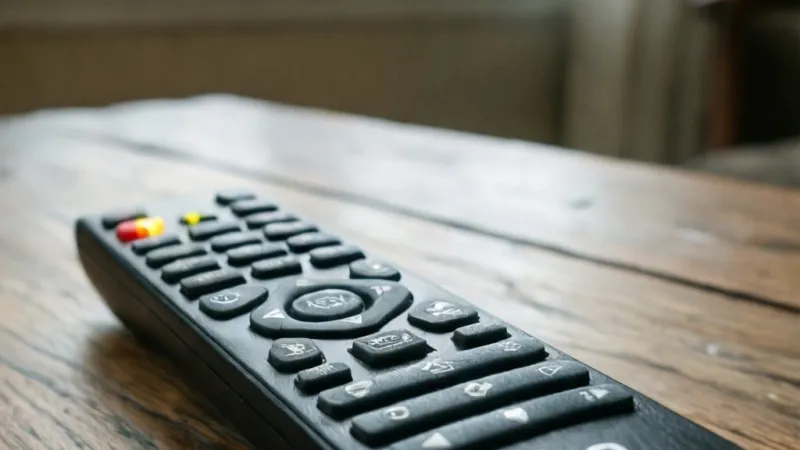
A TiVo remote blinking yellow means the remote is in pairing mode. It's waiting to connect to your TiVo box. Pairing usually finishes within 30 seconds.
If it keeps blinking, the pairing failed or the batteries are low. Replace the batteries first, then re-pair the remote.
What a Blinking Yellow Light on Your TiVo Remote Actually Means
A yellow or amber light on a TiVo remote is a status indicator, not a fault code. On most current TiVo remotes, yellow means the remote has entered pairing mode and is broadcasting a connection request to the TiVo box. It's the remote announcing that it's ready to link up.
That's different from a remote that simply isn't working. A dead remote shows nothing at all. A remote with low batteries often flashes red.
A remote that's paired and working may blink green or blue for a split second when you press a button. Yellow is its own specific message.
The difference between solid and blinking yellow
Solid yellow and blinking yellow mean slightly different things, and the distinction matters.
- Solid yellow: Pairing mode is active and the remote is holding the channel open, waiting for the box to respond.
- Slow blinking yellow: The remote is actively searching for the TiVo box and hasn't found it yet.
- Fast blinking yellow: A pairing attempt is happening right now, or it's failing and retrying.
- Blinking once or twice, then stopping: A brief status ping, usually harmless.
If your light blinks forever, the remote never got the handshake it needed. That's the core problem, and everything else in this guide flows from it.
Why TiVo remotes use yellow for pairing
TiVo's newer remotes, especially the VOX family, use Bluetooth and radio frequency (RF) rather than old-school infrared. Infrared needs a clear line of sight to the box. Bluetooth and RF don't.
That's a big upgrade for anyone who keeps the TiVo box in a cabinet or behind a closed door. But wireless pairing needs a visible confirmation cue. You can't see a Bluetooth handshake the way you can see an infrared beam.
So the LED becomes the messenger. Yellow is the signal that the remote is open for business and looking for a partner.
You can see the official LED behavior documented on TiVo's own support pages at tivo.com. Because these remotes transmit on Bluetooth and RF bands, they also fall under FCC equipment authorization rules, which you can read about at fcc.gov.
A quick word on LED color codes
Here's how the main colors tend to map across TiVo remotes. Treat this as a general guide, since exact behavior varies by model and firmware version.
| LED color and pattern | What it usually means |
|---|---|
| Solid yellow | Pairing mode is open and waiting |
| Slow blinking yellow | Searching for the TiVo box |
| Fast blinking yellow | Pairing in progress or failing |
| Solid or blinking red | Low or dying batteries |
| Brief green flash | Pairing succeeded |
| Brief blue flash | Bluetooth activity or connected state |
| No light at all | Dead batteries or a dead remote |
The red light is the one people confuse with yellow most often. If you see red, stop troubleshooting the pairing and swap the batteries first. You'll save yourself a lot of frustration.
How long the yellow light should stay on
In our research, the pairing window on most TiVo remotes runs about 30 seconds. If the handshake doesn't complete in that time, the remote gives up and the light goes out or keeps searching.
That's why timing matters. Start the pairing process with the TiVo box already awake and on the right screen. Don't wander off to find the manual halfway through.
Have everything ready before you trigger pairing mode.
Before You Troubleshoot: Identify Your Remote and TiVo Box
You can't fix a blinking yellow light without knowing which remote and which TiVo box you're working with. The pairing steps differ between generations. Using the wrong button combination is one of the most common reasons people get stuck.
Take thirty seconds to identify your gear. It'll save you from chasing the wrong fix.
TiVo VOX, Edge, and Bolt VOX remotes
These are the current-generation remotes, and they're the ones most likely to show the yellow pairing light. They use Bluetooth for voice and RF for control, with infrared as a fallback.
- TiVo Edge: Ships with a VOX remote. Pairing uses a button combination, usually TiVo plus Back.
- TiVo Bolt VOX: Same VOX remote family, same pairing approach.
- TiVo VOX remote (standalone): Often sold as a replacement or upgrade, pairs the same way.
If you have one of these, yellow means pairing mode almost every time. That's your starting assumption.
TiVo Stream 4K remote
The TiVo Stream 4K remote is a smaller Bluetooth remote. It pairs with the Stream 4K streaming device rather than a traditional DVR. The pairing light behavior is similar, but the on-screen flow is different because the Stream 4K runs on the TiVo streaming platform.
If your Stream 4K remote is blinking yellow, you'll typically pair it through the device's setup menu rather than a long button hold. Check the box's settings first.
TiVo Roamio, Premiere, and Mini remotes
Older TiVo boxes use a mix of RF and infrared remotes, and the pairing logic is different again.
- TiVo Roamio: Often uses an RF remote that pairs through the box's settings menu.
- TiVo Premiere: Mostly infrared, so it usually doesn't need pairing at all. If it blinks yellow, something unusual is happening.
- TiVo Mini: A small extender box that connects to a host DVR. Its remote pairs to the Mini, not the main DVR.
Here's the model breakdown at a glance.
| TiVo device | Typical remote | Main connection |
|---|---|---|
| TiVo Edge | VOX remote | Bluetooth plus RF |
| TiVo Bolt VOX | VOX remote | Bluetooth plus RF |
| TiVo Stream 4K | Stream 4K remote | Bluetooth |
| TiVo Roamio | RF or IR remote | RF or infrared |
| TiVo Premiere | IR remote | Infrared |
| TiVo Mini | Mini remote | RF or IR to Mini |
Why identifying your gear changes the fix
If you own a Premiere with an infrared remote, a blinking yellow light is odd and worth investigating as a hardware issue. If you own an Edge with a VOX remote, the same light is completely normal and just means pairing mode.
Same symptom, different meaning. That's the whole reason this guide leads with identification instead of jumping straight to a reset.
The 60-Second Quick Check That Fixes Most Yellow-Light Problems
Before you dig into pairing menus, run this fast checklist. In our research, a large share of stuck yellow light complaints trace back to one of these simple issues. You can work through all of them in about a minute.
Step 1: Check the batteries first
Low batteries are the number one culprit. A remote that's starving for power can behave erratically, including getting stuck in pairing mode.
- Pull the batteries out.
- Check them with a multimeter if you have one. You want close to 1.5 volts per cell.
- If they read low, replace them with fresh ones.
Never mix old and new batteries. Never mix brands either. It throws off the voltage and can cause weird LED behavior.
Step 2: Confirm the battery orientation
It sounds obvious, but reversed batteries are extremely common after a swap. Look at the markings inside the compartment. The plus and minus signs are usually molded into the plastic.
If even one cell is backward, the remote may power on partially and still misbehave.
Step 3: Inspect the contacts
Look at the metal contacts inside the battery compartment. If you see white or greenish crust, that's corrosion. It blocks the current and can mimic a dead remote.
Clean the contacts gently with a cotton swab and a little rubbing alcohol. Let them dry completely before putting the batteries back.
Put the batteries back and press the TiVo button. Watch what the light does.
- No light: The remote is dead or the batteries are still bad.
- Red light: Batteries are low. Replace them.
- Yellow light: Pairing mode. Move to the re-pairing steps.
- Brief green or blue: The remote is working and paired.
This single test tells you which direction to go next.
Step 5: Make sure the TiVo box is awake
A sleeping or frozen TiVo box won't respond to a pairing request. Press the power button on the box itself, not the remote. Confirm you see something on the TV.
If the box is frozen, unplug it, wait 30 seconds, and plug it back in. Let it fully boot before you try pairing again.
Step 6: Get close and clear the path
Move within a few feet of the TiVo box. If you're using an infrared remote, point it directly at the box's front panel. For Bluetooth and RF remotes, distance matters less, but walls and metal cabinets still interfere.
Remove anything between the remote and the box, even temporarily. A closed cabinet door is a common blocker.
The quick check in one table
| Check | What to look for | If it fails |
|---|---|---|
| Batteries | Fresh, matched, ~1.5V each | Replace them |
| Orientation | Plus and minus aligned correctly | Flip the cell |
| Contacts | Clean, no corrosion | Clean with alcohol |
| Button test | Light responds | Diagnose by color |
| Box power | Box awake and on TV | Restart the box |
| Distance | Within a few feet | Move closer |
The TiVo Remote Blinking Yellow Decision Tree
Now we get to the part that actually solves it. The right fix depends on when the yellow light started and how it behaves. Use the branch below that matches your situation.
If the light blinks yellow only when you press a button, the remote is likely trying to pair or wake up. It's not stuck. It's reaching out.
Try this: press the TiVo button and hold it for a few seconds. If the remote pairs, you're done. If it keeps blinking yellow on every press, the remote has lost its pairing.
Move to the re-pairing steps in the next section.
Branch B: Yellow blinks continuously, even when idle
If the light blinks nonstop while the remote sits untouched, it's stuck in pairing mode. Something triggered pairing and it never closed.
Let it time out. Wait a full minute without pressing anything. If it keeps blinking, pull the batteries for 10 seconds and put them back.
That forces a clean restart. If the light still won't stop, re-pair the remote.
Branch C: Yellow started right after a battery change
If the yellow light appeared right after you swapped batteries, the remote lost its pairing. This is completely normal. Many TiVo remotes forget their connection when power is cut.
You don't have a broken remote. You just need to re-pair it. Head to the pairing steps and follow the ones for your model.
Branch D: Yellow started after a power cut, reset, or update
If the yellow light showed up after the TiVo box lost power or updated, the box likely dropped the remote. The remote is fine. The box forgot it.
Restart the TiVo box first. Let it fully boot. Then re-pair the remote.
If the box updated its software, the pairing may have been cleared as part of that process.
Branch E: Yellow blinks alongside red, green, or blue
If you see yellow mixed with another color, you're getting two messages at once. Decode each one.
- Yellow plus red: Pairing mode plus low battery. Replace the batteries, then re-pair.
- Yellow plus green: Pairing mode plus a successful handshake. You may already be paired.
- Yellow plus blue: Pairing mode plus Bluetooth activity. This is often normal during pairing.
When two colors compete, fix the power issue first. A weak battery can prevent pairing from ever completing.
Decision tree summary
| What you see | Most likely cause | First action |
|---|---|---|
| Yellow only on button press | Lost pairing or wake signal | Hold TiVo button, then re-pair |
| Yellow continuously | Stuck in pairing mode | Let it time out, then pull batteries |
| Yellow after battery change | Pairing cleared | Re-pair the remote |
| Yellow after power cut or update | Box dropped the remote | Restart box, then re-pair |
| Yellow plus another color | Two signals at once | Fix battery first, then re-pair |
How to Re-Pair Your TiVo Remote, Step by Step
Re-pairing is the fix for most blinking yellow situations. The exact steps depend on your model, so find yours below and follow it exactly. Have your TiVo box awake and your TV on before you start.
Pairing a TiVo VOX, Edge, or Bolt VOX remote
This covers the current-generation remotes. The pairing window is short, so move quickly once you start.
- Point the remote at the TiVo box and stay within a few feet.
- Press and hold the TiVo button and the Back button together.
- Hold both until the LED blinks yellow, usually about 5 seconds.
- Release both buttons. The remote is now in pairing mode.
- On your TV, wait for the on-screen pairing prompt. It often appears automatically.
- If a prompt doesn't appear, go to Settings, then Remote Control, then Pair Remote.
- Follow the on-screen instructions and let the box find the remote.
- When the LED flashes green, pairing succeeded.
If nothing happens after 30 seconds, the window closed. Start again from step 2.
Pairing a TiVo Stream 4K remote
The Stream 4K remote pairs with the streaming device. The flow is a bit different.
- Make sure the Stream 4K device is on and connected to your TV.
- Press and hold the TiVo button and the Back button together.
- Hold until the LED starts blinking yellow.
- Release and wait for the on-screen pairing message.
- If no message appears, open Settings and find the remote or accessories menu.
- Select Add Remote or Pair Remote and follow the prompts.
- Confirm the remote works by pressing the Home button.
If your Stream 4K remote won't pair, check that the device has the latest software. Updates sometimes reset the Bluetooth stack.
Pairing a TiVo Roamio, Premiere, or Mini remote
Older boxes handle pairing differently, and some don't need it at all.
For TiVo Roamio:
- Open Settings on the TiVo box.
- Go to Remote Control, then Pair Remote.
- Follow the on-screen steps.
- Press the buttons it asks you to press to confirm.
For TiVo Premiere:
- Most Premiere remotes are infrared and don't pair.
- If yours blinks yellow, try new batteries first.
- If it still misbehaves, check TiVo support for your specific model.
For TiVo Mini:
- Make sure the Mini is connected to your host DVR.
- Open Settings on the Mini.
- Go to Remote Control and pair the remote to the Mini, not the main DVR.
- Test with the TiVo button.
What to do if pairing keeps failing
If you've tried the steps and the yellow light just won't settle, work through these.
- Move the remote closer to the box, within arm's reach.
- Turn off nearby Bluetooth devices like phones, speakers, and headphones.
- Move away from Wi-Fi routers and microwaves, which can add RF noise.
- Swap in a fresh set of batteries, even if the current ones seem fine.
- Restart the TiVo box and try again.
- Check for a TiVo software update and install it if one is waiting.
As of 2026, most TiVo remotes still use the same basic pairing logic, so these steps hold across current firmware. If nothing works after two or three clean attempts, the remote itself may be faulty. At that point, a replacement remote or the TiVo app as a temporary controller is your best move.
TiVo Remote LED Color and Blink Codes Explained
The earlier table gave you the broad strokes. This section goes deeper, because TiVo remotes don't just use color. They use blink counts, timing, and duration.
Reading those patterns correctly is what separates a five-minute fix from an hour of guessing.
Not every TiVo remote speaks the same language. Older remotes use fewer codes. Newer VOX and Stream 4K remotes pack in more signals because they handle Bluetooth, RF, voice, and infrared all at once.
What does an amber light mean compared to yellow?
Amber and yellow are the same signal on TiVo remotes. The LED sits in a warm part of the spectrum, so it can look gold, orange, or amber depending on the plastic lens and the room lighting. Don't read anything into the shade.
What matters is the pattern. A steady amber glow and a pulsing amber flash are different messages, even though the color is identical. Watch the rhythm, not the hue.
What do blink counts mean?
Some TiVo remotes use short bursts of blinks to communicate specific states. Verified user reports describe a handful of common patterns.
- One quick blink: A button press registered. This is normal operation.
- Two quick blinks: A command was accepted by the box.
- Three or more rapid blinks: A command failed or the remote is retrying.
- Continuous slow blink: The remote is searching for the box.
- Continuous fast blink: The remote is in an active pairing attempt that hasn't completed.
- Blink then dark: A timeout occurred. The remote gave up.
Blink counts aren't standardized across every TiVo generation. If your remote behaves differently from this list, treat the pattern as a general signal rather than an exact code.
How do LED codes differ across TiVo models?
Here's where the model matters most. The same blink can mean something slightly different depending on what hardware you own.
| Remote model | Yellow behavior | Red behavior | Green behavior |
|---|---|---|---|
| TiVo VOX remote | Pairing mode | Low battery | Pairing success |
| TiVo Stream 4K remote | Pairing mode | Low battery | Bluetooth connected |
| TiVo Edge remote | Pairing mode | Low battery | Pairing success |
| TiVo Bolt VOX remote | Pairing mode | Low battery | Pairing success |
| TiVo Roamio RF remote | RF pairing mode | Low battery | RF link confirmed |
| TiVo Premiere IR remote | Uncommon, often a fault | Low battery | Rarely used |
If you own a Premiere with an infrared remote, a yellow light is genuinely unusual. Infrared remotes don't need pairing, so there's no reason for a pairing signal. Check the batteries and the button membrane before assuming anything else.
When is a code actually a fault?
A yellow light is a fault in exactly one situation: when the remote is already paired and working, and yellow shows up out of nowhere during normal use. That points to a stuck pairing trigger or a failing button membrane.
If the remote has never been paired, or you just changed the batteries, yellow is expected. Don't treat normal pairing behavior as a breakdown. That's the fastest way to talk yourself into buying a remote you don't need.
Does the LED ever lie?
Yes, in one specific way. A remote with weak batteries can flash yellow correctly while failing to transmit a strong enough signal. The light tells you the remote thinks it's pairing.
The box never hears it.
That mismatch explains the most frustrating version of this problem. Everything looks right, and nothing works. If you've re-paired twice with no luck, fresh batteries are the next logical step, not a new remote.
Battery, Contact, and Stuck-Button Problems That Mimic Pairing Mode
Plenty of pairing failures aren't pairing failures at all. The remote is fine, the pairing is fine, and something mechanical or electrical is faking the symptom. Here's how to spot each one.
Which battery type should you actually use?
Standard alkaline AA or AAA cells at 1.5 volts are what TiVo designs for. That's the spec in the user manuals for current VOX remotes. Match it and you'll get the behavior the remote was built for.
Rechargeable nickel-metal hydride (NiMH) cells are a common trap. They're labeled 1.2V instead of 1.5V. While they work in many devices, that lower nominal voltage can push a TiVo remote into low-battery behavior earlier than expected.
You may see red flashes, sluggish pairing, or a pairing window that closes too fast.
If you want rechargeables, look for the newer 1.5V lithium rechargeable cells that use a voltage regulator. They hold a steady output and behave much closer to alkalines.
How long should TiVo remote batteries last?
Most TiVo remotes run six months to a year on a good set of alkalines. Voice remotes tend to sit at the shorter end. The microphone and Bluetooth radio draw more current than simple button presses.
A few things shorten that window fast:
- Heavy voice search use
- Backlit keys left on constantly
- Batteries stored in a hot car or a sunny windowsill
- Cheap cells with overstated capacity
If you're swapping batteries every few weeks, something else is wrong. Check for a stuck button or a corroded contact.
How do you test batteries without a multimeter?
You don't need a multimeter to get a useful answer. Try the bounce test as a rough guide, though it's imperfect. A fresh alkaline cell lands flat and thuds.
A dead one bounces.
Better still, drop the suspect cells into a device you know works, like a flashlight or a TV remote for another room. If they run it fine, your problem isn't the batteries.
The most reliable move is simply to install a brand-new matched set. Fresh batteries cost less than the time you'd spend diagnosing.
What does corrosion look like and how do you clean it?
Corrosion shows up as white, gray, or greenish crust on the metal contacts inside the compartment. It usually comes from old batteries left in too long, or from a damp environment.
Cleaning is straightforward but needs care.
- Remove the batteries and set them aside.
- Dip a cotton swab in isopropyl alcohol, 90 percent or higher.
- Wipe the contacts gently. Don't scrape with metal.
- Use a dry swab to remove residue.
- Let everything air dry for a few minutes.
- Install fresh batteries and test.
If the contacts are pitted or the corrosion has eaten into the metal, cleaning won't save it. That remote is done.
A stuck button is easy to miss because it can look perfectly normal. Press each key and feel for a click. A button that's jammed down won't return fully, and the remote may register it as a continuous press.
That continuous press can trigger pairing mode and hold it open. Hence the endless yellow blink.
Here's a quick check.
- Press every button one at a time.
- Listen for a consistent click across all keys.
- Feel for any button sitting lower than the others.
- Check the volume and channel rockers, which jam most often.
If you find a stuck key, work it loose with gentle repeated presses. A tiny amount of isopropyl alcohol around the edge can free up sticky residue. Don't force it.
The membrane tears easily.
Could liquid damage be the real cause?
Liquid damage often shows up as erratic behavior rather than a total failure. Spilled coffee or a splash from the sink can bridge contacts inside the remote and confuse the LED logic.
Signs to watch for:
- Yellow light that appears and disappears randomly
- Buttons that work intermittently
- A faint sticky feel on the surface
- A musty or sour smell from the compartment
If you suspect liquid damage, pull the batteries immediately. Don't power it back on. A remote with dried residue inside is usually a replacement, not a repair.
Quick reference: what mimics pairing mode
| Symptom | Likely mimic | Fix |
|---|---|---|
| Yellow blink won't stop | Stuck button | Free the key or replace the remote |
| Yellow plus red | Weak or mismatched batteries | Install fresh matched cells |
| Yellow appears randomly | Corrosion or liquid damage | Clean or replace |
| Pairs then drops | NiMH voltage sag | Switch to 1.5V cells |
| No light at all | Dead cells or dead remote | Test cells, then replace remote |
Bluetooth, RF, and HDMI-CEC Conflicts That Block Pairing
Your TiVo remote shares the airwaves with a lot of other devices. When the 2.4 GHz band gets crowded, pairing requests can get lost in the noise. The remote blinks yellow, the box never answers, and nothing on either device looks broken.
Why does 2.4 GHz congestion matter so much?
Bluetooth and many TiVo RF remotes operate in the 2.4 GHz band. So do Wi-Fi routers, wireless mice, baby monitors, cordless phones, and microwave ovens. It's a busy neighborhood.
A pair of devices on the same channel can interfere with each other. Your remote doesn't need much bandwidth, but it does need a clear moment to complete the handshake. In a noisy environment, that moment may never arrive.
What devices should you move or switch off?
Before you re-pair, clear the area. It's a temporary step, and it's often the difference between a failed attempt and a successful one.
- Wi-Fi router sitting right next to the TiVo box
- Bluetooth speakers and soundbars
- Wireless headphones charging nearby
- Cordless phone base stations
- Baby monitors
- Wireless security cameras
- Smart home hubs
You don't have to unplug your whole house. Just move the remote and the box a few feet away from the worst offenders and try again.
Does Wi-Fi channel choice matter?
It can. Wi-Fi routers on 2.4 GHz usually default to channel 1, 6, or 11. Bluetooth frequency-hopping spreads across the band and tries to dodge those.
When the band is packed, dodging gets harder.
If your router supports it, switching heavy Wi-Fi traffic to the 5 GHz band frees up 2.4 GHz for the remote and other low-power devices. That's a permanent fix, not just a troubleshooting trick.
How many remotes can a TiVo box remember?
Most TiVo boxes can hold several paired remotes, but the list isn't unlimited. Over time, a box can accumulate pairings from remotes you no longer own or use. That clutter sometimes causes new pairing attempts to fail.
If you've paired and re-paired many times, clear the old entries. The option usually lives in the Remote Control settings menu. Remove anything you don't recognize, then pair the remote you actually use.
What is HDMI-CEC and why does it interfere?
HDMI-CEC is a feature that lets devices control each other over the HDMI cable. It's handy for things like turning on the TV when you wake the TiVo box. It also causes real headaches.
When CEC is active, the TiVo box, the TV, and sometimes a soundbar all try to send commands. Button presses can get swallowed, and the remote may look unresponsive even though it's transmitting fine.
If your remote pairs but then behaves erratically, try this.
- Open your TV's settings and find the HDMI-CEC option. It may be called Anynet+, Bravia Sync, Simplink, or Viera Link.
- Turn it off temporarily.
- Test the TiVo remote.
- If everything works, turn CEC back on and test again.
If the problem returns with CEC on, you've found your conflict. You can either live without CEC or adjust which devices are allowed to control others.
Does a universal remote cause problems?
It can. Universal remotes programmed with TiVo codes sometimes send infrared commands that the TiVo box interprets as pairing triggers. The box ends up in a loop, and your TiVo remote's yellow light reflects the confusion.
If you have a universal remote in the mix, take its batteries out while you troubleshoot. Reintroduce it only after the TiVo remote pairs cleanly.
Interference troubleshooting table
| Interference source | Likely effect | What to try |
|---|---|---|
| Wi-Fi router nearby | Pairing times out | Move router or switch to 5 GHz |
| Bluetooth speaker | Handshake fails | Power off during pairing |
| HDMI-CEC enabled | Remote commands ignored | Disable CEC temporarily |
| Universal remote | Conflicting commands | Remove its batteries |
| Microwave in use | Brief dropouts | Retry after it stops |
When the Remote Is Fine and the TiVo Box Is the Real Problem
Here's the twist most people miss. Sometimes the yellow light is doing exactly what it should, and the TiVo box is the one that's stuck. The remote keeps broadcasting, the box keeps ignoring, and the light never stops.
How do you know the box is the problem?
The clearest test is to try a second controller. If you have a TiVo app on your phone or tablet, connect it to the same box. If the app can't control the box either, the remote isn't your issue.
You can also check the TiVo box's own front panel. Many models show their own status LEDs. A box that's mid-update, booting, or frozen will often show a distinctive pattern there.
What does a frozen TiVo box look like?
A frozen box may show a static image on the TV. The picture won't change, and button presses do nothing. Sometimes the screen goes black while the box's power light stays on.
In that state, the box can't process a pairing request. The remote will blink yellow until the pairing window closes, then try again. Endless loop, zero progress.
What is the correct way to restart a TiVo box?
The order matters here. Rushing it causes problems.
- Press and hold the power button on the TiVo box itself for about 10 seconds.
- Wait for the box to shut down completely.
- If it won't respond, unplug the power cord.
- Wait a full 30 seconds. This lets the internal capacitors drain.
- Plug the power cord back in.
- Wait for the box to complete its boot cycle. This can take two to five minutes.
- Only after the box reaches the main menu should you try pairing the remote.
Trying to pair during boot is one of the most common reasons pairing fails. The box simply isn't listening yet.
Could a failed software update be the cause?
Yes, and this is more common than people realize. If a TiVo software update stalled or was interrupted by a power cut, the box can end up in a half-updated state. Pairing features may stop responding even though everything else looks normal.
If you suspect this, check the box's settings for a software version and an update option. Forcing a fresh update check often clears the problem. In our research, users who reported pairing failures right after a power outage usually resolved them this way.
What if the TiVo box has lost its network connection?
Bluetooth and RF pairing don't require internet. But some TiVo features and app-based remotes do. If your box has dropped off the network, you may see pairing behave oddly in the app while the physical remote still works.
Check the network status in the box settings. Reconnect to Wi-Fi or reseat the Ethernet cable. Then retest.
Could the issue be a TiVo service outage?
It's possible, though less likely than a local problem. If TiVo's servers are down, some features degrade. Pairing itself is usually local, so a service outage shouldn't stop it.
But odd behavior during an outage has been reported.
Before you tear your setup apart, check TiVo's official status page. If there's an outage, wait it out. You'll save yourself an unnecessary reset.
What about TiVo Mini boxes?
A TiVo Mini is a satellite box. It streams from a host DVR over your home network. If the Mini can't reach the host, its remote may fail to pair or behave strangely.
Check the Mini's connection to the host first. If the network link is down, fix that before you touch the remote. No amount of re-pairing will help a Mini that can't see its host.
Box-side problem reference
| Box symptom | What it means | Fix |
|---|---|---|
| Frozen picture, no response | Box locked up | Hold power 10 seconds, then unplug |
| Black screen, power light on | Boot or update in progress | Wait 5 minutes, then retry |
| App can't control box either | Box-side fault | Restart box |
| Box dropped off network | Connectivity loss | Reconnect Wi-Fi or Ethernet |
| Mini can't reach host | Network link broken | Fix network before pairing |
| Pairing fails right after outage | Interrupted update | Force a software update check |
Mistakes That Keep the Yellow Light Blinking
Most people who stay stuck for hours make one of these mistakes. None of them are complicated. They're just easy to overlook when you're frustrated.
Mixing old and new batteries
Never combine a fresh cell with a used one. The weak cell drags down the pair, and the remote behaves as if both are dying. Always replace all cells at once with the same brand and type.
Installing a battery backward
Reversed polarity is the single most common battery mistake. The remote may still light up, which tricks you into thinking the install was fine. Check the plus and minus markings every single time.
Starting pairing before the box is ready
If the TiVo box is still booting, it won't answer a pairing request. Wait until you see the main menu on your TV. Patience here saves repeat attempts.
Most TiVo remotes enter pairing mode after about five seconds of holding. Keep holding past that and you may trigger a different function or cancel the mode. Watch the LED.
Release as soon as it starts blinking.
Once the remote is in pairing mode, hands off. Extra presses can interrupt the handshake or reset the pairing window. Set the remote down and let it work.
Standing too far from the box
Bluetooth and RF reach farther than infrared, but not infinitely. For pairing, get within a few feet. Once paired, you can move back to the couch.
Ignoring the red light
If red is mixed in with the yellow, fix the power problem first. Trying to pair on weak batteries wastes everyone's time.
Assuming the remote is dead
This one costs people money. A remote that blinks yellow is receiving power and running its firmware. It's not dead.
It's confused, unpaired, or blocked. Diagnose before you buy.
Skipping the box restart
Restarting the box feels like a waste of five minutes. It's actually the fastest fix in a large share of cases. Do it before you start re-pairing.
Trying to pair an infrared remote
TiVo Premiere and some older remotes are infrared only. They don't pair. If you're following Bluetooth pairing steps on an IR remote, you'll never succeed.
Confirm your remote type first.
Resetting everything at once
Factory resetting the TiVo box wipes your settings, recordings, and preferences. It should be the last resort, not the first move. Exhaust the simpler steps first.
Mistake summary table
| Mistake | Why it hurts | Do this instead |
|---|---|---|
| Mixed batteries | Weak cell drags the pair | Replace all cells together |
| Reversed cell | Remote lights up but misbehaves | Check polarity markings |
| Pairing during boot | Box isn't listening | Wait for the main menu |
| Extra button presses | Interrupts the handshake | Set the remote down |
| Standing too far away | Signal too weak | Pair within a few feet |
| Buying a new remote early | Wasted money | Diagnose first |
| Skipping the box restart | Misses the fastest fix | Restart before re-pairing |
Backup Controls While You Fix the Remote
A blinking yellow light doesn't mean you're locked out of your TiVo. You have several ways to keep watching while you sort out the pairing. Set one up first, then troubleshoot at your own pace.
Can you use your phone as a TiVo remote?
Yes, and it's the fastest backup for most people. The official TiVo app turns your phone or tablet into a full remote over your home network. It works on both iOS and Android.
Here's what you need:
- Your phone on the same Wi-Fi network as the TiVo box
- The TiVo app installed and signed in
- The box powered on and connected
Open the app and select your TiVo box. You'll get a touchscreen remote with play, pause, guide, and menu controls. Voice search may not work through the app, but everything else does.
This is the single most useful backup. It also doubles as a diagnostic tool. If the app can't control the box either, you've confirmed the problem is on the box side, not the remote.
Does the TiVo Stream 4K work with a phone remote?
It does. The TiVo Stream 4K supports app-based control through the same TiVo app. You can also use the Google Home app on Android, since the Stream 4K runs on Android TV.
If you have an iPhone, the TiVo app is your best bet. If you have an Android phone, both the TiVo app and Google Home will work.
Can your TV remote control the TiVo box?
Sometimes. It depends on HDMI-CEC. When CEC is enabled, your TV remote can send basic commands to the TiVo box over the HDMI cable.
What you can usually control with a TV remote:
- Power on and off
- Volume
- Play and pause
- Menu navigation on some TVs
- Input switching
What you usually can't control:
- TiVo-specific features like the guide or recordings
- Voice search
- Channel numbers on some setups
HDMI-CEC goes by different names depending on your TV brand. Look for Anynet+ on Samsung, Bravia Sync on Sony, Simplink on LG, or Viera Link on Panasonic.
Most TiVo boxes have a small set of physical buttons on the front panel. They're limited, but they can get you out of a jam.
Common front panel buttons include:
- Power
- Menu or TiVo button
- Channel up and down
- Play and pause on some models
You won't navigate a full guide with these. You can, however, power the box on and off, change channels, and wake it from standby. That's enough to keep the box usable while you fix the remote.
Can a universal remote fill the gap?
Yes, if you have one handy. Universal remotes from brands like Logitech, RCA, or GE often include TiVo codes. You program the remote with the TiVo code for your box model and use it as a stand-in.
One warning: universal remotes can sometimes conflict with TiVo's pairing logic. If you're mid-troubleshooting, take the universal remote's batteries out. Reintroduce it only after your main remote pairs cleanly.
What about a keyboard or mouse on Stream 4K?
The TiVo Stream 4K runs on Android TV, which supports USB and Bluetooth keyboards and mice. If you have one lying around, you can plug it in and navigate the interface that way.
It's clunky for everyday use. For a temporary fix while your remote is down, it works fine.
Backup control comparison
| Backup method | Best for | Limitations |
|---|---|---|
| TiVo app | Full control over Wi-Fi | Needs working network |
| TV remote via CEC | Power and volume | Limited TiVo features |
| Front panel buttons | Quick power and channel changes | Very basic |
| Universal remote | Stand-in for most functions | Can conflict with pairing |
| USB keyboard or mouse | Stream 4K navigation | Clunky, not for daily use |
Re-Pair, Reset, or Replace? Choosing the Right Fix
Once you've tried the basic steps, you reach a fork. Do you re-pair the remote, reset it, or accept that it's time for a replacement? Getting this right saves you time and money.
When should you just re-pair?
Re-pairing is the right move when the remote is physically healthy but has lost its connection. The yellow light is a pairing signal, and pairing is exactly what's missing.
Re-pair if:
- The light started blinking after a battery change
- The light appeared after a power cut or update
- The remote worked fine yesterday and stopped today
- The LED behaves normally and the buttons feel right
In these cases, the hardware is fine. You just need to reestablish the link between the remote and the box.
When does a reset make sense?
A reset goes deeper than re-pairing. It clears the remote's internal state and forces it to start fresh. That's useful when re-pairing fails repeatedly.
Reset the remote if:
- Re-pairing has failed three or more times
- The yellow light won't stop blinking
- The remote behaves erratically even after fresh batteries
- The light pattern changes randomly
The reset method depends on the model. On most VOX remotes, pulling the batteries for a full minute and reinstalling them does the job. Some models have a dedicated reset button inside the battery compartment.
When is a replacement the honest answer?
Sometimes the remote is genuinely done. No amount of pairing will fix a hardware failure, and you shouldn't waste hours trying.
Replace the remote if:
- The battery contacts are corroded or pitted beyond cleaning
- The remote has visible liquid damage or a burnt smell
- Buttons are physically broken or missing
- The remote won't power on at all, even with fresh batteries
- Re-pairing and resetting both fail across multiple attempts
If you've done two clean resets and three pairing attempts with fresh batteries, and the light still won't behave, the remote is the problem. Replace it.
What does a replacement TiVo remote cost?
Prices vary by model and region. As a general guide:
| Remote type | Typical price range |
|---|---|
| TiVo VOX replacement remote | $20 to $35 |
| TiVo Stream 4K remote | $25 to $40 |
| TiVo Roamio RF remote | $20 to $30 |
| TiVo Premiere IR remote | $15 to $25 |
| Universal remote with TiVo codes | $15 to $60 |
Buy from TiVo directly or an authorized retailer. Third-party remotes are cheaper but may not support voice search or full pairing.
Is the remote still under warranty?
TiVo remotes usually carry a 90-day to one-year warranty, depending on the model and where you bought it. If your remote is within that window and failed without physical damage, contact TiVo support before you buy a new one.
You'll need your purchase receipt and the box's serial number. Support may run you through a quick diagnostic before approving a replacement.
Does a new remote need pairing?
Yes, in almost every case. A replacement VOX or Stream 4K remote arrives unpaired. You'll go through the same pairing steps you tried with the old one.
Have the box awake and ready before you start.
Re-pair vs reset vs replace
| Situation | Best action |
|---|---|
| Lost pairing after battery change | Re-pair |
| Light stuck blinking after failed attempts | Reset the remote |
| Erratic behavior with fresh batteries | Reset, then re-pair |
| Corrosion, damage, or dead remote | Replace |
| Re-pair and reset both fail | Replace |
Frequently Asked Questions
Why is my TiVo remote blinking yellow?
Your TiVo remote is blinking yellow because it's in pairing mode and looking for the TiVo box. This happens after a battery change, a power cut, a software update, or a manual pairing trigger. The light stops when pairing completes or the window times out.
How long does TiVo remote pairing take?
Pairing usually finishes within 10 to 30 seconds once the remote is in pairing mode and the box is awake. If it takes longer, the box may be booting, the batteries may be weak, or another device is interfering with the signal.
Can I stop the yellow light without pairing?
Yes. Let the pairing window time out, usually about 30 seconds. If the light keeps blinking, pull the batteries out for a full minute and reinstall them.
The remote will restart in its normal state, though it may still need re-pairing to control the box.
Does a blinking yellow light mean the remote is broken?
No, and that's the most common misunderstanding. A blinking yellow light means the remote has power and is running its firmware. A truly broken remote shows no light at all.
Diagnose the pairing first before you consider replacing it.
Will a TiVo remote pair if the box is off?
No. The TiVo box must be powered on and fully booted to accept a pairing request. If the box is in standby, mid-update, or frozen, the pairing will fail.
Restart the box and wait for the main menu before you try again.
Can I use my phone while the remote is blinking yellow?
Yes. The official TiVo app on your phone or tablet can control the box over Wi-Fi. Install the app, sign in, and select your TiVo box.
It's a solid backup while you troubleshoot the physical remote.
Final Decision Guide: Your Next Step in One Table
Here's the whole troubleshooting flow compressed into a single reference. Find the row that matches your situation, then take the action listed. If the first action doesn't work, move to the next one.
| What you're seeing | Most likely cause | First action | If that fails |
|---|---|---|---|
| Yellow blinks only on button press | Lost pairing | Re-pair the remote | Restart the box, then re-pair |
| Yellow blinks continuously | Stuck in pairing mode | Wait 60 seconds, then pull batteries | Reset the remote |
| Yellow appeared after battery change | Pairing cleared | Re-pair the remote | Check battery orientation |
| Yellow appeared after a power cut | Box dropped the remote | Restart the box, then re-pair | Force a software update |
| Yellow plus red | Low battery | Install fresh matched cells | Check contacts for corrosion |
| Yellow plus green | Pairing may have succeeded | Test the remote | Re-pair if unresponsive |
| Yellow plus blue | Bluetooth activity during pairing | Let pairing finish | Re-pair with fewer nearby devices |
| Yellow with no response from the box | Box frozen or booting | Restart the box | Check network and TiVo service status |
| Yellow that appears randomly | Stuck button or liquid damage | Check each button | Replace the remote |
| No light at all | Dead batteries or dead remote | Test cells in another device | Replace the remote |
| Remote pairs, then drops | Interference or weak batteries | Move away from routers and speakers | Switch to 1.5V cells |
| Remote won't pair after several tries | Hardware fault | Reset the remote | Replace the remote |
The fastest path for most people
If you want the short version, here it is. Fresh batteries first. Restart the TiVo box second.
Re-pair the remote third. Those three steps resolve the majority of blinking yellow situations.
Only after all three fail should you move to a reset or a replacement. That order keeps you from spending money on hardware when the real fix was a battery swap or a clean pairing.
One last thing to check
Before you buy a new remote, try the TiVo app. If the app controls the box, your network and box are fine, and the problem is definitely the remote. If the app can't control the box either, the issue sits with the box or your network.
That single test tells you which side of the setup needs your attention.
Keep your remotes paired to one box at a time where possible. Clear out old pairings you don't use. And always replace batteries in matched sets.
Small habits like these keep the yellow light where it belongs: as a brief pairing signal, not a permanent fixture on your coffee table.