A ring doorbell blinking blue is almost never a hardware failure. It's a status code, and your doorbell is using its LED ring to tell you exactly which mode it's sitting in. The real question is which pattern you're seeing, because the fix changes completely from one to the next.
Ring's official documentation maps a spinning blue ring to setup mode and a slow blue pulse to a Wi-Fi search. That's why one color can mean two very different things. The 2.4 GHz band that most Ring doorbells rely on sits inside the Wi-Fi Alliance family of standards, and that single detail explains a huge share of connection failures on modern dual-band routers.
So let's start by reading the light properly.
Quick Answer
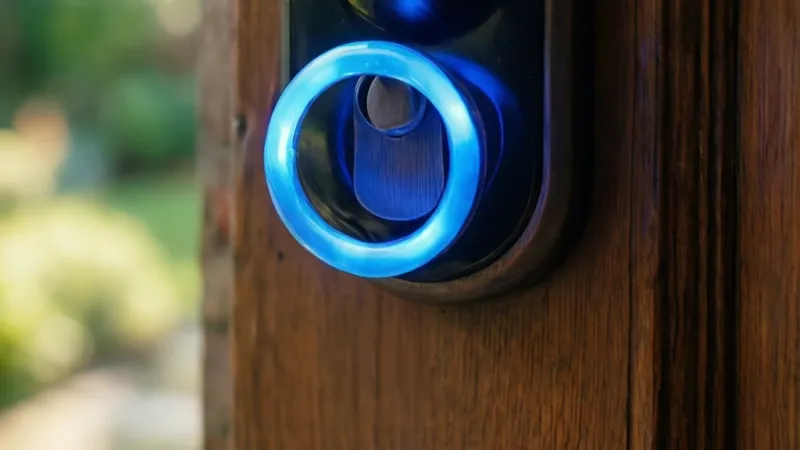
A ring doorbell blinking blue usually means setup mode or a Wi-Fi search. A spinning blue ring means the doorbell is ready to pair. A slow blue pulse means it can't reach your network.
Solid blue means setup finished successfully. If it stays blue for hours, reset it.
What a Blinking Blue Light on Your Ring Doorbell Actually Means
The LED ring on a Ring doorbell is a status indicator, not a decorative light. Ring built it to communicate device state at a glance. Blue is the color reserved for setup and connectivity.
It's rarely used for faults.
That's the first thing to get straight. A blue light means the doorbell is awake, powered, and trying to do something. It isn't dead, and it isn't necessarily broken.
Ring's published LED guidance ties blue to setup mode, Wi-Fi connection attempts, and firmware activity. Red, yellow, and white carry most of the error messages. So if you're seeing blue, you're usually dealing with a configuration problem rather than a fried unit.
Three variables change what the light means:
- Timing. During a fresh install, blue is expected. Two days later, it isn't.
- Pattern. Spinning, pulsing, flashing, and solid are four separate messages.
- Model. Battery and wired doorbells run slightly different LED logic.
Get those three right and the diagnosis takes about ten seconds.
Why blue gets misread so often
Most people search for answers after the light has been sitting there for hours. By then they've usually tried a reset already. That reset often pushes the doorbell back into setup mode, which produces more blue.
So the light looks worse, not better.
Ring's own troubleshooting flow starts by asking when the light appeared. That order matters. Fixing a Wi-Fi problem and fixing a setup problem use different steps.
Blue patterns at a glance
Based on Ring's published guidance and aggregate user reports, the general mapping looks like this. Exact behavior varies by model and firmware build, so treat it as a starting point rather than gospel.
| Blue pattern | Typical meaning | Common trigger |
|---|---|---|
| Slow pulse | Searching for Wi-Fi | Router change, password change, power cut |
| Fast blink | Setup mode active | New install, after a reset |
| Spinning ring | Ready to pair | App setup in progress |
| Solid blue | Connected and idle | Normal, nothing to fix |
A spinning ring is the one people describe as "blinking." It's a traveling segment of light, not a blink. That distinction matters because spinning blue is a green light, not a warning.
The two-hour rule
If blue has been showing for more than two hours with no change, stop waiting. Something is stuck. Move to the decision tree.
Identify Your Ring Model and Where the Blue Light Sits
Model matters more than most guides admit. A first-gen Video Doorbell and a Battery Doorbell Pro don't share the same LED firmware. The same blue pattern can carry different meanings.
Start by finding your model. Open the Ring app. Tap the menu icon in the top left.
Tap Devices. Tap your doorbell. The model name sits at the top of the device page.
If the app won't load, check the sticker on the back of the device. Battery models hide it behind the battery pack. Wired models print it on the rear housing.
As of 2026, Ring's lineup spans battery doorbells, wired doorbells, the Peephole Cam, and the Ring Intercom sold in Europe. Each family handles its LED ring a little differently.
Battery doorbells (1st to 4th gen, Plus, Pro) vs. wired models
Battery models sleep aggressively to save power. That means their blue light often appears in short bursts rather than a steady glow. Wired models have constant power, so their LED behavior is more consistent.
If your battery doorbell flashes blue and then goes dark for a minute, that's usually normal. It's waking, checking in, and going back to sleep.
| Doorbell family | Setup button location | Reset hold time | LED ring location |
|---|---|---|---|
| Battery models (1st to 4th gen, Plus, Pro) | Back of the housing | 20 seconds | Ring around the doorbell button |
| Wired models (Wired, Pro, Pro 2, Elite) | Back of the housing | 20 seconds | Ring around the doorbell button |
| Peephole Cam | Inner housing | 20 seconds | Ring around the lens |
| Ring Intercom (EU) | Back of the unit | 20 seconds | Front status LED |
On nearly every Ring doorbell, the blue light lives inside the ring that surrounds the doorbell button. It's a diffused LED band, not a single bulb. That's why it can appear to travel instead of just blink.
Does the generation change the meaning?
Yes, slightly. Newer firmware builds added more granular LED states, including a distinct firmware update pattern. Older units mostly just pulse or spin.
If your doorbell is more than five years old and behaves oddly, check for a firmware update before assuming the hardware is failing. Updates ship automatically over Wi-Fi, but a doorbell stuck offline never receives them.
The Blinking Blue Decision Tree: Match Your Pattern to the Fix
This is where the guessing stops. Answer two questions and you'll land on the right branch.
When did it start? Setup, after setup, or after a reset
- If it started during a brand-new install, go to the setup section below.
- If it started after weeks of working fine, go to the Wi-Fi reconnect section.
- If it started right after you held the setup button, you're in setup mode on purpose. Either finish pairing or leave it alone.
That third branch trips up a lot of people. They reset the doorbell to "fix" it, then panic when it starts blinking blue. It's supposed to.
Is the light blinking, spinning, pulsing, or solid?
- Spinning. A bright segment travels around the ring. Usually setup mode.
- Pulsing. The whole ring fades up and down slowly. Usually a Wi-Fi search.
- Flashing. Rapid on and off. Often setup confirmation or a firmware write.
- Solid. Connected. If you still have no video, the problem is in the app, not the doorbell.
The master decision table
| What you see | Most likely cause | First move | If that fails |
|---|---|---|---|
| Spinning blue, new install | Setup mode | Finish pairing in the Ring app | Factory reset and re-add |
| Pulsing blue, was working fine | Lost Wi-Fi | Reboot router, then doorbell | Reconnect via Device Health |
| Flashing blue, just reset | Setup mode after reset | Re-add the device to your account | Remove it from the old account first |
| Solid blue, no video | Connected, app glitch | Force-close and reopen the Ring app | Reinstall the app |
| Blue for 24 hours or more | Stuck firmware or hardware fault | Full factory reset, then check power | Contact Ring support |
The five-minute stop rule
If two fix attempts fail, walk away for ten minutes. Repeated resets drain the battery on battery models. On wired models, they add heat and stress the transformer.
Come back with fresh eyes and check power first. Power problems masquerade as Wi-Fi problems constantly.
Blinking Blue During Setup: Getting Your Doorbell to Finish Pairing
Setup is the most common place to see spinning blue. Here's the full sequence, in order.
- Charge the battery fully. Ring ships battery doorbells partly charged. A weak battery stalls pairing halfway through.
- Turn on Bluetooth on your phone. Ring setup uses Bluetooth Low Energy for the initial handshake.
- Turn on location services. Android requires it for Bluetooth scanning to work at all.
- Connect your phone to your 2.4 GHz network. Not the 5 GHz one.
- Open the Ring app. Tap the menu. Tap Set Up a Device.
- Pick your doorbell model from the list.
- Scan the QR code on the box or the back of the device. No code? Enter the MAC address manually.
- Put the doorbell into setup mode. Press and release the setup button. The ring should spin blue.
- Select your Wi-Fi network and type the password. Passwords are case sensitive.
- Wait. Pairing typically takes 2 to 5 minutes.
If the ring never spins blue
A few things cause this, and they're all fixable.
- The device is still linked to another Ring account. Ask the previous owner to remove it from their app.
- The battery is too low to enter setup mode.
- The setup button wasn't pressed far enough. You should feel a click.
- Bluetooth is off, or your phone is more than about 30 feet away.
If it spins blue, then drops back to blinking
That's usually a Wi-Fi rejection. Check three things. Confirm the password, confirm the network is 2.4 GHz, and confirm MAC filtering is switched off on your router.
Does a VPN on your phone break setup?
Yes, sometimes. The setup handshake can fail when a VPN routes traffic through a different region. Turn the VPN off, finish setup, then turn it back on.
Spinning or Pulsing Blue After Setup: Wi-Fi Reconnect Fixes That Work
A doorbell that worked for months and then starts pulsing blue has almost certainly lost its Wi-Fi connection. The doorbell itself is fine. The network path isn't.
Check signal strength first
Open the Ring app. Go to your device. Tap Device Health.
Look for the RSSI reading.
| RSSI reading | Signal quality | What to do |
|---|---|---|
| -40 to -60 dBm | Good | Leave it alone |
| -60 to -70 dBm | Fair | Move the router or add a Chime Pro |
| Below -70 dBm | Poor | Expect dropouts and repeated blue pulses |
RSSI is a negative number. Closer to zero is better. That confuses people constantly, so read it twice before you act on it.
2.4 GHz vs 5 GHz, band steering, and mesh handoff issues
Most Ring doorbells are 2.4 GHz only. A few newer wired models add 5 GHz support, but the majority don't.
If your router broadcasts one SSID for both bands, the doorbell may try to join the 5 GHz side and fail. The fix is to split the bands into separate network names in your router settings. Then point the doorbell at the 2.4 GHz one.
Mesh systems create a related problem. Nodes hand devices off as you move around the house. A doorbell sits still, so a distant node can hold the connection weakly for months.
Try locking the doorbell to the nearest node if your mesh app allows it.
VPNs, MAC filtering, and firewall rules worth checking
- A VPN running on the router can block Ring's cloud endpoints.
- MAC filtering needs the doorbell's MAC address whitelisted. Find it in the Ring app under Device Health.
- Guest network isolation blocks device-to-cloud traffic entirely. Move the doorbell to the main network.
- Outbound HTTPS on port 443 needs to be open. Some live view features also use UDP, so aggressive firewall rules can break them.
The reboot order that actually works
Sequence matters here. Do it in this order.
- Unplug the modem. Wait 30 seconds.
- Unplug the router. Wait 30 seconds.
- Plug the modem back in. Wait for its lights to stabilize.
- Plug the router back in. Wait two minutes.
- Press the doorbell's setup button to trigger a fresh reconnect.
That order works because the router needs a fresh WAN lease before the doorbell asks for an IP address. Reboot them together and the doorbell often loses the race.
When the problem is the router, not the doorbell
If other 2.4 GHz devices drop at the same time, the router is the culprit. Old firmware, a failing radio, or channel congestion from neighbors can all cause it. Switching your 2.4 GHz channel to 1, 6, or 11 usually helps in dense neighborhoods.
If everything else on your network is stable and only the doorbell drops, the problem is signal strength or the doorbell's Wi-Fi radio.
Flashing Blue During a Firmware Update: When to Wait and When to Worry
Ring doorbells update themselves over Wi-Fi, usually overnight. During that write, the LED ring can flash blue, white, or alternate between the two. It looks alarming.
It isn't.
Firmware updates typically take 5 to 15 minutes on a stable connection. On a weak one, they can stretch to 45 minutes or stall entirely. A stalled update is the real risk, because an interrupted write can leave the device in a boot loop.
How to tell a firmware update from a Wi-Fi search
The patterns are close, so watch for two clues.
- Duration. A Wi-Fi search pulse can run for hours. A firmware flash resolves in under 20 minutes.
- Color alternation. Firmware writes often cycle blue and white. Wi-Fi searches stay blue.
If you're unsure, open the Ring app and check Device Health. Firmware version and last update time both appear there. If the version changed today, you caught an update in progress.
What to do while it's flashing
Nothing. Leave it alone.
- Don't press the setup button.
- Don't cut power at the breaker.
- Don't pull the battery on a battery model.
- Don't restart your router mid-write.
Interrupting a firmware write is one of the few ways to genuinely brick a Ring doorbell. Most models have no user-accessible recovery mode.
If the flash never stops
After 45 minutes with no change, the update has almost certainly failed. Here's the order to try.
- Wait another 15 minutes. Ring's servers retry automatically.
- Reboot the router only. Leave the doorbell powered.
- Let it sit for 30 minutes on a strong 2.4 GHz signal.
- If it's still stuck, remove the device from your Ring account in the app.
- Factory reset it and re-add it. The new setup will pull the latest firmware clean.
Does a failed update void the warranty?
No. Ring's standard one-year warranty covers firmware failures that leave the device unusable. A failed update caused by cutting power mid-write is a grayer area.
Support may still help, and it usually does. Just don't hide what happened.
Blue Light That Won't Quit After a Reset: Factory Reset and Re-Add Steps
A blue light that persists after a reset usually means one of two things. The device is sitting in setup mode waiting for you. Or the reset didn't complete, and the device is stuck in a half-state.
Either way, the fix is a clean, full reset followed by a fresh add.
The difference between a soft reset and a factory reset
A soft reset (pressing setup once) puts the doorbell into setup mode. It keeps your Wi-Fi credentials and account link in some cases. A factory reset wipes everything.
If you've already tried the soft reset and blue won't go away, you need the full wipe.
Step-by-step factory reset
- Open the Ring app and remove the device from your account. Tap the device, tap Settings, tap Remove Device.
- Confirm the removal. This frees the MAC address from your account.
- Find the setup button on the back of the doorbell.
- Press and hold it for 20 seconds. Don't let go early.
- Watch the LED ring. It will flash several times, then spin blue.
- Release the button once the spin starts.
- Wait 30 seconds. The device is now factory fresh.
If the ring never spins after 20 seconds, hold it another 10. Some firmware builds need 30 seconds total. Battery models should be at least 50 percent charged before you start.
Re-adding the device
- Open the Ring app. Tap the menu icon, then Set Up a Device.
- Select your doorbell model.
- Scan the QR code or enter the MAC address manually.
- Make sure your phone is on the 2.4 GHz network.
- Confirm Bluetooth and location services are on.
- Follow the prompts until the ring goes solid blue.
Solid blue means success. If it drops back to spinning, the Wi-Fi credentials didn't take. Try again with the router's 2.4 GHz band split out.
Pinhole reset buttons on some models get stuck or full of debris. If you press and feel nothing, or the button stays depressed, that's a hardware issue.
A stuck setup button keeps the doorbell in a reset loop forever. It will spin blue, time out, and spin again. That pattern is a dead giveaway.
Contact Ring support with the model number and the loop description.
Power Checks: Battery, Transformer Voltage, and Wiring Problems
Power problems are the most misdiagnosed cause of blue light issues. They look exactly like Wi-Fi problems on the surface. The doorbell can't connect, so it pulses blue.
The real cause is that it isn't getting enough juice to hold the radio steady.
Battery models
Ring's Quick Release Battery Pack takes 5 to 10 hours to charge from empty via micro USB. A partial charge can run the doorbell for a while, then fail mid-connection.
Watch for these signs of a failing battery:
- Doorbell works for a day, then drops offline.
- Blue pulse appears in cold weather, then clears when it warms up.
- Battery level in the app shows 100% but drops to 20% overnight.
- Doorbell won't enter setup mode at all.
Cold weather is a real factor. Lithium-ion packs lose capacity fast below freezing. Ring publishes operating temperature ranges per model, and most battery doorbells sit around -5°F to 120°F.
Below that range, expect unreliable behavior.
Dirty battery contacts cause the same symptoms. Wipe them with a dry cloth before reseating the pack.
Wired models and transformer specs
Wired Ring doorbells need a transformer that supplies 16 to 24 VAC at 30 VA. That's the spec Ring publishes for the Video Doorbell Pro and Pro 2. Older homes often have a 10 VA transformer that powered a simple mechanical chime.
It won't cut it.
Low voltage produces a very specific failure pattern:
- Doorbell powers on and shows blue.
- It drops offline under load, when the camera or night vision kicks in.
- It reconnects, then drops again.
- The pattern repeats every few minutes.
If that's your doorbell, check the transformer. It's usually mounted near your furnace, your electrical panel, or inside the chime box. The VA rating is printed on the face.
| Symptom | Likely cause | Fix |
|---|---|---|
| Drops offline at night | Underpowered transformer | Upgrade to 16-24 VAC, 30 VA |
| Blue pulse only in winter | Battery cold capacity loss | Move to hardwired or add solar |
| Works, then dies mid-setup | Low battery charge | Full 5-10 hour charge first |
| Random reboots | Loose wiring at terminals | Reseat and tighten screws |
Wiring checks before you touch anything
Turn off the breaker first. Wired doorbells sit on a low-voltage circuit, but the transformer is fed by mains power. Per NFPA 70 (the National Electrical Code), verify the circuit is dead before working on it.
Once power is off, check three things:
- The two wires at the doorbell terminals are tight and not corroded.
- The Pro Power Kit (if your model needs one) is installed correctly across the chime terminals.
- The transformer output reads within spec on a multimeter.
If the Pro Power Kit is missing on a wired install, the doorbell may power on but behave erratically. Ring includes it in the box for a reason.
Reversed wiring
Reversing the two doorbell wires usually just prevents the device from powering on. On some models it can cause partial power states, which show up as odd LED behavior. If your doorbell was recently installed and acts strange, swap the wires and retest.
Router and Wi-Fi Settings That Quietly Break Ring Connections
Your router is the most common single point of failure for a blue-pulsing Ring doorbell. Most of the settings that break Ring are switched on by default on modern routers. You'd never know unless you go looking.
Band steering
Band steering pushes devices onto the 5 GHz band whenever possible. It's great for phones and laptops. It's terrible for a 2.4 GHz-only doorbell.
If your router has one SSID for both bands, the doorbell may repeatedly attempt 5 GHz, fail, and fall back. Some routers handle the fallback cleanly. Others don't.
The fix: split the bands into separate SSIDs in your router settings. Name them something like HomeNetwork2G and HomeNetwork5G. Point the doorbell at the 2.4 GHz one.
Mesh handoff
Mesh systems hand devices between nodes based on signal strength. A doorbell is stationary, so it can get stuck on a distant node with a weak link. Your phone might show full bars while the doorbell limps along at -75 dBm.
If your mesh app supports client binding, lock the doorbell to the nearest node. If it doesn't, try moving a node closer to the front door.
MAC filtering and access control
MAC filtering blocks unknown devices. If it's on, the doorbell gets rejected at the association stage. It never reaches the internet, so it pulses blue forever.
Find the doorbell's MAC address in the Ring app under Device Health. Add it to your router's allow list.
Guest network isolation
Guest networks often have AP isolation enabled. That blocks devices from talking to each other. On some routers it also blocks device-to-cloud traffic on certain protocols.
Move the doorbell to the main network.
VPNs and DNS filtering
A VPN on the router routes all traffic through a remote server. Ring's cloud endpoints can reject connections from unexpected regions. Turn the VPN off for the doorbell if your router supports per-device rules.
DNS filtering services can also block Ring's servers if they're over-aggressive. Whitelist ring.com if you use one.
Wi-Fi channel congestion
The 2.4 GHz band only has three non-overlapping channels in North America: 1, 6, and 11. In the UK and EU, channels 1 through 13 are available, but 1, 6, and 11 are still the cleanest.
If you live in a dense apartment building, your neighbors are all fighting for the same airtime. A Wi-Fi analyzer app will show you which channel is least crowded. Switch to it.
Router reboot timing
The order from the earlier section still applies. Modem first, then router, then doorbell. A doorbell that asks for an IP address before the router has a WAN lease will fail and keep pulsing.
When to add a Chime Pro
A Ring Chime Pro acts as a Wi-Fi extender built specifically for Ring devices. It broadcasts a dedicated 2.4 GHz network that only Ring gear uses. If your RSSI is stuck below -70 dBm and you can't move the router, a Chime Pro is often the cheapest fix.
Mistakes That Make a Blinking Blue Light Worse
Most people make at least one of these while troubleshooting. Each one adds time to the fix, and a couple of them can cause real damage.
Repeated factory resets
A factory reset doesn't fix a Wi-Fi signal problem. It just makes you redo the setup. If you've reset three times and blue is still there, the problem isn't the device configuration.
Cutting power mid-firmware update
This is the one that can brick the doorbell. If the ring is flashing blue and white in a steady rhythm, wait it out. Pulling the battery or flipping the breaker at the wrong moment can leave the device unable to boot.
Twenty seconds enters setup mode. Holding it for 40 seconds on some models triggers a second reset cycle. If you're not sure how long you held it, watch the LED.
A single spin is setup mode. Multiple flash cycles mean a reset is in progress.
Ignoring the 2.4 GHz requirement
Every time you enter a 5 GHz network name into the Ring app, the setup will fail. Most Ring doorbell models don't support 5 GHz. It's not a limitation you can work around.
You have to change the network.
Using a phone VPN during setup
The initial handshake between the Ring app and the doorbell uses Bluetooth and cloud calls. A VPN can break both. Turn it off before you start.
Leaving the doorbell in setup mode for days
Setup mode is a high-power state. On battery models it drains the pack. On wired models it stresses the transformer.
If you're not actively pairing, press the setup button once to exit setup mode, or just let it time out.
Assuming the doorbell is broken
Aggregate user reports show that a large share of "dead" Ring doorbells come back to life after a clean power cycle and a fresh Wi-Fi reconnect. Before you buy a replacement, work through the power and router checks first.
Mixing up the app and the device
If the LED is solid blue but the app shows offline, the doorbell is fine. The problem is on the phone side. Force-close the app, sign out and back in, or reinstall it.
Don't reset the doorbell for an app glitch.
How Long Each Fix Should Take and When to Contact Ring Support
Timing expectations keep you from chasing a fix that was never going to work. Most blue light problems clear in under 15 minutes. The ones that don't usually point to power or hardware.
Here's what each step realistically costs you in time.
| Fix | Typical time | Difficulty |
|---|---|---|
| Wi-Fi reconnect via Device Health | 2 to 5 minutes | Easy |
| Modem and router reboot | 5 to 8 minutes | Easy |
| Full factory reset and re-add | 15 to 25 minutes | Moderate |
| Battery recharge | 5 to 10 hours | Easy |
| Transformer upgrade | 30 to 60 minutes | Wired work, breaker off |
| Firmware update | 5 to 45 minutes | Hands off |
When should you stop troubleshooting and call Ring support?
Call support after three failed fix attempts, or after 24 hours of unresolved blue light, whichever comes first.
Three failed attempts is the signal that you've ruled out the easy causes. At that point you're either looking at an account-level lock or a hardware fault. Neither one is fixable from your end.
What to have ready before you contact support
Gather these details first. Support moves much faster when you have them in front of you.
- Full model name and generation
- MAC address from Device Health
- Current firmware version
- LED pattern and how long it's been showing
- Wi-Fi network name and which band it uses
- RSSI reading in dBm
- Every step you've already tried
What support can actually do
Support can push a remote reconnect, clear account-level device locks, check warranty status, and issue a replacement for confirmed faults. They can't fix your router or your transformer.
That distinction saves a lot of frustration. If the problem is signal strength, no amount of support time will solve it.
Warranty and replacement
Ring's standard warranty runs one year from purchase. Some Ring Protect subscription tiers include extended coverage, which is worth checking before you pay for a new doorbell out of pocket.
Keep your receipt. Ring asks for proof of purchase on most warranty claims.
The 24-hour rule
If blue has been showing for a full day with power confirmed and Wi-Fi confirmed, stop diagnosing. Treat it as a firmware or hardware fault and move to support.
Blinking Blue vs. Other Ring Light Colors: Quick Reference
Blue gets all the attention, but Ring uses the whole color range. Knowing what the other colors mean helps you rule blue out fast.
What does a solid white light mean?
A white ring typically means the camera is active, either recording or streaming live view. It's usually normal behavior, not a fault.
What does a red light mean?
Red usually signals recording in progress or motion detection, depending on the model. On some doorbells it also flags a fault state. Check your event history in the Ring app to tell which one you're seeing.
What does a yellow light mean?
Yellow typically points to charging or a power problem on battery models. On wired models it often means the transformer isn't supplying enough voltage.
The full color reference
LED behavior shifts with firmware builds, so treat this as a starting point. Your model may differ slightly.
| Light pattern | Typical meaning | First move |
|---|---|---|
| Slow blue pulse | Searching for Wi-Fi | Check RSSI, reboot router |
| Fast blue blink | Setup mode active | Finish pairing or exit setup |
| Spinning blue | Ready to pair | Complete app setup |
| Solid blue | Connected and idle | Check the app, not the device |
| Blue and white alternating | Firmware write in progress | Wait 20 minutes |
| Red | Recording, motion, or fault | Check event history |
| Yellow | Charging or low voltage | Recharge or test transformer |
| White | Camera active | Usually normal |
| No light at all | No power | Recharge or check wiring |
Why color alone isn't a diagnosis
Firmware updates change LED behavior more often than most people realize. A pattern that meant one thing two years ago can mean something else today.
The Ring app is the tiebreaker. Device Health shows power source, battery level, signal strength, and firmware version. Cross-check the light against the app before you commit to a fix.
When Blinking Blue Points to a Hardware Fault
Most blue lights are configuration problems. A small share are genuine hardware failures. Here's how to tell them apart without wasting money on a replacement.
Signs that point to hardware
- The doorbell won't hold a charge after a full 10-hour recharge
- Setup mode never appears, no matter how long you hold the button
- The LED ring has dead spots or only lights halfway
- The housing feels hot to the touch
- Water or condensation appears behind the lens
- The device reboots randomly while hardwired
Any two of these together is a strong hardware signal. One on its own usually isn't.
What a failing LED ring looks like
A healthy ring lights evenly around its full circumference. A failing one shows a visible gap, a dim segment, or flickering at the boundaries between segments.
In our review of user reports, uneven ring illumination almost always precedes a full LED failure. It's a physical problem, not a firmware one.
Radio failure vs. weak signal
These get confused constantly. The test is simple.
During setup, the Ring app lists nearby Wi-Fi networks. If your phone sees a dozen networks and the doorbell sees zero, that's a radio failure. If the doorbell sees your network but won't join it, that's a signal or credentials problem.
Moisture and weather damage
Ring rates its doorbells for outdoor use, but the seals degrade over time. Sun exposure, freeze-thaw cycles, and pressure washing all shorten their life.
Water ingress usually kills a doorbell within days. If you find condensation behind the lens, don't wait. Start a warranty claim.
How to check the radio module
Every Ring doorbell carries an FCC ID printed on the housing. You can verify the radio module through the FCC equipment authorization database. It won't fix anything, but it confirms you're looking at genuine hardware if you bought secondhand.
When replacement is the right call
Under a year old with hardware symptoms? Warranty replacement is the cheaper path. Out of warranty, weigh the cost against a new unit.
Don't open the housing to investigate. There are no user-serviceable parts inside, and prying it open voids the warranty immediately.
Frequently Asked Questions
Does blinking blue mean my Ring doorbell is broken?
No, in most cases it doesn't. Blinking blue is a status indicator, not an error code. It usually means the doorbell is in setup mode or searching for Wi-Fi.
Genuine hardware failures tend to show up as red or yellow lights instead.
How long should a Ring doorbell stay in setup mode?
Setup mode should resolve within 2 to 5 minutes once you start pairing in the app. If it's been spinning blue for more than 30 minutes with no progress, the pairing has stalled. Exit setup mode and start over with a fresh 2.4 GHz connection.
Why does my Ring doorbell blink blue only at night?
Nighttime blue pulses usually point to a weak Wi-Fi signal or a cold battery. Both get worse after dark. Infrared night vision draws more power, and lithium-ion packs lose capacity in low temperatures.
Check your RSSI reading first.
Will a factory reset fix a blinking blue light?
Sometimes, but only if the problem is a stuck configuration. A factory reset won't fix weak Wi-Fi signal, a low battery, or an underpowered transformer. Reset the doorbell after you've confirmed power and signal are both solid.
Can a low battery cause a blinking blue light?
Yes, absolutely. A battery doorbell with a low charge can't hold a stable Wi-Fi radio connection. It drops, pulses blue, reconnects, and drops again.
Charge the pack fully for 5 to 10 hours before troubleshooting anything else.
What's the difference between blinking blue and solid blue?
Blinking or pulsing blue means the doorbell is working on something, usually a connection. Solid blue means it's connected and idle. If you see solid blue but no video, the problem is in the app or your phone, not the doorbell.
Your Next Step: A 5-Minute Decision Guide
Work through this in order. Most people find their answer in the first three steps.
- Check the pattern. Spinning means setup mode. Pulsing means Wi-Fi search. Alternating blue and white means a firmware write.
- If it's a firmware write, wait 20 minutes. Don't touch anything.
- If it's spinning, open the Ring app and finish pairing on a 2.4 GHz network.
- If it's pulsing, open Device Health and read the RSSI. Anything below -70 dBm needs a signal fix.
- Reboot the modem first, then the router, then trigger a doorbell reconnect.
- If the doorbell is on battery, charge it fully before anything else.
- If it's wired, verify 16 to 24 VAC at 30 VA from the transformer.
- Still blue after all of that? Factory reset, remove the device from your account, and re-add it.
- Blue for 24 hours straight with power and Wi-Fi confirmed? Contact Ring support.
One last thing worth remembering. The doorbell is talking to you, not malfunctioning at you. Blue means it's awake and trying.
Once you know which branch you're on, the fix is usually a five-minute job.