Few things kill a workday faster than seeing the lights on modem blinking and no internet to show for it. Before you unplug anything, know this: a blinking LED is a status code, not always a fault. Your modem is telling you exactly where it got stuck.
You just need to know how to read it.
Manufacturer specifications indicate that a cable modem runs through a fixed boot sequence every time it powers up, and each stage owns its own light. Per CableLabs DOCSIS documentation, the device must lock downstream channels first, then upstream, before it can register on the network. That handshake usually finishes in 60 to 180 seconds.
Anything longer, or any light that keeps flashing past that window, is your first real clue.
Quick Answer
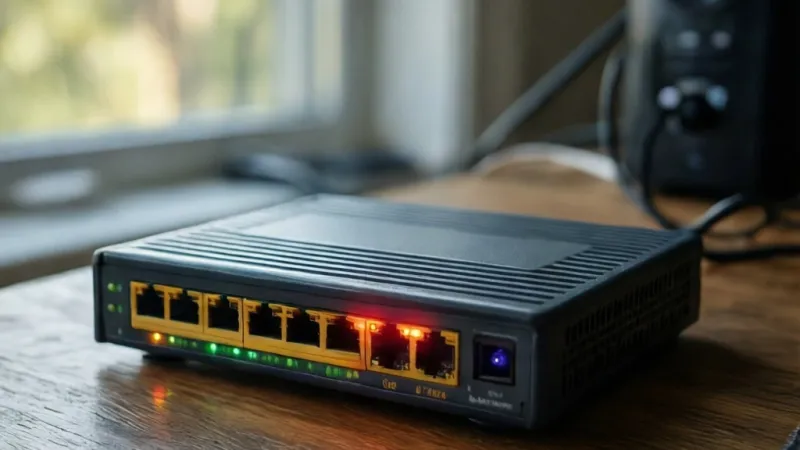
A blinking light on your modem usually means it's working on something. The power light blinks during startup. Downstream and upstream lights blink while locking onto the signal.
A blinking online light often means no connection yet. Blinking green or white is normal, but red or amber signals a fault.
Why Your Modem Lights Are Blinking (And Why It's Usually Not the Modem)
Here's the thing most people get wrong. A blinking light is not the same as a broken modem. In our research across manufacturer manuals and ISP support documentation, the modem itself is the culprit far less often than the line feeding it.
Think of the front panel as a tiny status board. Each LED reports one job, and blinking almost always means "in progress." Solid means "done and stable." Off means "not happening at all."
So when you see a light flashing away, your job isn't to panic. Your job is to figure out which job that light is stuck on.
The difference between a status light and a warning light
Status lights show progress. Warning lights show failure. Most modems use the same LEDs for both, which is exactly why blinking confuses people.
A downstream light flashing green for 45 seconds is normal. The same light flashing green for eight minutes is not. Duration matters as much as color.
Red and amber are the near-universal fault colors. If a light settles into red and stays there, the modem has stopped trying and started complaining.
What changed right before it started blinking
This one question solves more cases than any reset button. Ask yourself what happened in the last 24 hours.
- A storm, brownout, or full power outage
- A new modem, router, or TV box added to the coax line
- You moved the modem to a different wall jack
- Your provider pushed a firmware update overnight
- A bill went past due
- The neighbor's internet also died
That last one is gold. If your neighbor is down too, it's an outage, not your equipment. Stop troubleshooting and go make coffee.
If a new splitter or TV box appeared, that's your suspect. Every splitter steals signal strength from the modem. Stack three of them and you can lose the downstream lock entirely.
Normal blinking versus fault blinking
| Light | Normal blink | Fault blink |
|---|---|---|
| Power | Slow pulse during boot | Rapid blink that never settles |
| Downstream | Flashing 30 to 90 seconds | Still flashing after 5 minutes |
| Upstream | Flashing during ranging | Flashing forever after DS locks |
| Online | Brief flash during registration | Slow blink with no service |
| Wi-Fi | Flickers with active traffic | Off while wired internet works |
| Battery | Slow pulse while charging | Rapid blink or steady red |
Print that table in your head. Nine times out of ten, the pattern tells you whether to wait or act.
What Each Modem Light Means: Power, DS, US, Online, Ethernet, Wi-Fi, Phone, Battery
Every modem has a slightly different panel. But the underlying jobs are the same across cable, DSL, fiber, and fixed wireless gear.
Learn the jobs, not the labels. Labels change between brands. Jobs don't.
| Light | What it tracks | Solid means | Blinking means |
|---|---|---|---|
| Power | Electricity and boot | Powered and running | Starting up or failing to start |
| Downstream (DS) | Signal from the ISP | Locked onto downstream channels | Searching for downstream channels |
| Upstream (US) | Signal back to the ISP | Locked onto upstream channels | Ranging or retrying |
| Online / Status | Network registration | Registered and online | Registering or unable to register |
| Ethernet / LAN | Wired device link | Cable connected | Data moving across the port |
| Wi-Fi | Wireless radio | Radio on and broadcasting | Wireless traffic or WPS pairing |
| Phone / Tel | VoIP line | Line registered | Registering or call in progress |
| Battery | Backup battery | Battery charged | Charging or battery fault |
Cable modem (DOCSIS) light layout
Cable modems are the classic four-light stack: Power, DS, US, Online. Some add Link, Telephone, or Battery.
The boot order never changes. Power first. Then DS locks.
Then US locks. Then Online goes solid.
If DS never locks, nothing downstream of it matters. Don't bother rebooting your router. The modem hasn't even joined the network yet.
As of 2026, DOCSIS 4.0 rollouts remain limited to select markets. Most households still run DOCSIS 3.1, which supports gigabit tiers and uses the same light logic.
DSL modem light layout
DSL modems typically show Power, DSL, Internet, Ethernet, and sometimes WLAN. The DSL light is the equivalent of downstream plus upstream combined.
A blinking DSL light means the modem is training on the phone line. That can take 30 seconds on a good line and several minutes on a marginal one.
Watch the DSL light closely. If it goes solid, then drops and starts blinking again, you have a line stability problem, not a modem problem.
Fiber ONT light layout
Fiber setups use an Optical Network Terminal, or ONT. Common lights are Power, PON, LOS, and LAN.
PON stands for Passive Optical Network. It blinks while the ONT waits to register with the provider's Optical Line Terminal, or OLT.
LOS means Loss of Signal. A blinking or solid red LOS light means the fiber isn't delivering light. That's a provider-side problem in most cases.
Do not unplug the fiber cable to "test" it. Those connectors are precision-polished, and a single fingerprint or scratch can wreck the signal.
Combo gateway and 5G home internet light layout
Combo gateways merge modem and router into one box. You'll usually see Power, Online, and Wi-Fi, plus LAN ports for wired devices.
5G home internet gateways swap coax for a cellular radio. Their lights often show signal strength bars or a 5G/LTE indicator instead of DS and US.
On a 5G gateway, a blinking light usually means the unit is hunting for a tower or re-registering after a handoff. Placement near a window genuinely changes results.
Decoding Colors and Blink Rates: Green, Blue, White, Amber, Red, Slow vs Fast
Color is the second half of the message. Blink rate is the third. Together they give you a surprisingly precise diagnosis.
Manufacturer specs confirm that most consumer modems use a shared color vocabulary. It isn't standardized by any single body, but the conventions are consistent enough to be useful.
| Color | Typical meaning |
|---|---|
| Green | Normal operation, good signal, or active traffic |
| Blue | Higher-speed link or bonded channels active |
| White | Power or boot state on newer gateways |
| Amber / Orange | Degraded signal, warning, or reduced link speed |
| Red | Fault, no signal, or blocked service |
| Off | No power, disabled function, or nothing connected |
Solid versus blinking versus pulsing
Solid means a stable state. Blinking means activity or an attempt. Pulsing usually means a slow, rhythmic fade, which is almost always a boot or charging state.
One important exception. Ethernet and Wi-Fi lights blink constantly on a healthy connection. That's data moving, not a problem.
So context matters. A blinking Ethernet light with working internet is fine. A blinking online light with no internet is not.
Slow blink versus fast blink
Blink rate carries real information, and it's the most overlooked clue on the panel.
- Slow blink, roughly once per second, means searching or registering
- Fast blink, several times per second, means a fault or failed attempt
- Irregular blink usually means the device is cycling through retries
A modem stuck in a fast-blink loop is not going to fix itself. That pattern typically means the device has exhausted its retries.
Color meanings by manufacturer
Here's where brand differences bite. The same green light can mean different things on different boxes.
- Arris and CommScope modems commonly use green for downstream lock and blue for bonded channel operation
- Motorola and Netgear units often use green for power and amber for degraded link
- Hitron and Sagemcom gateways frequently use white for boot and blue for online
- Calix, Nokia, and Adtran ONTs generally use green for PON and red for LOS
- TP-Link and Asus gateways vary the most, so the manual is your source of truth
The lesson is simple. Read your model's manual, not a generic chart. Model numbers are printed on the bottom sticker, and most manuals are free PDFs on the manufacturer site.
Which Light Is Blinking? The First Branch in the Decision Tree
This is where you stop guessing and start narrowing. Find your blinking light below, then follow the branch that matches.
Work through it in order. Fix the earliest problem first, because later lights can't report accurately until earlier ones are healthy.
Branch 1: The power light is blinking
If the power light never goes solid, the modem isn't booting. Everything else on the panel is meaningless.
Start with the simplest test. Plug the modem into a different outlet, ideally one you know works.
If that changes nothing, check the power adapter. Look for a swollen barrel, frayed cord, or a brick that's unusually hot to the touch.
Then try a matching adapter if you have one. Voltage and polarity must match exactly, so check the label before you swap anything.
If a known-good adapter still won't boot the modem, the hardware has failed. That's your answer.
Branch 2: The downstream or upstream light is blinking
If DS blinks for more than five minutes, the modem can't lock onto downstream channels. That's a signal problem, not a settings problem.
Check the coax connection at the modem first. Hand-tighten it, then give it a quarter turn more. Never crank it with pliers.
Next, trace the cable back. If you find a splitter, remove it and connect the modem directly to the wall. Test again.
If US blinks after DS goes solid, the modem locked downstream but can't range upstream. That often points to too much attenuation or a failing line.
Both DS and US stuck blinking together usually means a line or drop issue. At that point, call your provider.
Branch 3: The online or status light is blinking
If the online light blinks slowly and never goes solid, the modem is trying to register. The physical signal is fine. The account or network side is the problem.
Common causes are provisioning, outages, and account holds. A brand-new modem almost always needs activation before it will register.
Check your provider's outage map on your phone using cellular data. That takes 30 seconds and rules out the most common cause.
Under FCC broadband labeling rules, providers must publish the actual speeds and terms of your plan, which is worth checking if you suspect a tier mismatch. You can review those requirements at the FCC.
If there's no outage and the modem is activated, ask your provider to re-provision the device. That's a remote push on their end, and it fixes a surprising number of cases.
Branch 4: The LOS or PON light is blinking
If LOS is blinking or solid red, you've lost optical signal. Stop touching the fiber cable.
Do not unplug the fiber connector. Do not try to clean it with a cloth. Do not bend the patch cord to "check" it.
A blinking PON light without a red LOS usually means the ONT has light but hasn't registered with the OLT yet. That's typically provisioning.
If both LOS and PON are misbehaving, the fault is almost certainly outside your home. Call your provider and describe exactly what you see.
Branch 5: The Ethernet, Wi-Fi, phone, or battery light is blinking
If the Ethernet light is blinking, that's normal. It means data is moving on that port.
If the Wi-Fi light is off but your wired connection works, someone pressed the Wi-Fi button or disabled the radio in the admin page. Check both.
If the phone light blinks and won't go solid, your VoIP line hasn't registered. That's separate from internet service and often resolves with a reboot.
If the battery light blinks, the backup battery is charging or failing. Many units blink while charging and go solid when full.
The full decision table
| What you see | Most likely cause | First action |
|---|---|---|
| Power blinking, never solid | Power adapter or hardware fault | Try another outlet, then another adapter |
| DS blinking past 5 minutes | No downstream lock | Check coax, remove splitters |
| US blinking after DS locks | Upstream ranging failure | Check filters and cabling, call ISP |
| Online blinking, no service | Provisioning, outage, or account hold | Check outage map, then call ISP |
| LOS red, blinking or solid | Fiber signal loss | Do not touch the fiber, call ISP |
| PON blinking, no LOS | ONT not registered | Call ISP for provisioning |
| Wi-Fi blinking with traffic | Normal wireless activity | Nothing, this is healthy |
| Wi-Fi off, wired works | Radio disabled | Press the Wi-Fi button or check admin page |
| Phone blinking | VoIP registration failed | Reboot, then call ISP |
| Battery blinking | Charging or battery fault | Check seating, replace if it stays red |
Blinking Power Light: Adapter, Surge, Heat, and Failing Hardware
A blinking power light is the one case where the modem itself is the prime suspect. If it never settles into a solid state, nothing downstream can work.
The power light sits at the front of the boot chain. Until it goes solid, the modem hasn't finished its own self-test. DS, US, and Online will stay dark or blinking behind it.
Start with the outlet, not the modem
Swap the modem to a different outlet before you do anything else. Pick one on a different circuit if you can, and skip the power strip for the test.
If the power light goes solid on a new outlet, you've found your fault. A worn strip, a tripped surge protector, or a dead receptacle will do this.
Then plug it back into the original outlet to confirm. If it fails again, replace the strip or have an electrician look at the receptacle.
Testing the power adapter without guesswork
The adapter is a common failure point, and it fails quietly. A swollen barrel, a cracked cord, or a brick that's hot to the touch are all red flags.
Manufacturer specs confirm that these adapters are voltage-specific and polarity-specific. A 12V DC 1A unit won't substitute for a 12V DC 2A unit, and reversed polarity can kill the modem.
Check the label on the old adapter before you buy a replacement. Match volts, amps (equal or higher), and polarity exactly. Look for a UL or ETL listing on the new one.
Overheating and ventilation problems
Modems run warm, but they shouldn't run hot. Stacking one under a router, a cable box, or a pile of papers traps heat and shortens its life.
If the case is too hot to hold comfortably, that's a problem. Move it to open air, away from sunlight and other electronics.
Aggregate user reviews report that heat-related failures cluster in cabinets and entertainment centers with no airflow. A few inches of clearance on every side makes a real difference.
Surge damage and storm events
A nearby lightning strike can damage a modem even if the strike wasn't direct. Surges ride in on both the power line and the coax.
If the power light started blinking right after a storm, assume surge damage until proven otherwise. That's a hardware fault, not a settings issue.
A coax ground block and a quality surge protector reduce the risk, but neither is bulletproof. After a major event, the modem is often the casualty.
When the modem is simply done
If a known-good outlet and a matched adapter both fail, the hardware has failed. That's the end of the diagnostic road for the unit.
Most consumer modems last three to five years. Heat, surges, and cheap power supplies shorten that window considerably.
If yours is a rental from your ISP, ask for a swap. If you own it, check the warranty before you buy a replacement.
| Symptom | Likely cause | What to do |
|---|---|---|
| Power blinks, other lights dark | Boot failure | Try another outlet, then another adapter |
| Power solid, then blinks after minutes | Overheating or failing adapter | Improve airflow, test adapter |
| Power blinks after a storm | Surge damage | Replace the modem |
| Power blinks on one outlet only | Bad receptacle or strip | Replace strip or call an electrician |
| Power never lights at all | Dead adapter or dead modem | Test adapter, then replace unit |
Blinking Downstream, Upstream, LOS, or PON: Cable and Fiber Signal Failures
Now we're past the power stage. A solid power light with a blinking DS, US, LOS, or PON light points to the signal path, not the box.
This is where most real-world modem problems live. The modem is fine. The line feeding it isn't delivering what it needs.
Blinking DS: the modem can't find downstream channels
If DS blinks past five minutes, the modem isn't locking onto downstream channels. It's listening, but it can't hear enough signal to lock.
Check the coax at the modem first. Hand-tighten the F-connector, then give it a small extra turn. Never use pliers on coax.
Then trace the cable back. Every splitter, barrel connector, and wall plate in that path is a potential point of failure.
Splitters, amplifiers, and stacked connections
Each coax splitter costs you roughly 3.5 dB of signal per leg. Two splitters in a row means real loss, and three can push you past the modem's tolerance.
Connect the modem directly to the wall for a test. If DS locks immediately, the splitter or the extra cabling was the problem.
Amplifiers help TV signal but can hurt modems. Many consumer amps don't pass the upstream frequencies a modem needs to talk back.
Old wiring and what's behind the wall
In-wall coax is often older than the house's current owner. RG-59 is thinner and lossier than RG-6, and it struggles with modern DOCSIS.
If your home was wired for cable TV in the 1990s, assume the in-wall cable is a limiting factor. A provider tech can test the drop and the interior run.
A MoCA filter on the line can also cause trouble if it's the wrong type or installed in the wrong spot. MoCA uses the same coax for networking, and a bad filter blocks the wrong frequencies.
Blinking US: upstream ranging failure
If DS goes solid and US keeps blinking, the modem locked downstream but can't range upstream. That's a two-way problem.
Upstream is the harder direction for most cable plants. It's more sensitive to noise, ingress, and attenuation.
A loose connector, a corroded splitter, or a damaged drop can all cause this. It's also the classic symptom of an amplifier that doesn't support upstream.
Fiber LOS and PON blinking on an ONT
On fiber, LOS means Loss of Signal. If LOS is blinking or solid red, the ONT isn't receiving light from the provider's network.
Do not touch the fiber patch cord. Those SC/APC connectors are precision-polished, and a fingerprint or a scratch can kill the signal.
A blinking PON light without a red LOS is different. It means the ONT has light but hasn't registered with the provider's OLT yet. That's usually a provisioning issue on their end.
What your ISP sees on their end
Your provider has visibility your modem doesn't. On cable, their CMTS sees your modem's registration attempts and signal levels.
On fiber, their OLT sees whether your ONT has joined the PON. On DSL, their DSLAM sees the line training.
That's why calling them is often faster than guessing. They can tell you whether the fault is inside your home or out on the plant.
| Light | Meaning | Most likely cause | First move |
|---|---|---|---|
| DS blinking past 5 min | No downstream lock | Bad coax, splitter loss, drop issue | Connect direct to wall, call ISP |
| US blinking after DS solid | Upstream ranging fail | Noise, amplifier, bad connector | Check connectors, call ISP |
| LOS red or blinking | No optical signal | Fiber cut, bad connector, ONT fault | Do not touch fiber, call ISP |
| PON blinking, no LOS | ONT not registered | Provisioning on OLT | Call ISP for activation |
| DS and US both stuck | Two-way signal loss | Line or drop problem | Call ISP |
Blinking Online or Status Light: Provisioning, Outages, and Account Holds
Here's the good news. If DS and US are solid and only Online is blinking, your physical signal is healthy. The problem lives higher up the stack.
The modem has locked onto the network. It just can't finish registering.
Activation and provisioning after a new setup or swap
A brand-new modem needs to be activated on your account. Until that happens, the online light will blink and never go solid.
You'll need the modem's MAC address, which is printed on the sticker. Some providers also want the serial number and model number.
Most ISPs have a self-activation page or app. If yours doesn't, a quick call to support will get it pushed.
Local outages and maintenance windows
Outages are the single most common cause of a blinking online light. Check your provider's outage map on your phone using cellular data.
If there's an outage, stop troubleshooting. No amount of rebooting will fix a plant problem.
Maintenance windows usually run overnight, often between 1 a.m. and 5 a.m. local time. If your internet drops at 2 a.m. and comes back by 4 a.m., that's not a fault.
Billing holds and suspended service
An unpaid balance can put your service on hold without warning. The modem stays powered, but the network refuses to register it.
Some providers soft-suspend first, which means you keep a slow connection or a captive portal. Others cut service entirely.
Log into your account and check the billing status. It's a 60-second check that saves a 20-minute support call.
Modem compatibility and DOCSIS version mismatches
Not every modem works on every network. A DOCSIS 3.0 modem on a plant that has moved to 3.1-only channels won't register, no matter what you do.
Some providers publish an approved modem list. If your model isn't on it, that's your answer.
Retail modems bought secondhand can also carry a previous owner's registration. Your provider may need to clear it before yours will activate.
When the online light blinks on 5G home internet
On a 5G gateway, a blinking online light usually means the unit is hunting for a tower. Placement matters more than anything else here.
Move the gateway near a window, ideally on the side of the house facing the nearest tower. Height helps too.
If the light still blinks after a reboot and a reposition, check the provider's coverage map. A weak signal at your address is a real limitation, not a fixable fault.
Blinking Ethernet, Wi-Fi, Phone, and Battery Lights: When It's Perfectly Normal
Not every blinking light is a cry for help. Some of them mean the device is doing exactly what it should.
This section is your permission slip to stop troubleshooting.
Activity lights versus fault lights
Ethernet and Wi-Fi lights blink with traffic. That's the whole point of them. A blinking LAN light on a working connection is healthy.
The confusion comes because the same physical LEDs are used for faults on some models. Context is everything.
If your internet works and only the Ethernet or Wi-Fi light is blinking, you're fine. Close the browser tab and move on.
Wi-Fi light off but internet still working
If Wi-Fi is off but a wired device works, the radio has been disabled. That's almost always a button press or a settings change.
Look for a Wi-Fi or WLAN button on the back of the gateway. Pressing it toggles the radio on many models.
If there's no button, log into the admin page. The Wi-Fi radio setting lives under the wireless section on nearly every gateway.
Phone light blinking on a VoIP line
A blinking phone or Tel light means the VoIP line hasn't registered. That's separate from your internet service.
VoIP runs over the same connection but registers with a separate server. A problem on that server can leave your internet working while the phone is down.
Reboot the gateway first. If the light still blinks, call your provider and mention that the internet works but the phone doesn't.
Battery light behavior during outages
Many modems and gateways ship with a backup battery for phone service during power cuts. That battery has its own light.
A slow pulse usually means charging. A solid light means fully charged. A rapid blink or steady red means the battery has failed or isn't seated.
If the battery is more than three years old, replacement is the usual fix. Sealed lead-acid backup batteries degrade with age and heat.
WPS pairing blinks
Pressing the WPS button puts the gateway into pairing mode, and the Wi-Fi light blinks to show it. That's expected behavior.
Pairing mode times out after about two minutes. If you didn't mean to press it, just wait it out.
| Light | Blinking means | Should you worry? |
|---|---|---|
| Ethernet / LAN | Data moving on the port | No, normal |
| Wi-Fi | Wireless traffic or WPS pairing | No, unless the radio is off |
| Phone / Tel | VoIP registering | Yes, if it won't go solid |
| Battery | Charging | Only if it stays red or blinks fast |
| WPS | Pairing window open | No, it times out |
The 5-Minute Reboot Workflow: Order, Timing, and What to Watch For
Rebooting is the most overused and most misused fix in networking. Done right, it clears a lot of transient faults. Done wrong, it wastes time and wipes settings.
Here's the sequence that actually works.
Power cycle versus factory reset versus hard reset
These three get used interchangeably, and they are not the same thing. Knowing the difference saves you a support call.
- Power cycle: unplug, wait, plug back in. Nothing is lost.
- Factory reset: hold the recessed reset button for 10 to 30 seconds. All custom settings are erased.
- Hard reset: some manufacturers use this term for a factory reset with the device powered on. Same result.
Start with a power cycle. Only move to a factory reset if your provider tells you to, because it wipes your Wi-Fi name, password, and any port forwarding.
The correct reboot order for modem, router, and mesh nodes
Order matters more than most people realize. The router needs the modem to be online before it can get a WAN address.
- Unplug the modem, the router, and any mesh nodes.
- Wait a full 30 seconds. This lets capacitors drain and the ISP side release the session.
- Plug in the modem only.
- Wait for the Online light to go solid. That can take 2 to 5 minutes.
- Plug in the router and wait for it to boot.
- Bring mesh nodes online one at a time, closest to the router first.
If you skip step 4, the router may grab a stale IP and you'll be rebooting again in five minutes.
Watching the boot sequence: power to DS to US to online
Watch the panel as the modem comes up. The order tells you where it stalls.
Power goes solid first. Then DS blinks, then locks. Then US blinks, then locks.
Then Online blinks, then goes solid.
Whichever light is still blinking after five minutes is the one to focus on. Use the decision branches earlier in this guide to interpret it.
What to do if it loops back to blinking
A modem that locks, drops, and re-locks repeatedly is flapping. That's different from a modem that never locks at all.
Flapping usually points to a marginal signal, a failing power supply, or a line fault that changes with temperature. It often gets worse in the evening when the neighborhood's noise floor rises.
If you see this pattern, note the times it happens and call your provider. That detail helps a technician find intermittent faults.
What a reboot does not fix
A reboot won't fix a cut fiber line, a suspended account, or an incompatible modem. It won't fix a bad splitter or a corroded connector.
It also won't fix a failing power adapter. If the power light never goes solid, no amount of rebooting will help.
The reboot is a tool, not a cure. Use it for transient faults, and move on quickly when it doesn't work.
| Step | Action | Time | What to watch |
|---|---|---|---|
| 1 | Unplug modem, router, nodes | 30 sec | Nothing |
| 2 | Plug in modem only | 2 to 5 min | Power, DS, US, Online sequence |
| 3 | Confirm Online is solid | Up to 5 min | Blinking here means a real fault |
| 4 | Plug in router | 1 to 2 min | WAN or Internet light |
| 5 | Bring up mesh nodes | 1 min each | Node LED goes solid |
Modem, Router, or Gateway? Ruling Out the Wrong Device
Half the "my modem is broken" calls in any support queue turn out to be router problems. The modem lights are fine. The router is the one misbehaving.
So before you replace anything, figure out which box is actually failing. The modem brings the signal in. The router shares it around your home.
A gateway does both jobs in one chassis.
How to tell which box is actually failing
Look at the modem's front panel first. If Power, DS, US, and Online are all solid, the modem is healthy. Stop blaming it.
Then look at the router. If its WAN or Internet light is off or red while the modem is solid, the problem sits between the two.
A quick test settles it. Plug a laptop directly into the modem with an Ethernet cable. If you get online, the modem is fine and the router is the fault.
Testing with a wired Ethernet connection
This is the single most useful test in home networking. It removes Wi-Fi, the router, and every wireless variable in one step.
Use a known-good Cat 5e or Cat 6 cable. Plug one end into the modem's LAN port and the other into your laptop.
If the laptop gets an IP address and loads a page, the modem and the line are working. Your Wi-Fi problem is downstream of that.
If the laptop gets nothing, the issue is the modem, the line, or the account. Go back to the decision branches earlier in this guide.
Isolating the modem from your router and mesh system
Unplug the router from the modem. Now only the modem is on the line.
Power cycle the modem alone and watch the lights. If they all go solid, the modem is fine and the router was causing the trouble.
Then reconnect the router and watch what happens. If the modem's online light starts blinking the moment the router connects, you may have an IP conflict or a bad Ethernet cable.
Combo gateway complications
A gateway hides this whole diagnostic. There's no separate modem light panel to check.
On a gateway, treat the Online light as the modem side and the Wi-Fi light as the router side. That split gives you the same information.
If the Online light is solid but Wi-Fi is dead, the routing side has failed. A factory reset is reasonable here, and you'll need to re-enter your Wi-Fi name and password afterward.
Mesh systems and access points
Mesh nodes don't touch the modem. They talk to the main router over Wi-Fi or Ethernet backhaul.
A blinking light on a mesh node means the node lost its backhaul. It has nothing to do with the modem.
Unplug the node, move it closer to the main router, and plug it back in. If it reconnects, the original spot had weak coverage.
| Device | Its job | Blinking light means |
|---|---|---|
| Modem | Converts the ISP signal | Signal, registration, or boot issue |
| Router | Shares the connection | WAN, LAN, or Wi-Fi activity |
| Gateway | Does both jobs | Check which light is blinking |
| Mesh node | Extends Wi-Fi | Lost backhaul to the main router |
| ONT | Terminates fiber | Optical signal or registration |
Signal Levels, Event Logs, and the Details Your ISP Will Ask For
If you want a support call to go fast, walk in with numbers. Signal levels and event logs turn a vague complaint into a specific fault.
Most modems expose this data through a local web page. You don't need special software or a technician.
Downstream power, upstream power, and SNR targets
These three numbers tell you whether your line is healthy. They're the same metrics a technician checks on arrival.
Per CableLabs DOCSIS specifications, downstream power should land between -15 and +15 dBmV, with -7 to +7 dBmV being the sweet spot. Upstream power typically runs 35 to 50 dBmV, and 40 to 45 dBmV is ideal.
Signal-to-noise ratio, or SNR, should stay above 30 dB. Anything above 35 dB is genuinely good. A low SNR means noise is drowning out the signal.
| Metric | Acceptable range | Ideal range |
|---|---|---|
| Downstream power | -15 to +15 dBmV | -7 to +7 dBmV |
| Upstream power | 35 to 50 dBmV | 40 to 45 dBmV |
| Downstream SNR | Above 30 dB | Above 35 dB |
| Upstream SNR | Above 25 dB | Above 30 dB |
Logging into your modem's status page
Open a browser on a device wired to the modem. Type the modem's local address into the address bar.
Common addresses are 192.168.100.1, 192.168.0.1, and 192.168.1.1. The exact one is printed on the modem's sticker or in its manual.
Some models ask for a username and password. Defaults are often "admin" and "password", but check the manual for your model.
Once you're in, look for a Status, Signal, or Connection page. That's where the levels live.
Model number, MAC address, serial number, and firmware version
Your ISP will ask for all four. Have them ready before you dial.
The model number tells them what the device can do. The MAC address identifies it on the network. The serial number ties it to your account.
The firmware version tells them if an update is pending.
All of this sits on the same sticker, usually on the bottom or back of the unit. Take a photo of it with your phone. That saves you crawling behind the furniture twice.
Reading the event log without overreacting
Every modem keeps a log of what it's been doing. It looks alarming at first glance.
You'll see entries like "SYNC Timing Synchronization failure" or "No Ranging Response received". Those sound catastrophic. Most of them are normal retries during startup.
Look for patterns, not single lines. Repeated entries at the same time of day point to a real problem.
Entries clustered around 7 p.m. to 10 p.m. often mean neighborhood congestion or a temperature-related fault. Note the times and pass them along.
What to have ready before you call
A short list turns a frustrating call into a quick one. Have these in front of you.
- Modem model, MAC address, and serial number
- Which lights are blinking and in what color
- Downstream and upstream power readings
- SNR readings
- Whether a wired connection works
- Whether your neighbors are also down
If you have all six, most support agents can diagnose in a couple of minutes instead of twenty.
Mistakes That Make Things Worse: Factory Resets, Splitter Stacking, Button Mashing
The wrong fix costs more time than no fix at all. These are the moves that turn a small problem into a big one.
Read this section before you touch anything. It'll save you a service call and possibly a new modem.
Factory resetting and wiping your ISP settings
A factory reset erases everything. Your Wi-Fi name, your password, your port forwarding rules, and any custom DNS settings all vanish.
Worse, on some ISP-supplied gateways, it also wipes the provisioning credentials. The device then can't re-register until your provider pushes the config again.
Only factory reset when a technician tells you to. For everything else, a power cycle does the same job without the collateral damage.
Pressing WPS or reset by mistake
Those two buttons often sit next to each other on the back panel. One enables pairing, the other wipes the device.
If you held the reset button for more than 10 seconds, you've triggered a factory reset. It's done, and there's no undo.
WPS is harmless by comparison. It opens a two-minute pairing window and then times out on its own.
Adding splitters, extenders, or signal boosters that backfire
Every splitter costs signal. Every extra connector adds loss. Every amplifier adds noise on the upstream path.
Stacking a splitter to feed a new TV box is the classic mistake. It works fine until the modem loses downstream lock.
A "signal booster" from a big-box store often makes upstream worse. It amplifies the downstream, which the modem doesn't need, and leaves the upstream untouched.
If you must split, use a high-quality 2-way splitter rated to at least 1 GHz. Keep the modem on the lowest-loss leg.
Unplugging the fiber cable
Never do this. Fiber connectors are precision-polished, and they're fragile at the ferrule.
A single fingerprint, a bit of dust, or a scratch on the end face can scatter enough light to break the connection. Replacing the patch cord is a technician job.
If the LOS light is red, the fault is almost always outside your home. Call your provider instead of poking at the cable.
Rapid-fire reboots
Power cycling five times in ten minutes doesn't help. It actually makes things worse.
The ISP side needs time to release the old session. Reconnecting too fast can leave you stuck in a loop of half-registrations.
Give each reboot a full 30 seconds unplugged. Then wait the full two to five minutes for the modem to lock.
Assuming the modem is the culprit
Modems are actually pretty reliable. Most of them run for years without a problem.
Before you buy a replacement, confirm the fault is in the device. A solid power light with a solid downstream light means the modem is doing its job.
If DS, US, and Online all lock but you still have no internet, the problem is upstream of the modem. That's the ISP's territory.
| Mistake | Why it hurts | Do this instead |
|---|---|---|
| Factory reset without being asked | Wipes provisioning and Wi-Fi settings | Power cycle only |
| Holding reset for 10+ seconds | Triggers a factory reset | Use a paperclip, tap once |
| Adding splitters to the modem line | Loses 3.5 dB per leg | Connect modem direct to wall |
| Unplugging the fiber cable | Can damage the connector | Call the ISP |
| Rebooting five times in a row | Confuses ISP session handling | One clean 30-second cycle |
When to Call Your ISP, Swap the Modem, or Book a Technician
At some point, the diagnosis ends and the phone call begins. Here's how to know which one you're making.
The goal is to avoid an unnecessary truck roll while not sitting on a dead connection for a week.
What to have ready before you dial
Gather the six items listed earlier. Model, MAC, serial, light pattern, signal levels, and whether a wired connection works.
Then call from a phone that isn't dependent on the broken internet. A mobile phone on cellular data is ideal.
Have a pen ready. Support agents will give you a ticket number and a reference for the call.
Signs the modem needs replacing
The modem needs replacing if it won't boot on a known-good outlet and a matched adapter. That's a hardware failure, and no amount of support will fix it.
Other signs include a swollen case, a burning smell, or a power light that flickers constantly. Any of those mean stop using it and replace it.
If it's an ISP rental, ask for a swap. If you own it, check the warranty and your provider's approved modem list before buying.
Signs it's a line or drop issue that needs a truck roll
A truck roll is warranted when the fault is outside your home. That includes a damaged drop cable, a bad tap on the pole, or a faulty connector at the demarcation point.
Tell-tale signs are low downstream power, high upstream power, and a modem that flaps at the same time every day. Those point to a physical line issue.
If your neighbors are also down, it's definitely a plant problem. That's the ISP's job, and it won't cost you anything.
Rental versus retail modem: which path makes sense
Both options work. Which one is right depends on how much you want to manage.
| Factor | ISP rental | Retail modem |
|---|---|---|
| Upfront cost | None or low | $60 to $200 |
| Monthly fee | $10 to $15 | None |
| Warranty and swaps | Handled by ISP | You handle it |
| Compatibility | Guaranteed | Must check the approved list |
| Firmware updates | Automatic | Automatic, but sometimes slower |
| Best for | Anyone who wants zero hassle | Long-term customers who want to save |
A rental makes sense if you expect to move, switch providers, or just don't want to think about it. Over 24 months, a $12 fee adds up to $288, so a retail modem often pays for itself in about a year.
A retail modem makes sense if you're staying put and your provider publishes an approved list. Check that list first. Buying an incompatible model is the single most common retail mistake.
When to ask for a senior technician
If a first-visit tech can't find the fault, ask for an escalation. Intermittent line problems often need a line tech with a signal analyzer.
Ask specifically for a "line tech" or "plant technician" if the issue is outside your home. That's a different role from the in-home installer.
Request that the ticket note include your signal readings and the times of day the fault appears. That detail gets the right person dispatched.
Frequently Asked Questions
What does a blinking green light on my modem mean?
A blinking green light usually means the modem is still working on something. On the downstream or upstream light, it means the modem is searching for a signal lock. On the Ethernet or Wi-Fi light, it means data is moving.
Green is almost never a fault color.
Why is my modem's online light blinking but I still have internet?
If you have working internet, a blinking online light is unusual but not impossible. It can happen during brief re-registrations or firmware updates. If speeds and stability are fine, watch it for an hour.
If it stays blinking while service works, note the pattern and mention it to your ISP.
How long should a modem take to connect after a reboot?
A typical modem locks downstream and upstream within 60 to 180 seconds. Registration usually adds another 30 to 60 seconds. If the online light is still blinking after five minutes, something is wrong and you should move on to diagnostics rather than waiting longer.
Can a blinking light mean my modem is broken?
Sometimes, but not usually. A blinking power light that never goes solid is the strongest sign of hardware failure. Blinking DS, US, or Online lights almost always point to a signal, provisioning, or account issue instead.
Test the modem on a known-good outlet before replacing it.
Why does my modem light blink at night but work during the day?
Temperature swings and neighborhood congestion both cause this pattern. Coax expands and contracts with heat, and a marginal connector can lose contact as temperatures drop. Evening hours also bring more upstream noise from the whole node.
Note the times and pass them to your ISP.
Is it safe to unplug my modem while it's blinking?
Yes, it's safe. Unplugging won't damage the modem. Just give it a full 30 seconds before plugging it back in so the ISP side releases the old session.
Avoid rapid-fire unplugging, which can leave the modem stuck in a partial registration loop.