If you're seeing an elgato hd60x blinking red, your capture card can't lock onto a usable video signal. That one light covers several very different problems. It could be HDCP protection, a failing cable, a USB port running at the wrong speed, or a resolution the card simply can't handle.
The Elgato HD60 X expects an HDMI 2.0 feed running at up to 18 Gbps and a true USB 3.0 connection at 5 Gbps. Per Elgato's published specifications, it also needs HDCP-free content on the input side. Get either half wrong and the LED blinks red instead of holding solid white.
Here's the fastest way to narrow it down.
Quick Answer
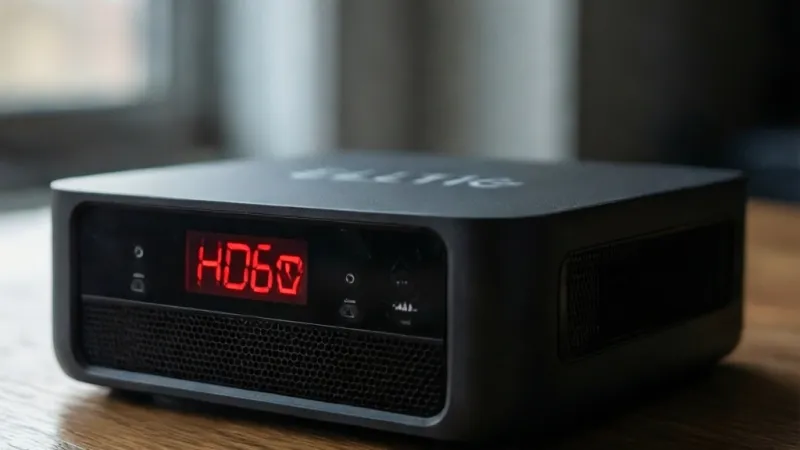
An elgato hd60x blinking red means the card has no usable video signal. A solid white light means everything is working. Common causes are HDCP protection and USB bandwidth limits.
Disable HDCP on your console first. Then check the HDMI cable and the USB 3.0 port.
Understanding the HD60 X LED Status Lights: Solid White vs Blinking Red
The HD60 X has a single LED, and that's the whole problem. One light has to communicate four or five different failure states. So you can't read the exact cause off the light alone.
You have to test conditions one at a time.
Here's what the light is actually doing.
| LED behavior | What it means | Typical trigger |
|---|---|---|
| Solid white | Card is powered and locked to a valid signal | HDCP-free HDMI source at a supported resolution |
| Blinking red | Error state, no valid capture signal | No signal, HDCP block, USB fault, firmware issue |
| Off | No power reaching the card | Bad USB cable, dead port, loose connection |
| Brief white flash on plug-in | Normal boot sequence | USB cable just connected |
That brief white flash matters. Plenty of people see it, panic, and assume the card is dying. It isn't.
A single white pulse when you plug in the USB cable is the card starting up.
Why the light can't tell you which problem you have
The HD60 X doesn't have separate indicators for HDMI and USB. It doesn't have a dedicated HDCP warning light either. Blinking red is a catch-all.
As of 2026, that's still true across Elgato's external capture card line.
So the LED answers one question. Is there a valid signal? It doesn't answer why.
That's what the rest of this guide is for.
What the software tells you that the light doesn't
The bundled 4K Capture Utility is more talkative than the LED. It will often surface a specific message instead of a generic error. You might see "No Signal," "HDCP Protected Content," or a device-not-recognized warning.
On macOS, the equivalent app is Game Capture HD. Both apps pull the same status data from the card. If the software shows a specific error, trust that over the light.
It's pointing you at one branch instead of five.
Third-party apps show almost nothing
OBS Studio, Streamlabs Desktop, Discord, Zoom, and Microsoft Teams all treat the HD60 X as a standard UVC device. That's the USB Video Class standard, which is why the card needs no driver. The upside is universal compatibility.
The downside is that none of them show Elgato-specific error codes.
In OBS, a dead HD60 X usually appears as a black preview window with no explanation. That tells you nothing about HDCP or USB speed. So keep 4K Capture Utility installed even if you never stream with it.
Use it as a diagnostic tool.
The Real Causes Behind a Blinking Red HD60 X (and How to Tell Them Apart)
Five things cause this light. Four of them are fixable in under ten minutes. One of them isn't fixable at all.
Here's the short version before we go deep.
| Symptom pattern | Most likely cause | Jump to |
|---|---|---|
| Passthrough to TV works, capture doesn't | USB or software problem | Branch 3, Branch 4 |
| Passthrough to TV also fails | HDMI signal or HDCP problem | Branch 1, Branch 2 |
| Worked yesterday, fails today after a console update | HDCP or resolution change | Branch 2, Branch 4 |
| Fails only on one specific game or app | HDCP on protected content | Branch 2 |
| Fails on every device, every cable, every port | Hardware fault | Warranty section |
Now let's separate them properly.
Condition 1: No HDMI Signal from Your Console or PC
This is the most common cause, and it's the easiest to confirm. If the source device isn't sending a valid HDMI signal, the card has nothing to lock onto.
Common triggers include a console sitting in rest mode or fully powered off. A PC whose graphics output is disabled or routed to a different display. A Nintendo Switch that's undocked while the card still expects a docked signal.
A capture setup where you plugged the HDMI cable into the wrong port.
That last one catches a lot of people. Many laptops and desktops have HDMI outputs only. They don't have HDMI inputs.
So you can't feed a laptop's own screen into a capture card through its HDMI port. You need a second machine, or you capture the laptop through software instead.
Here's the quick if/then test.
- If your TV shows the picture through the card's passthrough output, the HDMI signal is fine. Move to USB and software.
- If your TV shows nothing either, the problem is upstream. It's the source device, the cable, or the port.
- If swapping the HDMI cable fixes it, the cable was the fault. Keep the old one out of your setup.
Condition 2: HDCP Protection Blocking the Capture
HDCP stands for High-bandwidth Digital Content Protection. It's a copy-protection layer built into HDMI. The specification is maintained by Digital Content Protection LLC and licensed through the HDMI licensing body.
Most modern consoles ship with HDCP switched on by default. That's the issue. Your PlayStation, Xbox, or docked Switch will happily send a picture to your TV.
It will refuse to send one to a capture card until you turn HDCP off.
This is the single most common cause of a red blinking light on a brand-new HD60 X. People unbox the card, plug everything in, and get a blinking red light within seconds. The card is fine.
HDCP is doing exactly what it was designed to do.
Where to turn it off:
- PlayStation 5 and PS4: Settings, then System, then HDMI, then Enable HDCP. Switch it off.
- Xbox Series X, Series S, and Xbox One: Settings, then General, then TV and display options, then Video fidelity and overscan. Look for the HDCP option and disable it.
- Nintendo Switch: HDCP is active in docked mode. It can't be disabled in the console menu. You'll need an HDCP-compliant splitter or a different source for protected content.
One honest warning here. HDCP exists to stop people copying protected media. Using a splitter or stripper to bypass it for copyrighted content is a gray area in most countries and clearly prohibited in some.
Disabling HDCP on your own console to capture your own gameplay is standard practice and supported by Elgato. Bypassing protection on a streaming service or a Blu-ray disc is not. Don't do it.
Condition 3: USB 3.0 Bandwidth, Cable, or Power Issues
The HD60 X needs a genuine USB 3.0 connection. That's 5 Gbps of bandwidth, and it's non-negotiable.
USB 2.0 tops out at 480 Mbps. That's roughly a tenth of what the card needs. Plug an HD60 X into a USB 2.0 port and you'll usually get a red blinking light or a device that never finishes initializing.
The USB Implementers Forum defines these speed tiers, and the gap between them is enormous.
How to tell your ports apart:
- USB 3.0 ports are usually blue, teal, or red inside the plastic tongue.
- They're often labeled SS, SS 3.0, or 3.2 Gen 1.
- Front-panel PC ports are frequently USB 2.0 even when the rear ones aren't.
- USB-C shape doesn't guarantee USB 3.0 speed. Some USB-C ports run at 2.0 speeds only.
Cables matter just as much. A USB-C cable built for charging only has no high-speed data wires inside it. It'll power the card and nothing else.
Use the cable that shipped in the box, or a cable explicitly rated for USB 3.0 data transfer.
Avoid USB hubs and extension cables during troubleshooting. Unpowered hubs split the available bandwidth, and the HD60 X is bus-powered, meaning it draws its electricity from the USB port. A hub that can't deliver enough current produces the same symptom as a bandwidth problem.
Plug straight into the machine.
Condition 4: Resolution, Refresh Rate, HDR, or VRR Mismatch
The HD60 X supports a specific menu of resolutions and refresh rates. Step outside that menu and the handshake fails.
What the card handles:
| Mode | Passthrough support | Capture support |
|---|---|---|
| 4K (2160p) | Up to 60Hz with HDR10 | Up to 30Hz with HDR10 |
| 1440p | Up to 120Hz | Up to 60Hz |
| 1080p | Up to 240Hz | Up to 60Hz |
| 720p and below | Yes | Yes |
If your console or PC is set to 4K at 120Hz, that's 4K120. The HD60 X can't passthrough or capture that. The handshake fails and the light blinks.
Same story with 4K144 from a high-refresh monitor or a gaming PC.
HDR and VRR add another layer. HDR10 works within the supported resolution and refresh windows. VRR passthrough works at certain combinations too.
Push past those and the EDID negotiation breaks down.
EDID is the data exchange where your display tells the source what it can handle. The HD60 X sits in that conversation. If the card advertises a capability the source doesn't like, or the source demands something the card can't do, you get a red light.
Quick fix: drop everything to 1080p at 60Hz. Turn off HDR. Turn off VRR.
If the light goes solid white, you've found your ceiling. Then walk the settings back up one at a time until it breaks again.
Condition 5: Firmware, Software, or Driver Conflicts
Firmware bugs are real, and they're more common on new hardware revisions. Elgato ships firmware updates through 4K Capture Utility. If your card is running launch firmware from an early production batch, an update can resolve handshake failures that look identical to hardware faults.
Software conflicts cause a different flavor of the same symptom. The HD60 X is a UVC device, and UVC devices can usually only be opened by one application at a time. If OBS has the card open, 4K Capture Utility can't see it.
If a background app like Discord or Zoom grabbed the device first, your streaming software gets nothing.
On Windows, check these settings:
- Camera privacy settings. Windows can block app access to video devices system-wide.
- USB selective suspend. This power-saving feature can disconnect an idle capture card mid-session.
- Antivirus and endpoint security tools. Some block unknown video devices by default.
- Device Manager. Look for the HD60 X under Cameras or Imaging Devices, and check for a warning triangle.
On macOS, check System Settings under Privacy and Security, then Camera. The HD60 X needs explicit permission before any app can use it.
Also worth knowing: the HD60 X needs no driver on either platform. If you've installed a third-party driver or a legacy Elgato driver package, remove it. Conflicting drivers are a known cause of cards that never reach a solid white light.
The Step-by-Step Decision Tree for Fixing a Blinking Red HD60 X
Work through this in order. Each step eliminates one branch. Don't skip ahead, because the order is designed to rule out the cheap fixes before the expensive ones.
Step 1: Confirm your source is actually on.
Wake the console fully. Don't rely on rest mode. If it's a PC, confirm the graphics output is active and not routed exclusively to another display.
Step 2: Look at your TV through the passthrough.
The HD60 X has an HDMI out port. If your TV shows the picture, your HDMI signal is healthy and the problem is USB or software. Skip to Step 6.
Step 3: Turn off HDCP.
Use the console menu paths listed above. This fixes more blinking red lights than every other step combined.
Step 4: Drop to 1080p60 and disable HDR and VRR.
This removes resolution and refresh rate from the equation entirely.
Step 5: Swap the HDMI cable.
Use a Premium High Speed HDMI cable rated for 18 Gbps. Test again.
Step 6: Move the USB cable to a rear USB 3.0 port.
No hubs. No extensions. Use the cable from the box.
Step 7: Close every app that could touch the card.
Shut down OBS, Streamlabs, Discord, Zoom, Teams, and 4K Capture Utility. Then open one app only.
Step 8: Update firmware and software.
Open 4K Capture Utility and check for a firmware update. Update your streaming software too.
Step 9: Test on a second computer.
If it works there, your original machine has a port, driver, or settings problem.
Step 10: Contact Elgato Support.
If nothing above works, you're likely looking at a hardware fault. Have your serial number and purchase date ready.
The if/then shortcuts
- If the light goes solid white after Step 3, HDCP was your problem. You're done.
- If it goes solid white after Step 4, your source was outputting a mode the card can't handle.
- If it goes solid white after Step 6, you had a USB bandwidth or power issue.
- If it goes solid white only on a different computer, your original machine's USB controller is the culprit.
- If it never goes solid white on any machine with any cable, treat it as a hardware fault.
Branch 1: Fixing HDMI Signal and Passthrough Problems
This branch is for one specific situation. Your TV shows nothing through the card's passthrough output either. That means the problem lives between your source device and the card, not between the card and your computer.
The good news is that this branch is narrow. There are only a few things in the chain.
Check the cable first, because it's almost always the cable
HDMI cables fail in ways that don't look like failure. A damaged cable can carry a 1080p signal perfectly and choke on 4K60. It can work for months and then stop after a bend.
For 4K60 HDR at 18 Gbps, you want a cable certified as Premium High Speed HDMI. For anything above that, look for Ultra High Speed certification. The HDMI Forum maintains those certification programs, and certified cables carry a hologram on the packaging.
Length matters too. Passive HDMI 2.0 cables are generally reliable up to about 5 meters, or roughly 15 feet, at full 18 Gbps bandwidth. Beyond that, signal degradation starts causing handshake failures.
If you need a longer run, use an active or fiber optic HDMI cable.
Rule out the source device
Plug the source directly into the TV with the same cable. If you get a picture, the source is fine. If you don't, the source is the problem, not the card.
Some specific traps worth checking:
- Console rest mode. The HDMI output shuts down. Wake it fully.
- Nintendo Switch undocked. Docked mode is required for HDMI output.
- PC with a discrete GPU and integrated graphics. The HDMI port may be wired to the wrong GPU. Check your display settings.
- AV receiver or soundbar in the chain. These add another EDID negotiation step. Remove them for testing.
- HDMI switch or splitter. Cheap units break HDCP and EDID negotiation. Remove them for testing.
Understand what passthrough actually does
The HD60 X splits the incoming HDMI signal into two paths. One goes to your TV through the passthrough port. The other goes to the capture chip and out over USB.
That design is useful for diagnosis. If the TV path works, the card received a valid signal. The failure is downstream.
If the TV path fails too, the card never got a usable signal in the first place.
This is why the passthrough test comes second in the decision tree, right after confirming the source is on. It splits five possible causes into two groups in about ten seconds.
When the passthrough works but capture still fails
This is a different branch. It means your HDMI signal is healthy and the problem sits on the USB side or in software. Head to the USB bandwidth branch and the software branch.
Don't waste time swapping HDMI cables in this scenario. The cable is doing its job. The TV proves it.
What to do when nothing in the chain is obviously broken
Sometimes every component tests fine in isolation but the combination fails. This usually points to an EDID negotiation issue where the card is advertising capabilities your source doesn't want to accept.
Try this sequence:
- Unplug the card's USB cable from the computer.
- Unplug both HDMI cables.
- Power off the source device completely.
- Reconnect the HDMI input cable first.
- Reconnect the HDMI passthrough cable second.
- Reconnect the USB cable last.
- Power on the source device and wait for it to complete its display handshake.
That order gives the card a chance to present its EDID profile before the source device locks in its output settings. It sounds fussy, and it is. But it resolves a surprising number of stubborn handshake failures.
If it still blinks red after all of that, with a known-good cable, a direct connection, and a source you've verified on another display, move on. The next branches cover USB, software, and hardware. One of them will find it.
Branch 2: Fixing HDCP Handshake Errors
If your TV shows the picture through passthrough but the card refuses to capture, HDCP is your prime suspect. This branch is the single most productive one in the whole troubleshooting flow. Elgato's own support documentation treats it as the first thing to rule out on a new setup.
Here's the short version. HDCP is a copy-protection handshake that runs over HDMI. Your console sends it.
The HD60 X has to answer it. When the source decides the card isn't a trusted display, it stops sending video to the capture chip entirely. Your TV still gets a picture because the TV is a trusted endpoint.
The card is not.
Why a brand-new HD60 X blinks red out of the box
Consoles ship with HDCP enabled by default. Sony, Microsoft, and Nintendo all turn it on because the same HDMI port plays Blu-ray discs and streaming apps. You don't have to do anything wrong to trigger this.
You just have to plug in.
Aggregate buyer feedback on new HD60 X units points to the same pattern again and again. First-time setup, blinking red light, no picture in OBS. The card isn't faulty.
HDCP is doing its job.
Where to switch HDCP off on each console
The menu paths differ by platform, and they move around with system updates. Here's where they sit as of 2026.
| Platform | Menu path | Notes |
|---|---|---|
| PlayStation 5 | Settings, System, HDMI, Enable HDCP | Toggle off. Requires a reboot to take effect. |
| PlayStation 4 | Settings, System, Enable HDCP | Same toggle, older layout. |
| Xbox Series X and S | Settings, General, TV and display options, Video fidelity and overscan | Look for the HDCP option under advanced settings. |
| Xbox One | Settings, Display and sound, Video output, Video fidelity and overscan | Same idea, different nesting. |
| Nintendo Switch | Not available | HDCP stays active in docked mode. |
On PlayStation hardware, the change usually needs a full restart before it sticks. A quick sleep and wake won't do it. Power the console down properly.
The Nintendo Switch problem, and what to do instead
Nintendo doesn't give you a toggle. That's a hard limit, not a bug in your card.
Your realistic options are limited. You can capture handheld gameplay through a different method entirely. You can capture docked output only when the content itself isn't HDCP-protected, and Nintendo's system-level implementation still blocks a lot of it.
Or you accept that Switch capture needs a workaround that sits outside the scope of a straight HDMI connection.
Be careful here. Anything sold as an HDCP stripper is designed to defeat copy protection. Using one to capture your own gameplay is one thing.
Using one to rip protected media is something else, and it can breach copyright law in the US, UK, EU, and most other markets.
HDCP on PC is a browser problem, not a console problem
Your gaming PC doesn't have a system-wide HDCP toggle. Windows and macOS don't enforce HDCP on the desktop. So why does your PC capture fail?
Streaming services do it in the browser. Netflix, Disney+, Prime Video, and most premium video platforms request HDCP protection through the browser's DRM layer. Open one of those in a tab while your capture card is running, and some setups will black out the capture feed.
The practical fix is simple. Don't run protected streaming content in the same browser session you're capturing. Use a separate browser profile, a separate device, or a dedicated streaming stick plugged into your TV instead.
Why HDCP errors appear and disappear mid-session
HDCP renegotiates. It isn't a one-time check at connection. Switch inputs on your TV, wake a console from rest mode, or change a resolution, and the handshake runs again.
That's why a setup can work for an hour and then blink red without you touching anything. Common triggers include:
- The TV changing input or power state
- A console waking from rest mode
- An AV receiver renegotiating its own HDMI link
- A game launching into a protected intro sequence
- A system software update resetting display settings
If your red light appears at predictable moments, note them. A pattern points straight at HDCP.
The full HDCP reset sequence
When you're not sure whether HDCP is involved, force a clean handshake. This takes about ninety seconds.
- Power off the source device completely. Not rest mode.
- Close every capture application on your computer.
- Unplug the HD60 X USB cable.
- Unplug both HDMI cables from the card.
- Wait thirty seconds.
- Reconnect HDMI input from the source.
- Reconnect HDMI passthrough to your TV.
- Reconnect USB to a rear USB 3.0 port.
- Power on the source and let it finish its display handshake.
- Open one capture app only.
If the light goes solid white during step 9, HDCP was the cause. Confirm it by re-enabling HDCP on the console and watching the light blink again.
Branch 3: Fixing USB Bandwidth and Power Issues
If your passthrough picture is fine and HDCP is off, move here. This branch covers the second-biggest cause of a blinking red HD60 X, and it catches more people than they expect.
The HD60 X is a bus-powered USB 3.0 device. That means two things at once. It needs 5 Gbps of bandwidth to move uncompressed video, and it draws its electricity from the same port.
Get either one wrong and the card either fails to initialize or drops out mid-session.
The bandwidth gap that breaks capture cards
The numbers here are not close. USB 2.0 provides 480 Mbps. USB 3.0 provides 5 Gbps.
That's roughly ten times the throughput, and the HD60 X needs the high end.
| USB standard | Marketing name | Theoretical bandwidth |
|---|---|---|
| USB 2.0 | High Speed | 480 Mbps |
| USB 3.0 | USB 3.2 Gen 1, SuperSpeed | 5 Gbps |
| USB 3.1 | USB 3.2 Gen 2 | 10 Gbps |
| USB 3.2 | USB 3.2 Gen 2×2 | 20 Gbps |
The naming is a mess. USB 3.0, USB 3.1 Gen 1, and USB 3.2 Gen 1 all describe the same 5 Gbps connection. Don't let the label confuse you.
What matters is whether the port actually delivers 5 Gbps.
How to identify a real USB 3.0 port
Physical inspection gets you most of the way there.
- USB-A 3.0 ports usually have a blue, teal, or red plastic insert. USB 2.0 ports are black or white.
- Look for SS, SS 3.0, or a small trident logo printed next to the port.
- On laptops, check the manual or the manufacturer's spec sheet. Port colors aren't guaranteed.
- On desktops, rear I/O ports are far more likely to be USB 3.0 than front-panel headers.
- USB-C shape tells you nothing about speed. Plenty of USB-C ports run at USB 2.0 rates.
If you're on a desktop with no spare USB 3.0 ports, a PCIe USB expansion card is a cheap fix. Look for one with a dedicated controller chip and, ideally, its own power connector.
Cables: the quiet failure point
A charge-only USB-C cable has no high-speed data pairs inside. It will power the card and deliver nothing else. That's a guaranteed red light.
Use the cable that came in the box. If you've lost it, buy a cable explicitly rated for USB 3.0 or higher data transfer, not one rated only for charging. Length matters too.
Keep USB runs under two meters where you can, because signal integrity drops with distance at 5 Gbps.
Why hubs and extensions cause so much trouble
Unpowered hubs share one upstream connection across every device attached. Plug a keyboard, a webcam, and an HD60 X into the same hub and you've split your bandwidth three ways.
Powered hubs help with the power side but don't always fix bandwidth contention. Some cheap hubs also drop to USB 2.0 speeds when they detect a mixed-speed device group.
Extension cables are worse. They add capacitance, degrade signal quality, and frequently cause intermittent dropouts rather than a clean failure. Remove them during troubleshooting.
Add them back only after everything works.
Windows power settings that kill capture cards
USB selective suspend is a Windows power management feature. It cuts power to idle USB devices to save battery. A capture card that looks idle for a few seconds can get suspended mid-stream.
Turn it off:
- Open Control Panel.
- Go to Power Options.
- Click Change plan settings for your active plan.
- Click Change advanced power settings.
- Expand USB settings, then USB selective suspend setting.
- Set it to Disabled for both battery and plugged in.
Laptop users should also check the manufacturer's own power utility. Lenovo, Dell, HP, and Asus all ship their own battery management tools that can override Windows settings.
Checking whether Windows sees the card at all
Open Device Manager and look for the HD60 X under Cameras or Imaging Devices. A warning triangle means a driver or enumeration problem. No entry at all means the card never negotiated a USB connection.
On macOS, open System Information, then USB. The HD60 X should appear in the device tree with its negotiated speed listed. If that speed reads 480 Mbps instead of 5 Gbps, you've found your problem in one step.
If/then for this branch
- If the card shows as 480 Mbps in System Information, swap the port and cable. You're on USB 2.0.
- If the card disappears from Device Manager when you start streaming, suspect power delivery or selective suspend.
- If the light goes solid white only when you use a rear port with the bundled cable, you've solved it.
- If the card works on a laptop but not your desktop, your desktop's USB controller is the limiting factor.
- If nothing changes across three ports and two cables, jump to the hardware branch.
Branch 4: Fixing Software and Firmware Glitches
You've ruled out HDMI, HDCP, and USB. The passthrough works, the port is fast, and the light still blinks. Now you're looking at software, firmware, or an app conflict.
This branch catches a lot of people who assume their card is dead when it isn't.
The one-app-at-a-time rule
The HD60 X is a UVC device. USB Video Class devices typically allow only one application to open the video stream at a time. That's a hardware-level constraint, not a software bug.
So if Discord is sitting open in the background with the card selected as a camera, OBS can't use it. If Zoom grabbed it first, Streamlabs Desktop gets nothing. The card shows a red light because nothing is actually reading the stream.
Close everything. Then open one app. Check the light.
Apps worth closing during troubleshooting:
- OBS Studio
- Streamlabs Desktop
- Twitch Studio
- Discord
- Zoom
- Microsoft Teams
- Skype
- Camera apps built into Windows or macOS
- Any browser tab using a webcam
Privacy settings that block video devices
Windows has a system-wide camera privacy toggle. If it's off for desktop apps, no application can see any video device. The HD60 X disappears silently.
Go to Settings, then Privacy and security, then Camera. Make sure camera access is on and that desktop apps are allowed.
macOS is stricter. Go to System Settings, then Privacy and Security, then Camera. Each app needs explicit permission.
OBS, Discord, and Zoom all need to be toggled on individually. If you installed the app after plugging in the card, the permission prompt may never have appeared.
Firmware updates fix more than people expect
Elgato ships firmware updates through 4K Capture Utility. The app detects a connected card and offers the update when one is available.
Early production batches of the HD60 X had handshake quirks that later firmware resolved. If your card has never been updated, that's worth twenty minutes.
Two rules for firmware updates. First, don't unplug anything during the update. An interrupted firmware write can brick the card.
Second, update from a stable desktop machine, not a laptop running on battery.
The clean reinstall that actually works
A half-installed driver stack causes problems that look like hardware failure. If you've installed anything beyond the standard software, do a clean sweep.
- Uninstall 4K Capture Utility or Game Capture HD.
- Uninstall any legacy Elgato driver packages. The HD60 X needs no driver, so any driver you installed is a liability.
- Reboot.
- Unplug the HD60 X.
- Reboot again.
- Plug the card into a rear USB 3.0 port.
- Let the operating system enumerate it as a UVC camera.
- Install the current 4K Capture Utility.
- Test in 4K Capture Utility first, before OBS.
Testing in the first-party app matters. It separates card problems from third-party software problems. If the card works in 4K Capture Utility but not in OBS, you have an OBS configuration issue, not a hardware fault.
Antivirus and endpoint security
Some security suites block unknown USB video devices by default. Corporate-managed laptops are especially aggressive about this. If your card works on a personal machine but not a work one, that's your answer.
Check for a device control or peripheral policy in your security software. You may need IT to whitelist the card by vendor ID.
Common OBS settings that produce a black screen
Even with a healthy card, OBS can show nothing. A few settings cause this most often.
- Resolution set to something the card isn't outputting
- Video format mismatch between the source and the capture device
- Buffering enabled when the USB connection is marginal
- The capture source set to "deactivate when not visible," which can drop the device
- Audio set to a device the card isn't providing
Try setting the capture source resolution and frame rate to Custom, then enter exactly what your console outputs. If your console is at 1080p60, set 1920×1080 at 60 frames per second.
Common Mistakes That Keep the Red Light Blinking
Most unresolved HD60 X problems come down to one of these. Run through the list before you conclude the card is broken.
- Testing with HDCP still enabled. This is the number one time-waster. Check it first, every time.
- Using a USB 2.0 port without realizing it. Black or white plastic insert means USB 2.0.
- Grabbing a charge-only USB-C cable. It powers the card and carries no data.
- Routing through an unpowered hub. Bandwidth and power both suffer.
- Leaving a second app holding the device. Discord in the background is the classic culprit.
- Ignoring the passthrough test. It takes ten seconds and halves your possible causes.
- Assuming a working cable is a good cable. Cables fail at 4K before they fail at 1080p.
- Never updating firmware. Launch firmware on early units had known handshake issues.
- Changing five things at once. You learn nothing. Change one variable per test.
- Skipping the second-computer test. It's the fastest way to prove whether the fault is the card or the machine.
- Assuming a red light means dead hardware. It almost never does.
- Reaching for HDCP bypass tools on protected media. That's a legal risk, not a fix.
There's also a subtler mistake worth naming. People rebuild their entire setup from scratch when a single setting is wrong. If the passthrough works and HDCP is off, your HDMI chain is fine.
Don't touch it.
When It's Not You: Hardware Fault or Warranty Issue
Sometimes the card really is broken. It's rare, but it happens. Here's how to tell the difference between a config problem and a dead unit.
The signs of a genuine hardware fault
A real hardware failure usually looks like this:
- The LED never lights at all, on any port or cable.
- The card is never detected by any computer, on any operating system.
- The HDMI passthrough port physically feels loose or doesn't grip the cable.
- The USB-C port wobbles or requires the cable to be held at an angle.
- The card gets noticeably hot within a minute of being plugged in.
- The light blinks red on a known-good setup that previously worked with the same card.
That last point is the strongest signal. If the identical setup worked last week and nothing changed, you're probably looking at hardware.
Physical damage to check for
HDMI ports are surprisingly fragile. A cable yanked sideways can crack the solder joints behind the connector. The port still looks fine from the outside.
It just stops passing a signal.
USB-C ports wear out too. They're rated for a finite number of insertion cycles, typically around 10,000 for a well-made connector. Heavy daily plugging and unplugging will eventually loosen the retention.
Inspect both ports under bright light. Look for bent pins, a wobbly connector housing, or debris lodged inside. Don't poke at it with metal tools.
Heat and ventilation
The HD60 X is passively cooled. It has no fan. That's fine for normal use, but it needs airflow.
Don't stack it directly under a console, an AV receiver, or another heat source. Don't bury it in a closed drawer. If the card is hot to the touch after a few minutes of idle time, it's not getting enough ventilation.
Give it space and test again.
The second-computer test
This is the single most useful diagnostic step left. Take the card, the bundled USB cable, and one HDMI cable to a different computer. Ideally one that has never had capture software installed.
If the card works there, your original machine has the problem. That could be a USB controller limitation, a driver conflict, a privacy setting, or a security policy.
If it fails there too, with a known-good source and cable, you've got a hardware case.
What to have ready for support
Elgato support will ask for specific information. Having it ready speeds things up considerably.
- The serial number from the card's underside
- Proof of purchase with the date
- Your operating system and version
- The exact firmware version reported in 4K Capture Utility
- Your source device and its output resolution
- The exact steps you've already tried
- A short video of the blinking light if they request one
Be specific. "It doesn't work" gets a generic reply. "Blinking red with PS5 at 1080p60, HDCP off, rear USB 3.0 port, firmware 1.6, passthrough works" gets a real answer.
Warranty terms vary by region
Elgato is owned by Corsair, and warranty coverage differs between markets. EU buyers typically get a longer statutory minimum than US buyers. Retailer return windows also vary widely.
Check your region's terms on the manufacturer's site before you assume you're out of luck. If you bought recently, your retailer's return policy may be the faster route anyway.
One last thing. Keep the original packaging for the first month if you can. It makes a return painless if the card turns out to be genuinely faulty.
Frequently Asked Questions About the HD60 X Blinking Red
Does a blinking red light mean my HD60 X is broken?
No. It almost always means the card isn't receiving a valid signal. HDCP protection, a USB 2.0 port, a charge-only cable, or an unsupported resolution are far more likely causes.
Genuine hardware failure is rare, and it usually shows as a light that never comes on at all.
How do I turn off HDCP on a PS5?
Go to Settings, then System, then HDMI, then Enable HDCP. Switch it off and restart the console fully. A sleep cycle isn't enough.
Sony requires a proper reboot before the change takes effect. Without that restart, the HD60 X will keep blinking red.
Why does my HD60 X work in 4K Capture Utility but not in OBS?
That points to an application conflict, not a card fault. The HD60 X is a UVC device, and most UVC devices allow only one app to open the video stream at a time. Close Discord, Zoom, Teams, and any browser tab using a webcam.
Then restart OBS and reselect the capture source.
What USB cable does the HD60 X need?
It needs a USB-C cable rated for USB 3.0 data transfer, not charging only. Charge-only cables have no high-speed data pairs inside. They'll power the card and carry nothing else, which produces a guaranteed red light.
The bundled cable is your safest bet. Keep spare runs under two meters.
Can the HD60 X capture 4K at 60 frames per second?
No. It passes 4K60 through to your TV, but it captures 4K at a maximum of 30 frames per second. For 60 frames per second capture, drop to 1440p or 1080p.
Setting your console to 4K60 output while expecting 4K60 capture will cause handshake failures and a blinking light.
Why did my HD60 X start blinking red after working fine for weeks?
Something in the chain renegotiated. HDCP re-runs its handshake whenever your TV changes input, your console wakes from rest mode, or an AV receiver resets its own link. A system update can also reset display settings.
Note the exact moment it fails. Patterns point straight at the cause.
Is there a safe fix for Nintendo Switch capture?
No clean one. Nintendo keeps HDCP active in docked mode and offers no toggle. HDCP strippers and splitters exist, but they're designed to defeat copy protection.
Using them on protected media can breach copyright law in the US, UK, and EU. Capture handheld gameplay through another method instead.
Final Decision Guide: What to Do Next Based on Your Setup
You've worked through the branches. Now match your situation to the table below and take the shortest path to a solid white light.
| Your situation | What to do next | Expected time |
|---|---|---|
| New card, first setup, blinking red | Disable HDCP on the console, then reboot it fully | 5 minutes |
| Passthrough works, capture doesn't | Move USB to a rear 3.0 port with the bundled cable | 10 minutes |
| Passthrough fails too | Swap the HDMI cable for a Premium High Speed unit | 10 minutes |
| Worked yesterday, fails today | Check for a console update or a resolution change | 15 minutes |
| Works in 4K Capture Utility, not in OBS | Close every other app holding the device, then reconfigure OBS | 10 minutes |
| Never updated the firmware | Run the update through 4K Capture Utility | 20 minutes |
| Fails on every computer and cable | Treat it as a hardware fault and contact support | Warranty claim |
The three-question shortcut
If you only remember one thing, remember this sequence. It resolves the overwhelming majority of cases in under five minutes.
- Does your TV show the picture through the card's passthrough port?
- Is HDCP switched off on your source device?
- Is the USB cable in a true USB 3.0 port with no hub in between?
Three yes answers and you'd have a white light. If you don't, the problem is narrower than you think.
What to do if you're still stuck
Escalate in this order. First, test the card on a second computer. That single step tells you whether the fault is the card or your machine.
Second, test with a different HDMI source. A games console, a laptop with a real HDMI output, a camera with clean HDMI. If one source works, your original source is the problem.
Third, contact Elgato Support with specifics. Include the serial number, your firmware version, your console model, the resolution you're outputting, and every step you've already tried. Vague tickets get vague answers.
The mindset that fixes this fastest
Change one variable at a time. People who rebuild their whole setup at once rarely find the cause. They get a working configuration by accident and never learn what was wrong.
Start with the cheapest test. HDCP is free to check. Cables and ports cost nothing to swap.
Software is free to close. Only after all of those come up empty should you assume the hardware is at fault.
And keep the passthrough test in your back pocket. It takes ten seconds, it costs nothing, and it cuts your possible causes roughly in half every time you run it.