If the Blink Sync Module is blinking green with a solid blue LED, it means that the device is offline and attempting to reconnect to a network. This issue is typically caused by a problem with the module's internet connection.
Blink Sync Module is a crucial component of the Blink security camera system. It allows the cameras to connect to the internet and enables users to monitor their homes remotely. However, encountering a blinking green light on the Sync Module can indicate a problem with its internet connection.
We will explore the possible causes behind this issue and provide troubleshooting solutions to help you address the problem effectively. Understanding why your Blink Sync Module is blinking green will allow you to regain control over your security system and ensure that it functions properly.
Subheading: Causes Of Blink Sync Module Flashing Green
If you notice that the Blink Sync Module is flashing green, it indicates an issue with the module's internet connection. This could be due to various reasons. In this section, we will explore some possible causes for the Blink Sync Module flashing green and what you can do to troubleshoot the issue.
Possible Poor Network Connection
A common cause of the Blink Sync Module flashing green is a poor network connection. This can happen if the module is located too far away from the Wi-Fi router or if there are obstructions such as walls or furniture that interfere with the signal.
To improve the network connection, consider the following:
Move the Blink Sync Module closer to the Wi-Fi router.
Remove any obstructions that might interfere with the Wi-Fi signal.
Check if other devices on the same network are experiencing connectivity issues. If so, there might be an issue with the Wi-Fi router itself.
Reset your Wi-Fi router and try connecting the Blink Sync Module again.
In practice, household interference sources like microwave ovens, cordless phones running on 2.4 GHz, or even thick concrete walls can degrade the signal enough to trigger a blinking green light. If relocating the Sync Module doesn't help, switching your router's Wi-Fi band from 2.4 GHz to 5 GHz (where supported by your Blink system) can reduce congestion. The latest Blink Sync Modules in 2026 support dual-band connections, so checking your router's band-steering settings is a worthwhile step before moving the module.
Offline Status And Attempts To Reconnect
Another possible cause of the Blink Sync Module flashing green is that it's in an offline state and trying to reconnect to the network. This can happen if there was a temporary disruption in the internet connection or if the module lost connection to the Wi-Fi network for some reason.
To address this issue, you can try the following steps:
Unplug the power adapter from the Blink Sync Module.
Wait for about a minute and then plug the power adapter back in.
Allow the module to go through its startup process and attempt to reconnect to the Wi-Fi network.
If the Blink Sync Module still flashes green after reconnecting, consider resetting the module and setting it up again.
By following these troubleshooting steps, you can resolve the issue of a Blink Sync Module flashing green and ensure a stable internet connection for your Blink camera system.
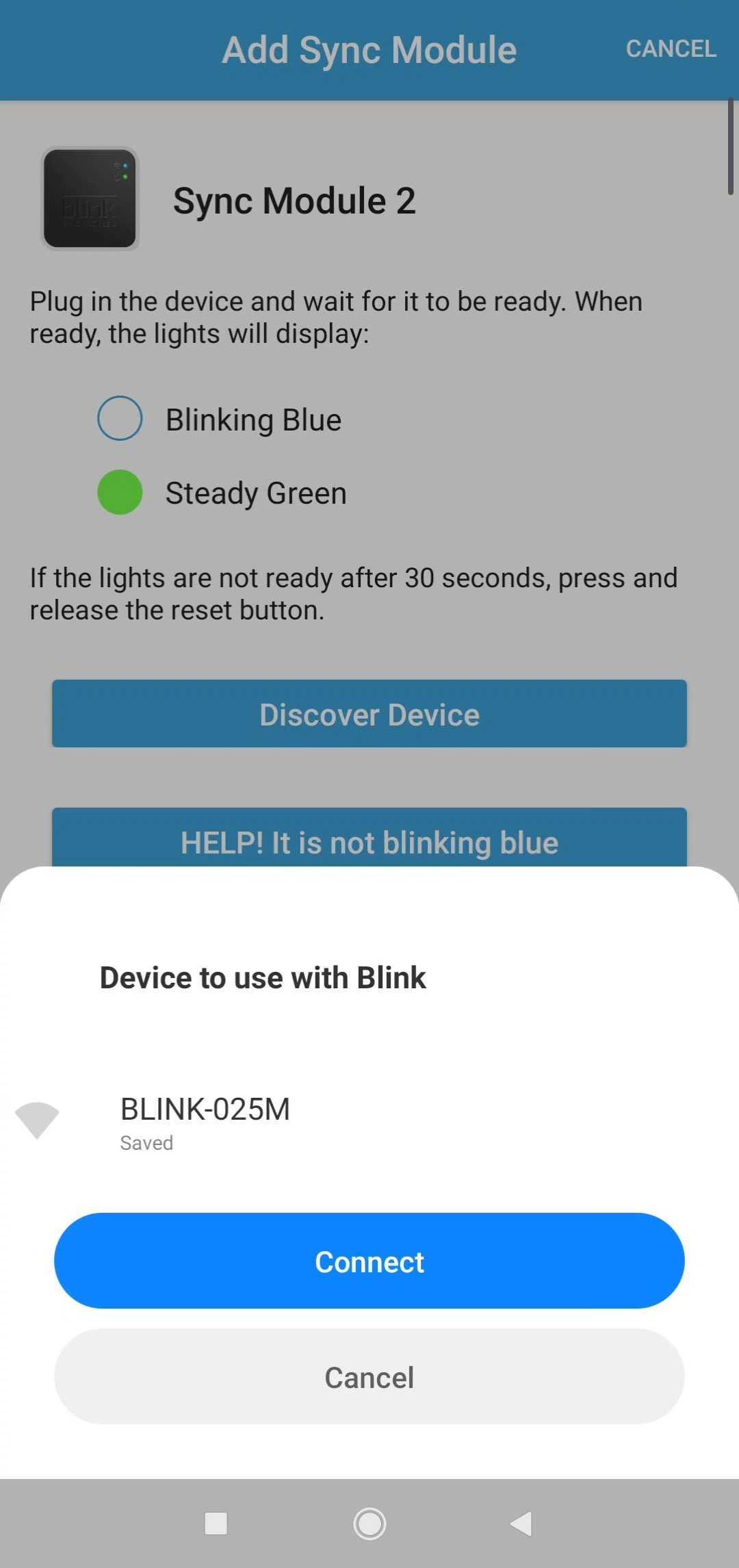 The Sync Module showing its green LED status light during network setup
Credit: support.blinkforhome.com
Subheading: Troubleshooting Steps For Blink Sync Module Flashing Green
If you notice that the green light on your Blink Sync Module is blinking, it indicates an issue with the module's internet connection. This can potentially be due to a poor network connection or other related factors. To resolve this problem, you can follow a series of troubleshooting steps, including resetting the Blink Sync Module, checking the internet connection, ensuring proper power supply, and relocating the Sync Module for better reception.
Resetting The Blink Sync Module
To reset the Blink Sync Module, you can follow these steps:
Unplug the power adapter from the Sync Module.
Wait for about 10 seconds.
Plug the power adapter back into the Sync Module.
Wait for the Sync Module to restart.
Observe if the green light stops blinking and stays solid.
A common mistake is pressing the physical reset button on the Sync Module while the power is still connected — this can sometimes put the module into a continuous setup loop rather than clearing the connection error. If a simple power cycle doesn't resolve the blinking green light, proceed to the full reset procedure through the Blink app: navigate to Settings > Sync Module > Remove Device, then re-add it as a new module. This often clears stubborn offline states that a power cycle alone cannot fix.
Checking Internet Connection
Ensure that your Blink Sync Module is properly connected to the internet by following these steps:
Verify that your Wi-Fi network is working correctly.
Make sure that your Blink Sync Module is within range of your Wi-Fi router.
Check if other devices connected to the same network are functioning without any issues.
If necessary, reset your Wi-Fi router to resolve any connectivity problems.
Once the internet connection is stable, monitor if the green light on the Sync Module stops blinking.
When checking your internet connection, also verify that your router's DHCP settings are assigning an IP address to the Sync Module. Some home networks with a limited number of DHCP leases can run out of available addresses, leaving the module unable to connect. Log into your router's admin panel and confirm that the device count hasn't exceeded the pool. If you've recently experienced an internet outage, similar connectivity issues can occasionally affect other devices in your home — troubleshooting a failed connection can sometimes reveal broader network problems worth investigating.
Ensuring Proper Power Supply
It is essential to ensure that the Blink Sync Module has a stable power supply to resolve the flashing green light issue. Follow these steps:
Check if the power adapter is securely plugged into the Sync Module.
Ensure that the power outlet is working correctly by testing it with another device.
If the power outlet is faulty, use a different outlet or consider using a surge protector.
Make sure that the power adapter provided with the Blink Sync Module is the correct one and compatible with the module.
Voltage fluctuations from older or overloaded circuits can cause intermittent power loss to the Sync Module, leading to a blinking green light that appears to be a network problem but is actually a power issue. Using a high-quality surge protector or an uninterruptible power supply (UPS) can stabilize the current and prevent these false offline signals. If you're using a power extension cord with multiple devices, try plugging the Sync Module directly into a wall outlet to rule out voltage drop along the extension. The original Blink power adapter outputs 5V DC at 1A — using a third-party adapter with different specs may cause unstable behavior.
Relocating The Sync Module For Better Reception
If the Sync Module is located in an area with limited Wi-Fi signal strength, consider relocating it to improve reception. Follow these steps:
Identify an area in your home or office with a stronger Wi-Fi signal.
Unplug the power adapter from the Sync Module.
Move the Sync Module to the new location.
Plug the power adapter back into the Sync Module.
Wait for the Sync Module to restart and check if the green light stops blinking.
A Wi-Fi analyzer app on your smartphone can help you find the optimal spot for the Sync Module by showing real-time signal strength readings. Ideally, you want at least -65 dBm signal strength for reliable operation. Placing the module on a shelf at eye level, away from metal appliances, large mirrors, and fish tanks, tends to yield the best reception. If your home has a mesh Wi-Fi system, positioning the Sync Module near one of the satellite nodes often provides a more stable connection than placing it near the primary router.
By following these troubleshooting steps, you can resolve the issue of a Blink Sync Module flashing green. Remember to reset the module, check the internet connection, ensure proper power supply, and consider relocating the module for better reception. These steps should help you restore a stable connection and ensure the proper functioning of your Blink Sync Module.
Subheading: Fixing Blink Sync Module Flashing Green
If your Blink Sync Module is blinking green, it means that there is an issue with the module's internet connection. This could be due to a poor network or a problem with the module itself. To fix this issue, you can try resetting the module or checking your network connection.
Resetting The Blink Camera
If your Blink sync module is flashing a green light, one possible solution is to reset the Blink camera. Here's how you can do it:
Locate the reset button on the Blink camera. It is usually located on the back or bottom of the device.
Take a small pin or paperclip and press and hold the reset button for about 10 seconds.
Release the reset button and wait for a few moments.
The Blink camera will go through a reset process and the green light should stop flashing.
Note that resetting a Blink camera and resetting the Sync Module are separate procedures. If the Sync Module itself is blinking green, the camera reset may not address the root cause — but it can resync the camera to the module after the module's connection is restored. After resetting a camera, you'll need to re-add it through the Blink app under Add Device.
Troubleshooting Wi-fi Network Issues
If resetting the Blink camera doesn't solve the issue, it could be due to Wi-Fi network problems. Follow these steps to troubleshoot Wi-Fi network issues:
Check if other devices connected to the same Wi-Fi network are functioning properly. If they are not, there might be a problem with your internet connection.
Move the Blink sync module closer to the Wi-Fi router to ensure a stronger signal.
Restart your Wi-Fi router and modem. Sometimes, a simple restart can resolve connectivity issues.
Check if your Wi-Fi network has any restrictions or filters that prevent the Blink sync module from connecting. Disable any firewall or filtering settings that might be blocking the connection.
Try connecting the Blink sync module to a different Wi-Fi network to see if the issue persists. If it does not, there might be compatibility issues between the Blink sync module and your current Wi-Fi network.
One often-overlooked factor is whether your router's security protocol is compatible with the Sync Module. Blink Sync Modules require WPA2 encryption or higher — older WEP or WPA settings can cause persistent blinking green lights. In your router settings, confirm that Wi-Fi security is set to WPA2-PSK (AES) for broadest compatibility. If you've enabled MAC address filtering on your router, you'll need to add the Sync Module's MAC address (printed on the module's label) to the allowed list. For official guidance on Blink system network requirements, the Blink support portal provides the most current compatibility information.
Contacting Blink Support For Further Assistance
If you have tried resetting the Blink camera and troubleshooting Wi-Fi network issues but the green light continues to flash, it is recommended to contact Blink support for further assistance. They have a dedicated team that can help you resolve any technical issues with your Blink sync module.
You can reach Blink support through their official website or contact them via email or phone. Provide them with detailed information about the issue you are facing, including the steps you have already taken to troubleshoot the problem. Their support team will guide you through the next steps to resolve the blinking green light issue.
Remember, it's important to address the blinking green light issue as soon as possible to ensure uninterrupted functionality of your Blink sync module.
When contacting support, have your Sync Module's serial number and a screenshot of your Blink app's device status screen ready. This speeds up diagnosis significantly. Support may also ask you to run a speed test from your Wi-Fi network to confirm bandwidth meets the minimum requirement — ideally at least 2 Mbps upload speed for smooth camera streaming. If your module is still under warranty and all troubleshooting fails, Blink support can initiate a replacement unit.
Frequently Asked Questions Of Blink Sync Module Blinking Green
Why Is My Blink Sync Module Blinking Green Light?
If your Blink sync module is blinking a green light, it means that the module is offline and trying to reconnect to your network. This could be due to a poor internet connection or a network issue. You can try unplugging the power and waiting for it to reconnect, or resetting the sync module.
How Do I Resync My Blink Module?
To resync your Blink module, follow these steps: 1. If the Sync Module has a blinking green light with a solid blue LED, it means it's offline and trying to reconnect to the network. 2. Unplug the power to the Sync Module and wait for a minute. 3. Once the solid blue light changes back to a blinking green light, it indicates that the module is trying to connect to the network again. 4. Wait patiently for the connection to be restored. Note: Avoid using the paper clip resetting method as it may not fix the issue.
Why Can't I Get My Blink Sync Module To Connect?
If your Blink Sync module is not connecting, try resetting it by pressing the reset button to enter setup mode. If the issue persists or you see an "Offline" message, troubleshoot the module offline with Blink Support.
Why Is My Blink Camera Sync Module Blinking Blue?
The blinking blue light on your Blink camera sync module means it is offline and trying to reconnect to your network. It may be due to poor network signal. Try unplugging the module and waiting for it to reconnect.
Why Is My Blink Sync Module Blinking Green Even After A Power Cycle?
If the green light persists after unplugging and re-plugging the module, the issue may be tied to your router's IP address lease. Power cycle both your router and the Sync Module together: unplug both, wait 60 seconds, then plug the router in first, followed by the Sync Module after the router fully boots. This forces a fresh IP assignment and often resolves the blinking green light when a power cycle alone does not.
Does Internet Speed Affect The Blink Sync Module Blinking Green?
Yes, but not in the way you might expect. The Sync Module itself requires only a modest connection — roughly 1–2 Mbps — to maintain a link to Blink's servers. If your internet speed drops below this threshold due to network congestion or ISP throttling, the module may repeatedly attempt to reconnect, producing a blinking green light. Running a speed test during times of heavy usage can help identify if your connection is the true culprit.
Can A Blink Sync Module Firmware Update Cause A Blinking Green Light?
Occasionally, yes. If a firmware update is interrupted (by a power outage or a dropped Wi-Fi connection), the Sync Module may become stuck between software versions and display a blinking green light as it tries to recover. In this scenario, leave the module plugged in with a stable internet connection for up to 24 hours — Blink's servers push recovery firmware automatically. If it does not resolve, a factory reset via the app is the next step.
Conclusion
If you're experiencing a blinking green light on your Blink Sync Module, it indicates that the device is offline and attempting to reconnect to your network. This issue is often related to a poor internet connection or network connectivity problems.
To troubleshoot this problem, try unplugging and replugging the power of your Sync Module and ensure that your Wi-Fi network is stable. If the issue persists, you may need to reset your Sync Module or contact Blink Support for further assistance.
Avoid using paper clip resetting, as it may not be an effective solution. By following these steps, you should be able to resolve the blinking green light issue on your Blink Sync Module.
If you found this guide helpful, explore our other troubleshooting resources for topics like odd LED colors on a thermostat or persistent flashing statuses on router equipment — each covers step-by-step fixes similar to the ones you've just followed here. Keeping your Sync Module connected means your Blink cameras stay ready to protect your home around the clock.