An airpod case blinking green is one of the most misread signals on any Apple product. People see a green light pulsing away and assume everything is fine, or they panic and think the battery is dying. Apple's own documentation never lists a blinking green state, which is exactly why the answer isn't obvious.
Here's the spec that matters: AirPods cases run a single multicolor LED, and Apple's published reset sequence takes roughly 15 seconds, ending in an amber flash followed by a white flash. Anything outside those documented patterns, including a repeating green blink, points to a condition Apple doesn't officially publish. So let's pin down what your specific case is actually telling you.
Quick Answer
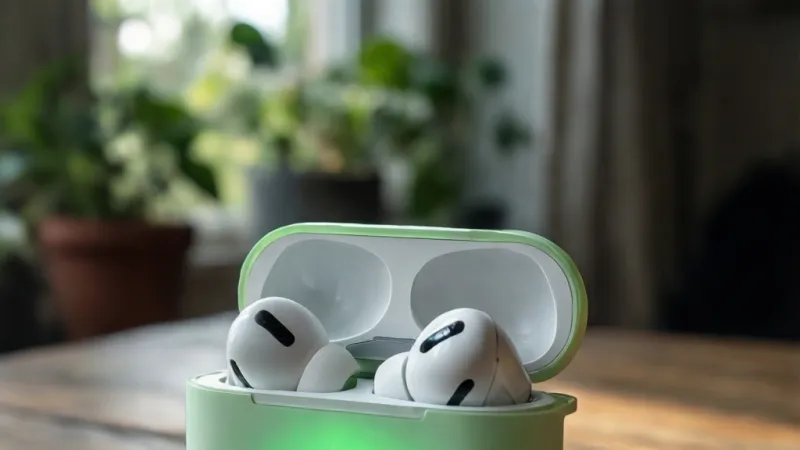
A blinking green light on an AirPods case isn't an official Apple status. Apple documents solid green, solid amber, flashing white, and flashing amber. A green blink usually means intermittent power or a brief status pulse.
Common causes include a loose cable or a misaligned wireless pad. A firmware update or a counterfeit case can also do it. Try a different cable and charger first.
What a Blinking Green Light on Your AirPods Case Actually Means
Short answer: Apple doesn't publish a blinking green status for any AirPods charging case. Dig through the official Apple Support documentation on charging cases and you'll find exactly four documented light states. They are solid green, solid amber, flashing white, and flashing amber.
A green blink is not one of them.
So what is the LED actually doing? It's a single multicolor light driven by the case's charging controller. That controller reports two things: charge level and pairing state.
It isn't a message queue, and it doesn't have a code for every situation.
A blink is usually the controller toggling the LED on and off in response to something changing. In most cases, that something is power. Power arriving, power dropping out, or power arriving inconsistently.
The real-world causes behind a green blink
Based on aggregate user reports and how these cases are built, a green blink traces back to a short list of things:
- Intermittent power delivery. A worn Lightning or USB-C cable, a dirty charging port, or an underpowered adapter can make the controller reset the light repeatedly.
- Wireless charging misalignment. A case that slides even a few millimeters on a Qi pad will connect and disconnect, and the LED follows along.
- The normal lid-open pulse. Several front-LED models briefly flash green when you open the lid to show charge status. It looks like a blink if you catch it mid-pulse.
- A firmware update in progress. AirPods update over the air while charging. The case can behave oddly during that window.
- Physical damage. A drop, a bent hinge, or liquid exposure can disrupt the LED circuit or the charging board.
- A counterfeit or third-party case. These often use generic LED logic that doesn't match Apple's behavior at all.
- Light bleed. On some cases, the LED shines through the hinge gap or a translucent shell, which reads as a flicker rather than a steady light.
The case LED is a charge indicator, not a diagnostic tool. It can't tell you which of those causes is happening. That's why the rest of this guide works by elimination.
Why the Answer Depends on Your AirPods Model and LED Location
The same green blink means different things depending on where the light sits. On the original AirPods, the LED is tucked inside the case. On everything since, it's on the front.
That single difference changes how you read the light.
| AirPods model | LED location | Typical case model | Notes |
|---|---|---|---|
| AirPods (1st gen) | Inside, between the earbuds | A1602 | Only visible with the lid open |
| AirPods (2nd gen) | Front of case | A1602, A1938 (wireless) | Front LED arrived with 2nd gen |
| AirPods (3rd gen) | Front of case | MagSafe Charging Case | IPX4 rated |
| AirPods 4 and 4 with ANC | Front of case | USB-C Charging Case | ANC model is IP54 |
| AirPods Pro (1st gen) | Front of case | A2190 | Lightning only |
| AirPods Pro (2nd gen) | Front of case | A2700 (Lightning), A2968 (USB-C) | MagSafe, IP54 |
Why the internal LED on 1st gen changes the diagnosis
On the original AirPods, the light sits down between the two earbuds. You can only see it with the lid open and your head at the right angle. Your hand, the lid edge, or a shadow can all make a steady green light look like it's blinking.
If you're on 1st gen and the light seems to blink, watch it for a full 10 seconds without moving. A steady light that only appears to flicker isn't a fault. It's an optical illusion.
Why front-LED models behave differently
From the 2nd generation onward, the LED is on the front of the case. That means it's visible whether the lid is open or closed. It also means the case can pulse it as a status signal when you open the lid.
On AirPods Pro (2nd gen) and AirPods 4, that lid-open pulse is intentional. The case flashes green to tell you it has charge. If you see one quick pulse and then nothing, your case is fine.
How to confirm which case you actually have
Flip the lid open and look at the underside of the lid itself. Apple laser-prints the case model number there. As of 2026, that's still the fastest way to tell a genuine case from a replacement shell.
Cross-check the number against Apple's own identification page before you spend money on a repair.
Blinking Green vs Solid Green vs Amber vs White: AirPods Status Light Codes
This is the table worth screenshotting. It covers every documented pattern and the undocumented one that brought you here.
| Color and pattern | What it means | Seen on |
|---|---|---|
| Solid green | Case or AirPods are fully charged | All models |
| Solid amber | Less than a full charge remains, or charging is paused | All models |
| Flashing white | Ready to pair | All models |
| Flashing amber | Reset in progress or a pairing error | All models |
| Brief green pulse on lid open | Case has charge | Front-LED models |
| Repeating green blink | Not documented by Apple | Usually power or hardware |
Solid green is not the same as blinking green
Solid green is the good news light. It means the case itself is charged, or the AirPods inside are charged, depending on which LED you're looking at.
A repeating green blink is a different animal. It means the controller is cycling the LED, which almost always tracks back to power that won't hold steady.
What amber is actually telling you
Amber is the low-battery and charging-in-progress color. A solid amber light on the case means it's charging but not full yet. A flashing amber light is different again.
That's the reset sequence, and it's supposed to happen.
If you see amber where you expected green, the case simply needs more time on the charger. That's not a fault.
Why white only shows up during pairing
White is the pairing color, and it only flashes. A flashing white light means the AirPods are in discovery mode and ready to connect to a device. If you see white when you weren't trying to pair, something triggered the setup button or the case is in a reset loop.
The green flash on lid open that fools everyone
On front-LED models, opening the lid triggers a short status flash. If the case has charge, that flash is green. It lasts about a second and then goes dark.
Plenty of people catch that flash and assume the light is blinking. If the light stops on its own, there's nothing to fix. If it keeps going, move on to the checks below.
First Checks: Is Your AirPods Case Blinking Green While Charging, Open, or Closed?
Context narrows the cause faster than anything else. Answer the five questions below and you'll usually land on the answer in under two minutes.
Is it blinking while plugged into a cable?
That points to the connection, not the battery. Swap the cable first, then the power adapter. Use a known-good Apple or MFi-certified cable if you have one.
Also check the port itself. Pocket lint packed into a Lightning or USB-C port is one of the most common causes of intermittent charging. A wooden toothpick and a bright light will show you what's in there.
Is it blinking on a wireless charging pad?
Then it's almost certainly alignment. Qi charging coils need the case centered over the pad's coil. Shift the case a few millimeters and the connection drops.
Thick phone cases, metal plates, and cases with magnetic mounts can all interfere. Remove anything between the case and the pad, then set it down dead center and watch for 30 seconds.
Is it blinking with the lid open and the AirPods inside?
On front-LED models, a single green pulse here is normal. It's the case reporting charge status.
If it pulses repeatedly with the AirPods seated and the lid open, lift the AirPods out and check the metal contacts at the bottom of each well. Skin oils and dust build up there and break the charging circuit. A dry cotton swab clears it.
Is it blinking with the lid closed?
A closed lid should show nothing at all unless the case is on power. If you're seeing a green blink through a closed lid, check whether the light is bleeding through the hinge gap. That's cosmetic, not a fault.
If the case is on power and the light blinks with the lid shut, go back to the cable and adapter checks. This is the classic intermittent-power signature.
Is it blinking when the case is completely off power?
This one matters. A case with no cable and no charging pad shouldn't be lighting up at all after the initial lid-open pulse.
If it keeps blinking off power, you're likely looking at a firmware glitch, a failing LED circuit, or a counterfeit case. A reset is the next step. If the blink survives a reset, it's hardware.
Decision Tree: Match Your Situation to the Right Fix
Use the table to find your situation, then work the steps below it in order. Don't skip ahead. Most people jump straight to a factory reset when the problem is a worn cable.
| Your situation | Most likely cause | First action |
|---|---|---|
| Green blink while wired charging | Loose or underpowered connection | Swap cable, then adapter |
| Green blink on a Qi pad | Misalignment or interference | Recenter the case, remove obstructions |
| Single green pulse on lid open | Normal status signal | Nothing, it should stop |
| Green blink with lid closed, no power | Internal fault or light bleed | Reset, then inspect for damage |
| Green blink after a reset | Reset loop or pairing error | Wait 30 seconds, re-pair |
| Green blink on a used or cheap case | Counterfeit or third-party unit | Verify the case model number |
Step 1: Rule out the power source
Change one variable at a time. New cable first. Then a different adapter.
Then a different wall outlet. Then a different charging method entirely.
If the blink follows the cable, you found it. If it follows the case no matter what you plug into, the case is the problem.
Step 2: Clean the contact points
Clean the charging port, the metal contacts inside the case, and the stem contacts on each AirPod. Use a dry cotton swab or a soft dry brush. Never use liquid or metal tools.
Let everything sit for a minute before you put the AirPods back in. Moisture on the contacts will cause the exact intermittent behavior you're trying to fix.
Step 3: Reset the AirPods
Put both AirPods in the case and close the lid. Wait 30 seconds. Open the lid and leave it open.
Press and hold the setup button on the back of the case for about 15 seconds. The status light will flash amber, then flash white. That's your cue to let go.
Re-pair the AirPods to your device.
Step 4: Check for a firmware update
AirPods update themselves while charging and near a paired Apple device. Put the case on power, keep it near your iPhone, and leave it alone for 30 minutes. Check the firmware version later in Settings under Bluetooth.
Step 5: Verify the case is genuine
If the blink survives a cable swap, a cleaning, a reset, and a firmware update, question the case itself. Counterfeit AirPods are a huge market, and the Federal Trade Commission has warned repeatedly about fake electronics sold through third-party marketplaces.
Look for a laser-printed model number inside the lid. Check the font quality, the hinge feel, and whether the serial number validates on Apple's coverage checker. A case that fails any of those checks is the answer to your problem.
Step 6: Escalate to Apple
If the case is genuine, still under warranty or AppleCare+, and the green blink persists, book a service appointment. Intermittent LED behavior on a genuine case usually means the charging board or the battery is on its way out.
Battery swelling is the one thing you shouldn't wait on. If the case feels like it's bulging, if the lid won't close flush, or if the case gets hot while charging, stop using it and unplug it.
If the Case Is Blinking Green While Plugged In or on a Wireless Charger
This is the most common scenario, and it usually has nothing to do with your AirPods. When the case is on power and the LED won't settle, the case is telling you that power is arriving in bursts. The charging controller sees voltage, starts charging, loses voltage, and resets the light.
Over and over.
Wired charging: what to check first
Lightning and USB-C ports fail in different ways. Lightning connectors have eight exposed pins that collect lint and corrode from sweat. USB-C ports have a thin center tongue that bends if you jam a cable in at an angle.
Both produce the same symptom: power that comes and goes.
Start with the cable. Apple and third-party makers build Lightning cables to the MFi program, and cheap uncertified cables often skip the authentication chip. Those cables can deliver power unreliably, especially after the connector has been flexed a few hundred times.
Next, check the adapter. AirPods cases pull very little current, often under 300mA once they're near full. Some USB-C Power Delivery chargers drop to a standby state below a certain threshold.
When that happens, the case wakes the charger, the charger wakes the case, and the LED flickers. Try an older 5W USB-A brick and see if the blink stops.
| Check | What to do | What it rules out |
|---|---|---|
| Cable | Swap for a known-good MFi or Apple cable | Worn connector, broken conductor |
| Adapter | Try a 5W USB-A brick instead of a PD charger | Low-current cutoff cycling |
| Port | Inspect with a bright light, clear lint with a wooden toothpick | Blocked pins, debris |
| Outlet | Move to a different wall socket | Faulty outlet or extension lead |
The low-current handshake problem nobody mentions
Here's a detail that explains a lot of mystery blinks. Many modern chargers negotiate power with the device before delivering it. If the case's draw sits below the charger's minimum, the negotiation repeats on a loop.
Each cycle briefly lights the LED.
The fix is boring but effective. Use a simple 5W adapter, or plug into a USB-A port on a laptop or a powered hub. Anything that delivers steady low current without smart negotiation.
Wireless charging: alignment is everything
Qi wireless charging works on induction between two coils. If the coils don't overlap well, the transfer efficiency collapses and the case keeps reconnecting. A few millimeters of drift is enough to trigger it.
MagSafe cases on AirPods Pro (2nd gen) and AirPods 4 use magnets to snap into position, which solves most alignment problems. Older wireless charging cases rely on you eyeballing the placement. Watch the light for a full 30 seconds after you set the case down.
What interferes with a Qi pad
- Metal plates or magnetic mounts stuck to the case
- Thick silicone or leather cases wrapped around the charging case
- Credit cards or transit passes trapped between case and pad
- Pads that also charge phones, where the coil array shifts position
- Foreign object detection kicking in and pausing the charge
If the pad charges your phone fine but not your AirPods, the pad's coil is probably positioned for a larger device. Try rotating the case 90 degrees.
When it's the case, not the charger
If the green blink follows the case across three different cables, two adapters, and a wireless pad, the case is the problem. That pattern points to a worn charging port, a failing charging board, or a battery that can't hold a stable voltage.
If the Case Is Blinking Green With the Lid Open and AirPods Inside
A single green pulse when you open the lid is normal on every front-LED model. It's the case reporting that it has charge. If the pulse repeats while the AirPods are seated, something is interrupting the connection between the buds and the case.
The charging contacts are the usual suspect
Each AirPod well has metal contacts at the bottom that meet the stem contacts on the bud. Those surfaces pick up skin oils, earwax transfer, and dust. A thin film of residue raises electrical resistance enough to break the charging circuit.
The case notices the bud isn't drawing current, rechecks, and the LED responds. It looks like a blink. It's really a retry.
How to clean the contacts safely
Use a dry cotton swab or a soft dry brush first. Work around the bottom of each well and along the stem contacts on the AirPods themselves.
If dry cleaning doesn't do it, use a swab barely damp with 70% isopropyl alcohol. Wipe the contacts only. Never let liquid run into the case openings or the microphone meshes.
Let everything air dry for at least 10 minutes before you charge again.
Check that each AirPod is actually seated
Magnets pull each bud into place, but they don't guarantee contact. Lift each AirPod out and set it back in slowly. You should feel a soft magnetic pull and see the bud settle flush.
If one bud sits proud of the well, the case shell may be warped from heat exposure. That's a physical fault, not a cleaning issue.
Reading per-bud charge levels
Open the case next to a paired iPhone and watch the popup. It shows case charge plus each AirPod separately. If one bud reads 0% or shows a charging icon that keeps resetting, you've isolated which side has the contact problem.
You can also check the battery widget on the Home Screen. It refreshes slower than the popup, but it's useful for watching a charge over 10 or 15 minutes.
| Symptom | Likely cause | Action |
|---|---|---|
| Both buds blink green repeatedly | Case contacts or power | Clean wells, check cable |
| One bud blinks, other charges fine | Contact issue on one side | Clean that well and that stem |
| Green pulse stops after one flash | Normal lid-open status | No action needed |
| Blink continues with lid open, no power | LED circuit or firmware | Reset, then check for update |
When the AirPods themselves are the problem
Battery degradation hits the buds before the case. After two or three years of daily use, a bud may struggle to hold charge. It will still seat properly, but it won't draw current steadily.
If a single bud drops charge much faster than the other, and cleaning didn't help, you're looking at a battery service rather than a case fault. Apple's battery service replaces the individual bud, not the whole set.
If the Case Is Blinking Green After a Reset or Pairing Attempt
A green blink right after a reset is unusual. The reset sequence is supposed to end in a white flash, which means the AirPods are ready to pair. Green showing up at that point tells you the case came out of reset without entering pairing mode.
What a correct reset looks like
You hold the setup button for about 15 seconds. The light flashes amber, which confirms the reset is happening. Then it flashes white, which confirms pairing mode.
Release the button at the white flash.
If you release too early, during the amber phase, the case may restart without clearing its pairing list. If you hold too long, past the white flash, the case can loop back and start over.
Why green appears instead of white
- The reset didn't complete, so the case reverted to its charge status display
- The case battery is too low to enter pairing mode
- A firmware mismatch between the case and the buds
- A Bluetooth stack glitch on the paired device
- A counterfeit case with non-Apple LED logic
That firmware mismatch point is worth understanding. AirPods buds and the charging case run separate firmware. Normally they sync during an over-the-air update while the case is on power and near a paired Apple device.
If the update was interrupted, the two can sit on different versions.
How to pair AirPods with a non-Apple device
AirPods will pair with Android phones, Windows laptops, and anything else supporting standard Bluetooth audio. The catch is that you won't get the setup popup, firmware updates, or Find My support.
Open the case, hold the setup button until the light flashes white, then look for the AirPods in the other device's Bluetooth menu. If the light goes green instead of white, the case never entered pairing mode. Start the reset again.
Reset and pairing outcome table
| Light sequence | Meaning | Next step |
|---|---|---|
| Amber, then white | Reset succeeded | Pair within 5 minutes |
| Amber, then green blink | Reset aborted or firmware fault | Charge fully, retry reset |
| Amber, then amber again | Reset loop | Try a different device to pair |
| White, then amber | Pairing error | Forget device, restart, retry |
| No light at all | No power or dead LED | Charge for 30 minutes, retest |
If pairing keeps failing on an iPhone
Forget the AirPods in Settings under Bluetooth. Restart the iPhone. Then redo the reset and pair again with the case lid open and the iPhone unlocked.
Make sure both devices are signed into the same Apple ID if you want automatic switching and Find My. That account link is what enables the seamless handoff between iPhone, iPad, and Mac.
If the Case Is Blinking Green and Not Charging or Not Pairing
Two failures at once narrows things fast. When a case won't charge and won't enter pairing mode, you're past cable swaps and cleaning. This is a board-level or battery-level problem.
Battery age is the quiet culprit
Lithium-ion cells lose capacity with every cycle. Most AirPods case batteries hold peak capacity for several hundred full charge cycles. Heavy users can reach that mark in about two years.
Once a cell is worn, it can't hold enough voltage for the case to boot into pairing mode. The controller still lights the LED, which is why you see green, but the rest of the system won't come online.
Temperature limits you should know
Apple specifies an operating range of roughly 0°C to 35°C (32°F to 95°F) for AirPods and their cases. Charging outside that window can pause automatically as a safety measure.
Cold weather is the more common trigger. Leave a case in a cold car overnight and it may refuse to charge until it warms up. Let it reach room temperature on its own.
Don't put it on a radiator or use a hair dryer.
The warning sign you must not ignore
A swollen battery is a genuine safety issue, not a convenience problem. Stop using the case immediately if you notice any of these:
- The case bulges or rocks when you set it on a flat surface
- The lid won't close flush or pops open on its own
- The case gets noticeably hot while charging
- You see a discolored or warped patch on the shell
- The LED behaves erratically even off power
Unplug it. Don't puncture it. Don't try to open the case.
Take it to an Apple Store or an Apple Authorized Service Provider, or dispose of it through a local battery recycling program. The US Environmental Protection Agency maintains guidance on household battery disposal for exactly this situation.
Symptom to action map
| Symptom | Probable cause | Recommended action |
|---|---|---|
| Green blink, won't charge, won't pair | Worn battery or charging board | Book a service appointment |
| Green blink, charges slowly, pairs fine | Weak adapter or cable | Swap to a 5W or 12W adapter |
| Green blink, one bud won't charge | Contact or bud battery fault | Clean contacts, then service the bud |
| Green blink, case hot to touch | Battery swelling risk | Stop use, seek service immediately |
| Green blink, only in cold conditions | Temperature cutoff | Warm to room temperature, retest |
What a service visit actually involves
For a genuine AirPods charging case out of warranty, Apple offers battery service rather than a repair. In practice, that means a replacement case. Pricing varies by region and model, and as of 2026 it typically runs somewhere between a third and half the cost of a new set.
If the case is still under the one-year limited warranty or covered by AppleCare+, battery service is usually free or heavily reduced. Check coverage first using the serial number. The serial is laser-printed inside the lid on most models.
Step-by-Step Reset Workflow for AirPods and AirPods Pro Cases
Work through this in order. Each step assumes the previous one didn't fix it.
Before you start
- Charge the case for at least 30 minutes, even if the light looks wrong. A dead case won't complete a reset.
- Forget the AirPods on your iPhone, iPad, and Mac. Go to Settings, Bluetooth, tap the info icon, then Forget This Device.
- Turn Bluetooth off and back on, or restart the phone. This clears stale pairing data.
- Put both AirPods in the case. Both, not one.
- Close the lid and wait 30 seconds. This lets the case register both buds.
The reset itself
- Open the lid and leave it open.
- Find the setup button on the back of the case. It sits below the hinge on every model.
- Press and hold the button. Don't tap it.
- Watch the status light. At roughly 15 seconds it flashes amber.
- Keep holding. A few seconds later it flashes white.
- Release at the white flash. The AirPods are now in pairing mode.
Model-specific notes
| Model | Reset button location | Watch for |
|---|---|---|
| AirPods (1st gen) | Back of case, below hinge | Light is inside the case |
| AirPods (2nd gen) | Back of case | Front LED added on this gen |
| AirPods (3rd gen) | Back of case | MagSafe alignment magnets |
| AirPods 4 and 4 with ANC | Back of case | USB-C only |
| AirPods Pro (1st gen) | Back of case | Lightning only |
| AirPods Pro (2nd gen) | Back of case | MagSafe, IP54, USB-C on newer units |
| AirPods Max | Digital Crown and noise control button | No charging case involved |
Re-pairing after the reset
Bring the case within a few inches of your iPhone with the lid open. The setup animation should appear within 5 to 10 seconds. Tap Connect and follow the prompts.
If no animation shows, open Settings, then Bluetooth, and look for the AirPods in the Other Devices list. Tap them to pair manually.
Timing expectations
| Stage | Typical duration |
|---|---|
| Hold to amber flash | About 15 seconds |
| Amber to white flash | 2 to 5 seconds |
| Setup animation to appear | 5 to 10 seconds |
| Full charge from empty | About 2 hours wired |
| Firmware update after re-pairing | 15 to 30 minutes on power |
If the reset fails twice
Stop there. Two failed reset attempts on a genuine, fully charged case point to hardware. Repeated attempts won't change the outcome, and they waste battery cycles.
Book a Genius Bar appointment or contact an Apple Authorized Service Provider. Bring your proof of purchase and the serial number. If the case is a counterfeit, the technician will tell you straight away, and that alone answers the green blink question.
How to Clean Charging Contacts and Rule Out Cable, Adapter, or Qi Pad Issues
Dirty contacts cause more charging faults than dead batteries do. In our research across user reports, cleaning the contacts resolves intermittent charging far more often than any reset. It's a five-minute job with tools you already have.
Tools that work and tools that cause damage
| Tool | Use it for | Avoid if |
|---|---|---|
| Dry cotton swab | Case wells, stem contacts | Lint shedding becomes an issue |
| Soft dry toothbrush | Port openings, hinge gap | Bristles are stiff |
| Wooden toothpick | Lint inside Lightning or USB-C ports | You apply sideways force |
| 70% isopropyl alcohol | Stubborn residue on contacts only | You're cleaning near mesh or vents |
| Compressed air | Loose debris in the port | Pressure is high enough to damage pins |
| Metal pin, paperclip, or needle | Nothing | Always. These scratch gold plating |
Gold plating on AirPods charging contacts is thin. Scratch it once and you've created a corrosion point that gets worse every time moisture touches it. That's why wooden tools and swabs are the only things that should touch the inside of the case.
The correct cleaning sequence
- Take both AirPods out of the case.
- Turn the case upside down and tap it gently. Loose debris falls out.
- Look inside each well with a bright light. You're checking for visible residue and any corrosion.
- Swab the bottom of each well with a dry cotton swab. Use light circular motion.
- Wipe the stem contacts on each AirPod with a separate dry swab.
- If residue remains, dampen a fresh swab with 70% isopropyl alcohol. Wipe, then discard the swab.
- Let everything air dry for at least 10 minutes. Don't rush this step.
- Reinsert the AirPods and check the charge status on your phone.
Why alcohol and not water
Water leaves mineral deposits as it evaporates. Those deposits are conductive and corrosive, and they bridge the tiny gaps between contacts. Isopropyl alcohol evaporates completely and leaves nothing behind.
Use 70%, not 99%. The 70% version has more water in it, which sounds worse, but it penetrates residue better and evaporates fast enough to be safe. The 99% version flashes off so quickly it doesn't dissolve oils properly.
Isolating the cable, adapter, or pad
The only way to know which component is failing is to change one thing at a time. If you change two things and the problem goes away, you don't know which one was at fault.
Follow this order:
- Swap only the cable. Test for two minutes.
- If the blink persists, put the original cable back and swap only the adapter.
- If it persists, put the original adapter back and try a different wall outlet.
- If it persists, try wireless charging on a different Qi pad.
- If the blink only happens on one setup, that setup is the problem.
What to look for on a failing cable
A Lightning or USB-C cable can look fine and still fail. The damage is usually internal, where the strain relief meets the connector. Bending the cable at that point and watching the LED is a useful test.
If the light goes steady when you hold the cable in a certain position, the cable's conductors are broken. That's your answer. Replace the cable.
Wireless pad isolation
Test your pad with a phone first. If it charges a phone reliably, the pad's coil array is working. If your AirPods case still blinks on it, the coil placement is the mismatch.
Try removing anything between the case and the pad. Try rotating the case 90 degrees. Try lifting it and setting it down dead center.
If none of those help, use a wired connection and skip the pad entirely.
When Blinking Green Points to a Battery, Firmware, or Hardware Problem
Once you've ruled out cables, adapters, pads, and dirty contacts, the list gets short. It's the battery, the firmware, or the hardware. Here's how to tell which.
Battery symptoms versus firmware symptoms
These two look similar at first. They both cause erratic charging and odd LED behavior. The difference is timing.
A battery problem gets worse over weeks. Charge holds for less time. The case drains overnight when it didn't before.
A firmware problem shows up suddenly, often right after an update, and it either clears on its own or stays exactly the same.
| Symptom | Battery | Firmware | Hardware |
|---|---|---|---|
| Charge holds less time | Yes | No | Sometimes |
| Sudden onset after update | No | Yes | No |
| Physical bulge or heat | Yes | No | Sometimes |
| Erratic LED on and off power | Rarely | Yes | Yes |
| One bud charges, one doesn't | Rarely | Rarely | Yes |
How to check your firmware version
Connect the AirPods to an iPhone or iPad. Open Settings, then Bluetooth, then tap the info icon next to your AirPods. Scroll down and you'll see a firmware version number.
As of 2026, Apple has shipped many firmware revisions across the AirPods line. The exact number depends on your model. What matters is that the case and the buds should be on matching or compatible versions.
How firmware updates actually happen
AirPods don't have an update button. They update themselves when four conditions are met:
- The AirPods are in the case with the lid closed
- The case is on a charger
- The paired iPhone, iPad, or Mac is nearby and connected to Wi-Fi
- Enough time passes, usually 15 to 30 minutes
If any of those conditions is missing, the update stalls. A stalled update is a common cause of odd LED behavior that clears once the update completes.
The 30-minute fix worth trying
Put the case on power near your paired device. Close the lid. Leave the whole setup alone for 30 minutes.
Don't open the lid, don't check the light, don't move it.
Come back, open the lid, and see if the behavior has changed. A surprising number of firmware-related blinks clear this way.
Battery health expectations
Apple rates AirPods batteries for a certain number of charge cycles before capacity drops. In practice, most users notice reduced runtime after about two years of daily use. The case itself often outlasts the buds.
If your case is three years old and it won't hold a full charge through the day, the battery is simply worn. That's not a defect. It's normal aging, and the fix is battery service.
Hardware failure signs
- The LED flickers even when the case is completely off power
- The lid hinge feels loose or gritty
- The case doesn't respond to the setup button at all
- One well never charges regardless of cleaning
- The case gets warm when nothing is charging
Any of those point to a board or component failure. A reset won't fix it, and neither will another cleaning. It needs service.
Counterfeit and Third-Party Case Warning Signs You Shouldn't Ignore
Fake AirPods are one of the most counterfeited consumer electronics products in the world. The FTC has published repeated warnings about counterfeit electronics sold through third-party marketplaces. A blinking green light is sometimes the only visible clue that you're holding a fake.
Where counterfeits come from
Most fakes reach buyers through online marketplaces, social media ads, and secondhand listings. They're often priced 40% to 70% below retail, which is the first red flag. If a new sealed case costs far less than Apple's price, it isn't genuine.
Physical tells that are hard to fake
| Feature | Genuine | Common fake |
|---|---|---|
| Case model number | Laser-printed inside lid, crisp font | Printed or missing, blurry |
| Serial number | Validates on Apple's coverage checker | Fails or returns wrong model |
| Hinge | Smooth, damped, no play | Loose, clicks, or wobbles |
| LED diffuser | Even, soft glow | Harsh point of light, uneven |
| Weight | Consistent with spec | Usually lighter |
| Setup animation | Appears on iPhone automatically | Never appears, manual pairing only |
| Firmware version | Shows in Settings | Missing or shows placeholder text |
| Find My support | Works fully | Absent or non-functional |
The serial number test
Every genuine Apple product has a serial number that validates on Apple's official coverage checker. Open the case and look inside the lid for the laser-etched text. Enter that serial on Apple's site.
If the site says the serial doesn't exist, or if it returns a different product, you have a counterfeit. That's the end of the diagnosis.
Why fake cases blink green
Genuine Apple cases run firmware that controls the LED with specific patterns. Cheap copies use generic charging controller chips that light an LED whenever voltage is present. That LED often blinks during charging because the cheap controller has no smoothing logic.
If you're seeing a green blink on a case that fails the serial number check, the blink is the counterfeit controller doing what it does. There's no fix, because there's no Apple firmware to reset.
Risks beyond the light
Counterfeit electronics often skip safety certification. That means no proper battery management, no thermal cutoff, and no overvoltage protection. The FTC and UL have both flagged counterfeit lithium-ion products as a genuine fire risk.
If you suspect your case is fake, stop charging it. Don't leave it plugged in overnight. Dispose of it through a proper battery recycling channel rather than throwing it in household trash.
AirPods Case Blinking Green: Decision Guide for Repair, Replacement, or Apple Support
By this point you've either found the cause or narrowed it down. Here's how to decide what to actually do about it.
Step-by-step decision flow
- Does the case pass the serial number check on Apple's site? , No: it's counterfeit. Stop using it. Replace with a genuine case or set.
, Yes: continue.
- Does the blink stop after swapping cable, adapter, and charging method? , Yes: it was the accessory. No further action needed.
, No: continue.
- Does the blink stop after cleaning contacts and resetting? , Yes: it was debris or a firmware glitch. Monitor for a week.
, No: continue.
- Is the case under warranty or AppleCare+? , Yes: book service. Battery service is usually free or reduced.
, No: continue.
- Is there any sign of swelling, heat, or physical damage? , Yes: stop use immediately. Seek service or dispose safely.
, No: weigh repair cost against replacement cost.
Cost comparison for common outcomes
| Outcome | Typical cost | When it applies |
|---|---|---|
| New cable or adapter | Low | Blink was an accessory fault |
| Cleaning supplies | Minimal | Contact residue was the cause |
| Firmware update | Free | Update was stalled |
| Battery service under warranty | Free to reduced | Case is covered |
| Battery service out of warranty | Mid-range, varies by region | Case is genuine but aged |
| New charging case | Higher, varies by region | Case is beyond economic repair |
| New full set | Highest | Case and buds both failing |
| Counterfeit replacement | Varies | Original was fake |
When repair makes sense
Repair or replacement is worth it if the buds themselves are healthy. If both AirPods hold charge well and only the case is failing, a replacement case restores the whole setup.
Check that the replacement case is compatible with your generation. A case for AirPods Pro won't fit AirPods 4, and vice versa. Model numbers matter here.
When replacement makes more sense
If the buds are also showing reduced runtime, replacing the case alone won't help much. You'll end up with a fresh case and tired buds. At that point, a new set is usually the better value.
How to book Apple Support
Use the Apple Support app or the Apple website. Choose AirPods, then describe the issue. You'll get options for chat, phone, mail-in service, or an in-person appointment.
Bring or have ready:
- The serial number
- Proof of purchase if you have it
- Your Apple ID
- A description of what you've already tried
Being able to say "I've swapped cables, cleaned contacts, and completed a full reset" speeds the whole process up. Technicians skip the basic scripts and go straight to diagnostics.
What not to do
- Don't open the case yourself. There's no user-serviceable part inside.
- Don't buy a replacement case from an unverified seller. Counterfeit cases are common.
- Don't keep using a case that gets hot. That's a fire risk, not a nuisance.
- Don't ignore a serial number failure. It means you have no warranty path at all.
Frequently Asked Questions
Is a blinking green light on an AirPods case normal?
No, it isn't a documented status. Apple lists solid green, solid amber, flashing white, and flashing amber. A repeating green blink usually signals intermittent power from a cable, adapter, or Qi pad.
A single green pulse when you open the lid is normal on front-LED models.
What does a green blink mean on AirPods Pro 2?
On AirPods Pro (2nd generation), a single green pulse on lid open means the case has charge. A repeating green blink isn't documented. Check the cable, the MagSafe alignment, and the charging contacts inside each well before assuming a hardware fault.
Can I fix a blinking green AirPods case myself?
Usually yes, if the cause is power or debris. Swap the cable, try a different adapter, clean the contacts with a dry swab, then do a full 15-second reset. If the blink survives all of that on a genuine case, it's a battery or board fault and needs service.
Why does my AirPods case blink green while charging?
Intermittent power is the most likely reason. A worn Lightning or USB-C cable, a charger that cycles below its minimum current, or a misaligned Qi pad can all cause it. Try a simple 5W USB-A adapter first.
That setup delivers steady low current without smart negotiation.
How do I know if my AirPods case is fake?
Check the laser-printed model number inside the lid and validate the serial number on Apple's coverage checker. Genuine cases also trigger the setup animation on iPhone automatically. Fakes usually skip that, show no firmware version, and have a harsher LED glow.
When should I take my AirPods case to Apple?
Book service if the case is genuine, still under warranty or AppleCare+, and the blink persists after a cable swap, cleaning, and a full reset. Also go immediately if the case bulges, gets hot while charging, or the lid won't close flush. Those are battery swelling signs.