Your Xbox controller slowly blinking usually means one thing. It's powered on, but it isn't connected to anything. The light is searching for a console, PC, or phone it remembers, and it hasn't found one yet.
That's very different from a fast blink, which almost always means the controller is sitting in pairing mode.
The Xbox button doubles as a status light, and Microsoft's own sync instructions treat the flash rate as the signal. Slow flash means hunting for a known device. Rapid flash means broadcasting for a new one.
Knowing that difference saves you from the most common wasted step of all, which is resetting a controller that was never broken. Here's what the light is actually telling you.
Quick Answer
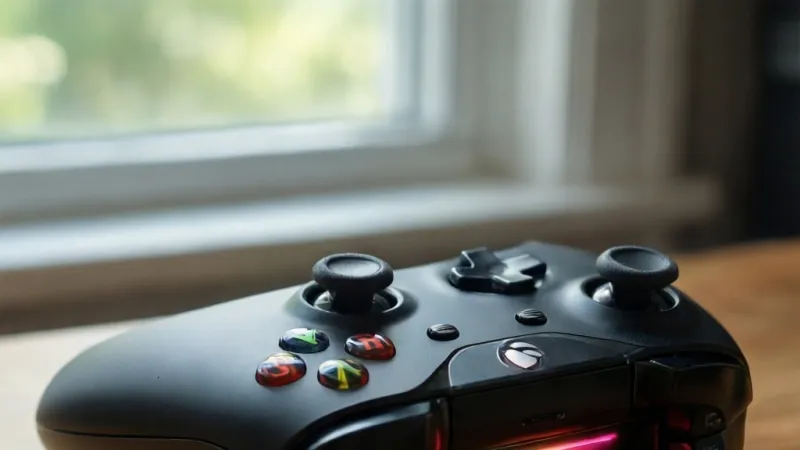
A slowly blinking Xbox controller is searching for a connection. It is not broken. The slow blink means it is hunting for a device it already knows.
A fast blink means pairing mode instead. Check the battery first. Then re-pair the controller.
What a Slowly Blinking Xbox Controller Light Actually Means
The Xbox button is a status indicator, not just a power button. When you press it, the controller wakes up and looks for the last device it was paired to. If that device is off, asleep, or out of range, the light blinks slowly while it keeps looking.
After roughly 15 to 20 seconds with no answer, most controllers give up and shut themselves off.
That's the story behind the slow blink in most cases. It's a search, not an error code.
The four light states you'll actually see
Every Xbox Wireless Controller from 2016 onward uses the same basic language. Once you learn it, diagnosis takes about five seconds.
| Light behavior | What it usually means | First move |
|---|---|---|
| Slow, steady blink | On and searching for a known device | Check battery, then power cycle |
| Fast, rapid blink | Pairing mode, ready to sync | Press Pair on the console within 20 seconds |
| Solid, steady glow | Connected and assigned to a player slot | Nothing, it's working fine |
| No light at all | Dead battery or no power reaching the board | Replace or charge the batteries |
There's a fifth state that trips people up. A single brief flash when you press the button is just the controller waking from sleep. Give it a few seconds before you assume anything is wrong.
Why the controller keeps a pairing memory
Xbox Wireless Controllers store pairing records for the devices they've connected to. That's why your controller usually just works when you pick it up. The tradeoff is that it remembers old devices too, including a friend's console or a PC you set up months ago.
When that remembered device isn't around, the controller doesn't drop straight into pairing mode. It searches first. That search is the slow blink.
The Xbox Wireless radio runs on a proprietary 2.4 GHz protocol Microsoft built for low latency. It isn't Bluetooth, and it isn't Wi-Fi, even though it shares the same crowded band. The FCC governs how that band gets used in the United States, which is part of why the radio behaves slightly differently across regions.
What the slow blink is not telling you
A slow blink does not mean the controller is broken. It does not mean the firmware is corrupted. It doesn't mean you need a new controller either.
It means the controller is awake and alone. That's it.
The exception is a slow blink while the controller is plugged in and charging. On some models, particularly the Elite Wireless Controller Series 2, a slow pulse of the Xbox button is the charging indicator. If you see it while a USB-C cable is attached, unplug and check whether the light goes solid.
First Checks Before You Touch the Sync Button
Most people jump straight to re-pairing. That's usually the wrong first move, and it can wipe a perfectly good pairing record. Run these checks in order instead.
Each one takes under a minute.
Check 1: Is the battery actually good?
Low power causes weird behavior that looks like a connection fault. The controller's radio needs a stable voltage, and dying batteries can't deliver it. Swap in two fresh AA alkaline batteries, or plug the controller into USB power, then watch the light again.
If the blink stops and the controller connects, you've found your answer. If it doesn't, move on.
Check 2: Is the device you're pairing to awake?
This sounds obvious, and it catches people constantly. An Xbox in Instant On mode is technically asleep. It won't answer a controller until it wakes.
Tap the power button on the console, wait for the dashboard to appear, then press the Xbox button again.
On PC, the same thing applies. A sleeping laptop or a disabled Bluetooth radio won't respond. Wake the machine and confirm Bluetooth is actually on.
Check 3: Is the controller paired somewhere else?
If you recently used the controller on a phone, a second console, or a friend's setup, it may be trying to reach that device instead of yours. Press and hold the Pair button on the controller for three seconds to force pairing mode, then connect it to the device you actually want.
Check 4: Are you close enough, with a clear path?
Xbox Wireless is rated for roughly 19 feet in open space. Bluetooth typically manages around 30 feet. Walls, metal shelving, and even a couch full of people will cut that down fast.
Move within a few feet of the console and try again.
If/then logic for the first five minutes
- If the controller worked yesterday and blinks slowly today, then suspect the battery or a sleeping console.
- If it's brand new and never connected, then it's in pairing mode. Skip straight to syncing.
- If it blinks slowly only on PC, then the problem is on the PC side, not the controller.
- If it blinks slowly on every device you try, then you're looking at firmware or hardware.
- If the light is completely dark, then it's a power problem, not a connection problem.
That last one matters. A dark controller and a slowly blinking controller point to two entirely different fixes.
Which Xbox Controller Model You Have and Why It Matters
The fix changes depending on which controller you're holding. A 2013 Xbox One controller can't do Bluetooth at all, so any PC pairing advice that mentions Bluetooth is useless for it. Check the model number on the back of the controller, near the battery compartment.
As of 2026, Microsoft has shipped several generations of the Xbox Wireless Controller, and the model number is the fastest way to tell them apart.
| Model number | Sold as | Wireless options | Charging port |
|---|---|---|---|
| 1537 | Xbox One controller (2013) | Xbox Wireless only | Micro-USB |
| 1697 | Xbox One controller (2015, 3.5mm jack) | Xbox Wireless only | Micro-USB |
| 1708 | Xbox One S and One X controller | Xbox Wireless plus Bluetooth | Micro-USB |
| 1797 | Elite Wireless Controller Series 2 | Xbox Wireless plus Bluetooth | USB-C, built-in battery |
| 1914 | Xbox Series X and Series S controller | Xbox Wireless plus Bluetooth | USB-C |
| 1836 | Xbox Adaptive Controller | Xbox Wireless plus Bluetooth | USB-C |
Why the model number changes your troubleshooting
If you have a 1537 or 1697, Bluetooth isn't on the table. To use it on a Windows PC, you need the Xbox Wireless Adapter or a USB cable. If you have a 1708 or newer, Bluetooth works fine, and so does the adapter.
The Elite Series 2 is its own animal. It has an internal rechargeable battery, no AA compartment, and a charging blink that looks a lot like a connection blink. That single overlap causes more confused support tickets than anything else on this list.
Xbox 360 controllers use an entirely different system. There's no Xbox button glow. There's a Ring of Light around the guide button, and it behaves differently.
We'll get to that further down.
Slow Blink vs Fast Blink vs Solid Light: Reading Xbox LED Status
Flash rate is the whole diagnostic. Slow and fast mean two different things, and mixing them up sends you down the wrong path.
Slow blink means searching
A slow, even blink is the controller looking for something it already knows. It's a passive search. The controller isn't broadcasting a pairing invitation.
It's calling a number it has saved.
The most common causes, in order of frequency:
- The paired console or PC is off or asleep
- The battery is too low to hold a connection
- The controller is out of range
- The controller is stuck trying to reach an old pairing record
- The wireless radio is being drowned out by interference
Fast blink means pairing mode
A rapid blink is an invitation. The controller has dropped its search and is now broadcasting, waiting for a console or PC to answer. This is the state you want when you're adding a new device.
Microsoft's official Xbox Support guidance is specific here. Once the Xbox button starts flashing rapidly, you have a short window to press the Pair button on the console. Miss it, and the controller drops back to a slow blink and starts searching again.
Solid light means connected
A steady glow means the controller is paired and assigned. On Xbox One and Series X|S, the light stays solid and the controller shows up as Player 1 through 4 depending on order.
On the Xbox 360, the Ring of Light is more literal. A rotating green sweep means it's searching. One solid quadrant means connected, and the quadrant position tells you which player slot you're in.
The Xbox 360 Ring of Light, decoded
The Xbox 360 controller predates the modern Xbox button glow, and its Ring of Light behaves on its own rules.
- Rotating green sweep means the controller is looking for a console.
- One solid quadrant means connected and assigned to that player slot.
- All four quadrants blinking together usually points to low battery.
- Nothing at all means dead batteries or a failed board.
On the 360, low battery is the single most common cause of a blinking ring. The console usually throws an on-screen notification too, and that notification is the more reliable signal.
The charging blink that fools everyone
On the Elite Wireless Controller Series 2, and on standard controllers using the Xbox Rechargeable Battery, the Xbox button can pulse slowly while charging. It's a completely different meaning attached to a very similar visual.
The tell is simple. If a USB cable is plugged in, assume charging first. Unplug it and see whether the light changes.
If it goes solid, the controller was fine the whole time.
What a slow blink rules out
A slow blink tells you the controller's board is alive, the radio is transmitting, and the firmware is running. That's a lot of good news. It rules out a dead controller, a fried USB port, and a corrupted boot.
What it doesn't rule out is a failing battery, a firmware bug, or interference from something nearby. Those three cover the vast majority of stubborn cases.
Battery, Charging, and Power Problems Behind a Slow Blink
Power issues sit behind more slow-blink complaints than any other single cause. The controller's radio draws current in bursts, and weak batteries can't always deliver. When voltage sags, the connection drops and the search restarts.
AA batteries: what actually works
Standard Xbox Wireless Controllers from the 1537 through the 1914 take two AA batteries. Alkaline cells deliver 1.5 volts each, giving you a clean 3 volts total. Microsoft rates AA-powered controllers at up to 40 hours of play.
Rechargeable NiMH cells are a different story. They're rated at 1.2 volts nominal, so a pair delivers 2.4 volts instead of 3. That's usually enough, but it shortens the usable window and can trigger early low-battery behavior.
If you're chasing a stubborn slow blink, test with fresh alkalines before you blame anything else.
Some third-party rechargeable packs also run below spec. If your controller only blinks slowly with one particular battery pack, you've found the culprit.
The Rechargeable Battery plus USB-C Cable
Microsoft's official rechargeable battery and cable kit gives you up to 30 hours per charge and tops up in under four hours. It's the cleanest option for the Series X|S and Elite controllers. It also removes the voltage mismatch problem entirely, since the pack is designed for the controller.
One catch. Some USB cables are power-only and don't carry data. That's fine for charging, but it won't put the controller into wired mode.
If you're troubleshooting a connection and the light doesn't change when you plug in, try a different cable before you try anything else.
Battery contacts and corrosion
Pop the battery cover off and look at the metal contacts. White or greenish residue means corrosion, and it'll cause intermittent power no matter how fresh your batteries are. Clean the contacts with a cotton swab and a small amount of isopropyl alcohol, then let them dry fully before reinstalling.
Check the spring tension too. A bent or compressed spring contact won't press against the battery terminal reliably. You can usually bend it back gently with a small flathead screwdriver.
Charging behavior by model
| Controller | Battery type | Rated play time | Charge time |
|---|---|---|---|
| Model 1537 and 1697 | 2x AA | Up to 40 hours | Not applicable |
| Model 1708 | 2x AA or Play and Charge Kit | Up to 40 hours on AA | About 4 hours |
| Model 1914 | 2x AA or Rechargeable Battery | Up to 40 hours on AA | Under 4 hours |
| Elite Series 2 (1797) | Built-in rechargeable | Up to 40 hours | Under 4 hours |
| Xbox 360 wireless | 2x AA or battery pack | Up to 40 hours on AA | Varies by pack |
The Elite Series 2 has no removable battery. If it won't hold a charge and the slow blink persists while plugged in, that's a hardware issue. Microsoft's warranty is the next stop.
Battery safety basics
These aren't optional. Mixing old and new batteries in the same controller causes uneven discharge and can lead to leaking. Never mix alkaline with NiMH either.
If you see swelling, cracking, or leakage, stop using that cell immediately and dispose of it properly.
Rechargeable lithium packs should never be punctured, heated, or left in a hot car. If a pack swells, stop charging it and recycle it at a proper collection point.
The 60-second power test
Before you spend money on anything, do this.
- Remove both AA batteries or unplug the rechargeable pack.
- Hold the Xbox button down for 10 seconds to drain residual power.
- Wait 30 seconds.
- Install two fresh alkaline batteries.
- Press the Xbox button and watch the light.
If the controller goes solid and connects, the problem was power. If it still blinks slowly, the issue lives somewhere else, and the next place to look is firmware and pairing records.
Pairing and Sync Fixes for Xbox One and Xbox Series X|S
Syncing is a two-button job, and the order matters. Press the Pair button on the controller, then press the Pair button on the console. Do it the other way round, and the console's pairing window can close before the controller starts broadcasting.
On Xbox One, Xbox One S, Xbox One X, Xbox Series X, and Xbox Series S, the console Pair button sits near the power button on the front edge. It's a small circular button with a wireless signal icon beside it. On the original Xbox One and One S, you'll find it on the left side near the disc slot.
The controller Pair button is on the top edge, next to the USB port. It's the small button that clicks when you press it. Hold it for about three seconds, and the Xbox button starts flashing rapidly.
The correct sync order
Follow this sequence exactly. Skipping a step is the main reason sync attempts fail.
- Turn the console on fully. Wait for the dashboard.
- Press and hold the controller's Xbox button until it lights up.
- Press and hold the controller's Pair button for three seconds.
- The Xbox button begins flashing fast.
- Press the console's Pair button within 20 seconds.
- Both lights go solid. The controller is now assigned.
If the controller drops back to a slow blink during step 5, the window closed. Start again from step 2.
Why the sync window keeps timing out
Twenty seconds sounds generous until you're fumbling for a button. A few things shorten the window in practice.
- The controller is more than 19 feet from the console
- The console is still booting from Instant On
- A metal object sits between the two
- Another controller is mid-sync and hogging the radio
- The controller battery is sagging under load
If you've failed three times in a row, stop. Move within three feet of the console and try once more. Distance alone fixes a surprising number of stubborn syncs.
When the console won't accept a new controller
Xbox consoles support up to eight controllers at once, but they also cap the number of stored pairing records. If you've connected a lot of controllers over the years, the list fills up.
The fix is to clear out old devices. Go to Settings, then Devices and connections, then Accessories. Remove anything you no longer use.
Then try the sync again.
Assigning the controller to the right player slot
A solid light doesn't guarantee the right player slot. If two controllers both show Player 1, the second one gets bumped.
Press the Xbox button to open the guide. Your profile picture sits at the top. If the wrong profile is signed in, switch it before you start playing.
For local co-op, sign in a second profile first, then turn on the second controller.
Controller firmware vs console software
A controller and console on different firmware versions can fail to sync. The console usually prompts you to update the controller when this happens. If you dismiss that prompt, the slow blink can return every session.
Watch for the update notification after you sync. Accept it, keep the controller plugged in with a USB cable, and let it finish. It takes about five minutes.
Bluetooth Pairing Fixes for Windows PC, Android, and iOS
Bluetooth only works on model 1708 and newer. If you're holding a 1537 or 1697, skip this section entirely. Your controller needs the Xbox Wireless Adapter or a USB cable instead.
For everyone else, Bluetooth is the simplest way to use an Xbox controller away from the console. It also comes with the most failure points, because Bluetooth is a shared standard with a lot of moving parts.
Pairing to Windows 10 and Windows 11
Windows 11 handles Xbox controllers well, but the pairing flow isn't obvious the first time. Here's the sequence.
- Open Settings, then Bluetooth and devices.
- Turn Bluetooth on.
- Click Add device, then choose Bluetooth.
- On the controller, hold the Pair button for three seconds.
- The Xbox button flashes fast.
- Select Xbox Wireless Controller from the list.
The controller shows up as "Xbox Wireless Controller" in most cases. On older Windows builds, it may appear as "XINPUT compatible HID device." Either name is correct.
If it doesn't appear at all, the Bluetooth radio on your PC may be the problem. Check Device Manager under Bluetooth. A missing or yellow-flagged adapter needs a driver reinstall before anything else will work.
Pairing to Android
Android handles the controller natively in most versions. Open Settings, then Connected devices, then Pair new device. Hold the controller's Pair button, and it should appear within a few seconds.
Some Android games ignore controller input even when the controller is connected. That's a game-level issue, not a controller issue. Test with a known controller-friendly title like Minecraft or Call of Duty Mobile before you troubleshoot further.
Android's Bluetooth stack also drops idle controllers aggressively to save power. If your controller disconnects every few minutes, check for a battery optimization setting on your phone that's killing the connection.
Pairing to iPhone and iPad
iOS and iPadOS support Xbox controllers from iOS 14 onward. The path is Settings, then Bluetooth, then hold the controller's Pair button. It appears as "Xbox Wireless Controller."
One quirk worth knowing. iOS sometimes keeps the pairing record even after you've paired the controller to a console. When you come back to the console, the controller may try the phone first. Force pairing mode manually if that happens.
Clearing stale Bluetooth records
Old pairing records cause more Bluetooth headaches than anything else. Both Windows and Android keep records for devices that aren't around anymore, and those records can block a fresh connection.
On Windows, go to Bluetooth and devices, find the controller, click the three dots, and choose Remove device. Then pair again from scratch. On Android, tap the controller entry and choose Forget.
Do this any time you've changed controllers, replaced a motherboard, or moved the controller between multiple PCs.
Platform comparison at a glance
| Platform | Bluetooth support | Typical pairing time | Known quirk |
|---|---|---|---|
| Windows 11 | Yes, model 1708 and newer | 10 to 30 seconds | Driver conflicts with some USB Bluetooth dongles |
| Windows 10 | Yes, model 1708 and newer | 10 to 30 seconds | Older builds may need a manual driver install |
| Android 10 and up | Yes, model 1708 and newer | 5 to 15 seconds | Aggressive idle disconnect |
| iOS 14 and up | Yes, model 1708 and newer | 5 to 15 seconds | Holds pairing record over console |
| macOS | Yes, model 1708 and newer | 10 to 30 seconds | Limited game support |
When Bluetooth just won't cooperate
Try these in order before you give up on Bluetooth.
- Remove the controller from the device's Bluetooth list and re-add it
- Update the Bluetooth driver on your PC
- Move away from USB 3.0 ports and Wi-Fi routers
- Test the controller on a phone to confirm it works at all
- Try a different Bluetooth adapter
If the controller pairs fine on a phone but not on your PC, the PC is the problem. If it fails everywhere, the controller's Bluetooth radio may be failing.
Xbox Wireless Adapter and PC Connection Troubleshooting
The Xbox Wireless Adapter for Windows is the fastest way to use an older Xbox One controller on a PC. It uses the same proprietary 2.4 GHz protocol as the console, which means lower latency than Bluetooth and support for up to eight controllers.
It's also the only wireless option for model 1537 and 1697 controllers, since those don't have Bluetooth at all.
Setting up the adapter
Plug the adapter into a USB port. Windows should recognize it automatically on Windows 10 and Windows 11. If it doesn't, you'll need the driver from Microsoft's website.
Once the adapter is recognized, press its Pair button. Then hold the controller's Pair button for three seconds. The two should find each other within about 15 seconds.
The adapter's light goes solid when at least one controller is connected. It blinks while searching. If it blinks forever with no controller, the driver isn't loading properly.
Latency: adapter vs Bluetooth vs wired
If you're playing anything competitive, the connection method matters. Here's how they stack up in our research.
| Connection | Typical latency | Best for |
|---|---|---|
| USB wired | Lowest, under 10 ms | Tournament play, fighting games |
| Xbox Wireless Adapter | Low, around 10 to 15 ms | Competitive PC gaming |
| Bluetooth | Higher, around 20 to 30 ms | Casual and single-player games |
These numbers vary by system and by the specific game's input handling. The general order holds, though. Wired beats the adapter, and the adapter beats Bluetooth.
The USB 3.0 interference problem
This one catches people out. USB 3.0 ports emit radio noise in the 2.4 GHz band, which is exactly where the Xbox Wireless Adapter lives. Plug the adapter into a USB 3.0 port right next to an external drive, and the connection can drop constantly.
The fix is simple. Use a short USB extension cable to move the adapter away from the PC case. Six to twelve inches is usually enough.
You can also plug it into a USB 2.0 port if you have one.
Aggregate user reports on this issue are consistent. Moving the adapter off the back of the case fixes more disconnects than any driver update.
When the adapter won't pair
If the adapter's light blinks but no controller connects, work through this list.
- Confirm the controller is fully charged
- Press the adapter's Pair button first, then the controller's
- Try a different USB port, ideally USB 2.0
- Uninstall and reinstall the adapter driver
- Test with a second controller if you have one
- Check Windows Update for an optional driver package
On Windows 11, the adapter sometimes shows up as "Xbox Wireless Adapter for Windows" under Network adapters rather than under USB devices. That's normal. It doesn't mean anything is wrong.
Multiple controllers on one adapter
One adapter supports up to eight controllers. Each one pairs independently, and each gets its own player slot. If you're setting up a couch co-op night, pair them one at a time and confirm each one goes solid before starting the next.
Pairing them all at once causes collisions. The adapter's radio can only handle so many handshakes in a short window.
Xbox 360 Controller Slow Blink and Ring of Light Fixes
The Xbox 360 controller doesn't have an Xbox button glow. It has the Ring of Light, a circular LED array around the guide button. That ring is the entire diagnostic display, and it behaves differently from anything on the newer controllers.
The 360 also uses a completely different wireless protocol. It won't pair with an Xbox One or Series X|S console at all, and it needs a dedicated Xbox 360 Wireless Receiver to work on PC.
Reading the Ring of Light
The ring splits into four quadrants, one for each player slot. What the ring does tells you exactly what state the controller is in.
| Ring behavior | Meaning | Next step |
|---|---|---|
| Rotating green sweep | Searching for a console | Press the console sync button |
| One solid quadrant | Connected, assigned to that slot | Nothing, it's working |
| All four blinking | Low battery | Replace or charge the batteries |
| Brief flash, then off | Powering on but failing to connect | Check batteries and sync |
| Nothing | Dead batteries or failed board | New batteries, then test |
A rotating sweep is the 360 equivalent of a slow blink. It means the controller is awake and looking, but hasn't found its console.
Syncing a 360 controller
The process is similar to the modern controllers, with one key difference. The 360 has a sync button on the console and a sync button on the controller, and both need to be pressed within a short window.
- Turn the console on.
- Press and hold the controller's guide button until it powers up.
- Press the small sync button on the top edge of the controller.
- The ring starts rotating.
- Press the sync button on the console within 20 seconds.
- The ring settles on one quadrant.
The 360's sync button on the console sits near the memory card slots on the original model, and on the front panel on the Slim and E models.
Low battery is the usual suspect
On the 360, all four quadrants blinking together almost always means low battery. The console throws up an on-screen notification at the same time, and that notification is the more reliable signal.
If you're using the official rechargeable battery pack, the pack may have lost capacity. NiMH packs from that era are well past their expected cycle life by now. Swap in two fresh AA batteries and see whether the ring settles.
Using a 360 controller on PC
You need the Xbox 360 Wireless Gaming Receiver, a USB dongle that Microsoft discontinued years ago. Third-party clones exist, and quality varies wildly. Genuine units are recognizable by the Microsoft branding and the green LED.
Once the receiver is installed and the driver is loaded, sync works the same way. Press the receiver's sync button, then the controller's. The ring settles on one quadrant, and Windows sees it as an XInput device.
If the receiver's driver won't install on Windows 11, you'll need to install it manually through Device Manager. Right-click the unknown device, choose Update driver, then point it at the driver folder you downloaded from Microsoft.
Why 360 controllers blink after a console update
Dashboard updates on the 360 occasionally break existing pairing records. If your controller worked fine before an update and now rotates endlessly, remove the pairing and re-sync from scratch. It's a known behavior, not a hardware fault.
Firmware Updates and Xbox Accessories App Checks
Controller firmware is the piece most people never touch. It sits in the background, and when it's outdated or corrupted, weird connection behavior follows. A slow blink that survives every other fix usually points here.
Microsoft ships controller firmware updates through the Xbox Accessories app on both console and Windows. The app also lets you remap buttons, adjust stick sensitivity, and configure Elite controller profiles.
How to check your firmware version
On Xbox, open the Xbox Accessories app from My games and apps. Connect the controller with a USB cable. The app shows the current firmware version and offers an update if one is available.
On Windows, download Xbox Accessories from the Microsoft Store. Plug the controller in with USB, open the app, and it should detect the controller within a few seconds. If it doesn't detect anything, the USB cable may be charge-only.
That last point catches a lot of people. A charge-only cable carries power but no data. The controller charges fine, but the app never sees it.
Swap to a known data cable before you assume the app is broken.
What a firmware update actually fixes
Firmware updates address specific issues, and connection stability is one of them. Microsoft has shipped updates over the years that improved Bluetooth pairing reliability, fixed disconnect bugs after console updates, and improved latency on the Xbox Wireless protocol.
The update takes roughly five to ten minutes. Do not unplug the controller during the process. Interrupting a firmware write can leave the controller in a state where it won't boot at all.
If an update fails partway through, the controller may need to be sent in for service. It's rare, but it happens. Always start an update with a fully charged battery or a reliable USB connection.
The update loop problem
Occasionally the app will offer the same update twice in a row. It completes, then immediately offers it again. That usually means the update isn't writing properly.
Try a different USB cable first. Then try a different USB port. If the loop continues, update the controller from a different device, either the console instead of the PC or vice versa.
Elite Series 2 firmware and profiles
The Elite Wireless Controller Series 2 stores three profiles on the controller itself, plus additional slots in the app. Firmware updates preserve these profiles in most cases, but aggregate user reports describe profiles resetting after major updates.
Back up your Elite profiles in the app before running a firmware update. The app lets you save and reload them, so there's no reason to risk losing a setup you spent time dialing in.
The Elite Series 2 also has a known quirk where the slow charging pulse gets confused with a connection blink. If you're seeing the pulse while plugged in, unplug and check the light state before assuming anything is wrong.
When firmware isn't the answer
If the controller is on the latest firmware and the slow blink persists across multiple devices, the issue is likely hardware. The wireless radio on the controller board can fail after drops, liquid exposure, or simple wear.
Test the controller on a second console or a second PC. If it blinks slowly everywhere, the controller is the problem. If it works fine somewhere else, the original console or PC is the problem, and that changes the whole troubleshooting path.
Controller Reset, Re-Pairing, and Console Power Cycle Steps
Resetting and re-pairing aren't the same thing. Knowing which one you need saves time. A reset clears the controller's working state.
Re-pairing wipes the pairing record and starts fresh. A power cycle resets the console side.
What a controller reset actually does
On Xbox One and Series X|S controllers, there's no physical reset button. The reset happens by draining residual power. Remove the batteries, hold the Xbox button for 10 seconds, wait 30 seconds, then reinstall them.
This clears the controller's working memory but keeps the pairing record intact. If the slow blink comes from a temporary glitch, this fixes it. If it comes from a stale pairing, it won't.
On the Elite Series 2, the process is the same minus the battery removal. Plug in USB power and hold the Xbox button for 10 seconds. The controller reboots.
When to re-pair instead of reset
Re-pair when the controller connects to the wrong device. Do it when you've changed consoles, or when the slow blink happens with one specific console only. Re-pairing overwrites the old record with a new one.
Re-pairing means putting the controller in pairing mode, then putting the console in pairing mode. Let them find each other. Both lights should go solid within about 20 seconds.
Console power cycle: soft vs hard
A soft power cycle means holding the Xbox button on the console and choosing Restart console. This restarts the operating system but keeps everything else intact.
A hard power cycle means holding the console's power button for 10 seconds until it shuts off completely. Then unplug the power cable for 30 seconds. This clears the wireless radio's state.
For stubborn sync issues, do the hard power cycle first. It fixes more than most people expect.
The full reset-and-re-pair sequence
Follow this in order. Skipping steps is why syncs fail.
- Hard power cycle the console. Unplug it for 30 seconds.
- Reset the controller by removing the batteries and holding the Xbox button for 10 seconds.
- Reinstall batteries or plug in USB power.
- Power the console back on and wait for the dashboard.
- Press the controller's Pair button for 3 seconds.
- Press the console's Pair button.
- Wait for both lights to go solid.
What about factory resetting the console?
Factory resetting wipes everything, including games, saves, and profiles. It's a last resort, not a troubleshooting step. Don't factory reset to fix a controller issue.
If you're seriously considering it, exhaust every other option first. There's a "Reset and keep my games and apps" option that preserves data. It still signs you out and clears settings.
360 controllers and the reset trick
The Xbox 360 controller has no reset button either. Remove the battery pack, wait 30 seconds, and reinstall. That's the reset.
If the ring keeps rotating after that, remove the pairing record on the console and re-sync from scratch. Persistent rotation after a fresh sync points to the console's radio.
How to Tell If the Controller or Console Is Causing the Slow Blink
The controller and the console are two separate suspects. Isolation testing tells you which one is at fault. It takes about five minutes and needs no tools.
The swap test
The swap test is the fastest way to isolate the problem. You need a second controller, or a second device to test against.
- Test A: Your controller with another device. If it works, the controller is fine.
- Test B: Another controller with your console. If it works, the console is fine.
- Test C: Your controller with your console. If it fails, you've reproduced the problem.
Run all three. The combination tells you exactly where the fault lives.
Reading the results
| Test A | Test B | Conclusion |
|---|---|---|
| Works | Works | The pairing record between them is stale. Re-pair. |
| Works | Fails | The console is the problem. Check the wireless radio. |
| Fails | Works | The controller is the problem. Check firmware, then hardware. |
| Fails | Fails | Both may be at fault, or the issue is environmental. |
The last row is rare. It usually means interference or a shared environmental factor.
Environmental factors people miss
Wireless interference can make a perfectly good controller and console behave badly. Common culprits include:
- USB 3.0 external drives sitting near the console
- A Wi-Fi router parked on top of the console
- A microwave running in the next room
- Metal shelving between the controller and console
- A crowded 2.4 GHz band in an apartment building
Move the console or the controller a few feet and see whether the behavior changes. If it does, you've found your answer.
Symptom patterns that point to one side
Some symptoms are more telling than others. Watch for these patterns.
- Only one controller blinks slowly: controller-side issue.
- All controllers blink slowly: console-side or environmental.
- Blinks slowly on one console, fine on another: pairing record or console radio.
- Blinks slowly everywhere: controller firmware or hardware.
- Intermittent, with good and bad sessions: interference.
When to suspect the console's wireless radio
The console's wireless board can fail. It's not common, but it happens. Watch for these signs.
- No controller will pair at all
- Controllers pair but disconnect constantly
- The console's Pair button does nothing
- Other wireless features fail too, like headsets and media remotes
If multiple controllers fail on the same console, the console needs service. Contact Xbox Support for warranty options before you spend anything on new hardware.
Mistakes to Avoid When Fixing a Slowly Blinking Xbox Controller
Most slow-blink problems get worse because of what people do while trying to fix them. Here's what to skip.
Don't factory reset the console first
A factory reset wipes your games, saves, and profiles. It also doesn't fix controller pairing issues in most cases. Save it for genuine OS corruption, not a blinking light.
Don't buy a new controller before testing
The controller is often fine. Test it on a second device first. A new controller that still blinks slowly means you've spent money on nothing.
Don't mix battery types
Mixing alkaline and NiMH, or old and new cells, causes uneven discharge. It can also cause leaks that damage the battery compartment. Use matched pairs and replace both cells at the same time.
Don't ignore swollen battery packs
A swollen rechargeable pack is a fire risk. Stop using it immediately. Recycle it at a proper collection point.
Don't try to force it back into the controller.
Don't unplug during a firmware update
Interrupting a firmware write can brick the controller. It's rare, but recovery requires sending it in for service. Always start an update with stable power and a data-capable USB cable.
The controller goes first, then the console. Doing it the other way round shortens your window and causes timeouts.
Don't assume Bluetooth works on every controller
Model 1537 and 1697 controllers have no Bluetooth radio at all. If you're chasing a Bluetooth pairing that can never work, you'll waste hours. Check the model number first.
Don't dismiss interference
The 2.4 GHz band is crowded. Wi-Fi routers, USB 3.0 devices, and microwaves all emit noise there. Moving the controller two feet can fix a problem no reset will touch.
Each press restarts the search. If the controller is already searching, pressing again doesn't speed anything up. Press once, wait 15 seconds, then act.
Don't open the controller unless it's out of warranty
Opening the shell voids the warranty in most regions. If the controller is under warranty, contact Microsoft instead. If it's out of warranty and you're comfortable with small electronics, proceed carefully and keep the screws organized.
Step-by-Step Decision Guide: What to Try Next Based on Your Situation
Here's the whole thing as a decision tree. Find your situation, follow the branch, and stop when the light goes solid.
If the controller is brand new and never connected
It's in pairing mode. Press the console's Pair button within 20 seconds. If you miss the window, press the controller's Pair button again and retry.
If the controller worked yesterday and blinks slowly today
Check the battery first. Then wake the console fully. Then re-pair.
This sequence solves most cases in under two minutes.
If the slow blink only happens on PC
Skip the console fixes entirely. Go to Bluetooth pairing or the Xbox Wireless Adapter. Update the controller firmware through the Xbox Accessories app as a next step.
If the slow blink happens on every device
The controller is the problem. Update firmware first. If that fails, the wireless radio or board is failing.
Test the controller with a USB cable. If wired works, the radio is the issue.
If the light is completely dark
It's a power problem, not a connection problem. New batteries, cleaned contacts, and a data-capable USB cable. If the controller still won't power on, the board has failed.
If the controller blinks slowly but still works
It isn't working properly, even if it responds. It may be dropping inputs or disconnecting briefly. Treat it as a real issue and work through the same steps.
If the blink started after a console update
Re-pair the controller. Console updates occasionally invalidate pairing records. It's a known behavior, not a hardware fault.
If the blink started after a firmware update
The update may have failed partway. Re-run it from a different device. If the app won't detect the controller, try a different USB cable before anything else.
If you're on Xbox 360
Check the batteries first. The Ring of Light blinks when power is low. Then re-sync.
If the ring rotates endlessly after a fresh sync, the console's radio may be at fault.
If nothing works
Contact Xbox Support. If the controller is under warranty, request a replacement. If it's out of warranty, weigh repair against replacement.
A standard controller costs about $60, so repair rarely makes sense unless it's an Elite.
FAQs About Xbox Controllers Blinking Slowly
Why is my Xbox controller blinking slowly?
The controller is searching for a device it's paired to. It hasn't found the console, PC, or phone it remembers. Check the battery, wake the console, and confirm you're in range.
If that doesn't work, re-pair the controller.
What's the difference between slow blink and fast blink?
A slow blink means the controller is searching for a known device. A fast blink means it's in pairing mode, broadcasting for a new one. Fast blink is what you want when syncing a new device.
Does a slow blink mean the controller is broken?
No. A slow blink means the controller is awake, powered, and searching. That's actually good news.
It rules out a dead board. The problem sits on the connection side, not the hardware side, in most cases.
How do I reset an Xbox controller?
Remove the batteries or unplug USB power. Hold the Xbox button for 10 seconds. Wait 30 seconds, then reinstall the batteries.
This clears the controller's working memory without wiping the pairing record.
Will a firmware update fix a slow blink?
Sometimes. Firmware updates address connection bugs, Bluetooth reliability, and pairing issues. If the controller is on outdated firmware, updating is worth trying before you consider a replacement.
Can low batteries cause a slow blink?
Yes. Low voltage causes the wireless radio to drop connections, which restarts the search. Fresh alkaline batteries deliver 3 volts total.
Rechargeable NiMH cells only deliver 2.4 volts, which shortens the usable window.