Your HP laptop won't start, and the Caps Lock light is doing something odd: hp caps lock blinking 5 long 3 short, over and over. That pattern isn't random. It's your notebook's embedded controller telling you the Power-On Self-Test (POST) failed, and it's handing you a coded error before the screen ever lights up.
The catch is that the meaning isn't universal. HP service documentation treats those long and short blinks as a two-part error code, and the fault behind it shifts from one model family to the next. On the machines we've cross-referenced, the sequence keeps repeating until you cut power.
That's what makes it countable. So the real answer isn't one diagnosis. It's a short decision path that starts with your model number.
Quick Answer
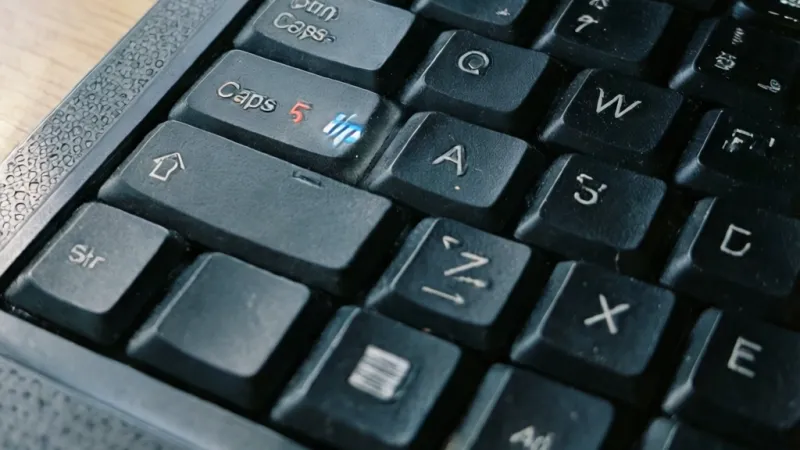
hp caps lock blinking 5 long 3 short is a POST error code. Your notebook's embedded controller reports it before Windows loads. The fault behind it varies by HP model.
Most service manuals read it as a two-digit code. Check your exact model's manual before replacing parts.
What the 5 Long 3 Short Pattern Actually Tells You
The Caps Lock LED isn't just a keyboard indicator. On modern HP notebooks it doubles as a status light wired to the embedded controller (EC), the small chip that manages power sequencing, battery charging, and the keyboard matrix. When the main processor can't finish POST, the EC takes over the job of telling you something went wrong.
The pattern is structured like a two-digit number. The long blinks come first and represent the first digit. The short blinks follow and represent the second digit.
So 5 long and 3 short reads as code 5-3, not as "eight blinks."
Here's the part most people get wrong. There is no single universal meaning for 5-3 across every HP notebook ever built. HP has shipped dozens of platform generations, and the EC firmware that drives those LEDs changed with each one.
A code that points to a memory fault on a 2018 Pavilion might map to something entirely different on a current EliteBook.
That's not a cop-out. It's the most useful thing to understand before you spend a penny on parts.
What the light is actually doing
Think of the EC as a referee. It watches the boot sequence, and if the CPU, memory, or chipset fails to check in, the referee blows the whistle. The whistle is that blinking LED.
The LED is also a fallback channel. On a machine with a dead display, a corrupted BIOS, or a failed memory module, you have no screen to read an error from. The Caps Lock light becomes the only output the laptop has left.
What it is not
People burn a lot of money on the wrong fix because they misidentify what this signal is. Here's the honest breakdown.
| What you're seeing | What it actually is | What it is not |
|---|---|---|
| Caps Lock blinking in a set pattern | EC-level POST failure code | A Windows, driver, or software fault |
| Long blinks then short blinks | First digit then second digit | A severity rating |
| Sequence repeating endlessly | Code holding until power is cut | A live-updating fault report |
| Same pattern after a reboot | Persistent hardware or firmware fault | A one-off glitch |
| Pattern changed after a RAM swap | A different fault being reported | The old code "getting worse" |
The key takeaway: this is a hardware-layer or firmware-layer message. Reinstalling Windows won't touch it. Neither will a factory reset from the recovery partition, because you can't reach the recovery partition if POST never completes.
Why HP won't give you one answer
HP publishes blink code tables inside the Maintenance and Service Guide for each model family. Those guides are free, and they're the closest thing to a master key you'll get. You can find them through HP Support by entering your serial number or product ID.
The guides list codes per platform, not globally. That's why a forum answer from someone with a different HP model can send you down a completely wrong path. Their 5-3 and your 5-3 may share a number and nothing else.
Reading the Blink Pattern Correctly: Long vs Short, Pauses, and Repeat Cycles
Counting the blinks sounds trivial. In practice, it's where most people go wrong. Get the count right and you've already solved half the problem.
A long blink is noticeably longer than a short one, often roughly double the duration. You don't need a stopwatch. Your eye will catch the difference within one cycle.
The structure works like this:
- A group of long blinks.
- A longer pause.
- A group of short blinks.
- A longer pause.
- The whole sequence repeats.
That middle pause is the separator. If you miss it, five long blinks and three short blinks can look like one messy run of eight.
How to count without guessing
- Film the light with your phone for 30 seconds.
- Play it back at half speed if your phone allows it.
- Write down the long count first, before you look at the short group.
- Confirm the pattern repeats at least twice before you trust it.
- Keep the charger plugged in while you watch.
Recording it matters more than you'd think. HP support agents will ask for the exact pattern, and "it blinks a bunch" gets you nowhere. A 20-second video settles the question in one email.
Common miscounts and what they usually mean
| What you report | What's usually happening | How to fix it |
|---|---|---|
| "Eight blinks" | Long and short groups ran together | Watch for the middle pause |
| "Five blinks" | Only the long group was noticed | Keep watching after the pause |
| "Three long, five short" | Order reversed in your notes | The long group always comes first |
| "Random blinking" | Laptop power-cycling mid-count | Plug in AC and watch again |
| "One long blink" | Machine is powering off early | Test the power path first |
Check the Num Lock light too
Some HP models drive the code through Num Lock instead of Caps Lock. Others blink both in sync. If your Caps Lock stays dark but Num Lock is doing the pattern, you're reading the same class of error.
There's also a variant where the pattern appears on the power button LED. Treat all three as the same signal from the same controller.
When the pattern changes
If the pattern shifts after you change something, that's information, not noise. Swapping RAM and getting a different code usually means the machine is now failing at a different checkpoint.
That's progress. It tells you the first fault cleared.
First Fork: Does the Laptop Boot, Show a Display, or Stay Completely Dark?
This is the branch point that decides everything else. Before you open anything, before you buy anything, figure out which of four states your machine is in. The answer changes your entire next move.
| What you see | Branch | Your next step |
|---|---|---|
| Boots into Windows normally | Intermittent EC or firmware state | Branch A |
| Reaches BIOS or HP diagnostics | Firmware or configuration fault | Branch A |
| Black screen, fan spins, keyboard lights up | POST failure with partial power | Branch B |
| No lights, no fan, no charge LED | Power delivery failure | Power path first |
Boots normally, Caps Lock blinks anyway
If the machine reaches Windows and runs fine while the light blinks, you're dealing with a stale or confused EC state. This is the best-case scenario and the easiest one to clear.
A full power drain usually resets it. You may also have an EC firmware update waiting in HP Support Assistant.
Boots to BIOS or diagnostics only
This means POST is completing, but the handoff to the boot device is failing. The blinking light is often a leftover code from an earlier failed attempt that cleared on the next try.
The suspects here are storage, BIOS settings, and boot order. A dead or loose SSD will do exactly this.
Black screen but fan spins or keyboard lights up
This is the classic partial-POST failure. Power is flowing, the EC is alive, but the machine never gets far enough to initialize the display.
Memory is the most common culprit on this branch. System board faults are second. It's also the branch where the 5-3 pattern shows up most often.
No power at all
If nothing lights up, the blinking you saw earlier may have stopped because the battery finally gave out. Test the adapter first with a known-good unit of the same wattage.
An underpowered adapter can cause boot failures that look exactly like hardware faults. HP notebooks are picky about wattage, and a 45W brick on a machine that wants 65W will misbehave.
The Safe Reset Sequence to Try Before Anything Else
Run these steps in order. Each one is free, and each one rules out a whole category of fault. Skip nothing, even if you think you already know the answer.
| Step | Time needed | Risk | What it rules out |
|---|---|---|---|
| Hard reset and power drain | 2 to 5 minutes | None | Stale EC state |
| AC adapter and battery check | 5 minutes | None | Power delivery fault |
| RAM reseat | 15 to 20 minutes | Low | Loose or marginal memory |
| Storage reseat | 15 to 20 minutes | Low | Loose drive connection |
| External monitor test | 2 minutes | None | Panel or display cable fault |
| Peripheral isolation | 5 minutes | None | Faulty dock or USB device |
Hard reset and power drain
The hard reset clears the embedded controller's memory. It's the single most effective free fix for a blinking Caps Lock light, and it costs you nothing but time.
- Shut the laptop down completely. Hold the power button for 10 seconds if it won't respond.
- Unplug the AC adapter.
- Remove the battery if your model has a removable one.
- Hold the power button down for 15 to 20 seconds.
- If the battery is sealed, hold power for 15 to 20 seconds with the adapter unplugged. This is HP's documented hard reset method for internal-battery models.
- Reconnect AC only, no battery, and try to power on.
- If it boots, shut down, reinstall the battery, and test again.
Watch the light during step 6. If the pattern is gone, you cleared it. If it comes back immediately, move to the next step.
AC adapter and battery checks
Test with a known-good adapter of the correct wattage. Check the wattage printed on the original brick and match it exactly.
Look for these signs of a failing adapter:
- Fraying or a kink near the barrel connector
- A charge LED that flickers or never lights
- The laptop only runs with the battery removed
- A battery that won't charge past a low percentage
If the battery looks swollen or deformed, stop. A swollen lithium-ion pack is a fire risk, and there's more on that in the safety section below.
RAM reseat
Memory faults are the number one cause of this class of POST failure. Reseating is free and often fixes it outright.
- Power off, unplug AC, and remove the battery if possible.
- Ground yourself before touching anything inside.
- Remove the memory access panel or the bottom cover, depending on your model.
- Release both retention clips and lift the module out.
- Wipe the gold contacts with a clean pencil eraser, then blow off any residue.
- Seat it firmly at an angle, then press down until both clips click.
- If you have two modules, test with one at a time in the primary slot.
Testing one stick at a time is how you isolate a single bad module. It's slow, but it's definitive.
Storage reseat
A loose SSD or hard drive can produce boot failures that mimic memory problems. Pull it, check the connector for debris, and reseat it firmly.
If the drive is an M.2 module, check that the retention screw is actually tight. A surprising number of "dead motherboard" cases end here.
External monitor and peripheral isolation
Plug in an external monitor via HDMI or DisplayPort. If you get a picture there but not on the laptop panel, the system board and memory are fine. Your problem is the panel or the display cable.
Then strip the machine down. Unplug every dock, hub, USB drive, SD card, and external keyboard. A faulty dock can hold the boot process hostage, and the Caps Lock light will blink the whole time.
Branch A: When It Boots, the Fix Is BIOS or Firmware
Good news: if the machine reaches BIOS or Windows, you're not looking at a dead board. You're looking at firmware, configuration, or a marginal component that passes some attempts and fails others.
Start with firmware. Outdated BIOS versions cause intermittent POST failures on plenty of HP platforms. HP Support Assistant will check your model against the current release and install it for you.
As of 2026, HP Support Assistant remains the official channel for BIOS and driver updates on consumer and business notebooks. Grab the latest BIOS before you do anything else.
Run HP PC Hardware Diagnostics UEFI
This is HP's built-in testing suite, and it's the tool that actually matters here. It runs outside Windows, so it works even when the operating system won't.
Press F2 repeatedly at power-on to reach it. From the menu, run these tests.
| Test | Menu path | Typical run time | What it catches |
|---|---|---|---|
| Memory test | Component Tests > Memory | 10 to 30 minutes | Failing or marginal RAM |
| System board test | Component Tests > System Board | 5 to 15 minutes | EC and chipset faults |
| Storage test | Component Tests > Hard Drive | 5 to 20 minutes | Failing SSD or HDD |
| Battery test | Component Tests > Power | 5 to 10 minutes | Degraded battery cells |
| Fan and thermal test | Component Tests > Cooling | 5 minutes | Overheating shutdowns |
Run times vary by model and configuration. The memory test is the long one, and it's also the one most likely to find your fault. Let it finish.
A test you cancel halfway tells you nothing.
Write down any failure code the diagnostics produce. HP support will ask for it, and it maps directly to a part.
Reset BIOS to defaults
A corrupted BIOS setting can cause POST to fail on one boot and succeed on the next. Enter BIOS setup, load the default configuration, save, and exit.
Then check three specific settings:
- Secure Boot state
- Legacy versus UEFI boot mode
- Boot order and whether the internal drive is listed at all
If the internal drive has vanished from the boot list, that's a storage or connector fault, not a settings problem.
Check for BIOS corruption
If the machine fails to reach BIOS at all on some attempts, you may be looking at partial BIOS corruption. HP Sure Start, available on many business models, can self-heal a corrupted BIOS from a protected backup copy.
On consumer models without Sure Start, HP offers a BIOS recovery procedure that uses a USB drive and a key combination at power-on. The exact key combo varies by generation, so check your model's service guide.
Windows-level checks, if you get that far
Once you're in Windows, look at Event Viewer for unexpected shutdowns and hardware errors. Update the chipset driver and the storage controller driver. Run a full drive health check.
Then reboot five or six times in a row. Intermittent faults hide from single tests, and repeated cold boots are how you flush them out.
If the blinking returns after a few successful boots, you're not in Branch A anymore. Treat it as a hardware fault and move to the diagnostic path.
Branch B: Black Screen, Fan Spinning, Hardware Diagnostic Path
This is the branch where money gets spent, so slow down. Power is reaching the board, the EC is alive, and the fan is spinning, but POST never hands off to the display. Something in the memory, chipset, or board-level path is failing a checkpoint.
Start with memory. It's the cheapest part to test and the most common failure point on this branch.
If you have two modules installed, pull one and boot with only the other in the primary slot. Then swap. Then try the second slot with the known-good module.
That's four configurations, and one of them usually tells you the truth.
Here's the decision logic in plain terms.
- Boots with one stick but not both: one module is bad, or the second slot is bad.
- Boots in slot 1 but not slot 2: the slot is the fault, not the RAM.
- Boots with neither module alone: suspect the board or the CPU memory controller.
- Same blink code in every configuration: the fault is almost certainly upstream of the RAM.
Test with a known-good module only if you have one that matches the spec. Mixing DDR4 and DDR5, or mismatched speeds in a way the platform dislikes, adds variables you don't need.
What to check after memory
Memory cleared? Move down the chain.
- Reseat the display cable at both ends if you're comfortable removing the bottom cover. A partially seated eDP connector produces a black screen with full fan activity.
- Test the external monitor again. A picture there means the panel or cable is the problem, not the board.
- Check the thermal path. Dried-out thermal paste or a seized fan can trigger a thermal shutdown before display initialization. Listen for the fan ramping hard and cutting out.
- Look at the board for obvious damage. Burn marks, swollen capacitors, or a dark patch near the power delivery section are all disqualifying findings.
When it's the system board
If memory tests clean, the display path is fine, and the code persists, you're likely looking at a system board fault. That's the expensive answer, and it's the one you should only accept after ruling out everything else.
Before you accept it, do one more full hard reset and one more BIOS recovery attempt. Board replacements have been avoided by a 20-second power drain more times than anyone would guess.
Model-Specific Blink Code Tables: Why Your Exact HP Model Matters
Your exact HP model determines what the code means, full stop. HP publishes blink code tables inside the Maintenance and Service Guide for each product family. Those guides are free, and they are the only source that maps a pattern to a specific FRU (field replaceable unit) for your machine.
You find your model number in one of three places. It's printed on the bottom case label, shown in BIOS setup under System Information, or available through HP Support Assistant if the machine still boots. The product ID and serial number are what HP's support site actually wants.
Once you have it, search HP's support site for the Maintenance and Service Guide for that exact model. Not the family. Not the series.
The model.
Why forum answers mislead you
Someone with a 2019 ProBook posts that their 5-3 meant a bad memory module. You have a 2022 Pavilion with the same pattern. You buy RAM.
It doesn't fix anything.
The number matched. The meaning didn't. EC firmware is written per platform, and HP has shipped a lot of platforms.
Treat any forum answer without a model number attached as background reading, not as a diagnosis.
Where to look for each family
| Family | Typical audience | Where the blink table lives |
|---|---|---|
| EliteBook | Business, enterprise | EliteBook Maintenance and Service Guide |
| ProBook | Small business, education | ProBook Maintenance and Service Guide |
| ZBook | Mobile workstations | ZBook Maintenance and Service Guide |
| Pavilion | Home and student | Pavilion Maintenance and Service Guide |
| Envy | Premium consumer | Envy Maintenance and Service Guide |
| Omen | Gaming | Omen Maintenance and Service Guide |
| HP 15 series | Budget consumer | HP 15 Maintenance and Service Guide |
| HP 250 G series | Entry business | HP 250 G Maintenance and Service Guide |
EliteBook, ProBook, and ZBook
Business machines tend to have the most thoroughly documented blink tables, and they often support HP Sure Start. That matters because Sure Start can recover a corrupted BIOS automatically, which changes the troubleshooting order.
On these models, a persistent blink code after a failed BIOS update is often recoverable without a board swap. Check the Sure Start behavior in your guide before assuming the worst.
Many EliteBook and ZBook units also carry a three-year standard warranty rather than the one-year term typical of consumer lines. Verify that before you pay for anything.
Pavilion, Envy, Omen, and HP 15 series
Consumer models vary more in how they report codes. Some drive the pattern through Caps Lock, some through Num Lock, and some through both. A few use the power button LED instead.
Envy and Omen units with sealed batteries need the adapter-unplugged hard reset rather than a battery pull. Omen gaming laptops also run hotter, so thermal-related POST failures show up more often on that line.
HP 15 and Pavilion budget models sometimes ship without the full diagnostics suite. If F2 doesn't launch HP PC Hardware Diagnostics UEFI, check whether a BIOS update adds it.
HP 250 G and budget notebook lines
Entry business models like the HP 250 G series sit between the two worlds. They carry business styling but often consumer-level warranty terms. Read the guide carefully, because the code table is usually shorter and less granular than what you'd find for an EliteBook.
If your model's guide doesn't list the 5-3 pattern at all, that's meaningful. It may mean the code is a newer firmware addition, or that the guide predates a BIOS revision. In that case, contact HP support directly with your serial number.
Running HP PC Hardware Diagnostics UEFI: Memory, System Board, and Storage Tests
HP PC Hardware Diagnostics UEFI runs before the operating system, so it works on a machine that can't reach Windows. Press F2 repeatedly right after you hit the power button. If the machine is fast, start tapping F2 before you press power.
If F2 doesn't work, try Esc first to reach the startup menu, then select Diagnostics from the list. Some models also accept F10 for BIOS setup, which is a different menu entirely.
Once you're in, the tests you care about are under Component Tests. Run them in this order.
- Memory test, extended mode if offered.
- System board test.
- Storage test, both short and long.
- Battery test.
- Cooling and fan test.
The extended memory test takes the longest, sometimes over 30 minutes on a 16GB or 32GB configuration. Let it run. A cancelled memory test tells you nothing, and memory faults are exactly what this tool is best at finding.
What the diagnostics actually catch
| Test | Detects | Misses |
|---|---|---|
| Memory | Bad cells, address errors | Marginal modules that pass at low temperature |
| System board | EC faults, chipset errors | Intermittent traces that fail under load |
| Storage | Bad sectors, SMART warnings | Firmware bugs in the drive controller |
| Battery | Cell degradation, capacity loss | Charging circuit faults on the board |
| Cooling | Fan speed, thermal response | Dust blockage in the heatsink fins |
Notice the misses column. Diagnostics passing doesn't prove the hardware is good. It proves it behaved during the test window.
Loop the memory test if the fault is intermittent
If your machine boots sometimes and fails other times, run the memory test in loop mode. Some versions of the tool let you set a repeat count. Let it cycle for an hour if you can spare the time.
Intermittent faults often only show up once the module warms up. A single cold pass can miss them entirely.
Exporting the log
At the end of a test run, the tool offers to save a log. Choose the USB option and point it at a FAT32-formatted drive. The log file gives HP support a timestamped record of every test and its result.
Having that file before you call support shortens the conversation considerably. It also gives you a paper trail if the repair is disputed.
HP PC Hardware Diagnostics Windows
If the machine does boot, there's a Windows version of the same tool. It runs the same component tests plus a few system-level checks. It's useful for confirming a fault that the UEFI version flagged, but it's not a substitute when the machine won't boot at all.
BIOS Recovery Options: Win+B, USB Recovery, and HP Sure Start
A corrupted BIOS can produce exactly the symptoms you're chasing, and it's fixable without a board replacement. There are three routes, and which one applies depends on your model.
HP Sure Start is the automatic route. It exists on many business-class models, including most recent EliteBook, ProBook, and ZBook units. It keeps a protected backup copy of the BIOS and restores it automatically if the primary copy fails a checksum.
If you see a recovery message on screen, or the machine recovers itself after a failed update, that's Sure Start doing its job.
The key-combination route is the manual one. On many HP notebooks, holding Windows key + B while pressing power triggers BIOS recovery from a USB drive. On some models the combination is Windows key + V, or just the B key alone.
Check your model's service guide, because getting this wrong just means the machine boots normally.
The USB recovery route requires a properly prepared drive.
- Get the correct BIOS recovery file for your exact model from HP Support.
- Format a USB flash drive as FAT32. Capacity of 32GB or less works best.
- Copy the recovery file to the root of the drive. Don't put it in a folder.
- Power off completely and unplug AC.
- Insert the USB drive.
- Hold the recovery key combination and press power.
- Keep holding for 2 to 3 seconds after the machine starts.
- Wait. Recovery can take several minutes with no visible progress.
Do not cut power during a BIOS recovery. An interrupted flash is how you turn a recoverable machine into a brick.
Risks worth naming
- Wrong BIOS file: can render the board unbootable, and recovery may not be possible.
- Interrupted power: same outcome, especially on a low battery.
- USB drive in the wrong format: recovery silently fails to start.
- Skipping the model check: HP ships similar-looking BIOS files for adjacent models.
Plug in AC for the entire recovery. Don't trust a battery, even a healthy one.
Warranty Check and How to Talk to HP Support Without Wasting Time
Check your warranty before you spend a cent on parts. HP's warranty check page takes your serial number and returns the coverage status, the start and end dates, and any active Care Pack.
Standard coverage runs one year for most consumer models. Many EliteBook, ProBook, and ZBook units ship with three years. Care Packs extend it further and sometimes add accidental damage protection.
Finding your serial number
It's on the bottom case label, usually near the model number. It's also in BIOS setup and in HP Support Assistant. If the machine won't boot and the label is worn, check the original box or your purchase receipt.
What to have ready before you call
- Serial number and product ID
- The exact blink pattern, confirmed twice
- The result of a hard reset and a RAM reseat
- Any HP PC Hardware Diagnostics log you exported
- Whether the machine boots at all
- Purchase date and where you bought it
Support agents triage fast. If you lead with "it blinks and won't turn on," you'll get a script. If you lead with the pattern, the tests you ran, and the log file, you'll get a technician.
What to say, roughly
Something like this works well: "My HP model [X] shows a 5 long 3 short Caps Lock blink pattern. I've done a hard reset, tested with a known-good adapter, reseated the RAM, and run the memory test in HP PC Hardware Diagnostics. The fault persists.
Here's the log."
That sentence moves you past the first tier of support.
Consumer protection angles
In the US, the Magnuson-Moss Warranty Act limits how a manufacturer can condition warranty coverage on using only their parts or service. In the EU, the Sale of Goods Directive gives you a minimum two-year legal guarantee against faulty goods. In the UK, the Consumer Rights Act covers similar ground.
These don't replace HP's warranty. They sit alongside it.
If HP denies a claim and you believe the fault is a manufacturing defect, ask for the denial in writing and state which law you're citing. That request alone changes the tone of many conversations.
When the warranty has expired
Get a repair quote before you commit. Board replacements on consumer laptops frequently cost more than the machine is worth, especially on models three or more years old. Compare the quote against the current resale value of a working unit of the same spec.
For business models, the math is often different. A ZBook or EliteBook with a strong CPU and plenty of RAM can be worth repairing even at four or five years old, because the replacement cost is much higher.
Repair or Replace? Cost Math vs What Your Laptop Is Worth
This is the section that saves people from wasting money. A board replacement on a budget laptop is often financial nonsense, and the numbers make that obvious fast. Run the math before you authorize anything.
Start with the resale value of a working unit. Search sold listings for the same model in the same spec. That number is your ceiling.
If a repair quote exceeds roughly 60% of it, the repair is hard to justify on pure economics.
Then add the secondary costs people forget. A data recovery fee if the drive also failed. Shipping both ways if you use HP's depot service.
Time without the machine, which matters if it's your only computer.
Typical repair cost ranges
These are broad ranges based on aggregate repair-shop pricing we've reviewed. Your quote will vary by region, model, and parts availability.
| Repair | Typical cost range (USD) | Worth it when |
|---|---|---|
| RAM replacement | 40 to 120 | Almost always |
| SSD or HDD replacement | 60 to 200 | Almost always |
| Thermal service and repaste | 80 to 150 | Machine is 2+ years old and running hot |
| Display panel replacement | 120 to 350 | Panel is the only fault |
| Keyboard replacement | 80 to 200 | Machine is otherwise healthy |
| Battery replacement | 50 to 150 | Business models, or any machine you rely on |
| Charging port repair | 100 to 250 | Board-level solder work beats a new board |
| System board replacement | 250 to 700+ | High-spec units only |
| Data recovery from a failed drive | 200 to 1,500 | Data is irreplaceable |
When repair wins
Repair usually wins in three situations. Business-class hardware with strong specs, machines under active warranty, and any case where the fault is a single cheap component.
A four-year-old ZBook with a failed memory module is a clear repair. A four-year-old budget laptop with a failed system board is usually not.
When replacement wins
Replacement wins when the quote approaches the cost of a comparable working machine. It also wins when the fault is board-level on a low-spec model, or when the machine is already showing multiple faults.
If you've had two unrelated hardware failures in six months, the machine is telling you something. Repairing fault number three rarely ends the story.
The DIY middle path
There's a third option most people skip. Ordering the part yourself and fitting it is viable for RAM, storage, batteries, keyboards, and display panels on many HP models.
Those parts are accessible through the HP Parts Store, and the service guides walk through each replacement. The trade-off is warranty. Self-repair may void coverage on a machine that's still under HP's warranty, so check the terms first.
Mistakes That Cost You Money or Void Your Warranty
Most of the damage here isn't physical. It's financial and administrative, and it's avoidable.
Buying parts before diagnosing
This is the single most expensive mistake. People read a forum post, order a motherboard, and discover the real fault was a $40 memory module.
Diagnose first. Buy second. Never reverse that order.
Assuming the code means the same thing on every HP
It doesn't. The blink table is model-specific and sometimes BIOS-revision-specific. A code that points to memory on one platform can point to the chipset on another.
Verify against your model's Maintenance and Service Guide before you act on any interpretation.
Opening the machine under warranty
Many HP warranties exclude damage caused by unauthorized disassembly. If your machine is under coverage and you're not comfortable with the risk, contact support before you remove a single screw.
Business models sometimes allow user-accessible part replacement without affecting coverage. Consumer models are stricter. Read your specific warranty terms.
Skipping the backup
If the machine boots even once, back up your data. That window might not come again. A failing drive or board can take your files with it on the next attempt.
Forgetting ESD protection
Static discharge can damage components in ways that don't show up for weeks. Work on a hard surface, avoid carpet, and touch a grounded metal object before you go inside.
Reusing thermal paste incorrectly
If you remove a heatsink, you must clean off the old paste and apply fresh compound. Reusing a dried, disturbed paste layer causes overheating that can look like a board fault.
Forcing connectors
Display cables, ribbon connectors, and battery plugs are fragile. If something won't seat with light pressure, stop and look at the alignment. Forcing it turns a $40 part into a $400 board.
Interrupting a BIOS update or recovery
Cutting power mid-flash can leave the machine unbootable. On models without HP Sure Start, that can mean a board replacement for a machine that was otherwise fine.
Ignoring a swollen battery
A swollen lithium-ion pack is a genuine fire risk. Stop using the machine, don't press on the battery, and dispose of it through a proper e-waste channel. This isn't a "deal with it later" issue.
Losing track of the evidence
Keep the blink pattern video, the diagnostics log, the serial number, and any support case number. If the repair is disputed, that documentation is what settles it.
Safety, Data Loss, and Privacy Warnings Before You Open Anything
Read this before you pick up a screwdriver. The risks here are real, and a few of them involve personal injury or permanent data loss.
Electrical safety
Unplug AC and remove the battery before opening the machine. On sealed-battery models, run the hard reset procedure first, then avoid touching the board while power is connected.
Capacitors on the board can hold charge briefly after power is removed. Wait a minute before you touch anything near the power delivery section.
Never work on a machine that has visible burn damage, a scorched smell, or a cracked board. Those are fire risks, not repair projects.
Battery safety
Lithium-ion batteries can enter thermal runaway if punctured, crushed, or overheated. If the pack is swollen, deformed, or hot to the touch, stop.
Don't charge a swollen battery. Don't store the laptop in a hot car. Don't dispose of the pack in normal trash.
Use a certified e-waste recycler or a retailer take-back program.
ESD safety
Static discharge is invisible and it damages silently. Some components fail immediately. Others degrade and fail months later.
Work on a non-carpeted surface. Wear cotton rather than synthetic clothing. Touch a grounded metal object before handling any board or module.
If you have an anti-static wrist strap, use it.
The ESD Association publishes ANSI/ESD S20.20, the recognized standard for handling static-sensitive electronics. It's the reference most repair shops work to.
Data loss risk
Any repair involving the storage drive carries a data risk. Even a reseat can disrupt a marginal drive enough to lose data.
Back up first if the machine boots. If it doesn't boot, consider pulling the drive and connecting it to another machine via a USB adapter before you do anything else. That step alone has saved a lot of irreplaceable files.
Privacy and data protection
If you send the machine for repair, the technician may have access to your data. Under the EU's GDPR and the UK's Data Protection Act, personal data on the device is still your responsibility even when the hardware is in someone else's hands.
Factory reset the machine if it boots and you can back up first. Remove the storage drive if the repair doesn't require it. If you can't do either, ask for a written data-handling policy before you hand the machine over.
Warranty and consumer law
Self-repair may void coverage, and the statutory protections we covered earlier sit alongside the manufacturer warranty rather than replacing it. If a repair is denied, request the denial in writing and state which law applies.
E-waste and disposal
Don't bin a laptop or battery. In the EU, the WEEE Directive requires proper electronics recycling. In the US, many states have similar rules, and most counties run household hazardous waste programs.
Best Buy, Staples, and many manufacturers run take-back programs. HP operates its own recycling scheme in most markets.
Frequently Asked Questions
Does 5 long 3 short always mean the same fault?
No. HP's blink codes are model-specific and sometimes BIOS-revision-specific. The 5-3 pattern maps to different faults across different HP platforms.
Always check your exact model's Maintenance and Service Guide before acting on any interpretation.
Will a hard reset clear the blinking code?
Often, yes. A full power drain resets the embedded controller's memory, which can clear a stale POST failure. Unplug AC, remove the battery if possible, hold power for 15 to 20 seconds, then try booting with AC only.
Can I use the laptop normally with this code showing?
If the machine boots and runs, the code is usually a leftover from a failed boot attempt that later succeeded. Back up your data anyway. Get the machine checked if the pattern returns.
Is this covered under HP warranty?
Usually, yes, if the machine is in warranty and the fault isn't from accidental damage or liquid. Check your serial number on HP's warranty page first. Board faults from normal use are typically covered.
How much does a system board replacement cost?
Board replacements typically run 250 to 700 US dollars or more, depending on the model and parts availability. On budget laptops, that often exceeds the machine's value. Get a quote before committing.
Should I keep using the laptop if the battery is swollen?
No. Stop using it immediately. A swollen lithium-ion battery can catch fire or rupture.
Don't press on it, don't charge it, and dispose of it through a certified e-waste recycler.
Final Decision Guide: Your Next Step in One Table
Find your situation in the left column. Follow the row across. That's your move.
| Your situation | What it means | Your next step |
|---|---|---|
| Boots normally, code cleared after hard reset | Stale EC state | Monitor for 2 weeks, back up data |
| Boots normally, code returns | Intermittent hardware fault | Run HP PC Hardware Diagnostics, then call support |
| Boots to BIOS or diagnostics only | Firmware or storage fault | Reseat storage, reset BIOS, test boot device |
| Black screen, fan spins, RAM swap fixes it | Failing memory module | Replace the module |
| Black screen, code persists after RAM test | Suspect system board | Get a repair quote before buying anything |
| No power, no lights | Power delivery fault | Test with a known-good adapter, then battery |
| Under warranty, any of the above | Covered repair | Contact HP support before opening the machine |
| Out of warranty, budget model, board fault | Repair likely not worth it | Compare quote against resale value, consider replacement |
| Out of warranty, business model, board fault | Repair often justified | Get two quotes, then decide |
| Swollen battery | Safety risk | Stop use, dispose of the pack properly, replace |
| Data on the drive matters more than the laptop | Data risk | Pull the drive, back up via a USB adapter first |
Three rules cover almost every case. Diagnose before you buy. Check the warranty before you open anything.
Back up the data before you touch hardware.
If you're still unsure after running the resets, the diagnostics, and the memory-swap test, call HP support with your serial number and your diagnostics log. That call is free, and it's the fastest way to get a definitive answer on a machine that's giving you a 5 long 3 short signal.